How to complete your child's enrollment form
Last updated: May 21, 2026
If your child is enrolling with us for the first time, you will receive an enrollment invitation by email. This guide walks you through each section of the form so you know what to expect and what information you'll need to have ready.
Step 1: Open Your Invitation
Check your email for an enrollment invitation from the school. Click the link in the email to open your child's enrollment form.
If you have multiple children enrolling, you will see tabs at the top of the page — one for each child. Complete each child's form separately.
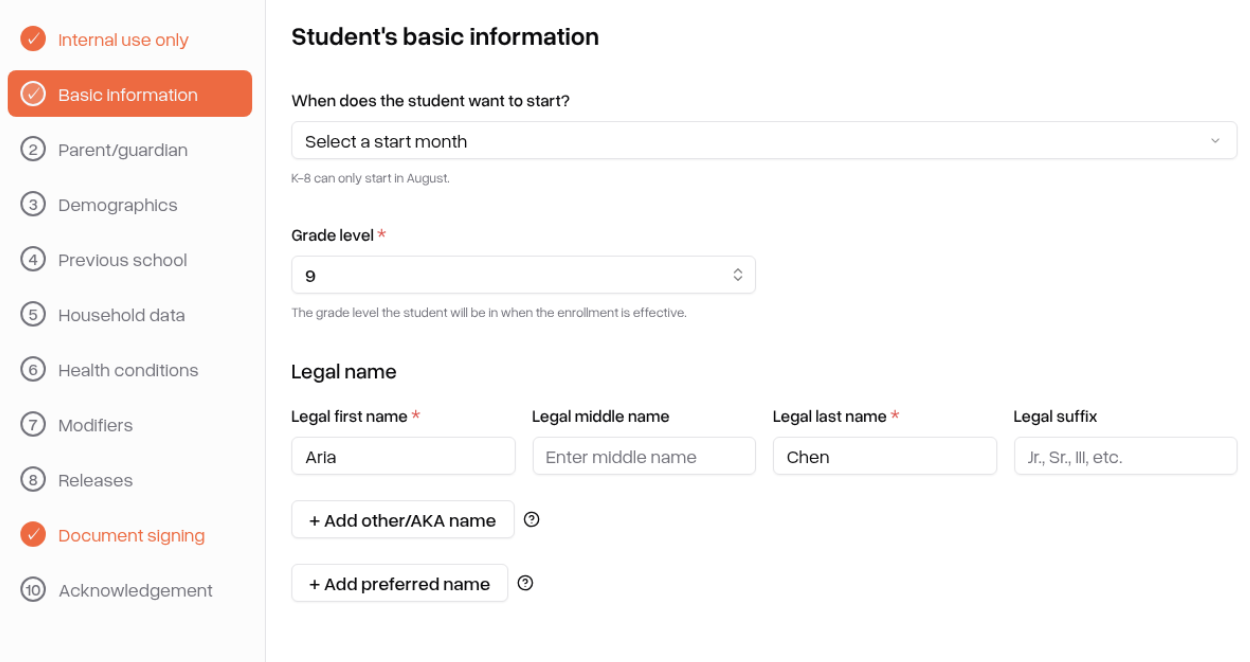
Step 2: Fill In Basic Information
The first section asks for your child's name and upcoming grade level. You will need to enter:
Legal first, middle, and last name
Any other names or AKA names your child goes by
Grade level your child will be entering
Step 3: Fill In Parent and Guardian Information
This section collects contact information for all parents and guardians. You will need to enter:
Relationship to student
Legal name
Email address
Cell phone number
Home and work phone numbers
Education level
You can also add emergency contacts in this section. If custody arrangements are relevant, you can indicate that here and upload the relevant documentation. You can upload more than one file — after your first upload, click Add another file to attach additional documents.
Step 4: Previous School
This section asks about your child's most recent school. You will be asked whether your child previously attended another school, and if so:
Type of previous school (public, private, charter, homeschool, etc.)
County where the school is located
School name
School address
Last date of attendance
If your child has not previously attended school, you can indicate that and skip the remaining fields in this section.
Step 5: Fill In Demographics
This section collects your child's personal and residential information. You will need to enter:
Gender and pronouns
Date of birth
Home address and mailing address
Preferred language
Race and ethnicity
You may be asked to upload proof of residency. You can attach multiple documents to any upload field — after your first file, click Add another file to include more.
Step 6: Fill In Household Data
This section asks about the languages spoken in your home and household information. You will need to provide:
Primary language spoken at home
Other languages spoken by parents and adults at home
Household size
Income information
Free or reduced lunch eligibility status (automatically calculated based on your household size and income — you can review and confirm the suggested status)
Step 7: Health Conditions
This section covers your child's health information, including:
Medical conditions such as asthma, allergies, diabetes, epilepsy, and heart conditions
Vision and hearing
Immunization status — If your child's immunizations are up to date for their grade, you will see a green confirmation. If your child is entering 7th grade and is missing the required Tdap booster, you will be prompted to upload an updated immunization record. You can upload more than one immunization document if needed — click Add another file after your first upload.
Any medications or medical instructions
Insurance information
Physician contact details
All Yes/No health questions are required.
Step 8: Student Information
This section asks about your child's background and status. You will need to answer required Yes/No questions about topics including:
Disciplinary history
Migrant status
Gifted status
Other enrollment-related statuses
Step 9: Releases and Permissions
You will be asked to give or withhold permission for things like:
Sharing directory information with higher education institutions or military recruiters
Including your child in the school directory or publications
Using photos or videos of your child for school, yearbook, or social media purposes
Communicating with your child or you via text message
Participation in federal programs
A "Yes to all" button is available if you wish to approve all permissions at once.
Step 10: Sign Documents
The final step requires you to review and sign all enrollment documents. For each document:
Click Sign to open the signing window.
Type or draw your signature.
Confirm your signature to complete it.
All documents must be signed before you can submit. Once all documents are signed, check the confirmation box and click the final Submit button.
After You Submit
Once you submit, you will see a confirmation message letting you know your application has been received. The school's administrative team will review your submission and reach out with any next steps.
If the school needs any corrections, you will receive an email explaining what needs to be updated. You can then reopen the form, make the changes, and resubmit.
Tips:
The form saves as you go — if you need to stop and come back, your progress will be there when you return.
If you have multiple children, complete and submit each child's form using the tabs at the top of the page.
If your invitation link has expired, contact the school to request a new one.
Any upload field accepts more than one file. After uploading your first document, click Add another file to attach additional files. Each file is listed separately and can be viewed or removed at any time before you submit.
Have the following ready before you start: your child's immunization records, proof of residency, and information about your child's previous school.