Managing Student Contact and Emergency Information
Last updated: August 20, 2026
Keep every family's contact details, emergency contacts, and pickup information organized and up to date directly on a student's profile.
Overview
The Contacts tab on each student's profile is where you manage everyone who can be reached about that student — parents, guardians, and any additional emergency contacts. For each contact you can record how to reach them, their relationship to the student, and whether they are authorized to pick up the student or receive emergency notifications. Keeping this information current helps your school respond quickly when a contact is needed.
Opening the Contacts tab
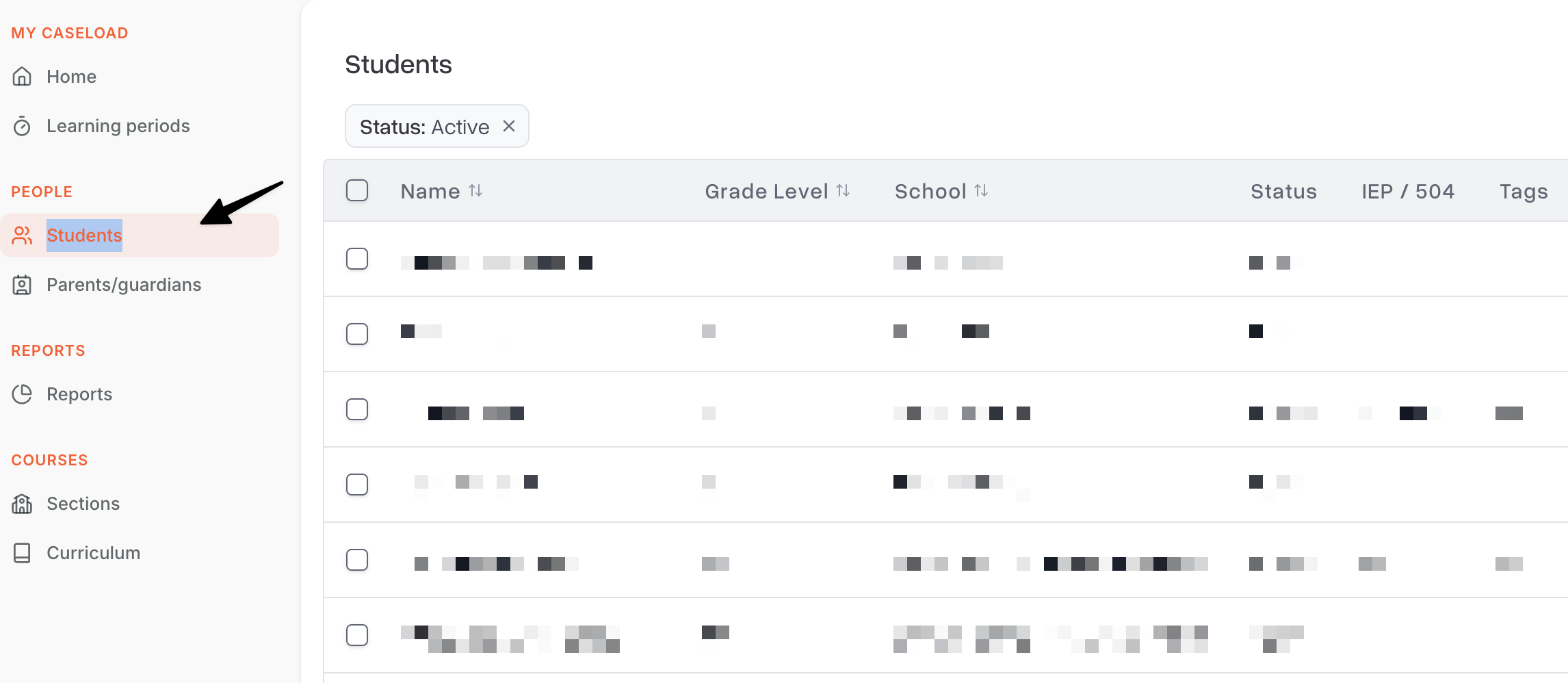
Click Students in the sidebar and open a student's profile.
Click the Contacts tab.
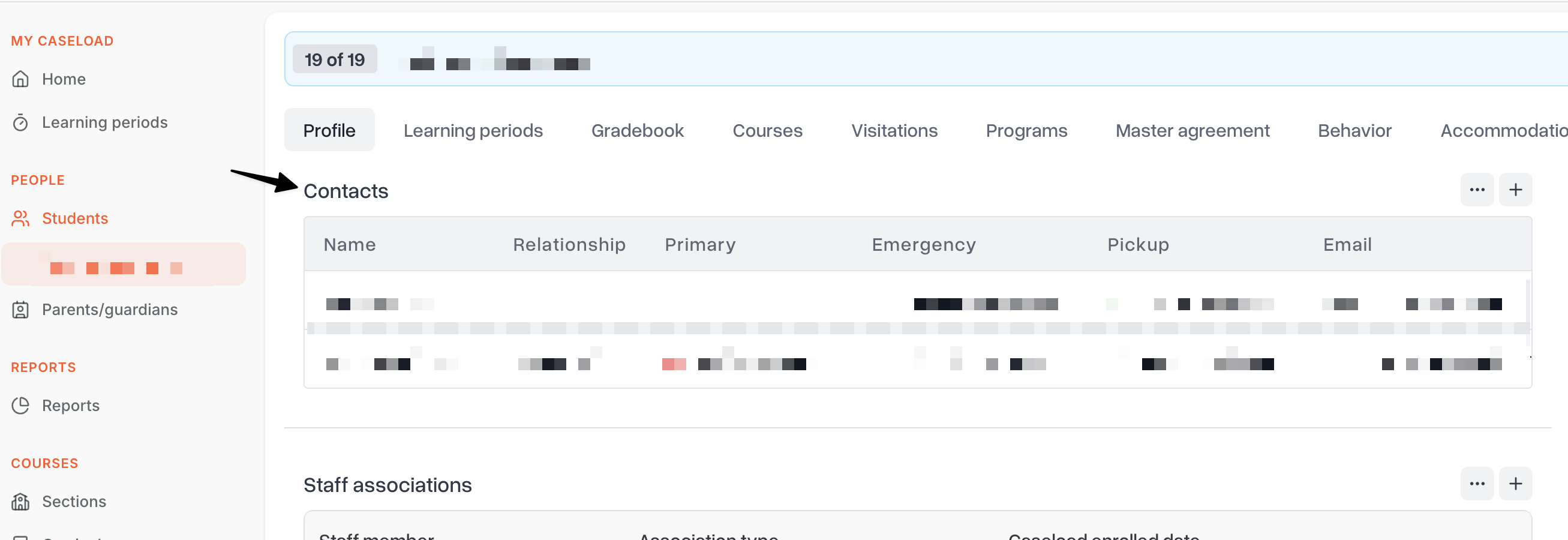
The tab lists every contact on file for the student, in priority order.
Adding a contact
From the Contacts tab, click Add contact.
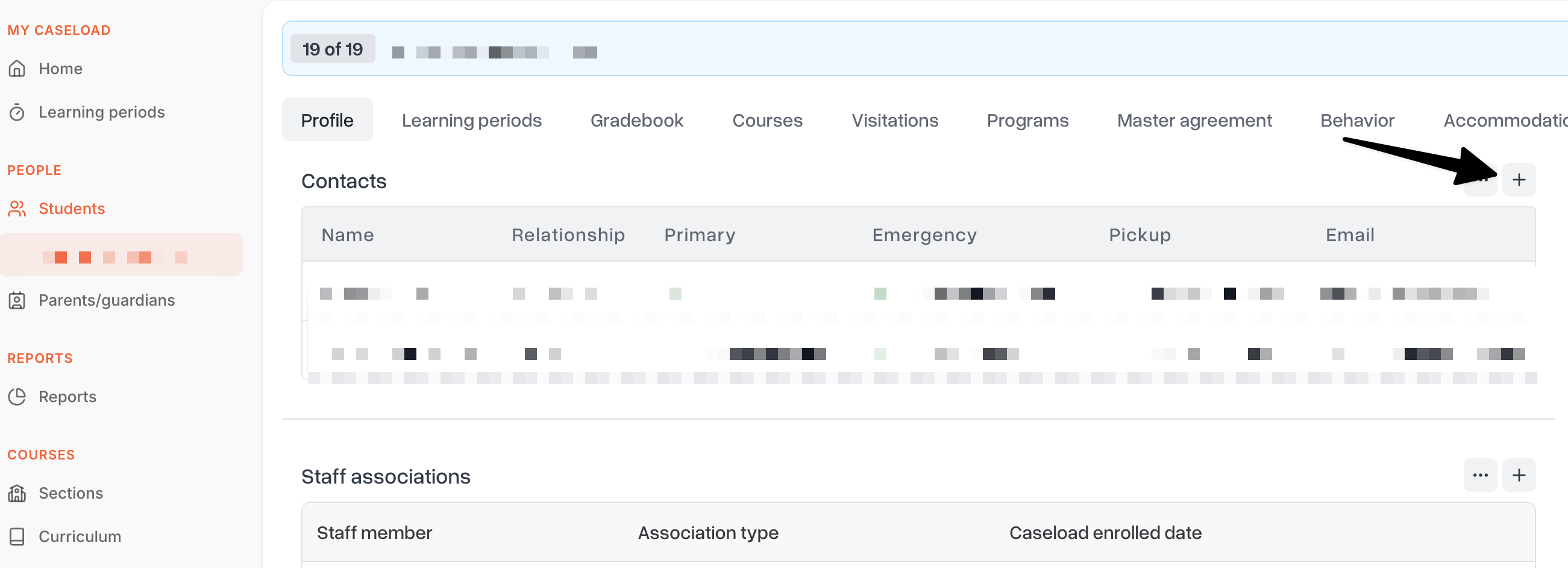
Enter the contact's name, relationship to the student (such as parent, guardian, grandparent, or other), and contact details — phone number(s), email, and address.
Mark the contact as an emergency contact if they should be reached when a parent or guardian can't be, and set their priority order so staff know who to call first.
Indicate whether the contact is authorized for pickup so front-office staff can confirm who is allowed to take the student off campus.
Click Save.
Relationship and priority
Every contact needs a relationship on file so staff understand their connection to the student. Use priority order to control who appears first when staff are calling down the list during an emergency — this is especially useful when a student has multiple guardians or emergency contacts.
Notes and restrictions
Use the notes field to record anything staff should know before contacting or releasing a student to that contact — for example, custody arrangements or scheduling preferences. Administrators and counselors can add confidential notes that are visible only to staff with elevated permissions, so sensitive details stay private while still being available when needed.
Editing a contact
Find the contact in the list on the Contacts tab.
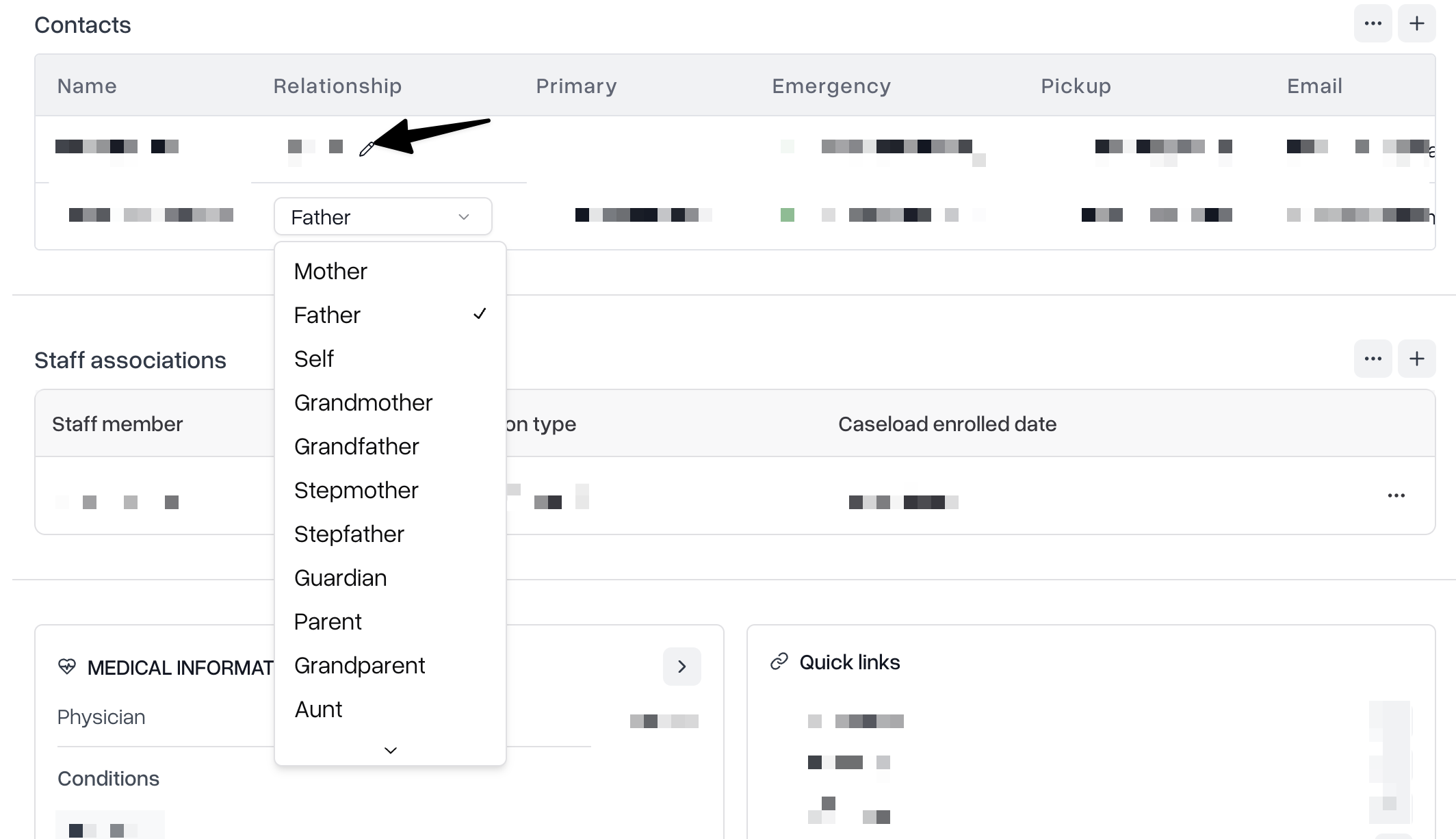
Click the edit (pencil) icon on the contact.
Update any of the contact's details, relationship, priority order, or emergency and pickup authorization.
Click Save.
Update contact information as soon as you learn of a change in phone number, address, or custody status so the record stays accurate for the next time it's needed.
Removing a contact
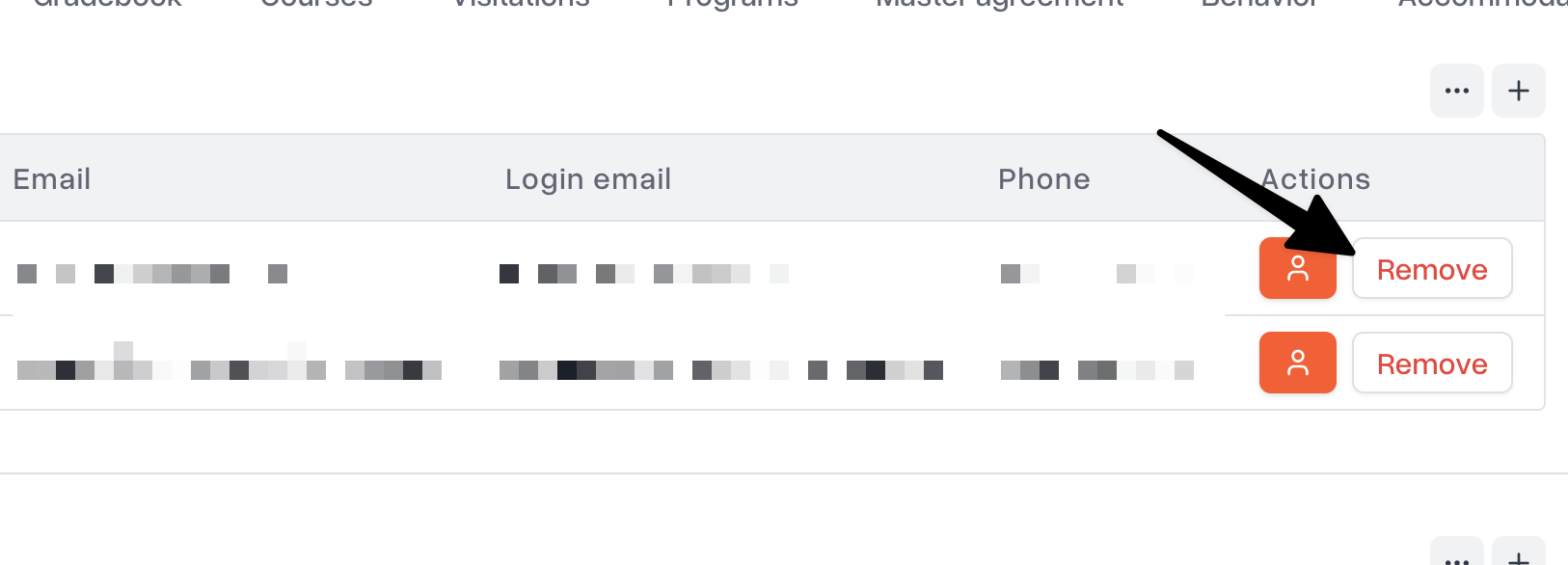
Click the delete (trash) icon on a contact and confirm the removal. Only remove a contact when they should no longer be reachable for the student — for example, if a family asks that a contact be taken off the list.
Tips
Review contacts at the start of the year — asking families to confirm phone numbers, addresses, and pickup authorizations each year keeps records accurate.
Set priority order thoughtfully — list the contact most likely to answer first, especially for emergency situations.
Use pickup authorization consistently — front-office and dismissal staff rely on this flag to confirm who can take a student off campus.
Keep sensitive details in confidential notes — custody or safety information should go in confidential notes so it's limited to staff with elevated permissions.