Logging and managing student visitations
Last updated: May 6, 2026
Track in-person meetings, home visits, and other student contacts in one place — and filter by type, date range, or attendance status.
Overview
The Visitations tab on each student's profile lets you log every formal contact you have with a student or family: in-person school visits, home visits, check-ins, parent outreach, student advocacy meetings, and more. Each entry records the type of contact, the date, attendance status, and optional notes. Administrators and counselors can also add confidential notes that are visible only to staff with elevated permissions.
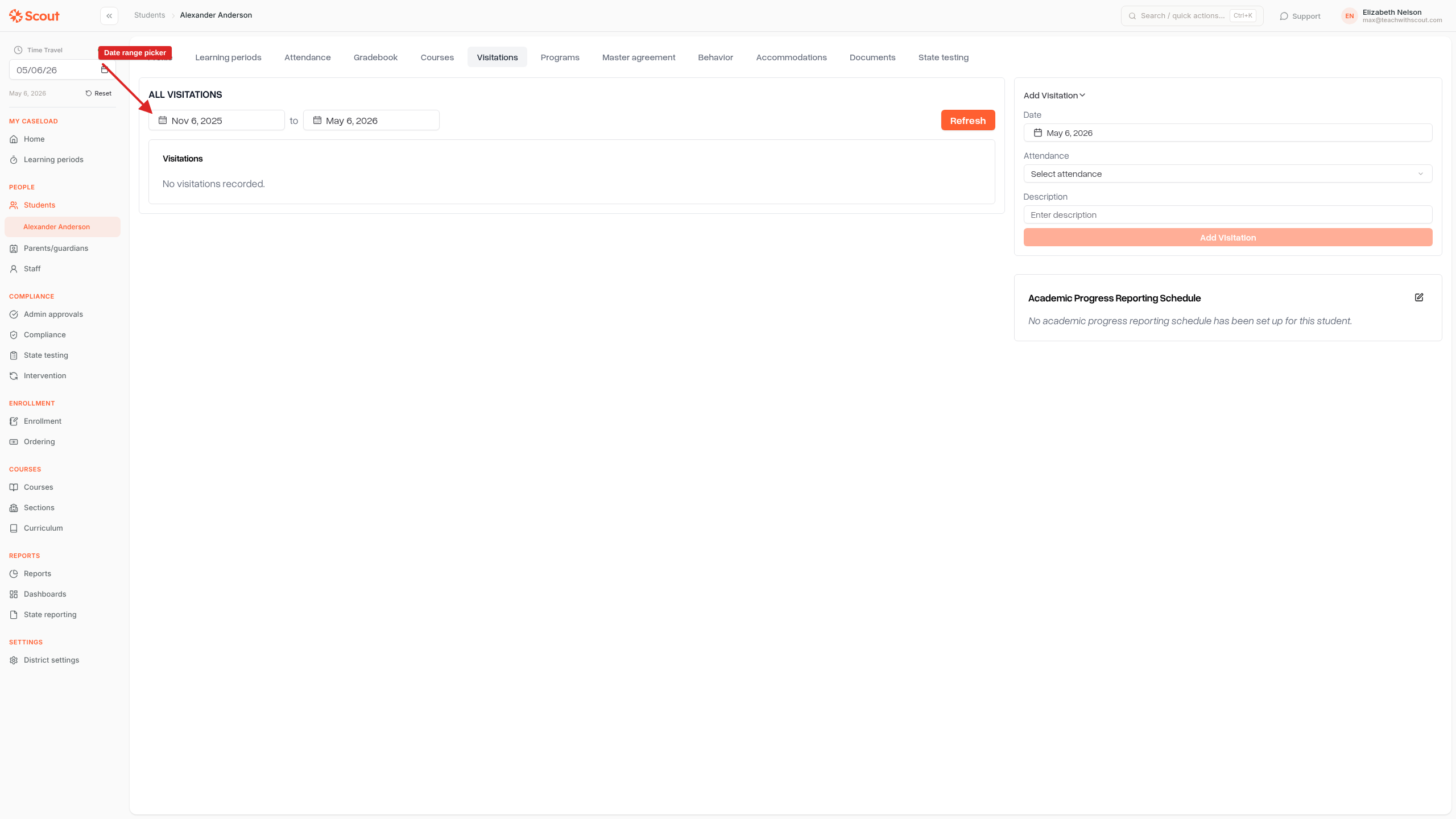
Opening the Visitations tab
Click Students in the sidebar and open a student's profile.
Click the Visitations tab.
The tab shows all visitations recorded for the student within the selected date range (defaults to the last 6 months).
Logging a new visitation
The Add Visitation panel appears on the right side of the screen. Fill in the required fields and click Add Visitation.
Visitation type
Select the type that best describes the contact:
Visitation — standard in-person school visit
Check-in — brief progress check or informal meeting
Home visit — teacher or staff visits the student's home
Parent outreach — outreach call or meeting with a parent/guardian
Student advocacy meeting — formal meeting focused on student support
Other — any contact that doesn't fit the categories above
Attendance
Record whether the student was Present, Late, or Missed the contact. If you select Late, you can also enter how many minutes late the student arrived.
Notes
Click Add notes to open a rich-text field where you can describe what was discussed or observed during the visitation.
Confidential notes
Administrators, school administrators, and counselors see an additional Add confidential notes field. Notes entered here are not visible to teachers or other staff with standard access.
Filtering and browsing visitations
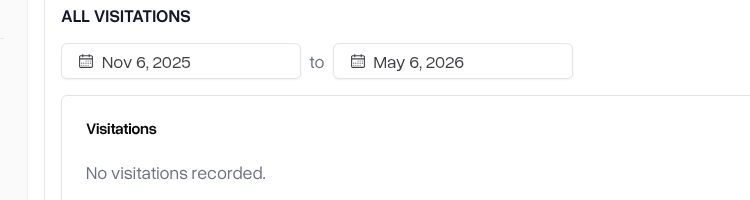
Date range
Use the date pickers at the top of the All Visitations card to narrow the list to a specific period. The default view covers the last 6 months. Click Refresh after changing the dates to reload the list.
Filter by type
If the visitation type filter is available, select one or more types from the dropdown to show only those entries. When no types are selected, all visitations within the date range are shown.
Editing an existing visitation
To correct a mistake or add notes after the fact:
Find the visitation entry in the list.
Click the edit (pencil) icon on the entry.
Update the date, type, attendance, notes, or duration as needed.
Click Save.
Deleting a visitation
Click the delete (trash) icon on a visitation entry and confirm the removal. Deleted visitations cannot be recovered.
Visitations in the learning period view
You can also log visitations directly from a student's learning period page. Look for the Log Visitation section within the learning period. Visitations logged there appear on the student's Visitations tab as well.
Tips
Use specific types — choosing the right type (e.g., "Home visit" vs. "Visitation") makes it easier to filter and report later.
Record notes immediately — the notes field supports rich text, so you can add as much detail as you need while the visit is fresh.
Confidential notes stay private — only administrators, school administrators, and counselors can read or write confidential notes.
Duration tracking — for present or late visitations, you can record the duration of the contact to support compliance reporting.