Tracking student behavior incidents
Last updated: November 6, 2026
Log any behavior incident for a student, from a minor disruption to a suspension, and keep a full discipline history in one place.
Overview
The Behavior tab on each student's profile lets you record behavior incidents and keep them together over time. You can log any incident, not only serious ones. Every incident needs just a date and a description. For incidents that call for more detail, you can also record the offense, the result (for example a suspension), and the school days the student served.
Offenses and results use the state (CALPADS) lists, so the information you record can be used for discipline reporting.
Opening the Behavior tab
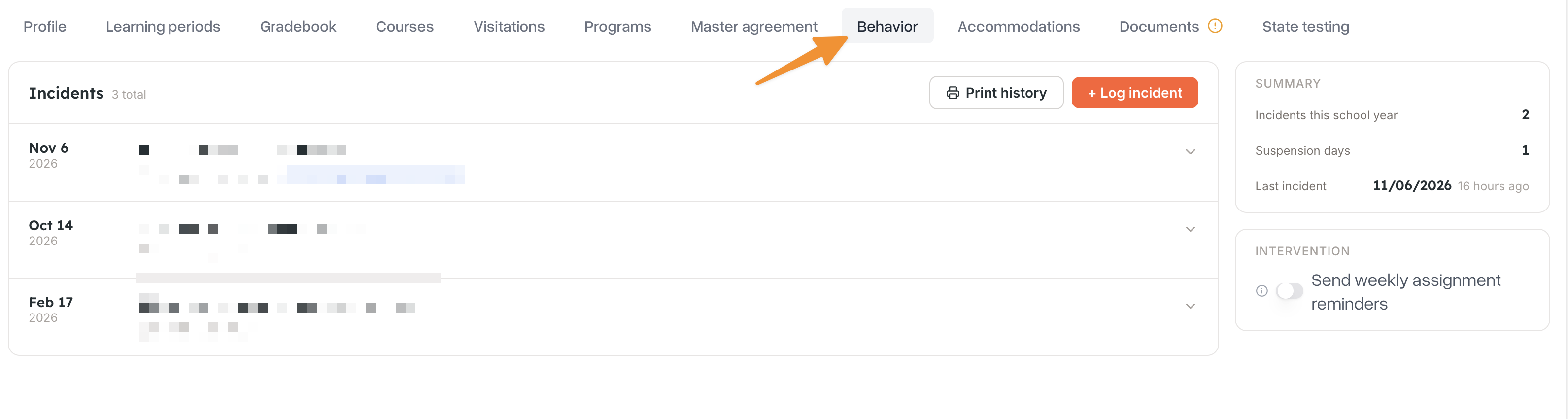
Click Students in the sidebar and open a student's profile.
Click the Behavior tab.
The tab is only visible to staff. Students and parents do not see it.
Incidents are listed with the newest first. The Summary panel on the right shows the student's totals (see "Reading the summary" below).
Logging a new incident
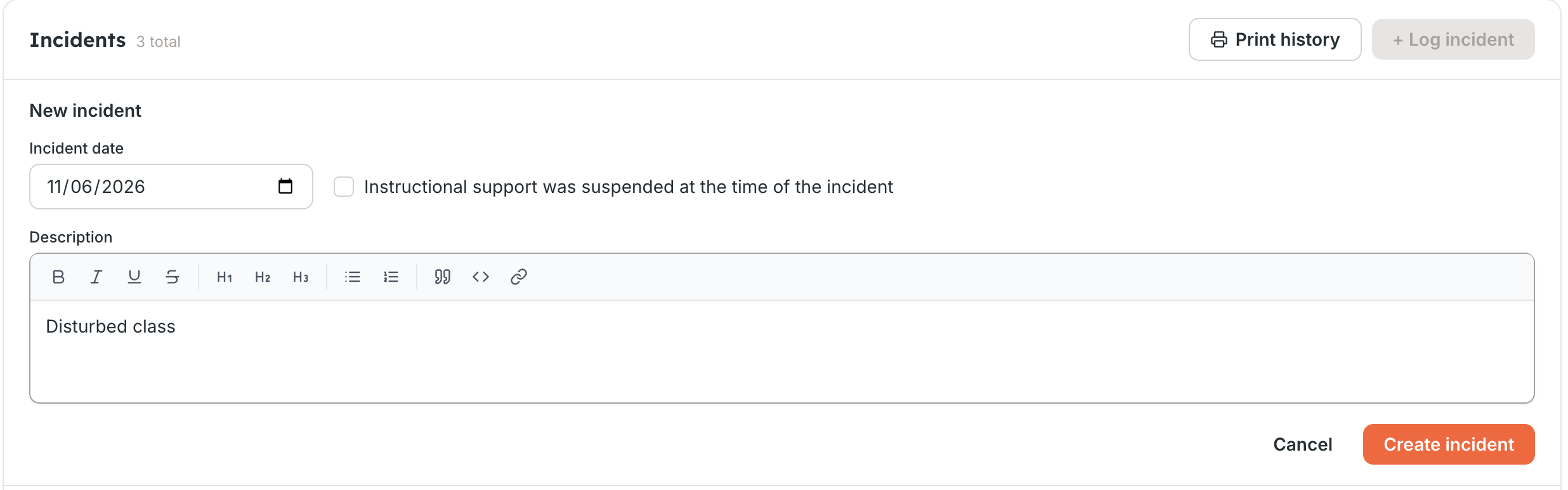
Click + Log incident.
Enter the Incident date. It defaults to today.
Enter a Description: what happened, where, and who was involved. The description is required.
If instructional support was suspended at the time of the incident, check Instructional support was suspended at the time of the incident.
Click Create incident.
The incident appears in the list right away. If it can't be saved, Scout brings your text back so you don't lose it.
Administrators, school administrators, teachers, counselors, and registrars can log incidents.
Adding offenses and results
Offenses and results are optional. Skip them for minor incidents that only need a note. To add them, click an incident in the list to expand it. You will see an Offenses section and a Results section.
Offenses
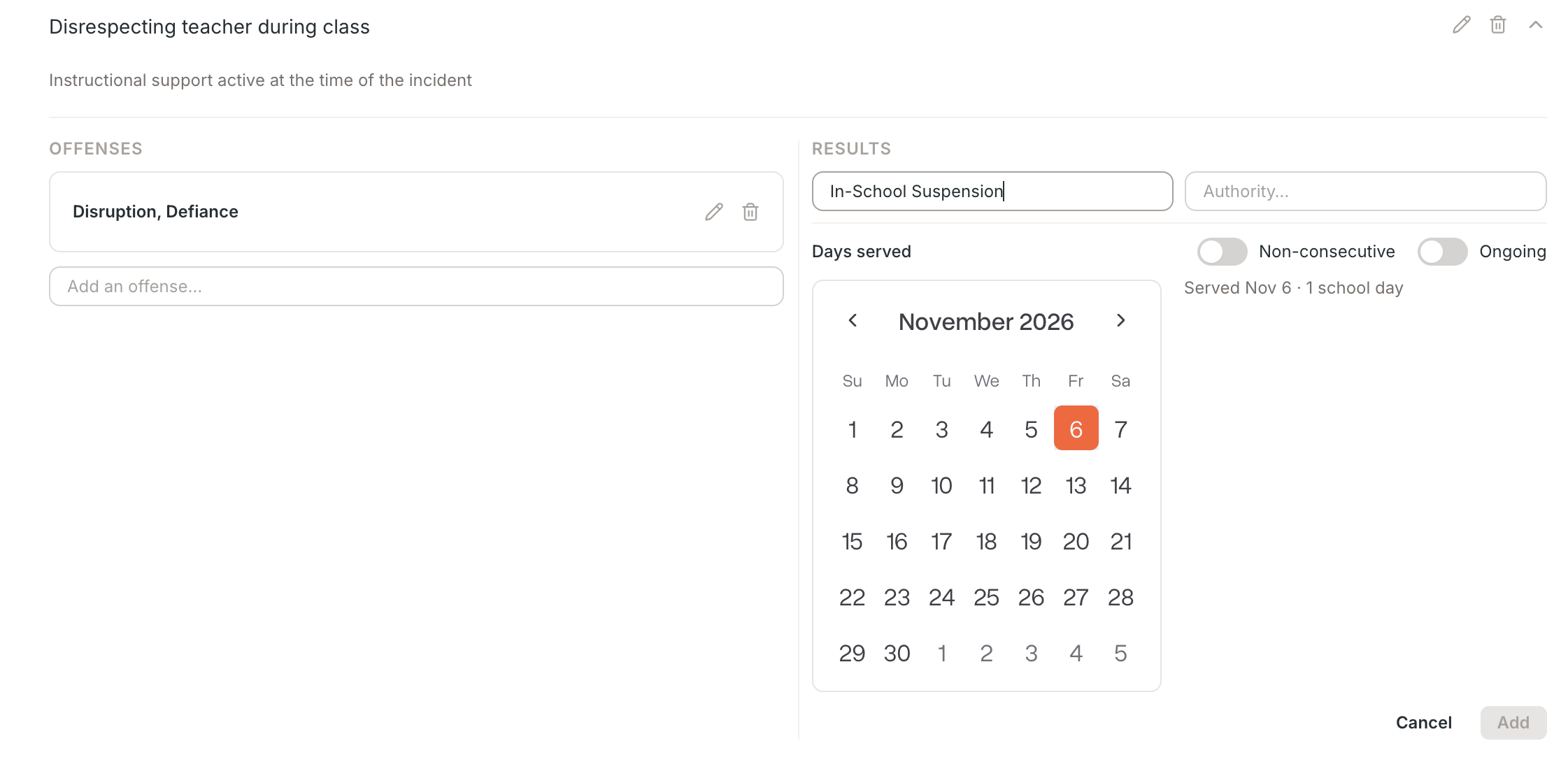
Click Add an offense… and choose from the list, for example Disruption, Defiance, Bullying, Property Damage, or Harassment or Intimidation. The offense is added as soon as you select it, and you can add several offenses to the same incident.
If you choose a weapon-related offense, Scout also asks for a Weapon category before you click Add.
The list of offenses is the state list and cannot be customized.
Results
A result is the action taken after the incident. Click Add a result…, then choose:
Result: for example No Action, Other Means of Correction, In-School Suspension, Out-of-School Suspension, or Expulsion. The list also includes restraint, seclusion, and law enforcement options.
Authority: who made the decision, such as School or district personnel, Hearing Officer, Local Governing Board, or Court Order.
An incident with no result shows No result recorded.
Recording the days a suspension or expulsion was served
When the result is an in-school suspension, out-of-school suspension, or expulsion, a Days served calendar appears.
To record a single stretch, pick the first and last day served.
To record days that are not back-to-back, turn on Non-consecutive and pick each day.
If the student is still serving, turn on Ongoing and pick the first day.
Only school days can be selected, and days served cannot start before the incident date. Scout counts school days only, using the student's school calendar. For an ongoing suspension, the count keeps growing as school days pass.
Reading the summary
The Summary panel on the right shows:
Incidents this school year: incidents since July 1.
Suspension days: school days served for in-school and out-of-school suspensions.
Last incident: the date of the most recent incident and how long ago it was.
The panel also has a Send weekly assignment reminders switch. When on, Scout sends the student and their primary parent or guardian a weekly assignment reminder email.
Editing or deleting an incident
Click the incident to expand it.
Click the pencil icon to edit the date, description, or instructional support checkbox, or the trash icon to delete the incident.
Deleting an incident also deletes its offenses and results, and this cannot be undone. Scout asks you to confirm first.
To change or remove a single offense or result, use the pencil or trash icon on that entry. Removing an entry also asks you to confirm.
Printing a student's discipline history
Click Print history at the top of the incidents list. Scout generates a PDF of the student's discipline history and opens it in a new browser tab. If nothing opens, allow pop-ups for Scout in your browser and try again.
Tips
Log every incident, not only serious ones. A date and a short description are enough, and you can always add detail later.
Be specific in the description. Write what happened, where, and who was involved, so anyone reading it later has the full picture.
Fill in offenses and results for incidents you report to the state. They are what discipline reporting uses.
Update ongoing suspensions. Keep Ongoing on until the student returns, then set the last day served.
Print history before meetings. It gives you a clean record to bring to a conference with a family.