How to Track CUME Requests
Last updated: May 4, 2026
A CUME request is the formal ask for a transferring student's records from their prior school — typically report cards, transcripts, and unofficial transcripts. Scout lets you generate, log, and track CUME requests on each student's profile, and surfaces outstanding requests on the compliance dashboard so your registrar team can stay on top of records that haven't come in yet.
Where to find CUME tracking
CUME tracking lives in two places:
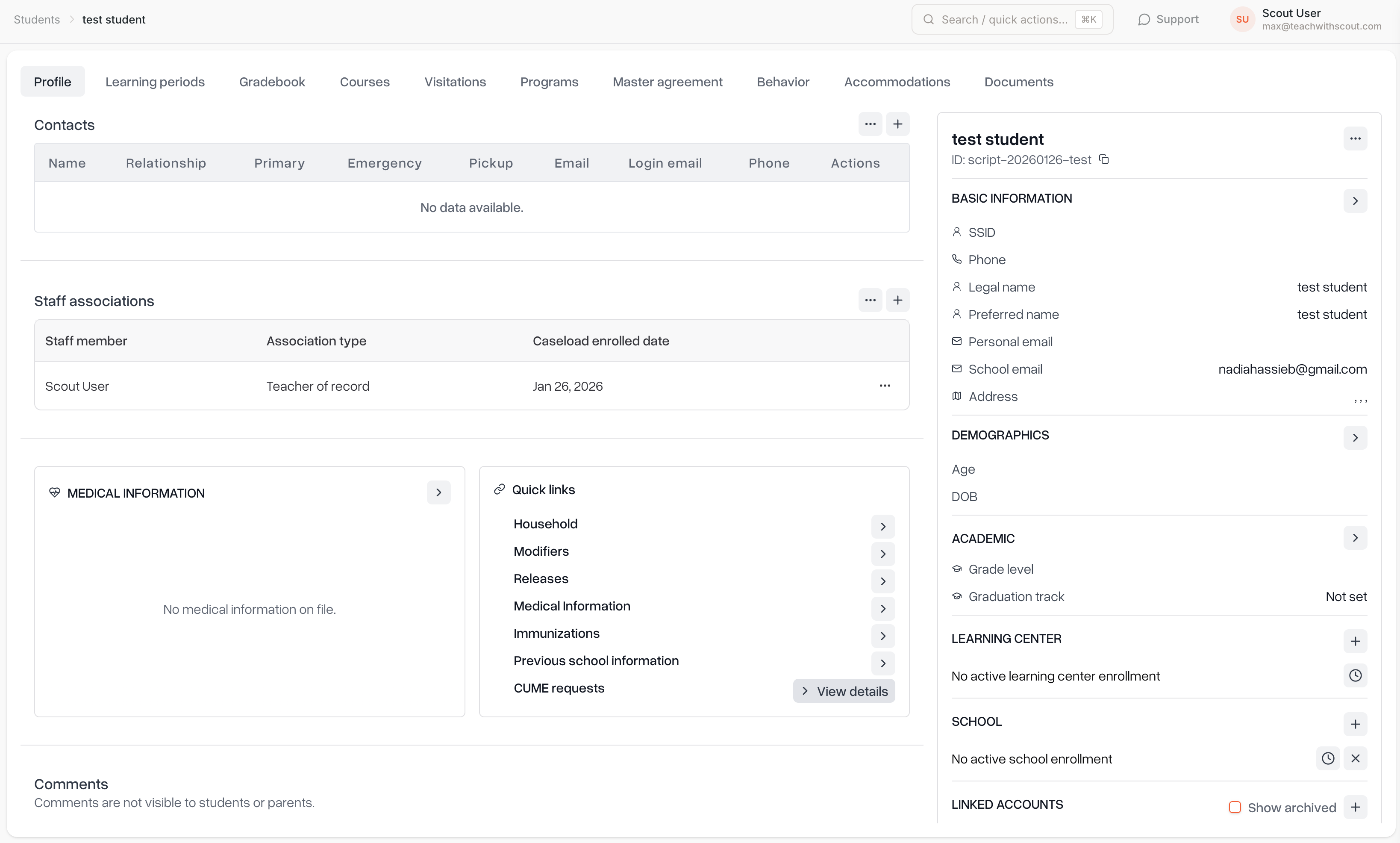
Per student — on a student's profile, under Quick links → CUME requests. This opens a dedicated page showing every CUME request you've created or logged for that student.
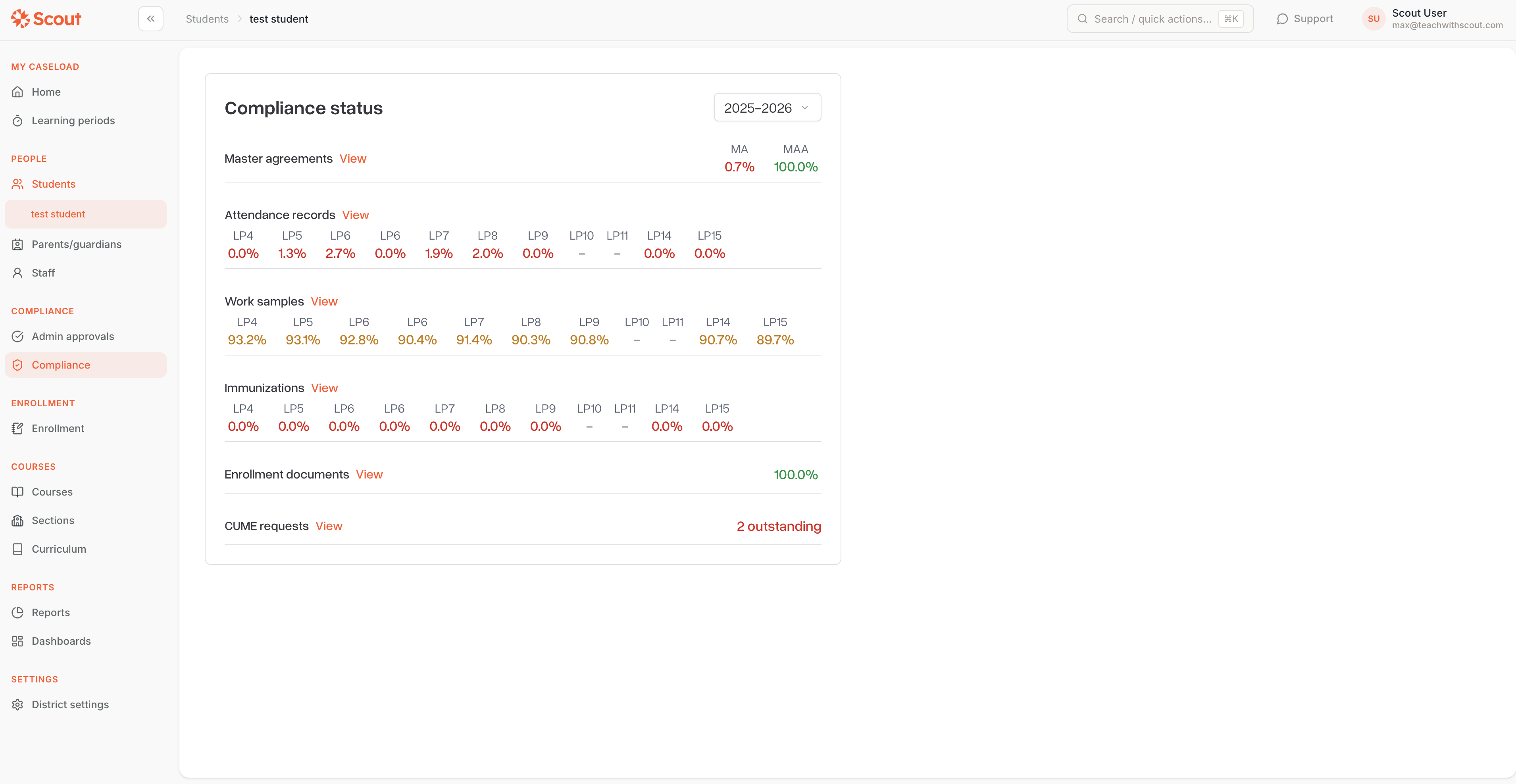
Across the school — on the Compliance dashboard, in the CUME requests row beneath enrollment documents. The row shows how many requests are still outstanding for the selected school year at a glance.
How to add a CUME request
Step 1: Open the student's CUME requests page
From the student's profile, click CUME requests under Quick links. You'll land on the per-student tracking page with breadcrumbs back to the profile.
Step 2: Click "Add CUME request"
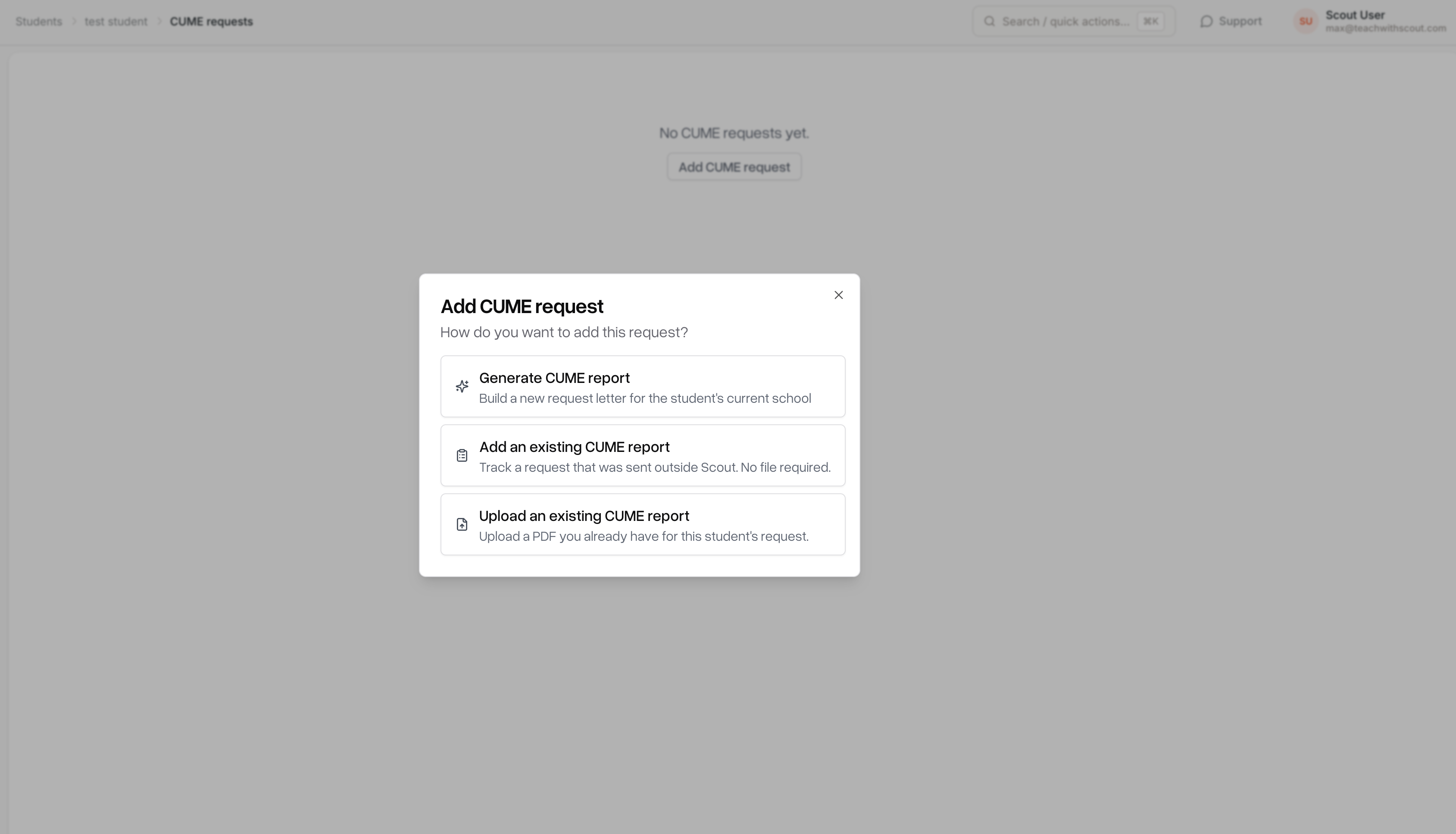
The button is at the top of the page and opens a modal with three tabs. Pick the one that matches what you're doing.
Step 3: Choose a flow
The modal has three tabs:
Generate
Use this when you want Scout to produce the CUME request PDF for you.
Scout creates a tagged Document for the file and a typed CumeRequest record so it shows up on this page and on the compliance dashboard.
Add existing
Track-only — no file attached.
Use this when the request was sent through some other system but you still want it to count toward your compliance numbers.
Upload existing
For when you already have a CUME request PDF generated elsewhere.
Upload the PDF and Scout links it to the new CumeRequest.
Step 4: Confirm
After confirming, a new card appears on the page with the request's metadata.
How to track progress on a CUME request
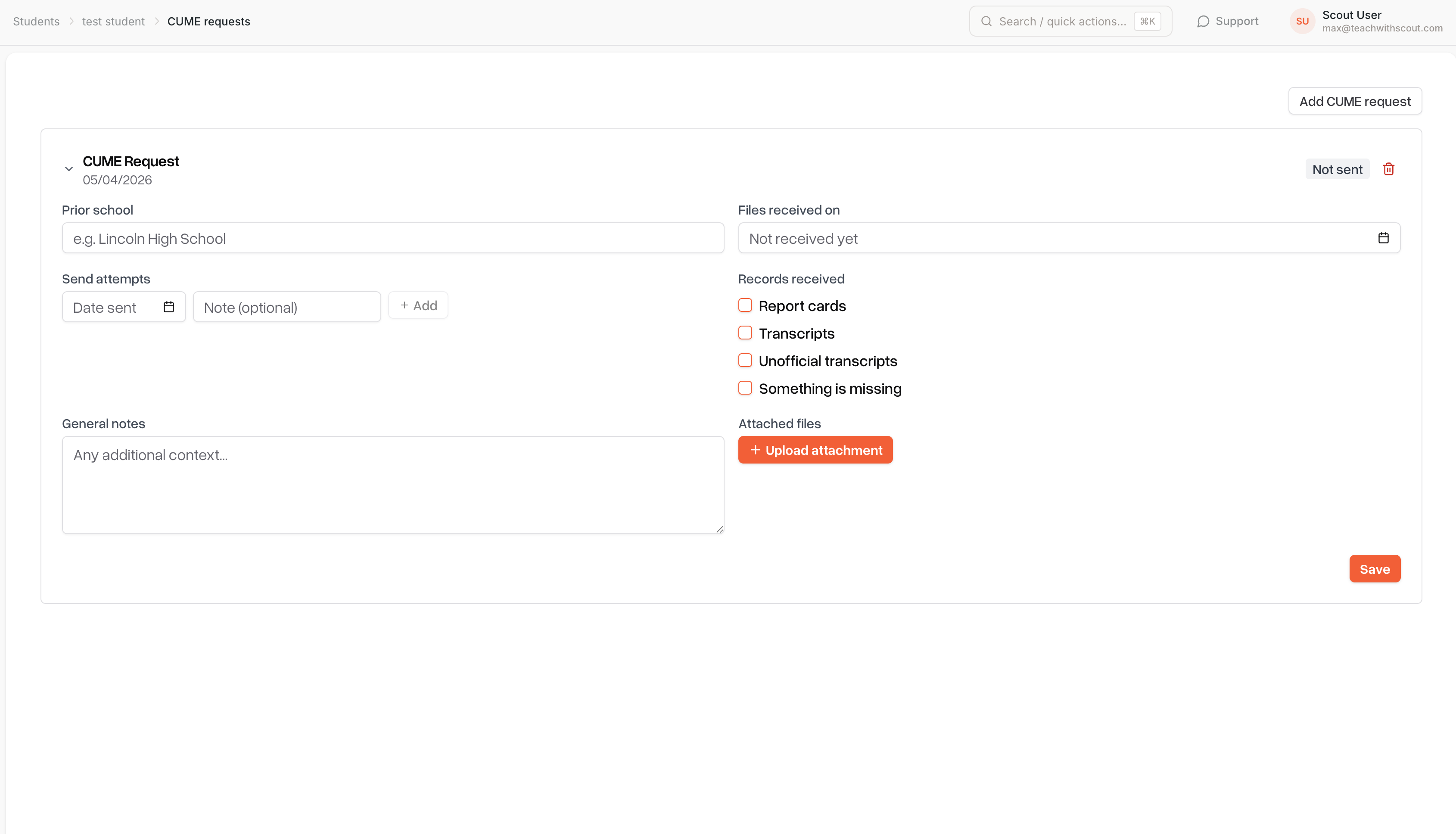
Each CUME request appears as a collapsible card. The header shows a status pill:
Received — files have come in (green)
Outstanding — at least one send attempt has been made but not received (yellow)
Not sent — no attempts logged yet (gray)
Missing — flagged as missing/unrecoverable (red)
Expand a card and you'll see a two-column layout you can edit:
Prior school and Files received on date
Send attempts — log each time you reached out, with the date pill turning solid once saved
Flag checklist — Report cards, Transcripts, Unofficial transcripts, Missing
General notes and Attached files
Click Save when you're done. Scout batches everything into a single round-trip — new attempts, removed attempts, and the request fields all flush together — so you won't see duplicate items after the page refreshes.