Managing Curriculum, Sections, and Course Records
Last updated: September 23, 2026
Overview
Scout organizes what your district teaches into four connected pieces. Knowing how they fit together makes day-to-day catalog work much easier:
Courses are the catalog entries for everything your district teaches, for example "Algebra I" or "AP Biology." A course holds shared information like credits, grade level, and transcript category.
Sections are the actual classes of a course in a given term, for example "Algebra I, Period 3, Fall 2026." One course can have many sections across schools and terms, each with its own teacher, roster, and capacity.
Curriculum is a reusable plan of instruction: modules, assignments, objectives, and linked standards. Curricula live in a district-wide library, and you assign them to sections or students to create their work in one step.
Course records are the data tied to a course: its settings, its sections, and every student enrollment in it. Clean course records (no duplicates, correct categories) keep transcripts, schedules, and reports accurate.
Managing your course catalog
The Courses page in the left sidebar is where you browse, search, and filter every course in your district. From there you can create new courses, edit course settings such as credits and transcript category, and archive courses you no longer offer. Archiving removes a course from the active catalog but keeps its past sections and enrollments. Nothing is deleted.
For a full walkthrough of filtering, editing, and archiving courses, see Using the Courses page.
Adding and managing sections
Sections split a course into the specific classes your school actually runs, by period, teacher, school, or any other grouping. You add sections from a course's Sections tab. There you set the section name, terms, and enrollment cap, and you can limit the section to certain schools or learning centers and assign a teacher.
At the start of a new term, you can copy existing sections forward instead of rebuilding them. The settings carry over, but you need to enroll students in the new sections separately.
For step-by-step instructions, see Adding a section to a course, which also covers copying sections to future terms.
You can also enroll a student in a section directly from their course plan. See Enrolling a student in sections from their course plan.
Managing curriculum New section
A curriculum is a ready-made set of assignments grouped into modules (for example, "Unit 1: Linear Equations"). Each assignment can have a description, an expected time in minutes, and linked academic standards. A module can also include objectives: learning goals that don't need a submission or a grade.
Curricula are not tied to one course or teacher. Every curriculum is saved in one shared library for your whole district. When you assign a curriculum to a section, Scout copies its assignments into that section. Each section gets its own copy with its own due dates, so a change in one section doesn't affect any other.
Who can do what
District and school administrators can create, upload, approve, edit, and delete curricula, and assign them to any section.
Teachers can browse the library, upload or paste a curriculum for an administrator to approve, and assign curricula to sections where they are the primary teacher.
Read-only administrators, counselors, and registrars can browse the library but can't create or change curricula.
Browsing the curriculum library
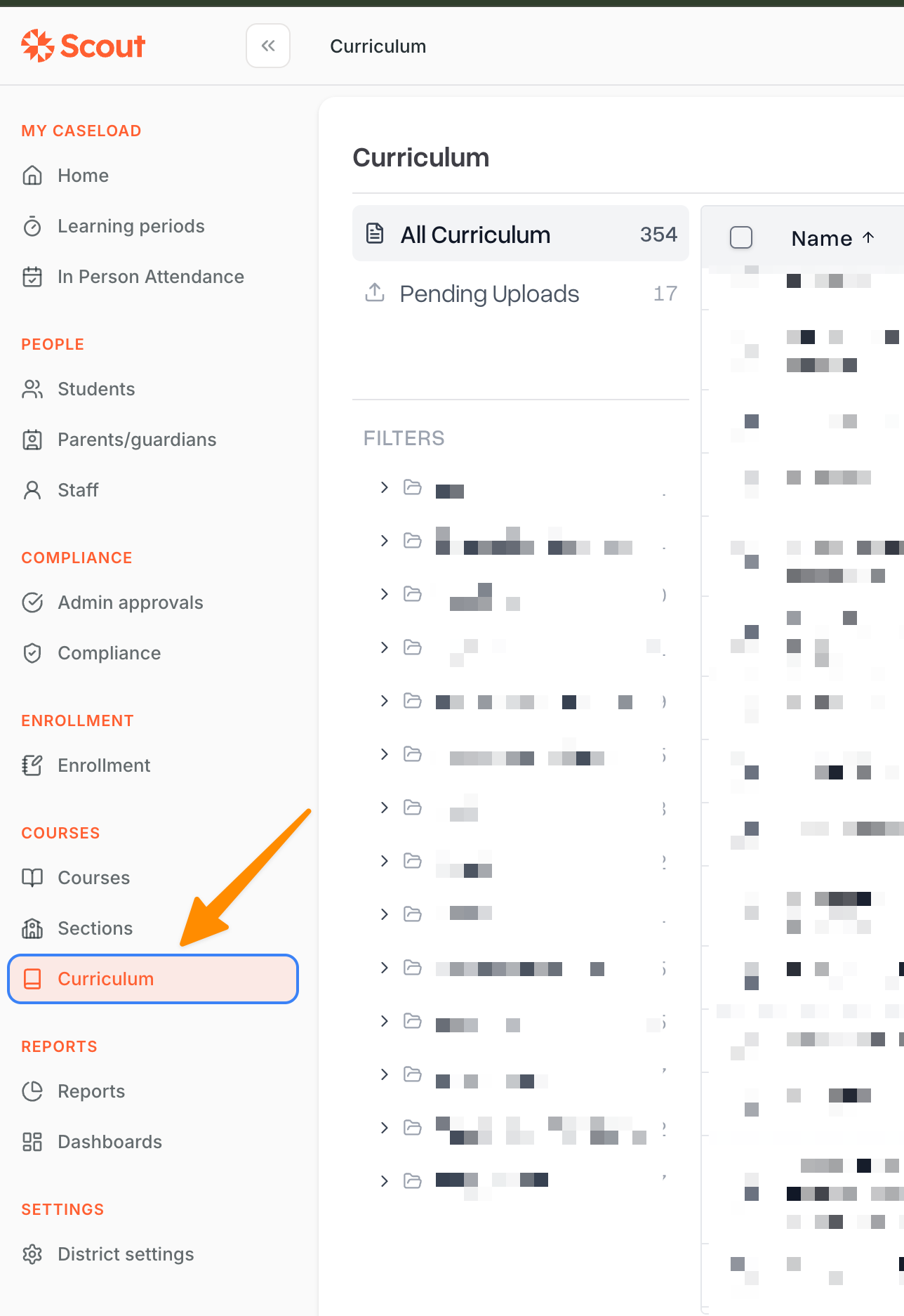
In the left sidebar, click Curriculum.
Use the Search curriculum... box to find a curriculum by name.
To narrow the list, use the Filters panel on the left. Filters are grouped by Subject, then Provider, then Grade. Click Clear to reset them.
Click any row to open that curriculum and see its modules and assignments.
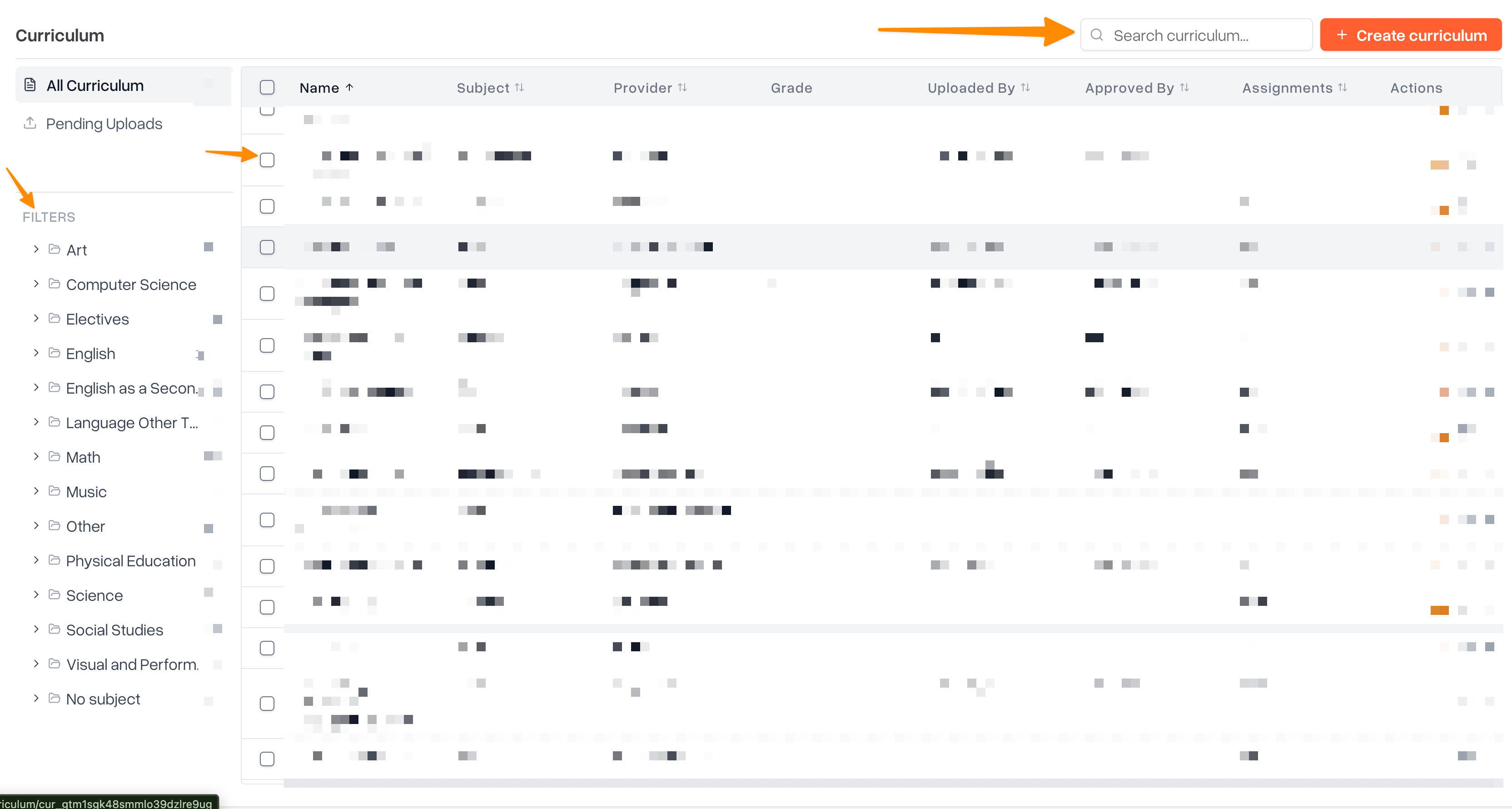
The table shows each curriculum's Name, Subject, Provider, Grade, Uploaded By, Approved By, and number of Assignments. A warning icon next to a curriculum means it was flagged as a possible duplicate when it was uploaded, or that some of its assignments have no standards linked yet.
If any uploads are still being processed or waiting for approval, a Pending Uploads view appears under All Curriculum in the left panel.
Creating a curriculum
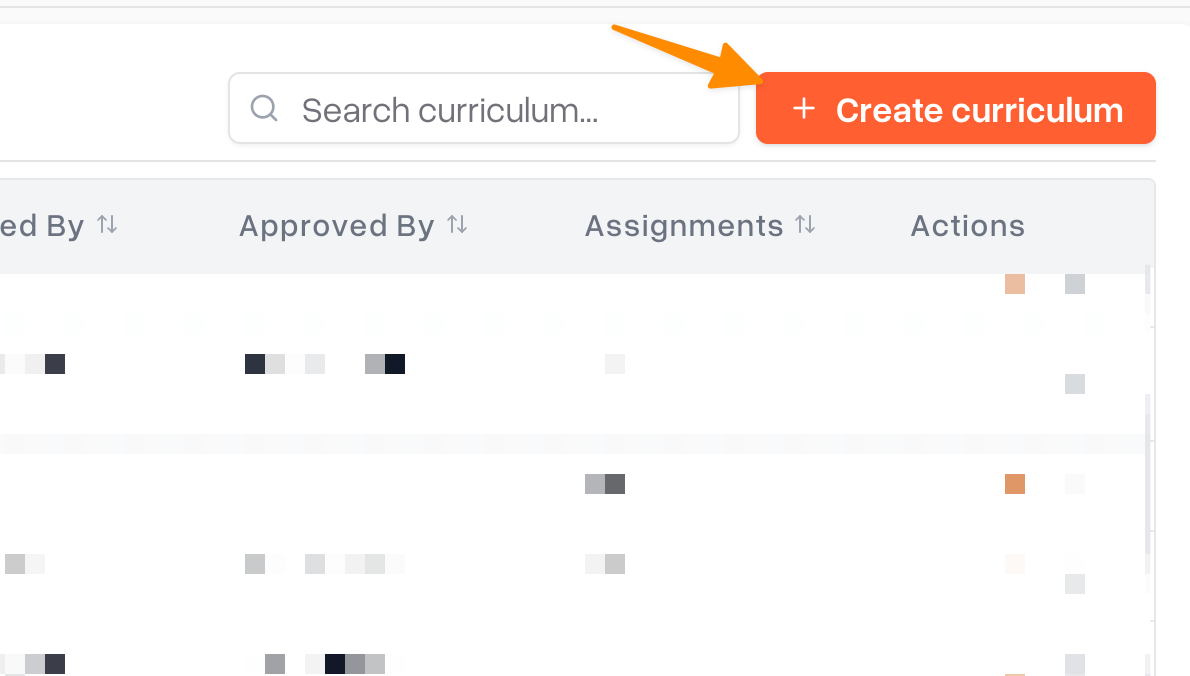
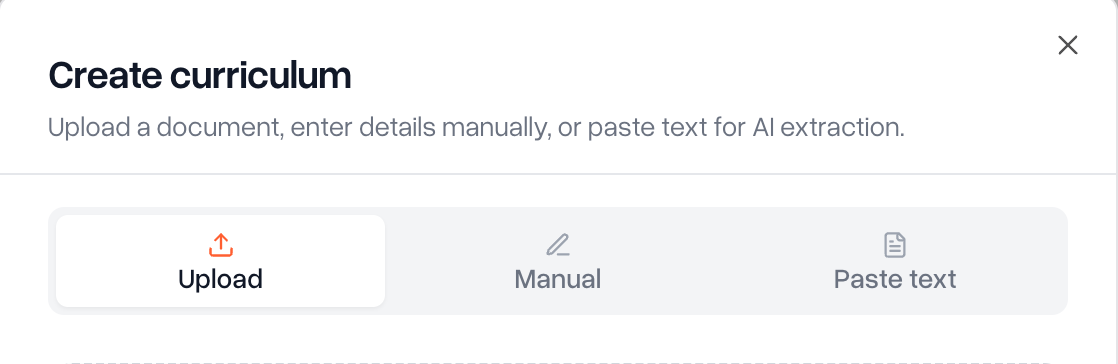
Click Create curriculum in the top-right corner of the Curriculum page. The window offers three ways to start:
Upload: Scout reads a document you already have and builds the curriculum for you. Best for publisher scope-and-sequence documents or your own curriculum maps.
Manual: start with an empty curriculum and build it yourself.
Paste text: paste or type curriculum content, and Scout's AI organizes it into modules and assignments.
Option 1: Upload a document
On the Upload tab, drag your files into the box or click Choose files. You can upload PDF, Word, text, CSV, or Excel files.
If you add more than one file, choose how Scout should handle them:
One curriculum per file creates a separate curriculum from each file.
Combine into one builds a single curriculum from all the files (up to 10 files).
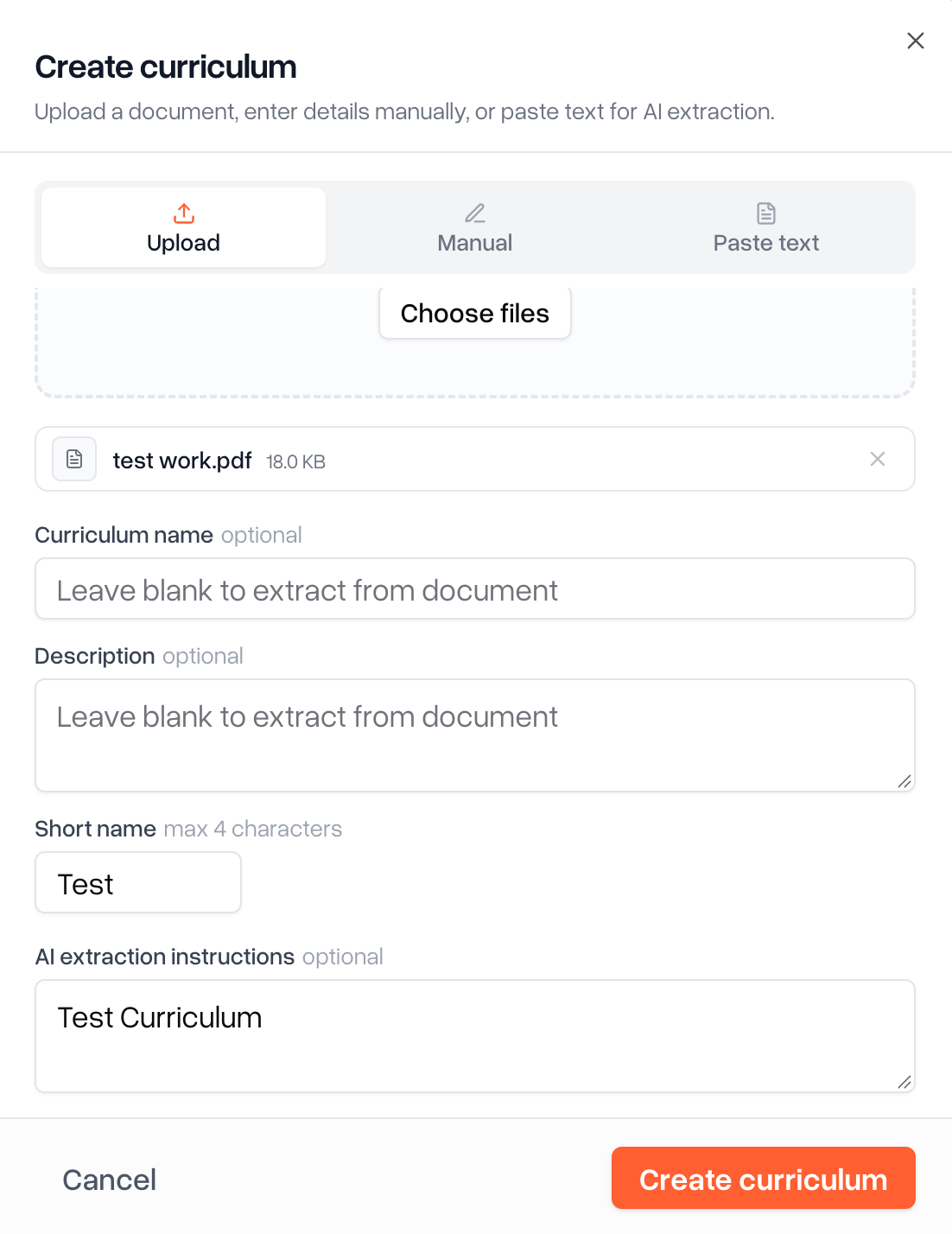
Optionally fill in the details. Any field you leave blank is filled in from the document:
Curriculum name and Description.
Short name: up to 4 characters, shown next to assignments so students and staff can tell where they came from (for example, "ALG1").
AI extraction instructions: tell Scout how to read the document, for example "Each week should be its own module."
Click the create button. Scout processes the upload in the background, and it appears under Pending Uploads while it works.
When the upload shows Ready for review, click it to open the review page. Check the modules, assignments, and standards Scout found, and fix anything that's wrong.
To have Scout redo part of the result, open the menu and choose Change with AI. Pick Refine this to adjust what's there, or Start over to extract it again.
Finish the review:
Administrators click Confirm. The curriculum is added to the library right away, with you listed as the approver.
Teachers click Submit for admin review. The upload shows Awaiting admin sign-off until an administrator approves it. To make more changes first, click Withdraw from review.
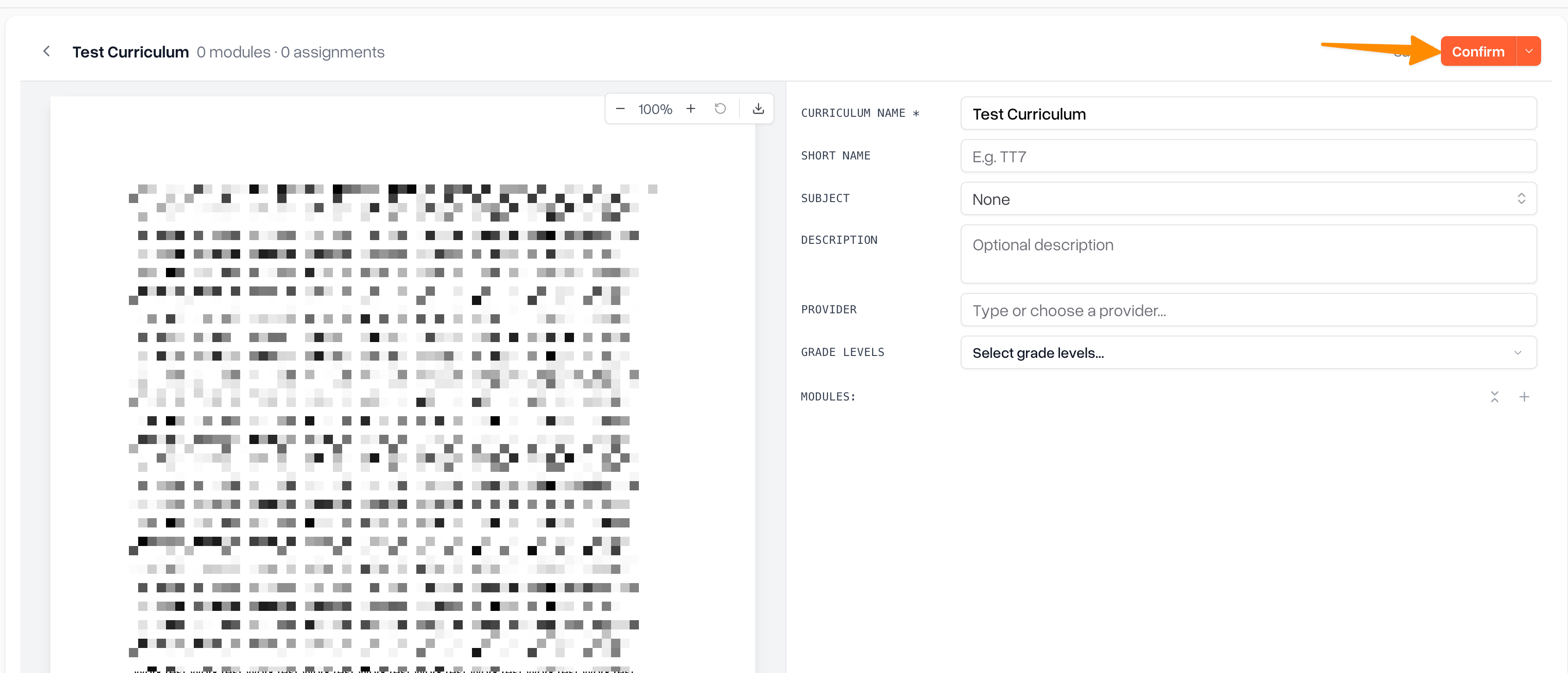
If some standards couldn't be matched, Scout warns you before you confirm. Click Go back to fix them, or Continue anyway to save without them. If the curriculum looks like one already in the library, Scout shows a Potential duplicate warning with a match percentage.
If an upload shows Failed or Extraction stalled, click Retry. To discard an upload you no longer need, click Dismiss upload.
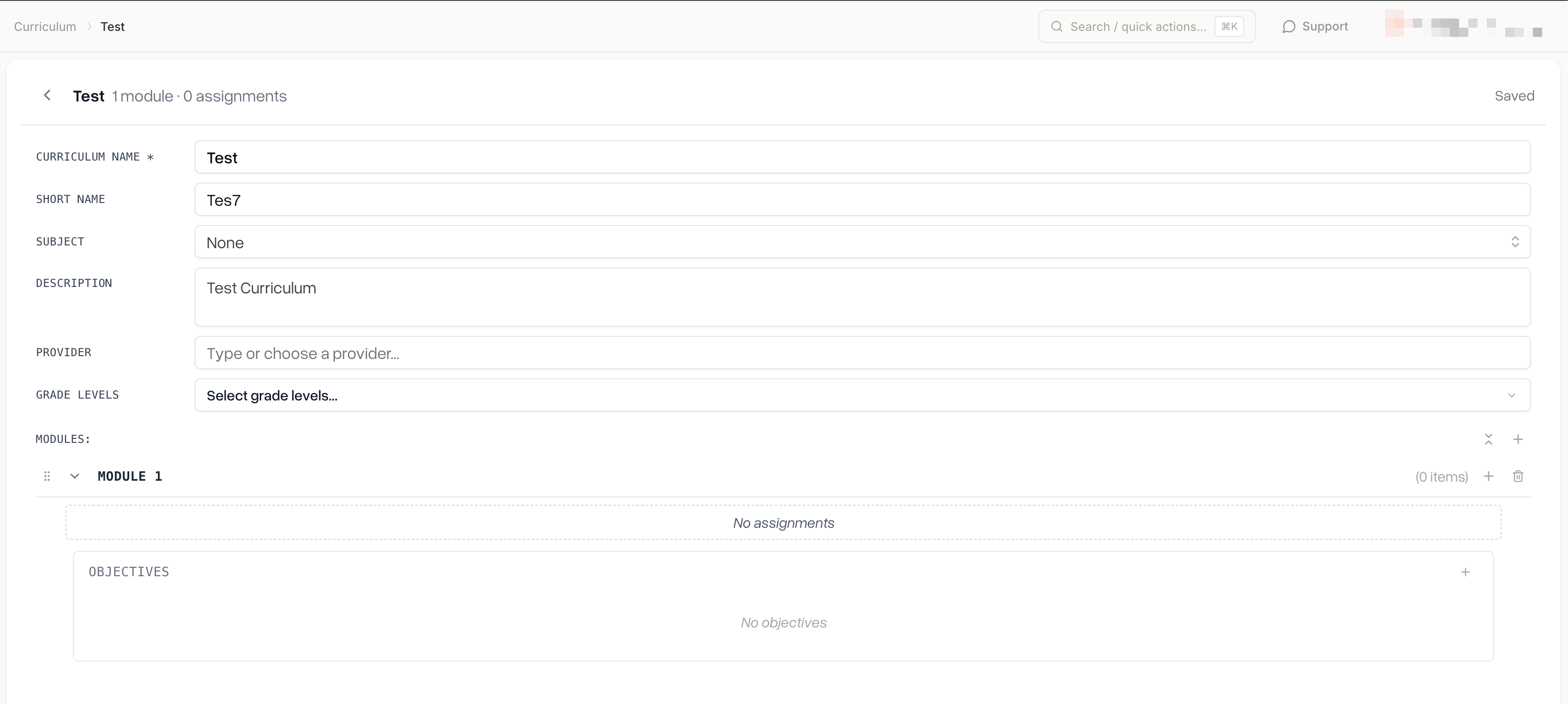
Option 2: Build it manually
On the Manual tab, enter a Curriculum name (required). Optionally add a Description and a Short name.
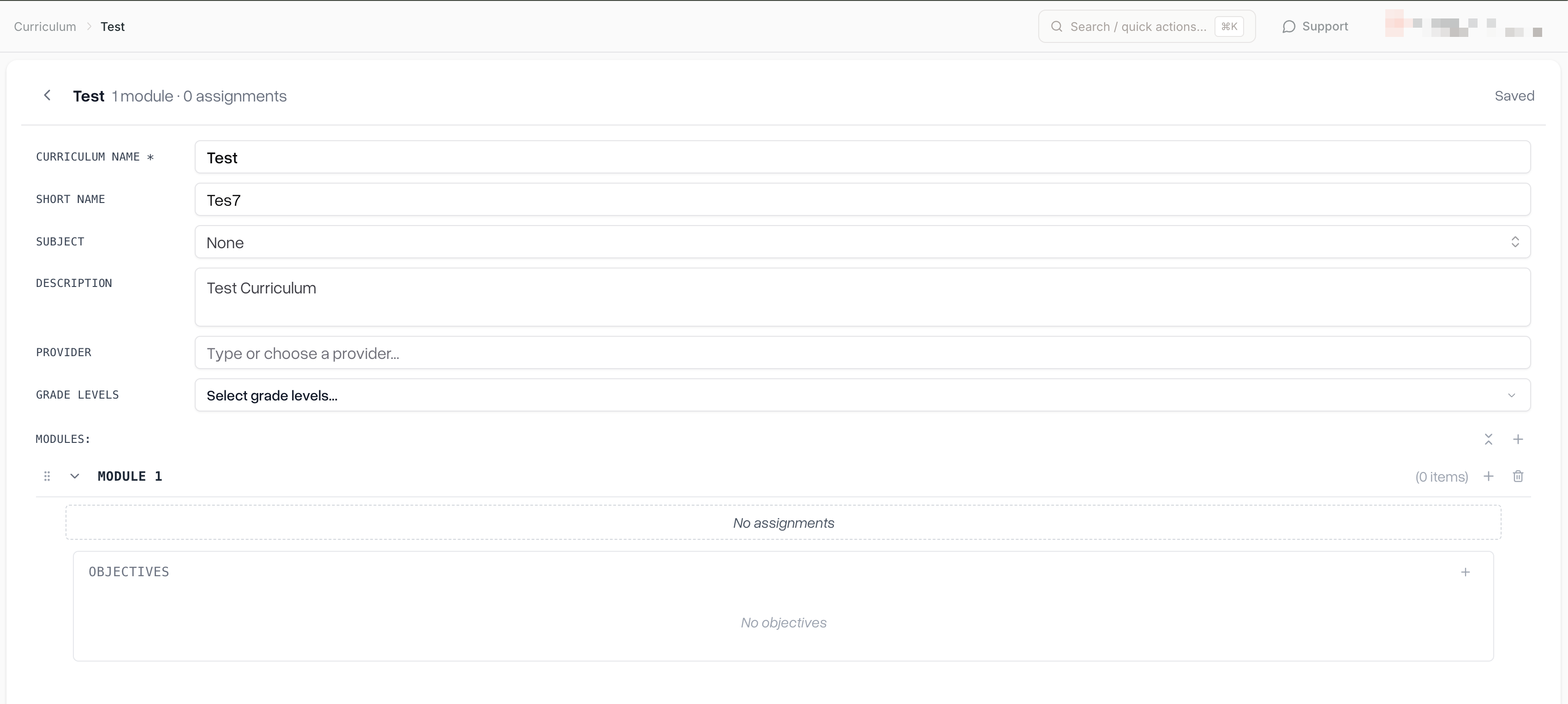
Click the create button. Scout opens the new, empty curriculum
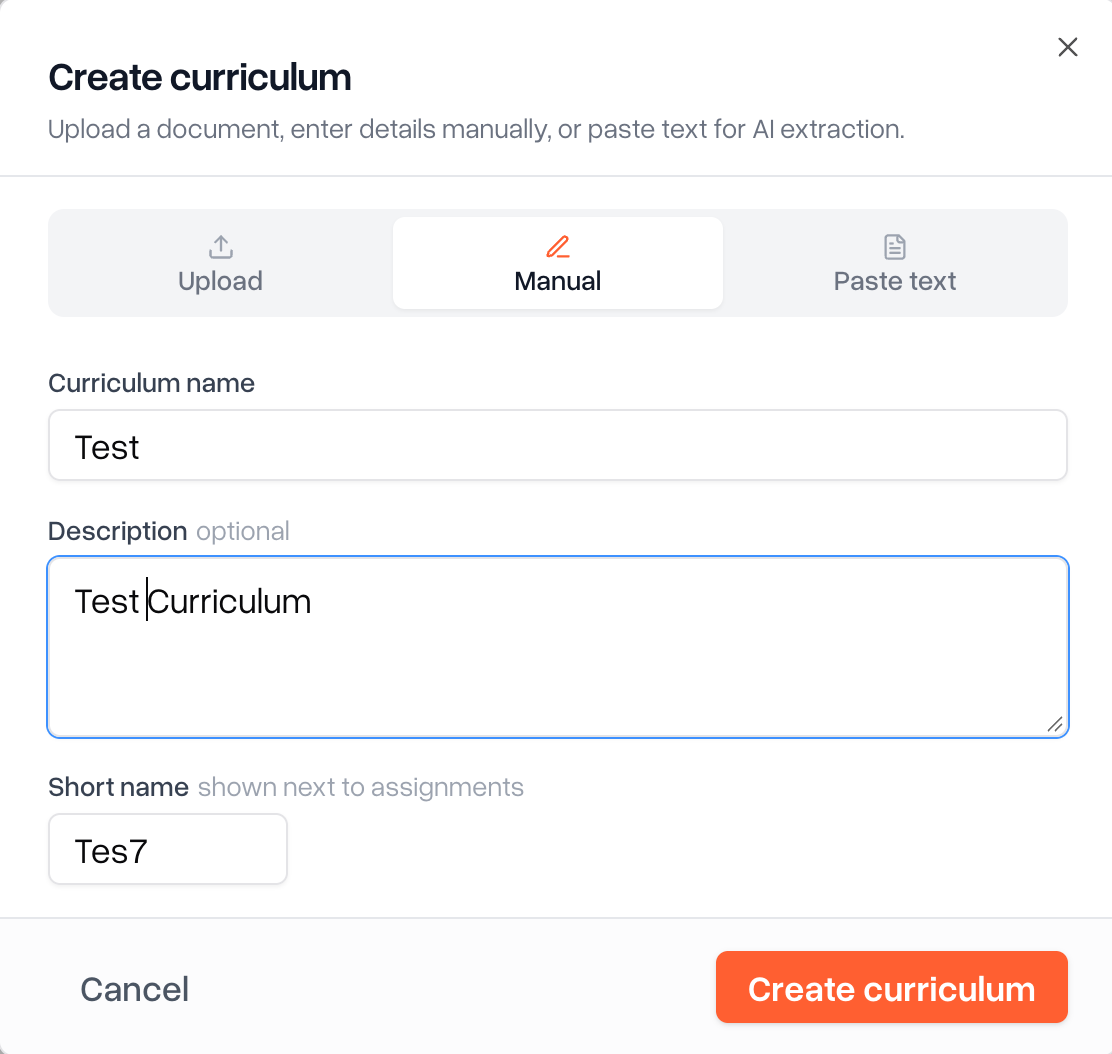
Build it out in the editor (see Editing a curriculum below).
Note: only administrators can edit a curriculum after it's created. Teachers who want to build a curriculum should use Upload or Paste text and submit it for review.
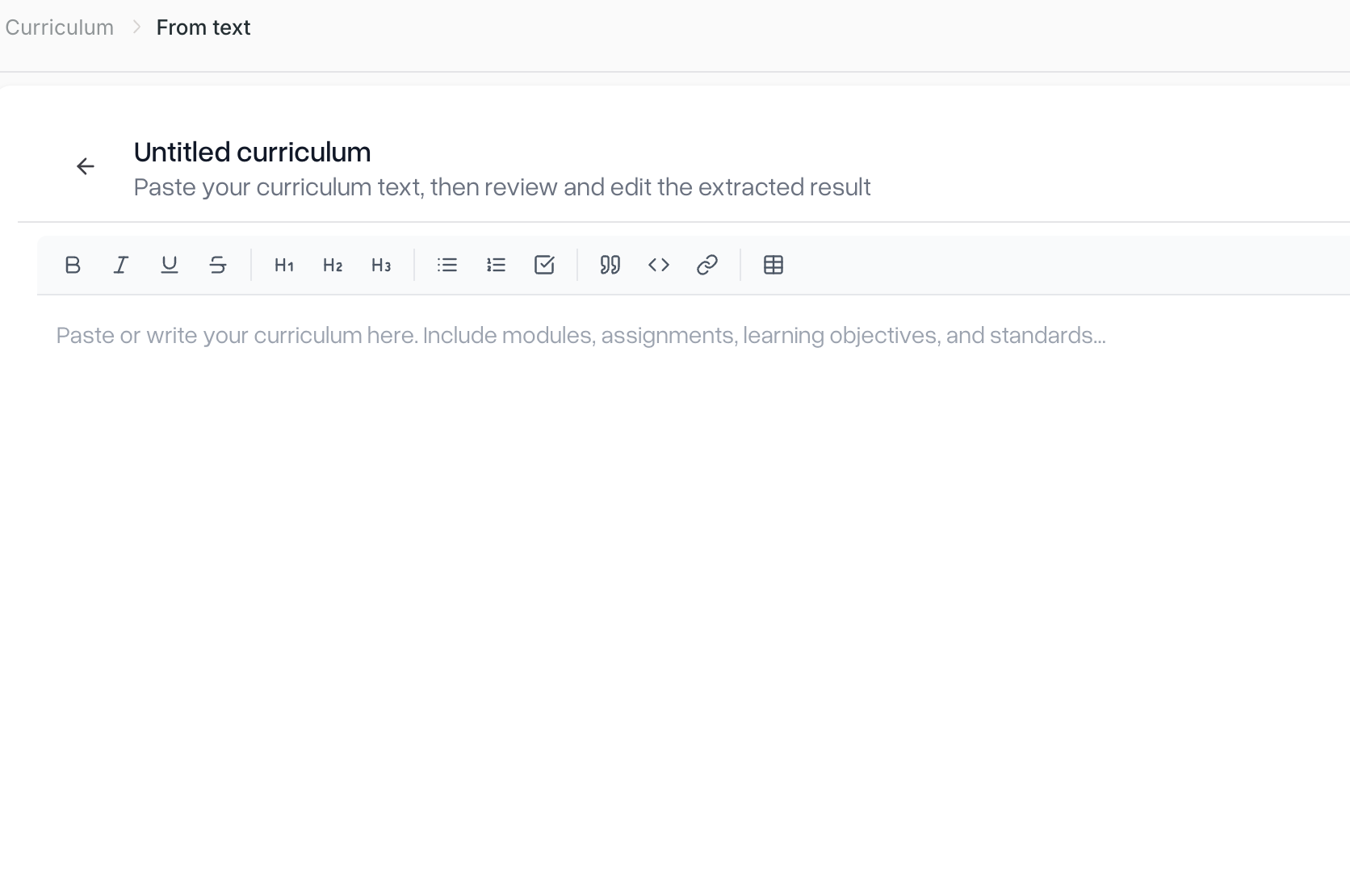
Option 3: Paste text
On the Paste text tab, click Continue.
Paste or type your curriculum into the editor. Include modules, assignments, learning objectives, and standards where you have them.
Optionally add instructions for how Scout should organize the content.
Click Extract with AI (or press ⌘ + Enter on Mac, Ctrl + Enter on Windows).
Review the result and click Confirm (administrators) or Submit for admin review (teachers), as in Option 1.
Approving curriculum submitted by teachers
Curricula that teachers submit appear in Admin approvals as Curriculum items, and on the Curriculum page under Pending Uploads. Open the item to review it. Approve it to add it to the library, or reject it to send it back to the teacher for changes.
Editing a curriculum
Only district and school administrators can edit a saved curriculum. Other roles see it as read-only.
On the Curriculum page, click the curriculum to open it.
Update the details at the top: Curriculum name, Short name, Subject, Description, Provider, and Grade levels. Subject, provider, and grade are what the library filters use, so fill them in to make the curriculum easy to find.
Under Modules, organize the content:
Click Add module to add a module, then type its name.
Inside a module, click Add assignment and enter the Assignment name. You can also add Expected minutes and an Assignment description.
Click Add objective to add a learning goal that doesn't need a grade.
Click Add standard on an assignment to link standards, or Add standards to all assignments to link a standard to the whole module.
Drag the handle next to a module or assignment to reorder it.
Use Remove assignment, Remove objective, or Remove module to delete items.
Scout saves your changes automatically. The indicator at the top shows Saving... and then Saved.
Let Scout suggest standards: click Suggest standards for N assignments in this module on a module, or open the actions menu and choose Suggest standards. Review each suggestion, or use Accept all suggestions or Dismiss all suggestions. If your district has set power standards, a banner lists any power standards the curriculum doesn't cover yet.
Edit several curricula at once: on the Curriculum page, select the curricula with their checkboxes and use the bulk edit option to change Subject, Grade Levels, or Provider for all of them.
Note: changes to a curriculum don't update sections it has already been assigned to. Those sections keep their own copy of the assignments.
Deleting a curriculum
On the Curriculum page, click the trash icon (Delete curriculum) in the curriculum's row. To delete several, select them with the checkboxes and use the bulk delete option.
In the Delete Curriculum window, click Delete.
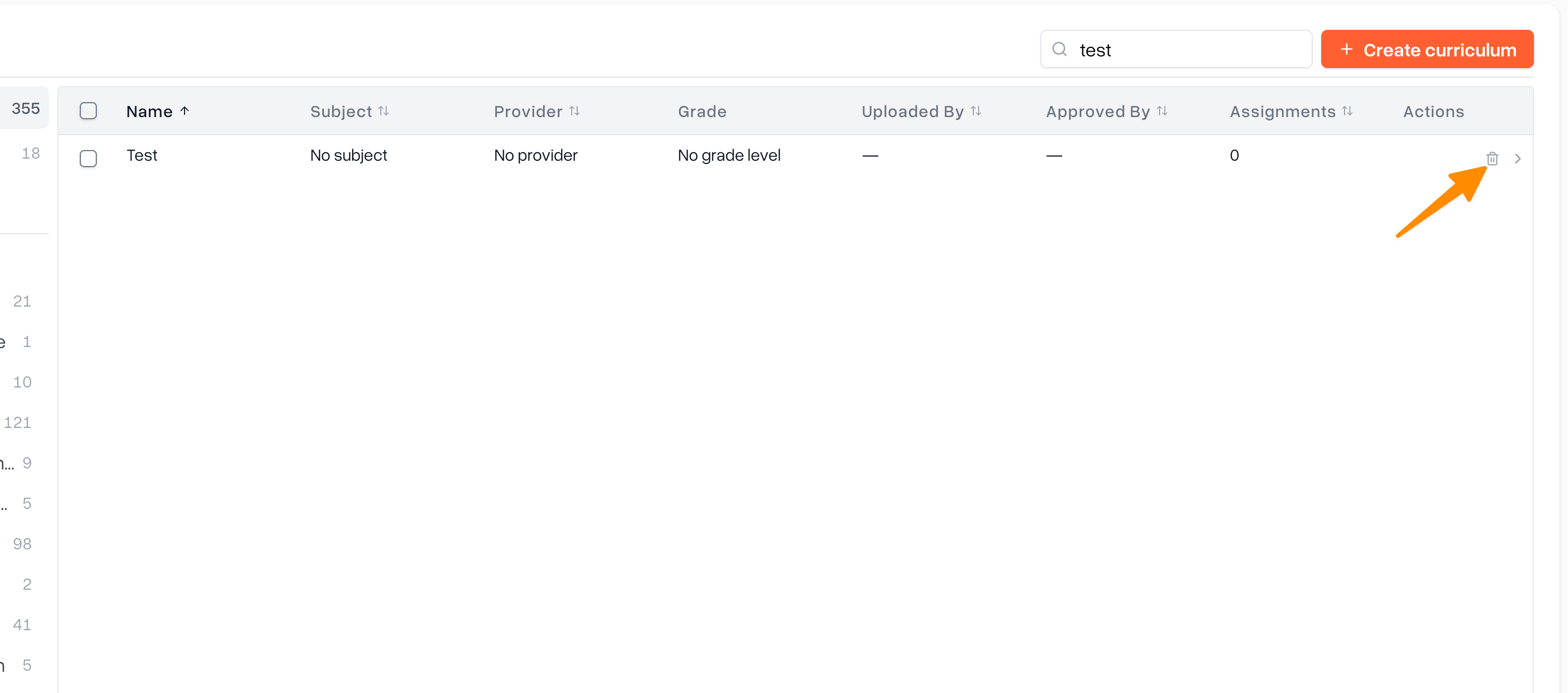
Deleting is permanent and can't be undone. Assignments already created in sections from that curriculum are not removed. Scout has no archive or duplicate option for curricula, so only delete a curriculum you're sure you no longer need.
Assigning a curriculum to a section
Assigning from the section is the fastest way to give every student in a class the same work.
In the left sidebar, click Sections, then click the section you want. Use the Sections page, not the Courses page: opening a section from a course shows its details inside the course and has no Assignments tab.
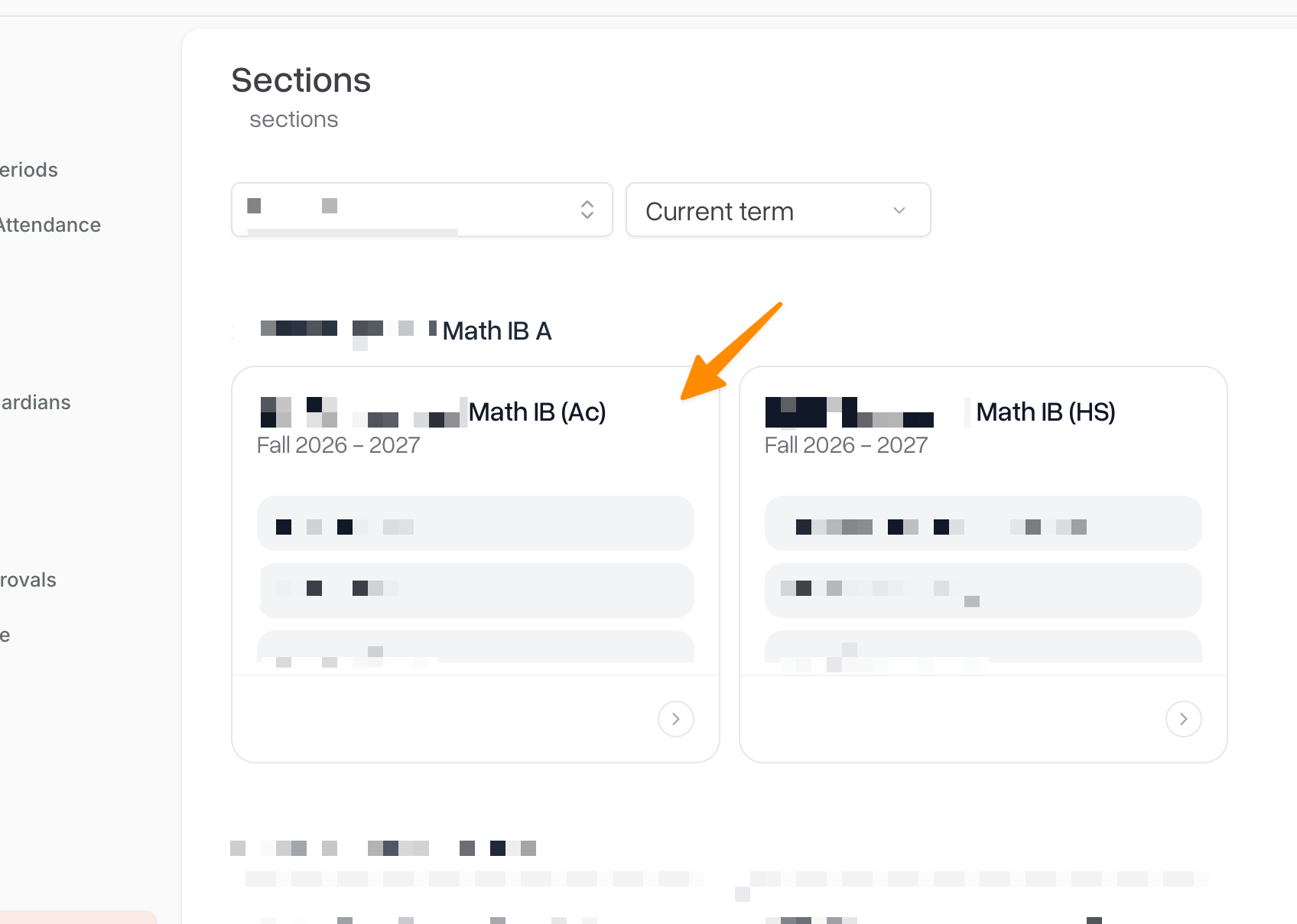
The section opens on the Attendance tab. Click the Assignments tab.
Find the Assignments card and look at its top-right corner. There are two small icon buttons: a book icon and a + icon. They show their labels when you point at them. Click the book icon (Assign curriculum).
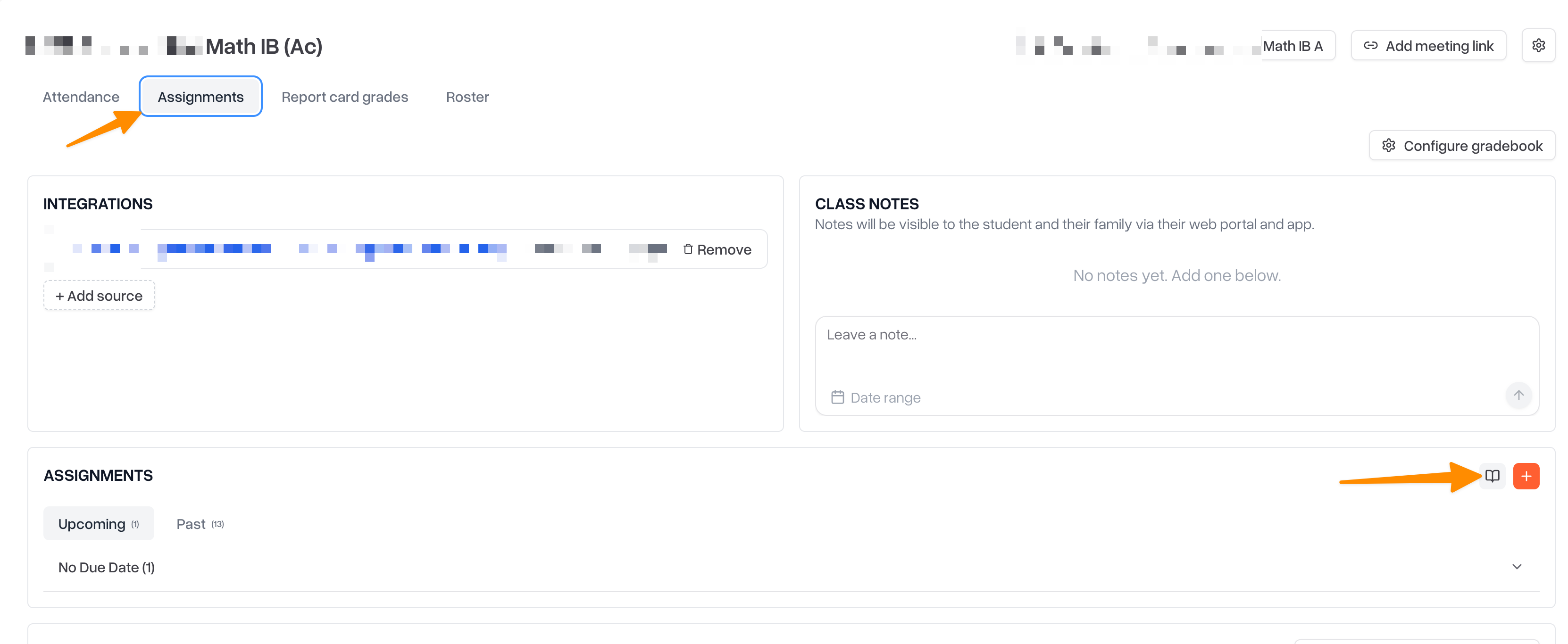
Pick the curriculum you want. Curricula that already have work in this section are listed under Already assigned. Pick one of those to reschedule it.
Choose what to assign:
Whole curriculum assigns every assignment, grouped into its modules.
Specific assignments lets you check only the assignments you want (use Select all / Unselect all), then click Continue.
Schedule the modules on the pacing board. Each column is a time period, and each card is a module:
Choose By learning period (or By month, depending on your district's settings) or By week at the top.
Drag module cards into the column when they should be due.
Spread modules evenly lays the modules out across the available time for you.
Use every learning period in the year shows the whole year. Hide empty columns hides periods with nothing scheduled.
On a card, Duplicate to the next period repeats a module, Break into separate assignments lets you schedule its assignments one by one, and Remove module leaves it out.
Click Assign to section. Scout confirms how many student assignments were created.
No Assignments tab on your section? Sections that automatically include every student don't have one, and curriculum can't be assigned to them. Assign the curriculum to the students instead, from the Learning Periods page (see below).
How due dates are set
Every assignment in a module is due on the same date: the end of the column you placed the module in.
By learning period: due on the learning period's last day.
By week: due on the last day of that week, counting from the start of the term.
Assignments that aren't in a module can't be placed on the board, so they aren't assigned. Put them in a module first.
Changing a curriculum that's already assigned
Click Assign curriculum again and pick the curriculum under Already assigned. The board shows where each module is now, with its progress (for example, Assigned · 4 of 10 done). Drag modules to new columns or remove them, then click Save changes.
Work that has already been submitted, graded, or excused keeps its original due date when you move a module.
Removing a module removes its assignments from students, including any grades already entered.
Assigning the same curriculum to the same period twice doesn't create duplicates. Scout skips work students already have.
Students who join the section later
When you assign a curriculum from the section, students who enroll later through Scout usually receive the work that's still due during their enrollment. If a new student is missing curriculum work, assign it to them from the Learning Periods page (see below).
Assigning a curriculum to specific students
To give a curriculum to some students rather than a whole section, or to students across several courses at once:
In the left sidebar, click Learning Periods.
Click Bulk assign, then check the courses and students you want.
Click the Assign to N courses across M students button.
In the Bulk assign curriculum window, open the Curriculum tab, pick the curriculum, and schedule it on the pacing board the same way as above.
You can also click Assign curriculum on a single student's course in a learning period. Those items are due at the end of that learning period. For more on assigning work, see How to Assign Assignments.
Keeping course records accurate
Over time, the same course can end up entered more than once, or several courses may need to be combined into one. Scout's course merge tool combines 2–6 courses into one. All sections and student enrollments move to the course you keep, and the other courses are removed. Grades and assignments are never lost, because they stay attached to their sections throughout the merge.
Only district and school administrators can merge courses. For the full process, including how to resolve conflicting fields and section identifiers, see Merging courses.
Related: course plans and templates
If your district plans which courses students will take across several years, course plan templates let you build a standard sequence and assign it to many students at once. See Creating and editing course plan templates and Bulk assigning course plan templates to students.
Tips
Start with the course, then add sections. A course must exist in the catalog before you can create sections for it.
Archive courses instead of deleting them. Archiving keeps past sections and enrollment data but removes the course from the active catalog.
Check for duplicate courses before a new term. Use the Courses page filters to spot similar course names, then merge duplicates so enrollment and reporting aren't split across records.
Section terms must share a school year. A section's dates come from the terms you select, so choose terms carefully when scheduling.
Tag every curriculum with a subject, provider, and grade. These power the library filters and help teachers find the right curriculum.
Put every curriculum assignment in a module. Only assignments inside a module can be scheduled and assigned.
Check the library before uploading. Curricula are shared district-wide, so search first to avoid adding a duplicate.
Delete curricula with care. Deleting can't be undone, and there's no archive option.
Common questions
I'm a teacher. Why can't I edit a curriculum?
Only district and school administrators can edit saved curricula. To make changes, ask an administrator, or upload a revised version and submit it for review.
I edited a curriculum. Why didn't my section change?
Assigning a curriculum copies its assignments into the section. Later changes to the curriculum don't update copies that were already assigned.
Some assignments didn't get assigned.
Only assignments that belong to a module can be scheduled. Open the curriculum, move those assignments into a module, and assign again.
I get "You do not have access to this section" when assigning.
Teachers can only assign curriculum to sections where they are the primary teacher. Ask the primary teacher or an administrator to assign it.
Can I copy a curriculum to make a variation?
Not currently. Scout doesn't have a duplicate option for curricula.