Attendance Tracking and Claims
Last updated: August 21, 2026
Attendance Tracking and Claims Overview
Scout tracks how students engage with their coursework and gives staff a set of tools to turn that engagement into official attendance claims. This article walks through how attendance tracking works and points you to the right tool depending on how your program runs.
How Scout tracks engagement
Throughout each learning period, Scout keeps a record of the days a student engages with their assigned coursework — whether that's online work, offline work, live instruction, or an in-person meeting with a credentialed teacher. This engagement record is what you draw on when it's time to claim attendance: you can never claim more days than the number of distinct days a student actually engaged.
For independent study programs, Scout also tracks the work product a student produces during a learning period. Each piece of work can be assigned a time value, which helps you judge how much attendance a student has earned when their engagement alone doesn't tell the whole story. For the full walkthrough of how engagement and work product combine to determine attendance in California independent study, see Understanding attendance in California independent study.
Claiming attendance for a learning period
At the end of a learning period, you claim attendance based on how many distinct days a student engaged and what they accomplished during that period. The number of days you claim is up to you, but it can never exceed the number of individual days the student actually engaged.
Open the student's profile from the Students dashboard.
Click View full profile, then open the Learning Periods tab.
Review the engagement log on the right side of the page.
For each week in the period, enter the number of days you want to claim — up to the number of days the student engaged.
Click Confirm to certify attendance.
See Attendance claiming in Scout for a screenshot-by-screenshot walkthrough of this process.
Claiming in-person attendance
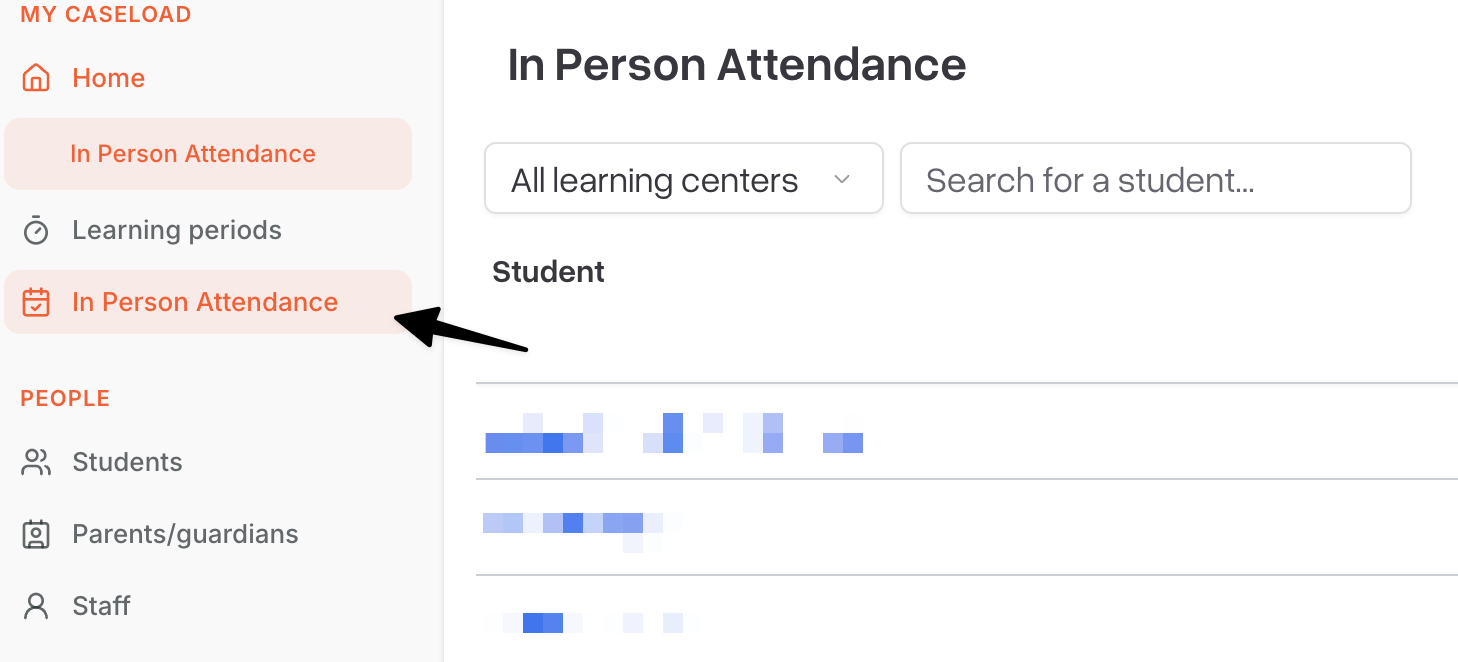
For programs that also track students showing up in person, the In Person Attendance page (found under My caseload in the sidebar) shows every student in a learning center for a given month, so you can mark attendance for many students at once.
Select a learning center to see the students assigned to it and their attendance for the current month.
Click individual day cells to mark or remove attendance, or check a date's column header to mark the whole day at once.
Save your changes — unsaved edits are highlighted until you do.
Meal orders can also be attached to a day, independent of that day's attendance status, and Scout automatically resolves whether a meal counts as received once you claim attendance for that day. For the full details on meal ordering and how attendance status affects meal counts, see Claiming In-Person Attendance.
Tracking the attendance bank
Some districts also enable the Attendance Bank, which tracks a running point balance for each student — earned automatically from approved engagement activities and adjustable by teachers and counselors when needed. You'll find it on the student's Visitations tab, below the Visitations list. Every manual addition or deduction requires a reason, so the bank keeps a full audit trail alongside the point balance. See Managing the student attendance bank for how to read the entry table and add or deduct points.
Which tool should I use?
Claiming a learning period's attendance — use the student's Learning Periods tab.
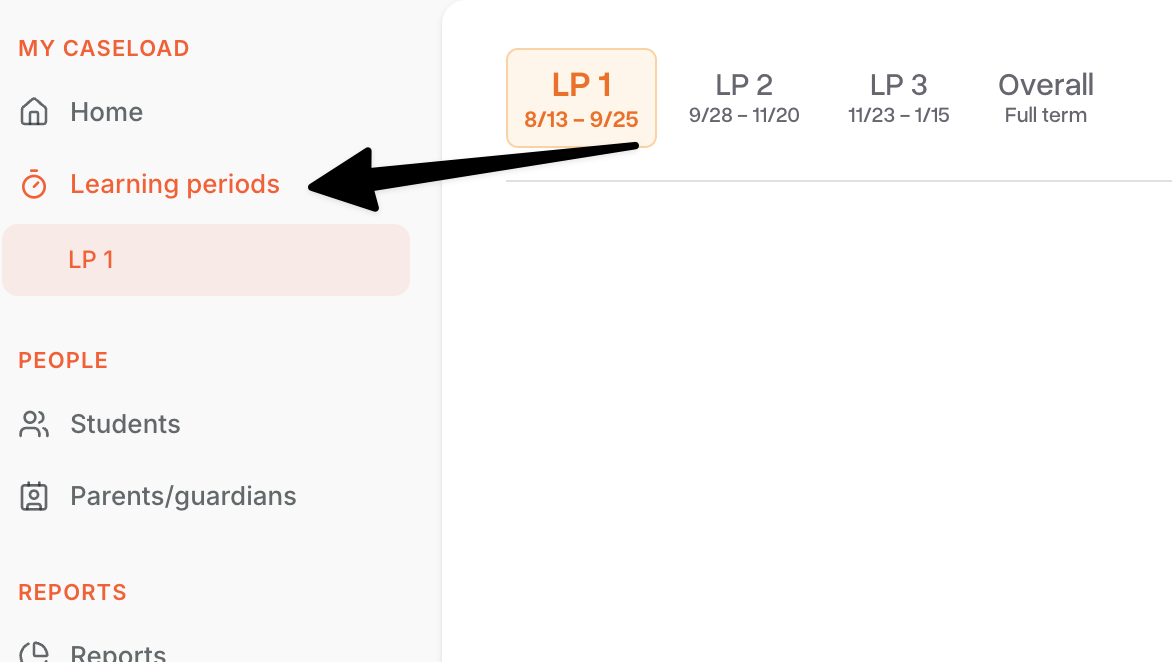
Claiming attendance for a group of students who show up in person — use the In Person Attendance page.
Tracking a point balance tied to engagement — use the Attendance Bank on the student's Visitations tab.
Tips
You can never claim more days than a student engaged. The number of days claimed is always capped by actual, distinct engagement days.
Keep a reason on hand for every adjustment. Whether you're claiming fewer days than the maximum or adjusting the attendance bank, a clear reason keeps your records audit-ready.
Not seeing a tool described here? Some features, like the Attendance Bank, are enabled per district — contact your district administrator to confirm what's turned on for you.