First-time login
Last updated: August 26, 2026
Setting up your Scout account, creating a password, and configuring multi-factor authentication.
Overview
When you first receive access to Scout, you'll need to complete a one-time setup process. This guide walks you through:
Receiving and using your invitation
Creating a secure password
Setting up multi-factor authentication (MFA)
Completing your first login
Step 1: Receiving your invitation
Your administrator will send you an email invitation to join Scout.
The email contains:
Your organization's name
A personalized setup link
Link expiration information (typically 7 days)
Important: The invitation link can only be used once and expires after the time shown. If it expires, contact your administrator for a new invitation.
If you don't receive an email, you can go directly to your school's scout instance (your school will send you a link) and claim your account directly.
Step 2: Creating your password
Note: If your school uses Google, Clever, or Microsoft to sign in, you'll be prompted to log in through those platforms. Parents will still use email/password login.
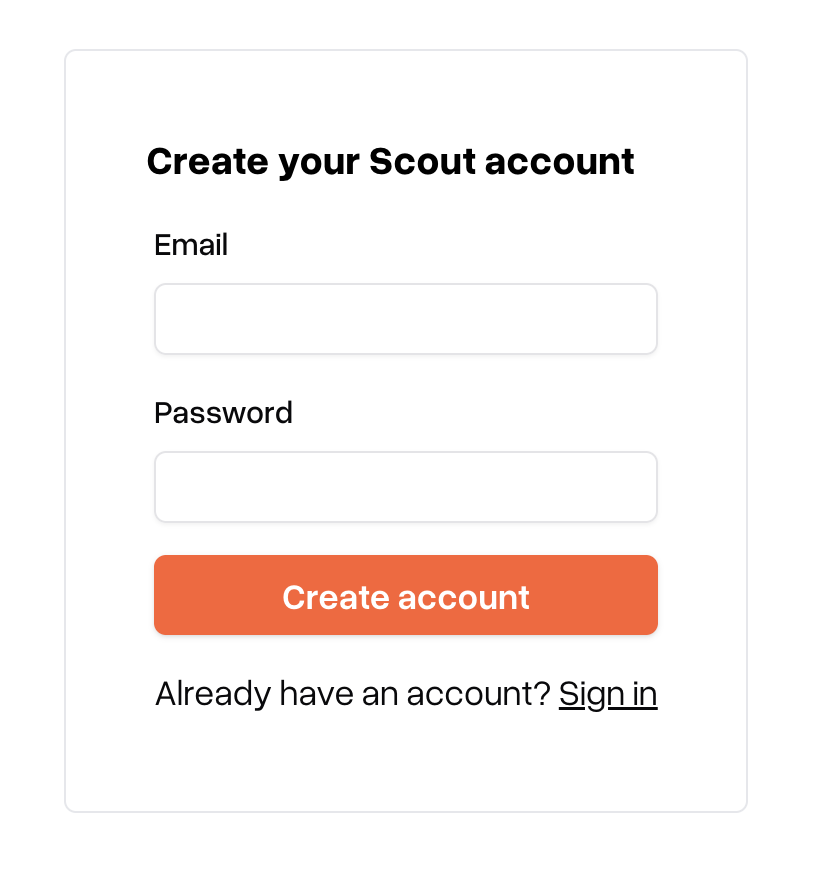
After clicking the invitation link, you'll see the password creation screen.
Password requirements
Your password must meet these requirements:
Requirement | Details |
Minimum length | At least 10 characters |
Creating a strong password
Tips for a secure password:
Use a passphrase (e.g., "MyDog$Loves2Run!")
Don't reuse passwords from other sites
Consider using a password manager
Avoid personal information like birthdays
Enter your password, confirm it, and click Create account.
Step 3: Multi-factor authentication
After creating your password, you will be prompted to enter a code from your email.
Step 4: Completing first login
Afterwards, you'll be logged in automatically.
Logging in later
For subsequent logins:
Navigate to your Scout login URL (e.g. schoolname.scoutforschools.com)
Enter your email address
Enter your password
Enter your MFA code
Click Sign In

Forgot password
If you forget your password:
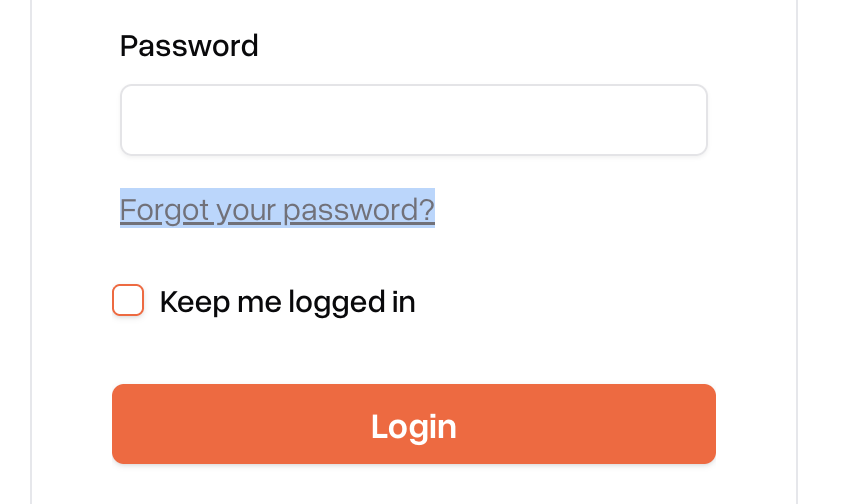
Click "Forgot Password?" on the login page
Enter your email address
Click Reset password
Check your email for the reset link
Click the link and create a new password
Note: Password reset links expire after 1 hour. If expired, request a new one.
Tips for Account Security
Don't share credentials: Your login is for you only
Log out on shared devices: Always sign out when using public computers
Keep your email account secure: Scout sends verification codes to your email, so protecting your email protects your Scout account too
Report suspicious activity: Contact your administrator if you notice unauthorized access
Troubleshooting
Issue | Solution |
Invitation link expired | Contact your administrator for a new invitation |
Password doesn't meet requirements | Your password only needs to be at least 10 characters long — there are no other requirements |
MFA code not working or not received | Check your spam/junk folder. If the code still hasn't arrived, use the "Request new code" link on the screen to get a fresh one |
Can't find invitation email | Check spam/junk folder. Ask admin to resend |
"Account not found" error | Verify you're using the correct email address |