Recording a student's immunizations
Last updated: November 3, 2026
Each student has an Immunizations page where staff can see whether the student meets California's school immunization requirements, add and correct doses, and record exemptions.
Who can do what
Action | Roles |
|---|---|
View a student's immunizations | All staff |
Add, edit or delete doses, and upload records | District admins, school admins, teachers, counselors, registrars |
Set or clear an override (exemption or conditional enrollment) | District admins, school admins, registrars |
Opening a student's immunizations
Open the student's profile.
On the Profile tab, find Immunizations in the Quick links card.
Click the arrow next to it.
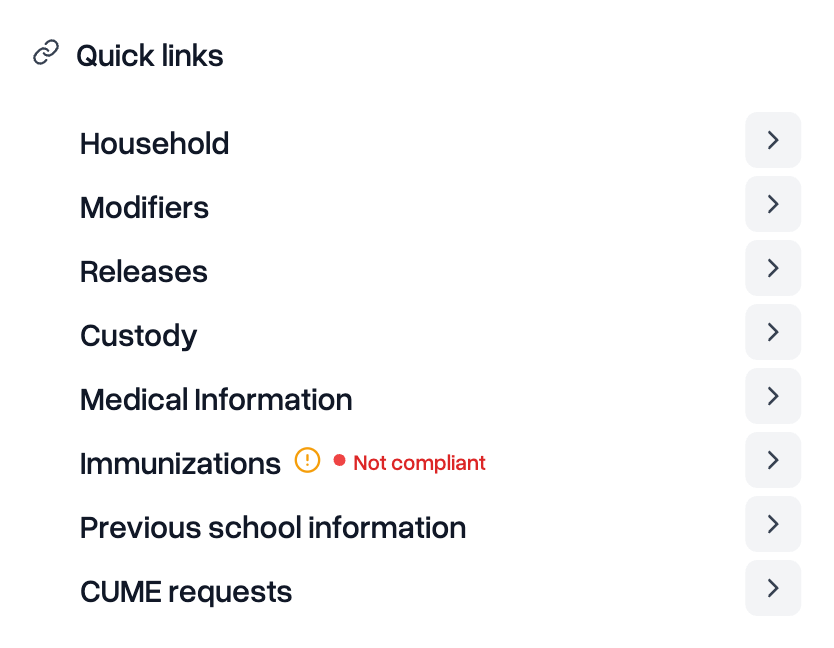
The badge next to Immunizations shows the student's status:
Badge | What it means |
|---|---|
Compliant | The student has every required dose. |
Not compliant | The student is missing doses. Hover over the badge to see which. |
Needs review | Scout can't check the student. Hover over the badge to see whether the date of birth or the grade is missing. |
Exempt | Staff set an exemption (IEP, HOME, MED-P or MED-T). |
Independent | Staff marked the student as independent study (IND). |
Conditional | Staff marked the student as conditionally enrolled (COND). |
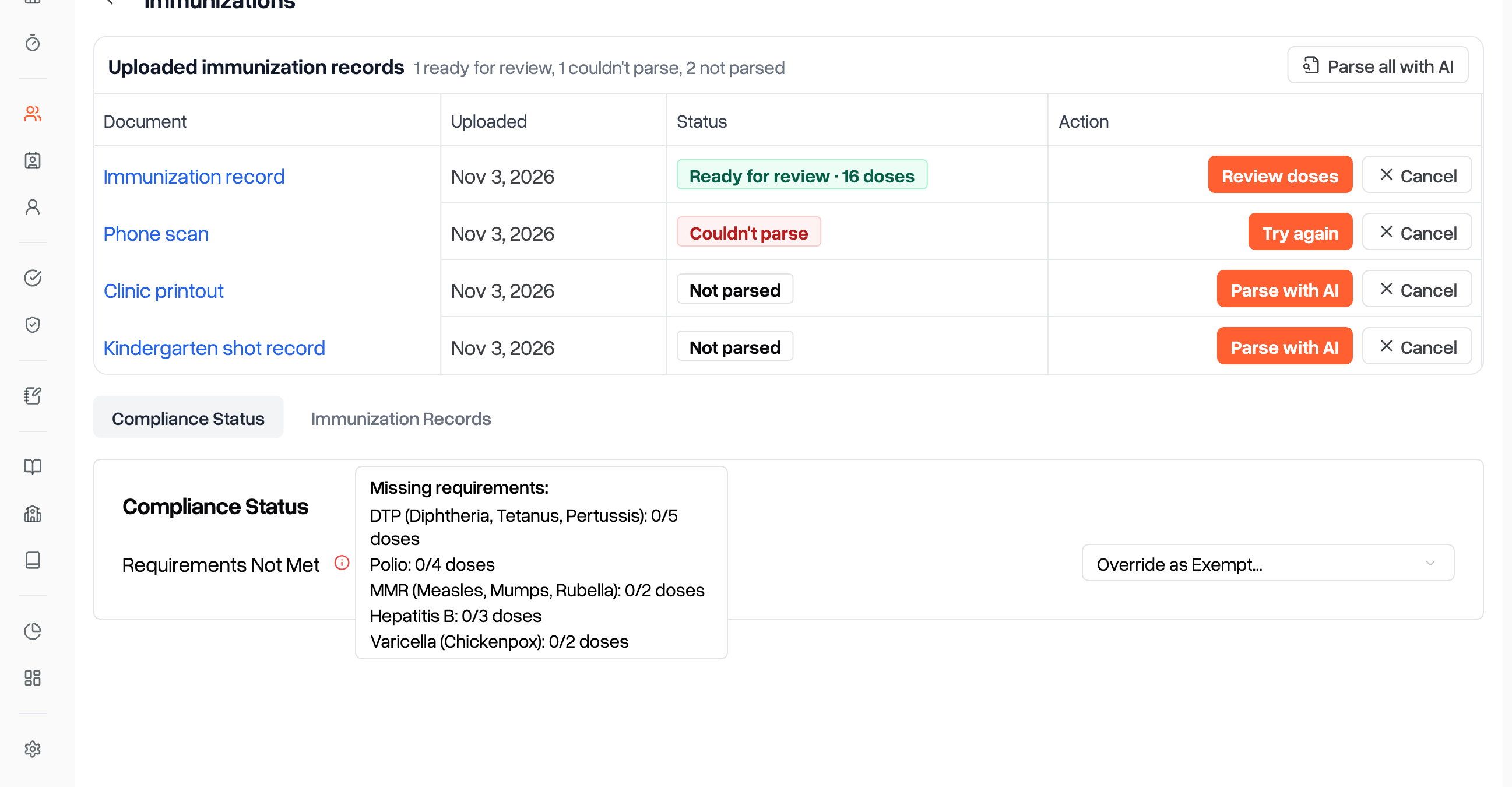
An amber alert icon next to the badge means the student has uploaded records waiting for review.
Checking what a student is missing
Open the student's Immunizations page.
On the Compliance Status tab, hover over the red icon next to the status.
The list shows each requirement the student hasn't met.
What Scout checks
Scout checks each student against the California requirements for their grade.
Vaccine | TK/K through 6th grade | 7th through 12th grade |
|---|---|---|
DTaP | 5 doses. 4 are enough if one was given on or after the 4th birthday, and 3 if one was given on or after the 7th birthday. Tdap doses count. | Same as TK/K through 6th |
Polio | 4 doses. 3 are enough if one was given on or after the 4th birthday. | Same as TK/K through 6th |
MMR | 2 doses, both on or after the 1st birthday | Same as TK/K through 6th |
Hepatitis B | 3 doses | Same as TK/K through 6th |
Varicella | 2 doses | Same as TK/K through 6th |
Tdap | Not required | 1 dose on or after the 7th birthday. A DTaP dose given on or after the 7th birthday also counts. |
A dose given up to 4 days before a birthday counts as given on the birthday.
Only doses with a date count.
DT, Td, HIB, HPV and Hepatitis A doses are kept on the record but don't count toward any requirement.
A note in a dose's Exemption field doesn't change the student's status. To exempt a student, set an override.
Students in Infant/Toddler, Preschool or Pre-K aren't checked.
If the student's school has no classroom-based instruction, Scout marks the student Independent Study (No Classroom), which counts as compliant.
Adding doses from a document
Every new dose is added from a document, such as a scanned immunization card.
Open the student's Immunizations page and click the Immunization Records tab.
Click Add/Update Doses with Documents.
Drag the file into the box, or click it to pick a file. Scout accepts PDF, PNG and JPG files up to 100 MB.
Choose how to add the doses:
Yes, parse document: Scout reads the document with AI in the background. In a few minutes it shows up as Ready for review above the tabs. Click Review doses, check what Scout found, and save it.
No, enter manually: click Add Dose for each dose, pick the vaccine, and enter the dose number and date. Then click Save N doses.
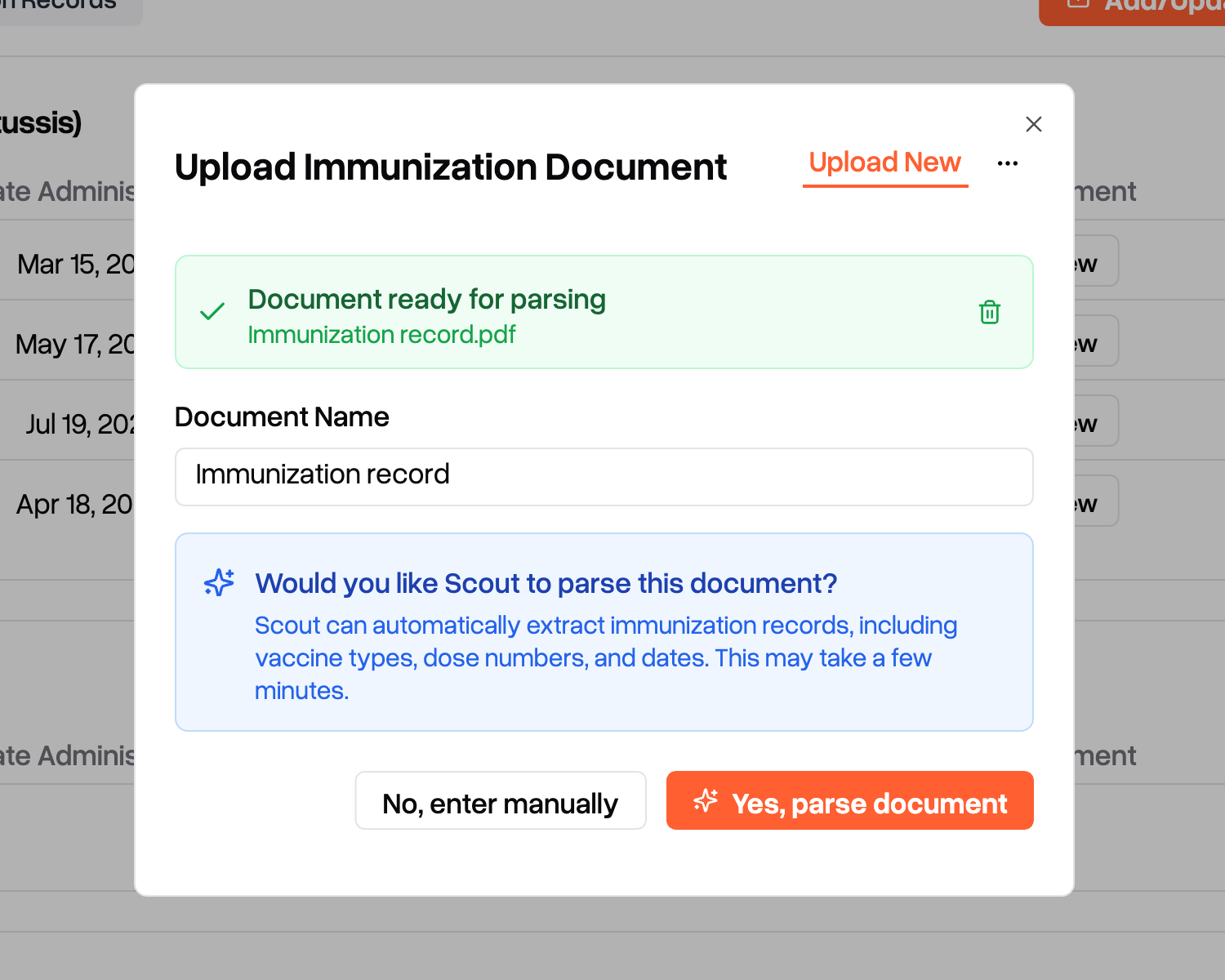
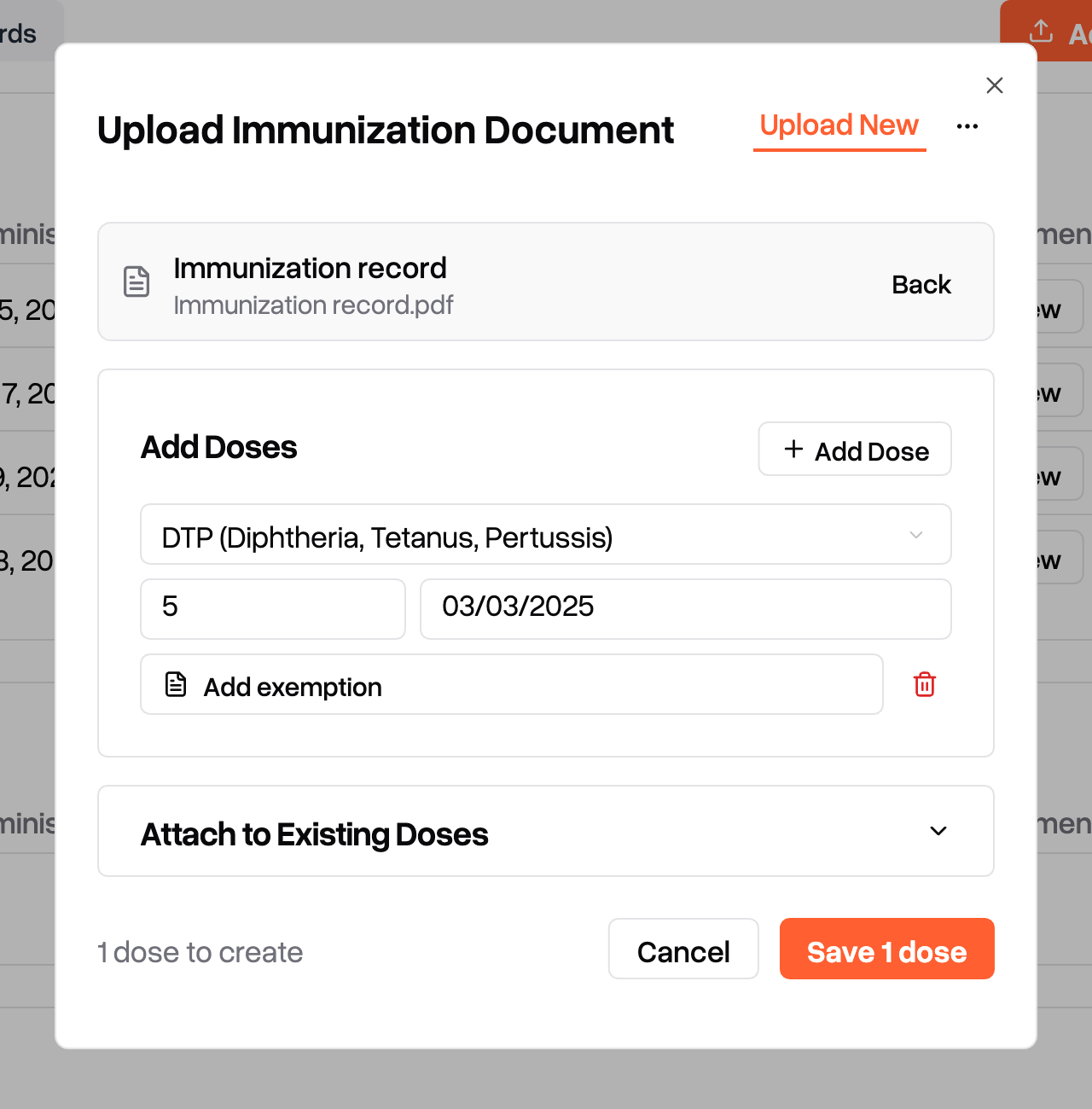
To add a document that's already in the student's documents, click the ... menu in the pop-up and choose Use Existing.
If a dose on the document is already on file, open Attach to Existing Doses and check it instead of adding it again. Scout links the document to that dose.
If you see one of these messages, Scout won't save until you fix it:
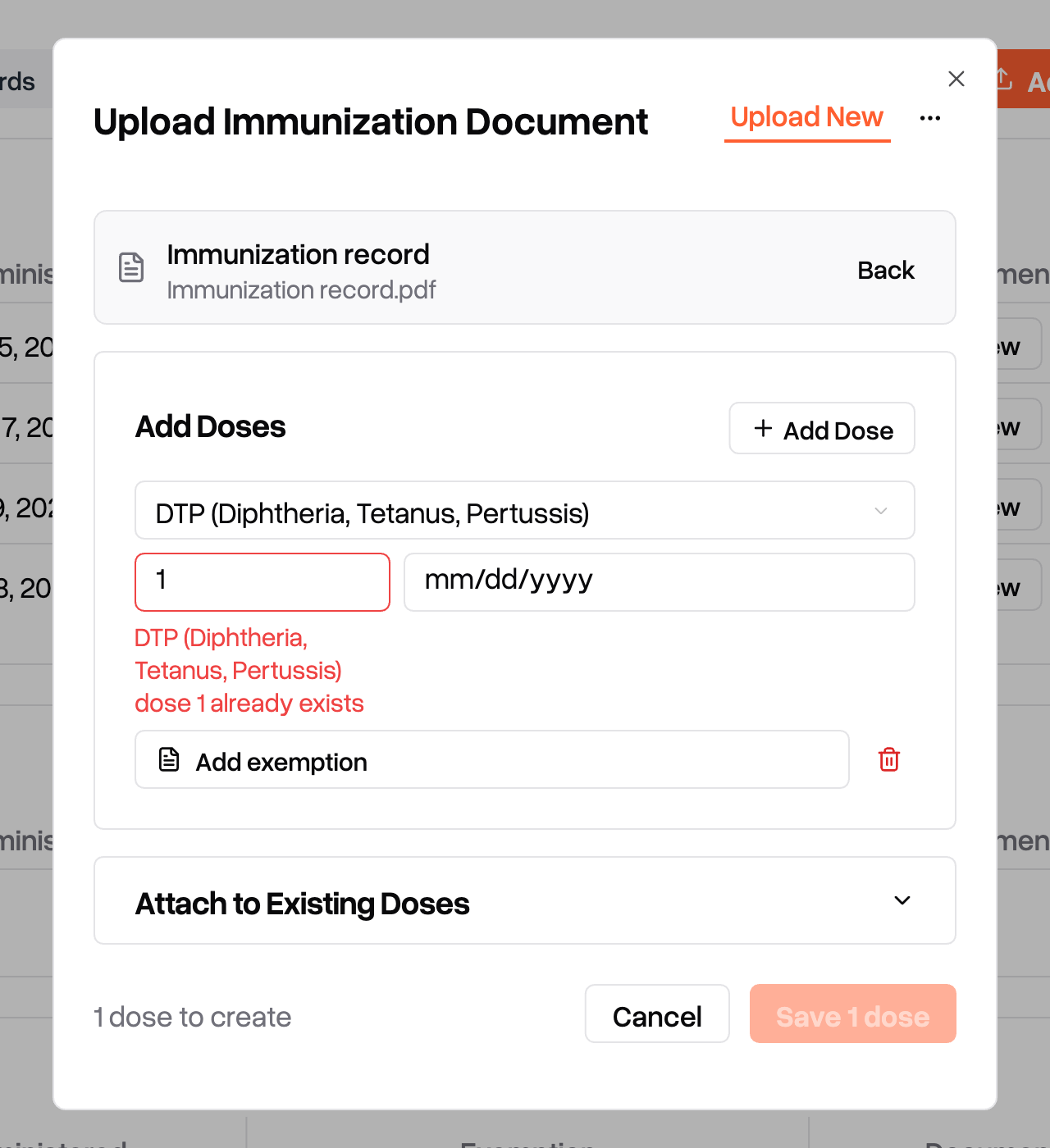
Message | Cause | Fix |
|---|---|---|
Vaccine dose N already exists | That dose number is already on file. | Delete the row and check the dose under Attach to Existing Doses, or correct the dose number. |
Date must be between ... and ... | The date is before the student's date of birth or the previous dose of that vaccine, or after the next dose or today. | Correct the date or the dose number. |
Date must be before ... | The date is after the next dose of that vaccine or after today. | Correct the date or the dose number. |
Editing or deleting a dose
Open the student's Immunizations page and click the Immunization Records tab.
Find the vaccine's card and the dose's row.
To edit the dose, click Edit, change the dose number, date or exemption note, and click the check mark to save. To remove the document linked to the dose, click the X next to it before saving.
To delete the dose, click the trash icon, then click Delete. You can't undo this.
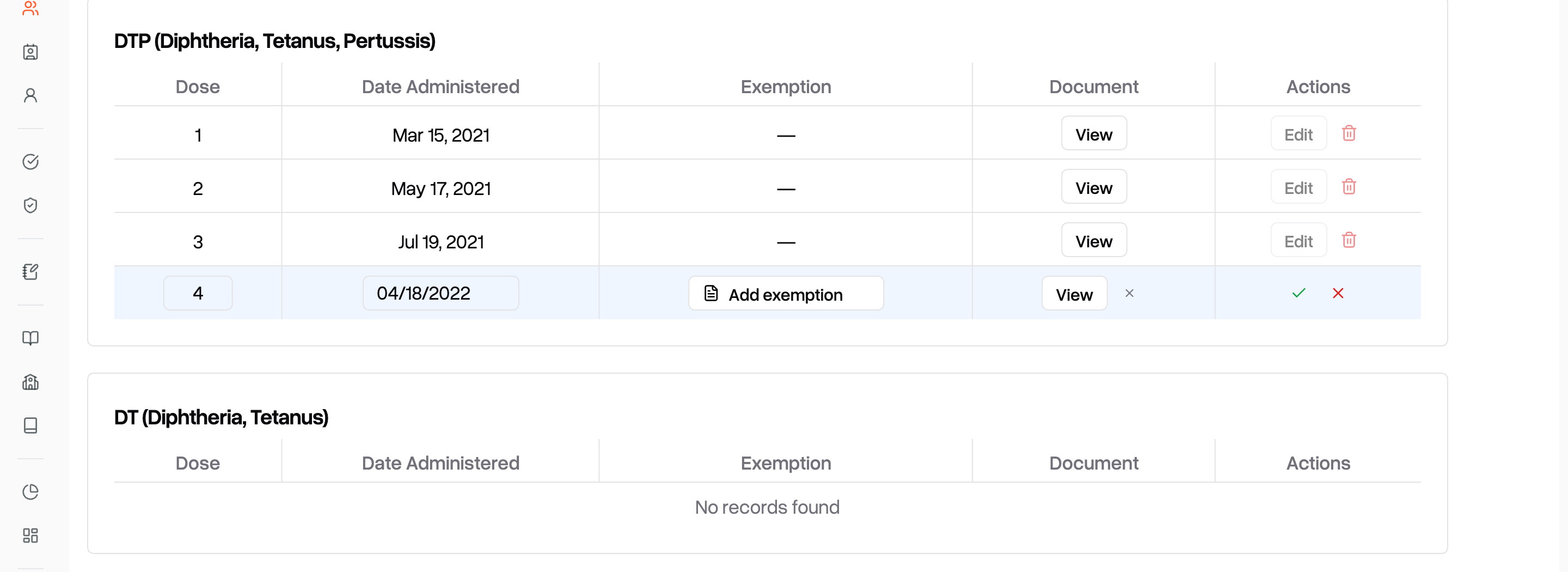
An amber triangle with Dose Deadline means the dose has no date yet and your student information system set a deadline for it.
Setting an override
An override replaces the status Scout works out from the doses. Use it when a student is exempt or conditionally enrolled.
Open the student's Immunizations page.
On the Compliance Status tab, open the Override as Exempt... dropdown.
Pick the override.
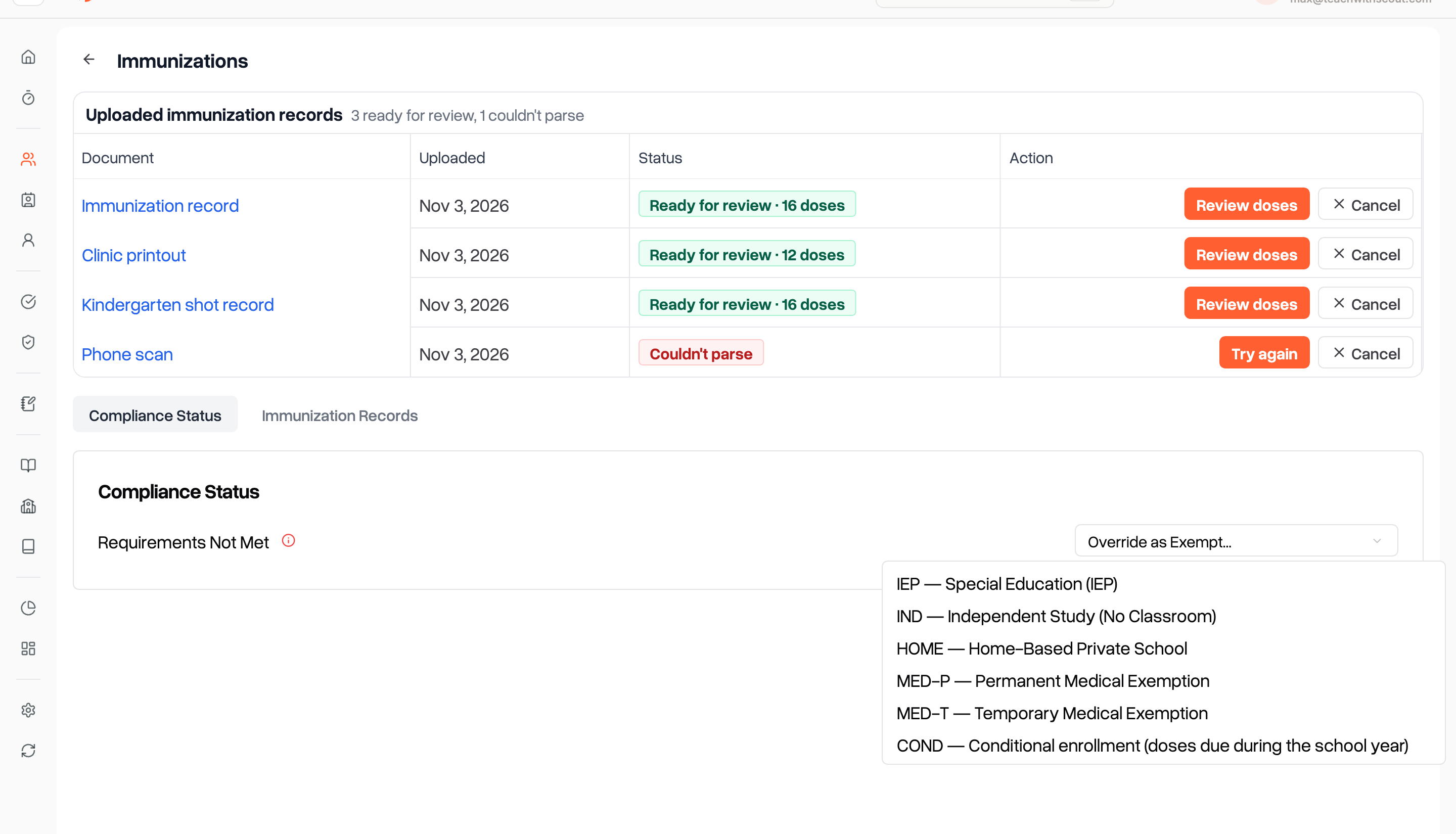
Override | Use it when | Badge | On the state assessment report |
|---|---|---|---|
IEP: Special Education (IEP) | The student has an IEP that covers immunizations | Exempt | IEP Services |
IND: Independent Study (No Classroom) | The student is in independent study with no classroom-based instruction | Independent | Independent Study |
HOME: Home-Based Private School | The student attends a home-based private school | Exempt | Home-based Private School |
MED-P: Permanent Medical Exemption | A doctor has given a permanent medical exemption | Exempt | Permanent Medical Exemption |
MED-T: Temporary Medical Exemption | A doctor has given a temporary medical exemption | Exempt | Temporary Medical Exemption |
COND: Conditional enrollment (doses due during the school year) | The student is missing doses that aren't due yet | Conditional | Conditional (TK/K form only) |
Scout saves the override as soon as you pick it. The Compliance Status tab then shows the override with Overridden by staff next to it.
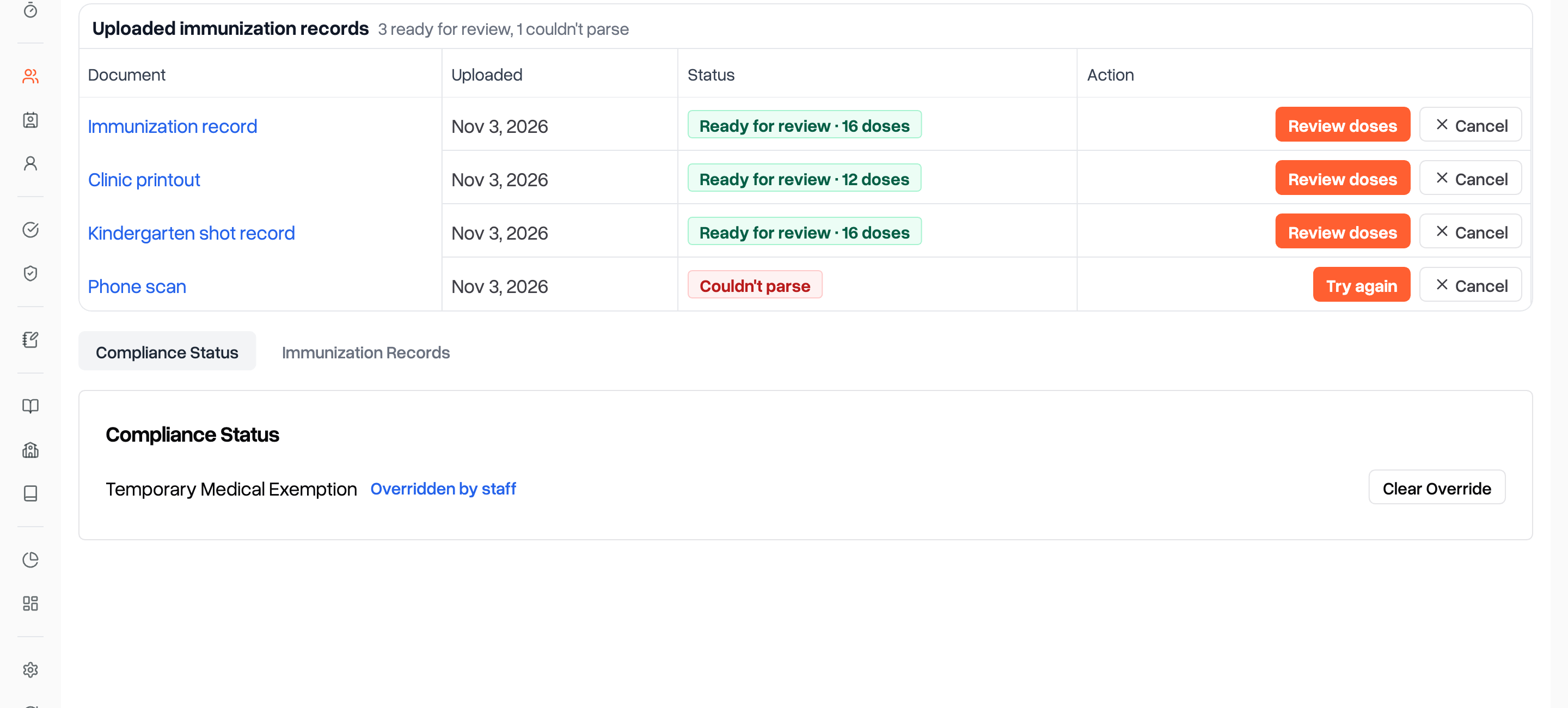
Every override counts as compliant on the Compliance page.
Overrides don't expire and aren't tied to a school year. When a temporary exemption ends or a conditionally enrolled student gets their doses, click Clear Override.
A student can have only one override.
Some students have an older Medical Exemption override that doesn't say whether it's permanent or temporary. The state assessment report can't place these students. Click Clear Override, then pick MED-P or MED-T.
To change an override, click Clear Override first. The dropdown only appears when no override is set.