Generating a CUME Request for a student
Last updated: April 29, 2026
How to generate a Cumulative records (CUME) Request for a student in Scout.
Generating a CUME Request
Open the student's profile in Scout
Click the Documents tab
Click the Generate document button in the top right of the tab

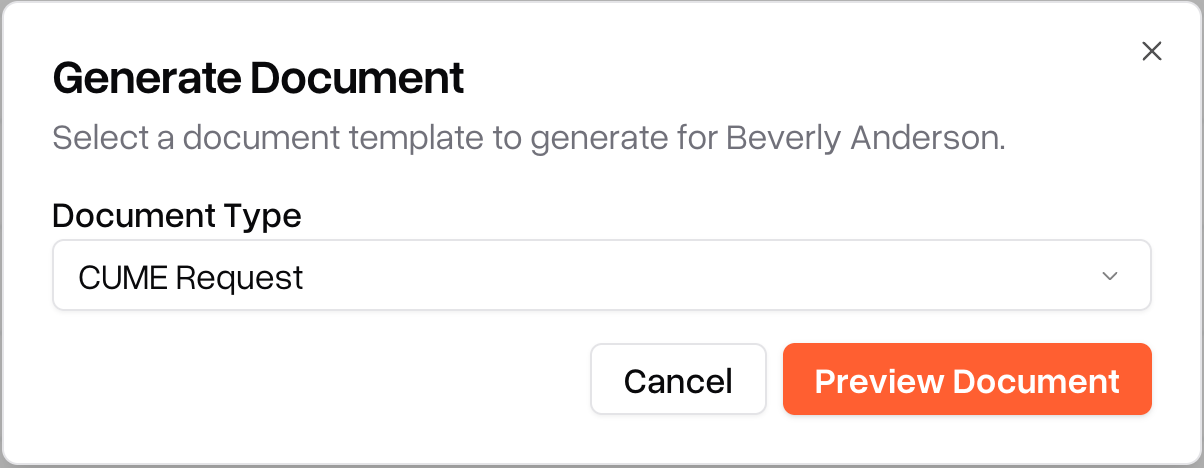
In the dialog that appears, choose CUME Request from the Document Type dropdown
Click Preview Document
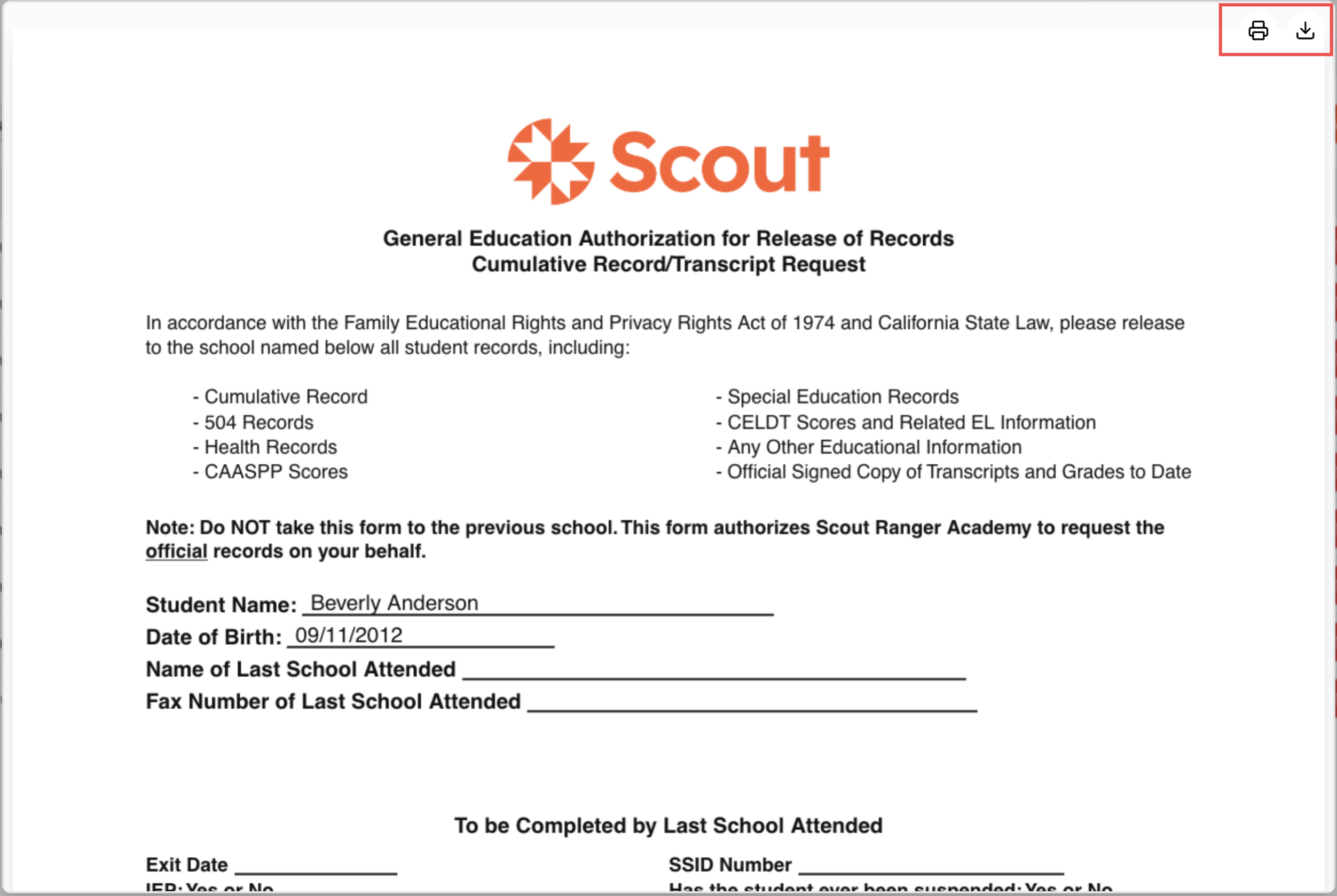
Scout opens a preview of the form with the school and student information filled in
Use the preview controls to download or print the PDF
Requirements
Requirement | What it means |
You are signed in as a staff member | Only staff members see the Generate document button on the Documents tab. |
The student has a current school | The student must be currently enrolled at a school in Scout. Records recipient addresses come from that school's CUME Request configuration. |
The school has a logo uploaded | The form displays the school's logo at the top. If no logo is on file, you'll see a "School logo required" message instead of a preview. |
A CUME Request template is configured for the school | If a template hasn't been set up for the school, CUME Request won't appear in the Document Type dropdown. |
If your school has not been set up with a CUME Request template, contact Scout support and we can configure it for you. We'll need:
The address where general education records should be sent (mailing address, fax, phone, email)
The address where special education records should be sent, if different
The label you'd like used for the records clerk tracking section at the bottom of the form