How to Reject a Work Sample and Pull a New One from Canvas
Last updated: March 27, 2026
How to invalidate a submitted work sample and select a replacement from Canvas.
Overview
Sometimes a work sample submission doesn't meet requirements — the wrong file was submitted, the document is unreadable, or it doesn't match the subject area. When this happens, you can reject (invalidate) the work sample and pull a new one directly from the student's submitted Canvas assignments.
This guide covers:
Rejecting (invalidating) a submitted work sample
Selecting a new work sample from Canvas
Understanding what happens after rejection
Who can do this
Staff members (teachers and administrators) can reject work samples. District administrators also have the ability to approve or reject work samples that require admin approval.
Rejecting a work sample
Step 1: Open the blue/unapproved work sample
Navigate to the student's Learning Period view
Find the course with the work sample you want to reject
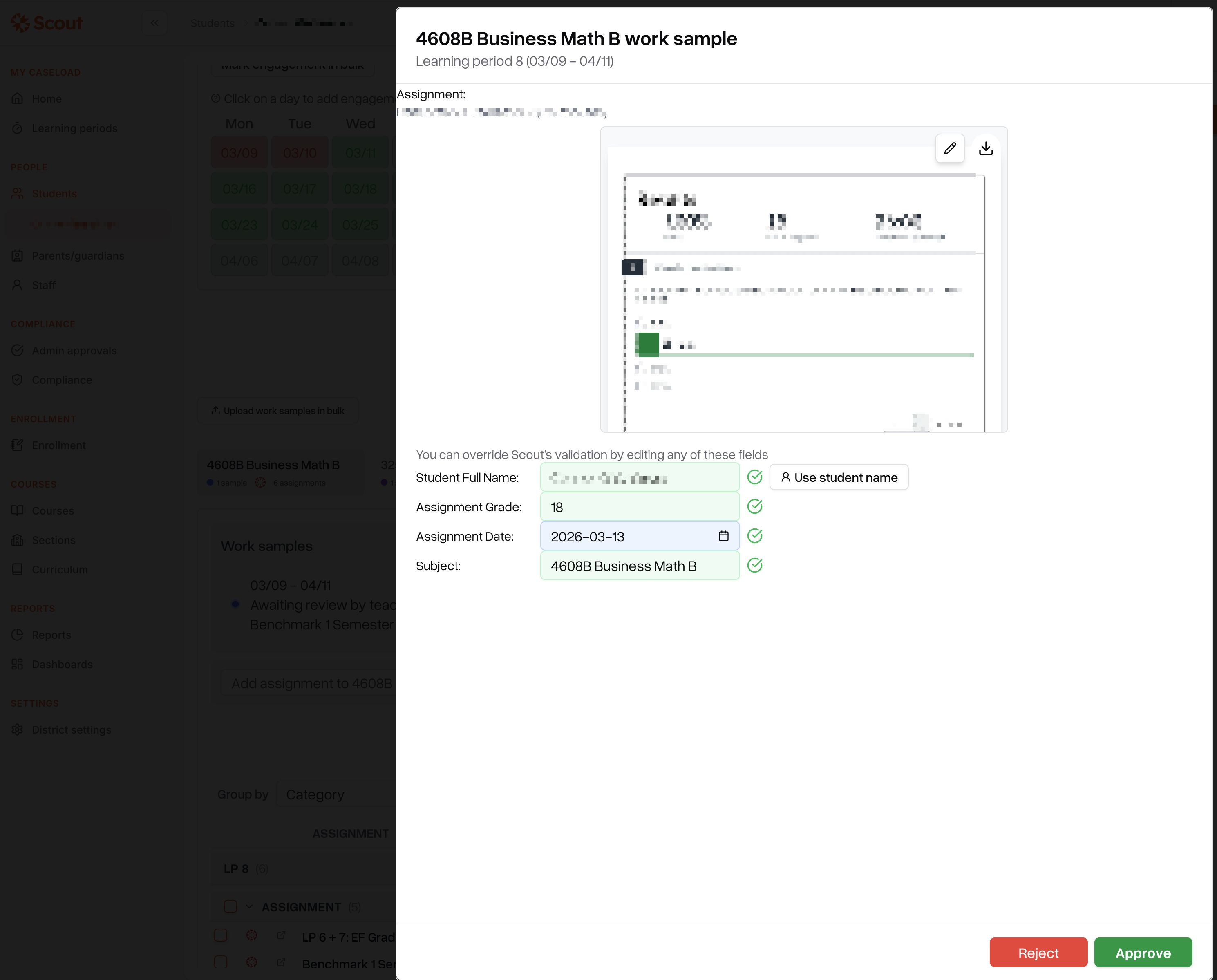
Click the View button next to the submitted work sample
This opens the work sample preview drawer, where you can see the submitted file along with its validation details.
Step 2: Reject the work sample
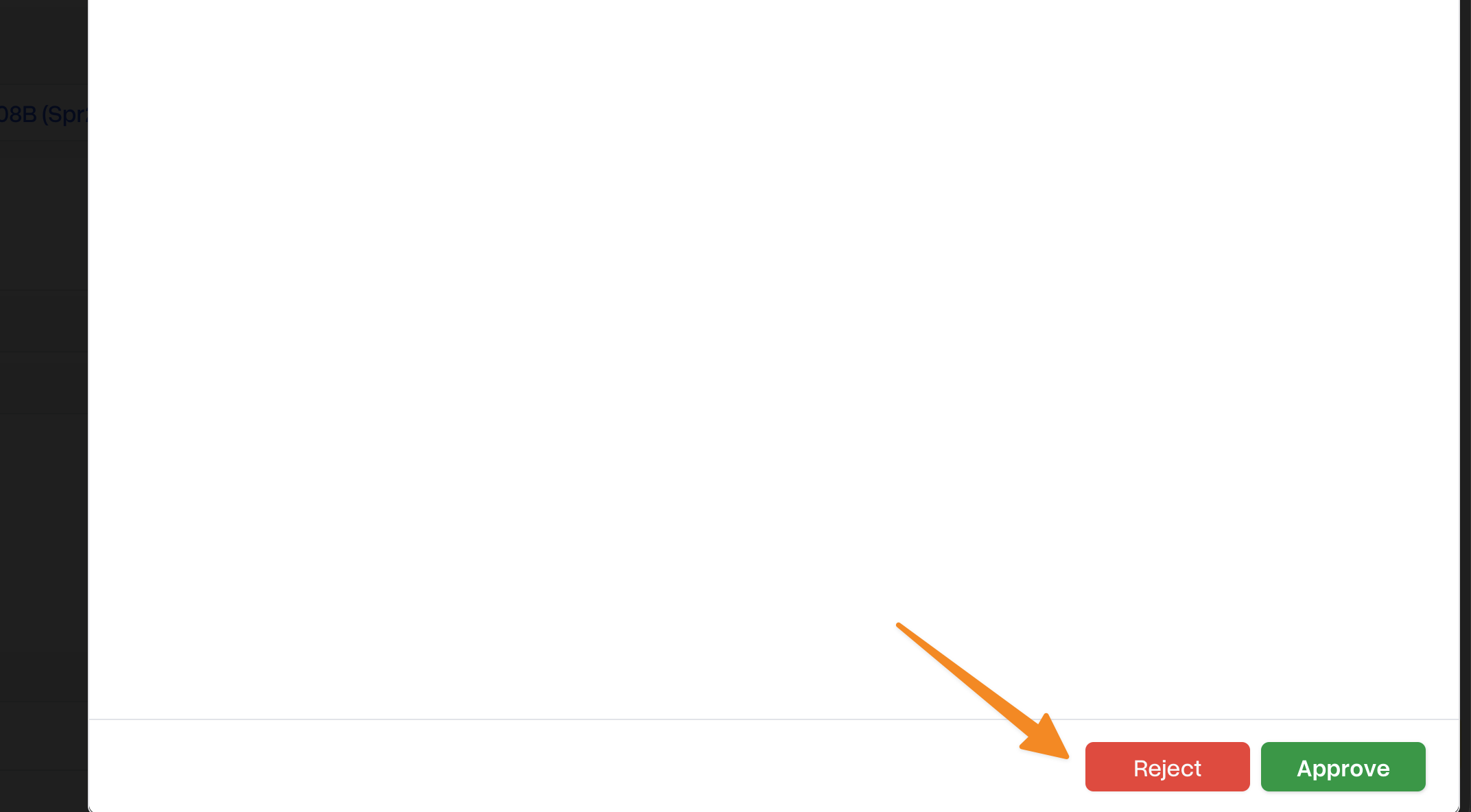
In the preview drawer, click Reject
What happens after rejection
Once you reject a work sample:
The work sample status resets to pending (or missing if the learning period is overdue)
Any pending admin approvals for that submission are removed
The Upload and Select from submitted assignments buttons reappear, allowing a new submission
Pulling a new work sample from Canvas
After rejecting a work sample (or if no work sample has been submitted yet), you can pull one directly from the student's submitted Canvas assignments.
Step 1: Open the assignment selector
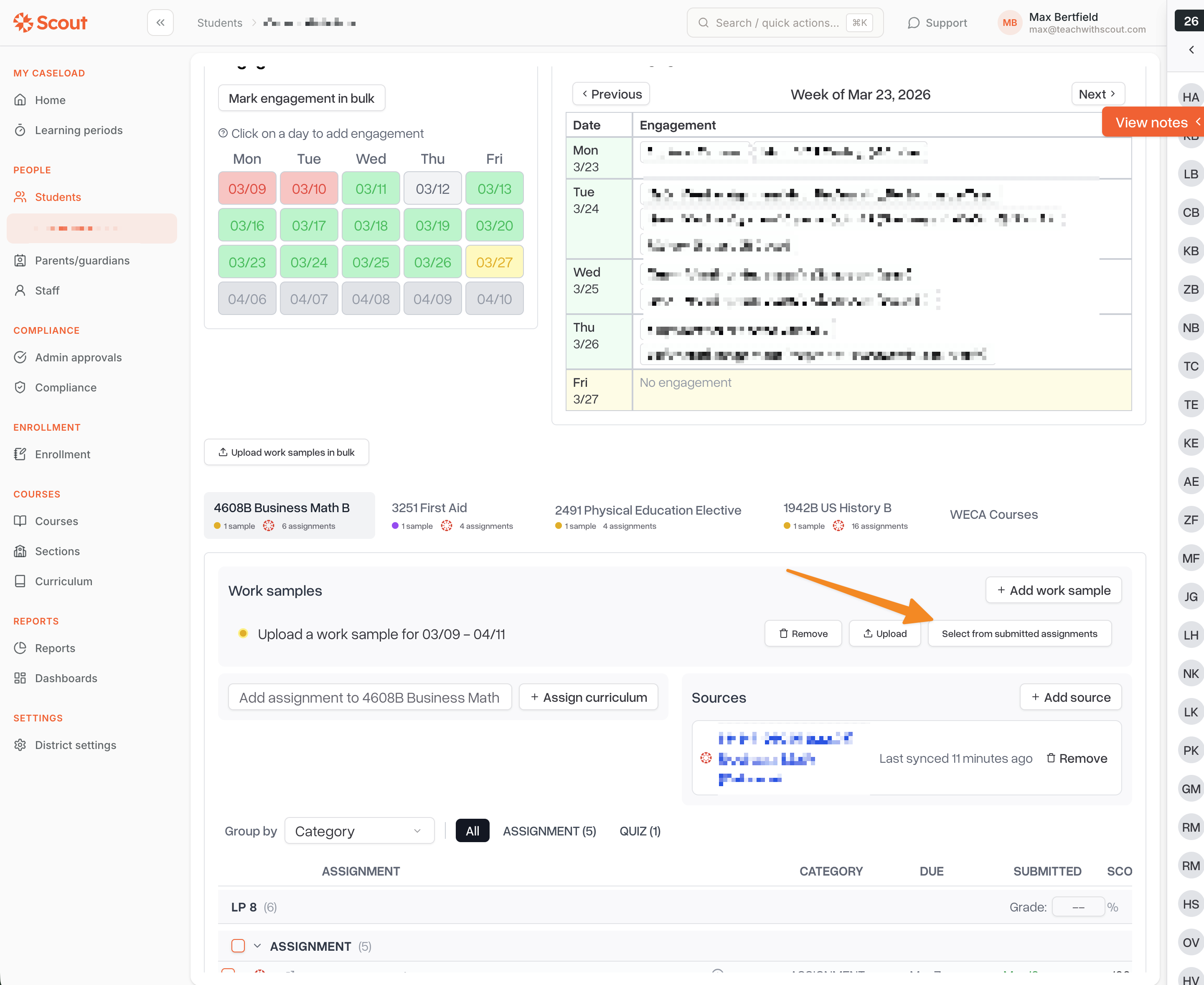
On the work sample row for the course, click Select from submitted assignments
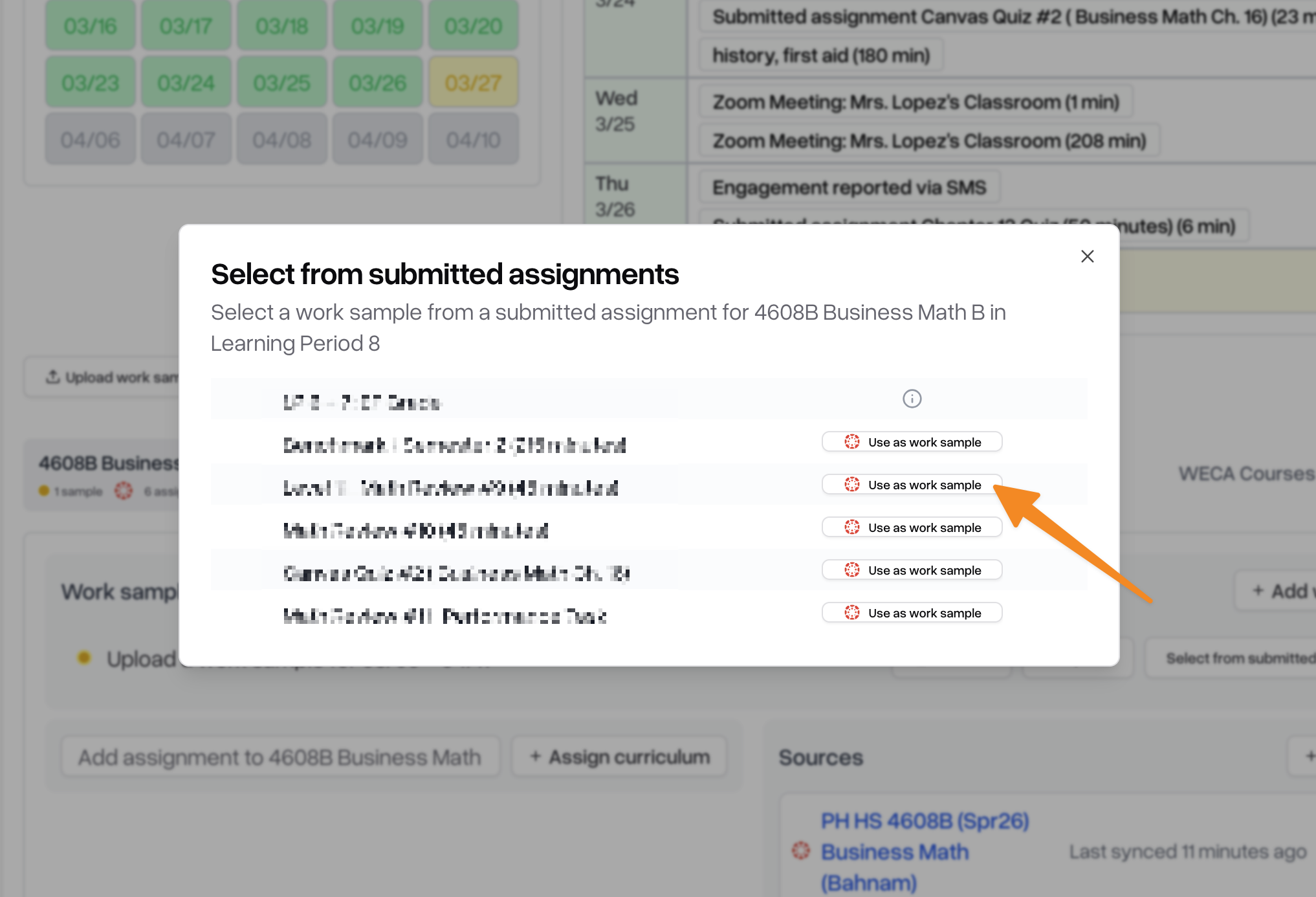
A dialog opens showing all submitted assignments for that course during the learning period
Step 2: Select an assignment
Browse the list of submitted assignments
Click the work sample icon or button next to the assignment you want to use
Scout will pull the submission file from Canvas and create a new work sample submission
Note: Only assignments that have been submitted and graded in Canvas will appear in the list.
What happens next
After selecting an assignment from Canvas:
Scout fetches the submitted file from Canvas (this may take a moment)
A new work sample submission is created with the file
The work sample enters the needs review state for teacher validation
If your school requires admin approval for work samples, the submission will go through that approval step after the teacher validates it
Supported Canvas assignment types
Scout can pull work samples from the following Canvas submission types:
File uploads — PDF, images, and other uploaded documents
Text entries — Online text submissions (converted to a file)
Quizzes — Canvas quiz submissions
Some external tool submissions (like LTI integrations) are also supported, though not all tools are compatible.
Troubleshooting
Issue | Solution |
No assignments appear in the selector | The student may not have submitted any assignments for this course during the learning period. Check the student's profile under the Learning Periods tab. |
"Invalidate" button is not visible | You may not have the staff permissions needed to reject work samples. Contact your administrator. |
Canvas assignment won't pull | Make sure the student's Canvas account is linked in Scout. The assignment must also be in a submitted or graded state in Canvas. |
Upload button is disabled | You cannot upload a work sample for a future learning period. Wait until the learning period has started. |