What Scout's Automatic Emails Look Like
Last updated: September 29, 2026
Scout sends emails to families and staff for you, like enrollment invitations, signature requests, attendance reminders and grade reports. This article shows what each email says, who gets it and when it is sent, so you know what your families and staff are seeing in their inbox.
The pictures below show each email exactly as it appears in an inbox. The names, dates and district in the pictures are examples; real emails use your district's name and your families' information. In the subject lines, text in [brackets] is filled in for each email.
How Scout emails work
From: emails come from [Your district name] (Scout), sent from an address ending in @tx.scoutforschools.com.
Replies: many emails say "respond to this email." If your district has a reply-to address set up, replies go straight to that address. If you don't have one set up, contact Scout support so families' replies reach your team.
Sign-off: most emails end with Thank you, Scout & [Your district name].
Buttons: most emails have a button that opens the right page in Scout, such as the form to sign or the page to log learning.
Timing: the scheduled times below are in Pacific time.
Seeing which emails a family received
Click Parents/Guardians in the left sidebar and click the parent's name. You can also click the parent's name in the Contacts section of the student's profile.
Open the Communication history tab.
Each email Scout sent to that parent is listed with its name, for example "Enrollment Invitation Email" or "Learning log email (parent)".
Emails to families
Enrollment invitation
Who gets it: the parent email address on the invitation.
When: when your staff sends an enrollment or re-enrollment invitation, or changes the email address on an invitation.
Subject: You're invited to enroll [Student name] in [District name] (or "re-enroll", with the school year added for re-enrollment)
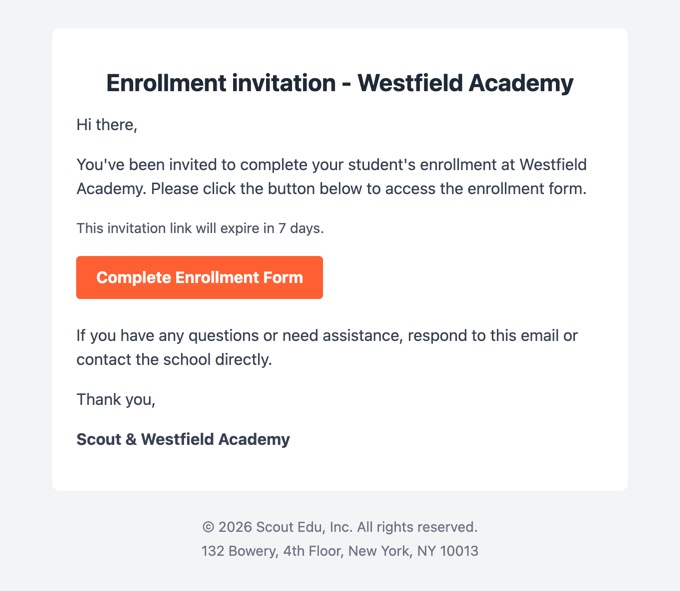
You can change how long invitation links last under Settings > Enrollment Form > Enrollment Invitation Expiration (days).
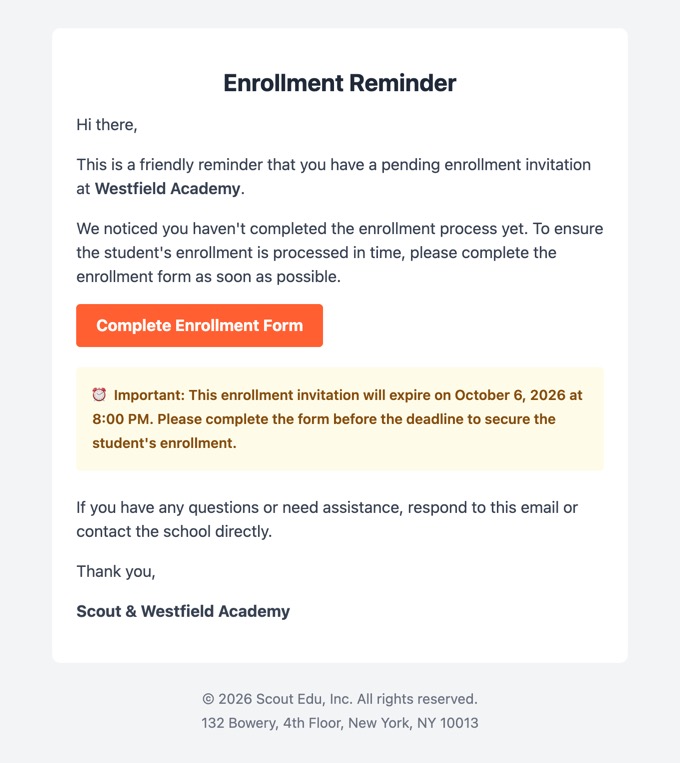
Enrollment reminder
Who gets it: parents who haven't finished an enrollment form.
When: automatically every 3 days in the morning, starting 3 days after the invitation was sent. Staff can also send one from the Enrollment page with Send reminders to all or the Remind option on a single invitation.
Subject: Reminder: Complete your enrollment at [District name]
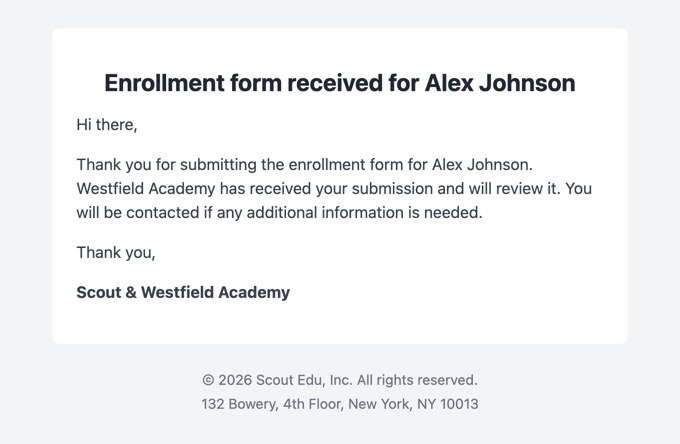
Enrollment form received
Who gets it: the parent who submitted the form.
When: right after the parent submits the enrollment form for the first time.
Subject: Enrollment form received for [Student name]
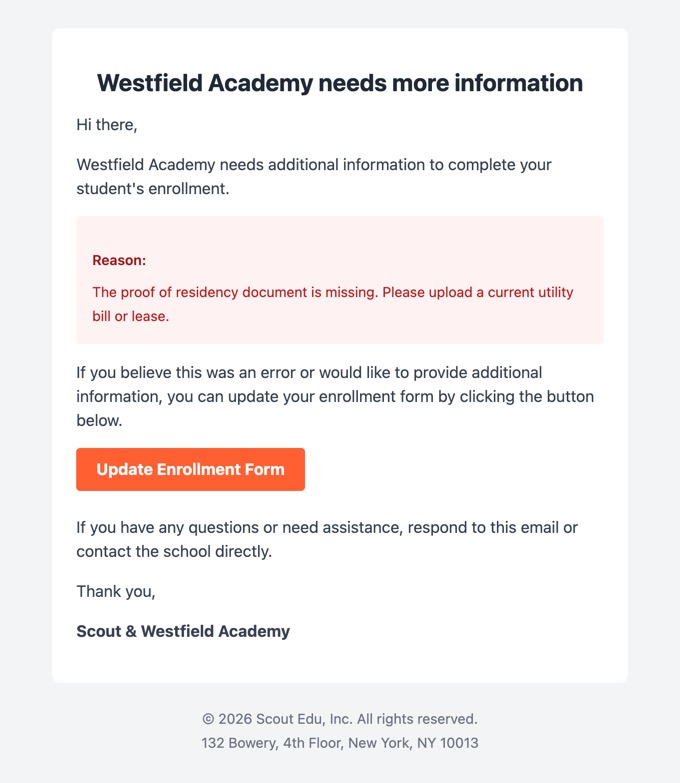
Enrollment needs more information
Who gets it: the parent on the invitation.
When: when your staff sends an application back to the family, or changes the school on the application.
Subject: [District name] needs more information
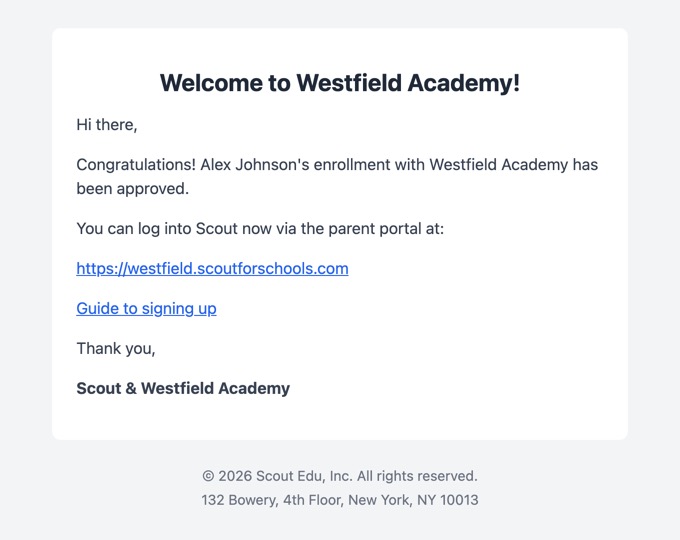
Enrollment approved
Who gets it: the parent on the invitation.
When: when your staff approves the enrollment.
Subject: Your enrollment with [District name] is approved
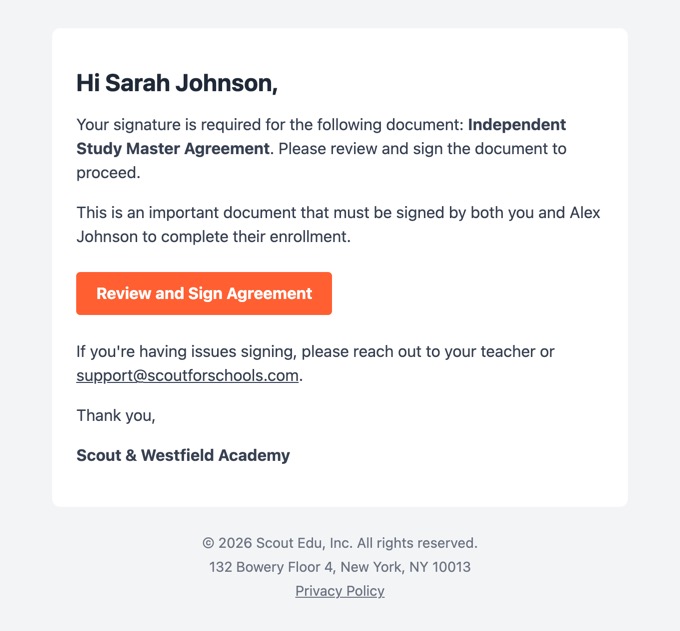
Master agreement: signature required
Who gets it: parents, and students and teachers if your district turns that on. Teachers of record are always included.
When: when a master agreement or addendum is created and needs signatures, when it's the next person's turn to sign, and as a daily reminder each morning while it stays unsigned. Staff can also send one with Send Reminder on the master agreement.
Subject: [District name] - Master Agreement Signature Required (or "Master Agreement Addendum Signature Required")
District admins control these reminders under Settings > Master agreements > Notifications:
Daily reminders: send a reminder every day while an agreement is unsigned.
SMS reminders: also text parents when reminding them to sign.
Email students, Email parents, Email teachers: choose who gets emails.
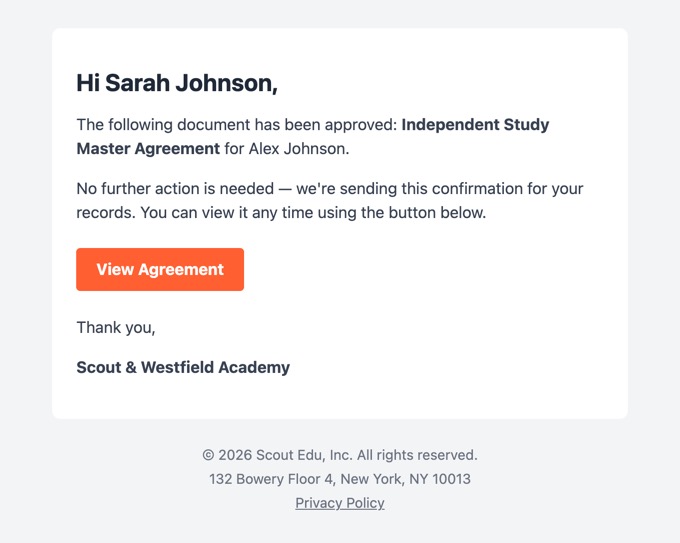
Master agreement approved
Who gets it: the same people who get signature emails.
When: when the agreement is approved.
Subject: [District name] - Master Agreement Approved
Master agreement needs to be re-signed
Who gets it: the same people who get signature emails.
When: when an administrator rejects the agreement on the Approvals page.
Subject: [District name] - Master Agreement Requires Re-signature (or "Master Agreement Addendum Requires Re-signature")
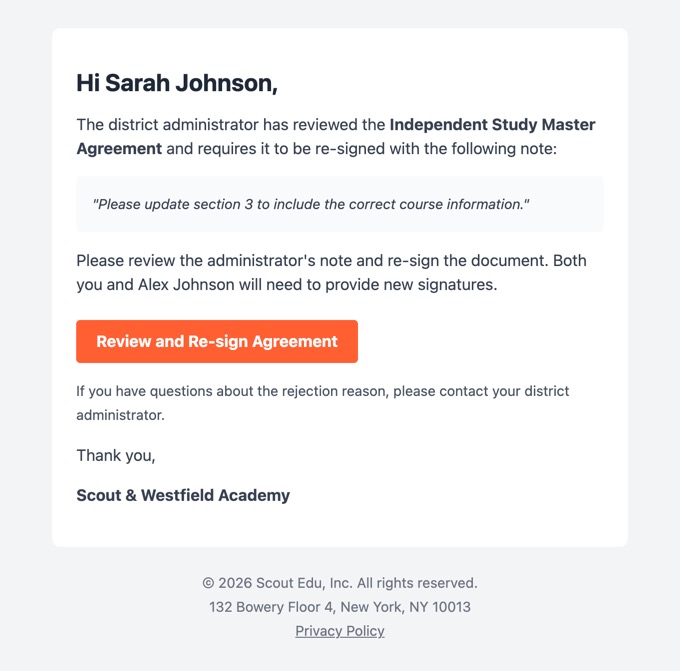
Students get the same email, except it says both they and their parent/guardian need to sign again.
Sign learning period attendance
Who gets it: the student's primary parent, or the student if they are over 18 and your school allows students to sign for themselves.
When: once a day around noon for learning periods that ended in the last 2 months, have no missing days and haven't been signed yet. Staff can also send one from the student's profile or the attendance claims report. If the learning period ended more than 4 days ago, a text message is sent too.
Subject: Action needed: Sign your student's attendance for [start date] - [end date]
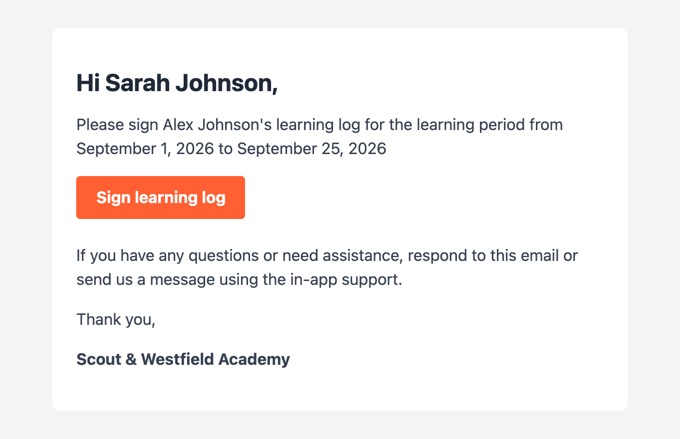
This email is only sent if your district requires parents to sign off on attendance.
Missing learning log reminder (engagement gap)
Who gets it: the student's primary parent.
When: every morning at 9 AM once a student has gone a set number of school days (5 by default) without any logged learning. Reminders stop after 10 days in a row.
Subject: Action needed: [Student name] has [number] school days without a learning log
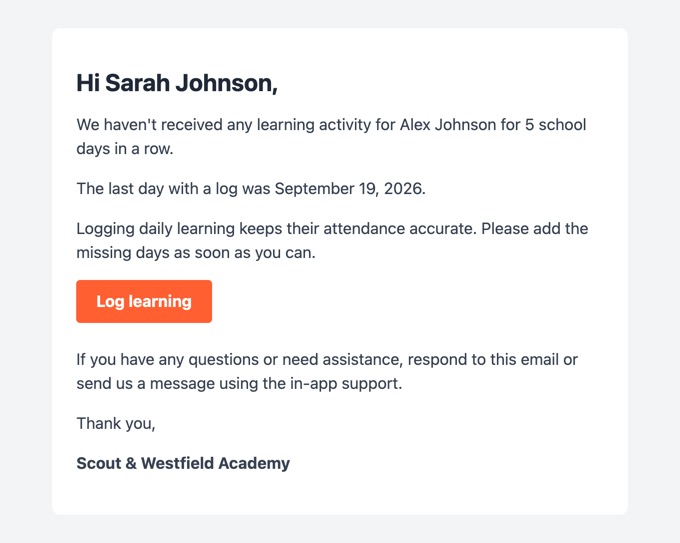
Scout turns this on for your district and can also send it as a text message. Contact Scout support to turn it on or off or to change the number of days.
Learning log
Who gets it: the student's primary parent.
When: Tuesday mornings, for learning periods that ended in the past week. The learning log is attached as a PDF.
Subject: [Student name]'s learning log for [start date] - [end date]
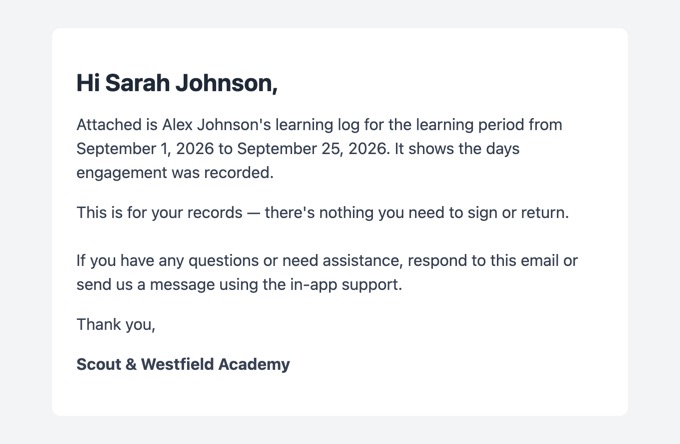
If the student joined 50% or less of the live (synchronous) instruction offered, the email adds a paragraph asking the parent to contact the teacher. Scout turns this email on for your district. It isn't sent if your district requires parents to sign attendance, because those parents get the signature email instead.
Weekly grades
Who gets it: the primary parent of each student in the section.
When: Friday evenings, for sections that have weekly grade emails turned on. Teachers can also send it anytime with Send report on the section page. The grade report is attached as a PDF.
Subject: [Student name] [Course name] Weekly Grades
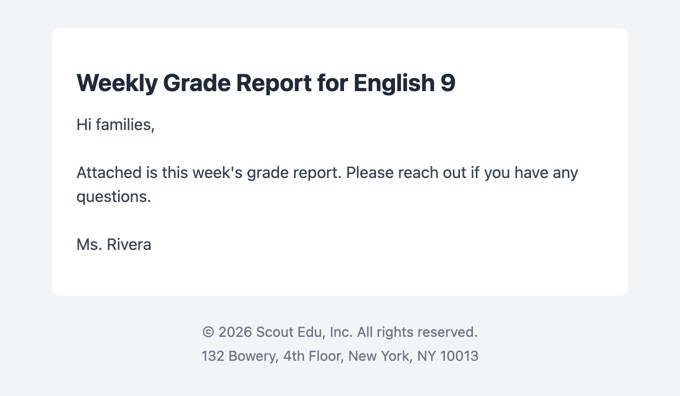
To turn this on for a section:
Open the section and go to its assignments tab.
Click Configure gradebook.
Turn on Send weekly grades emails to parents.
Type your message in Email message. Emails are only sent when this message is filled in.
Save your changes.
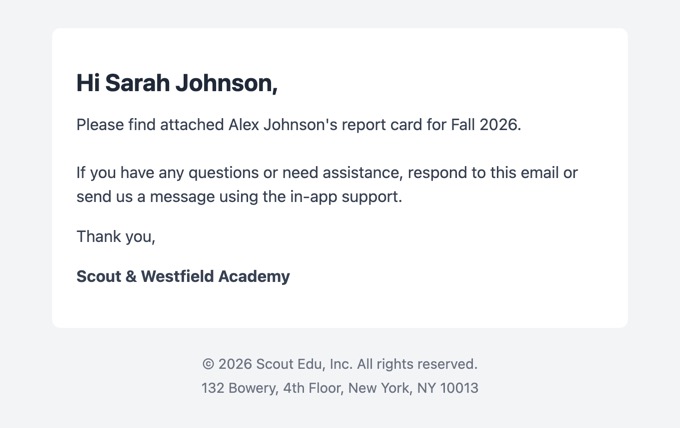
Report card
Who gets it: the student's primary parent.
When: when staff emails a report card from the report card editor, or emails many at once from the report cards section on the Home page. The report card is attached as a PDF.
Subject: [Student name] [Report card title] - [Term name]
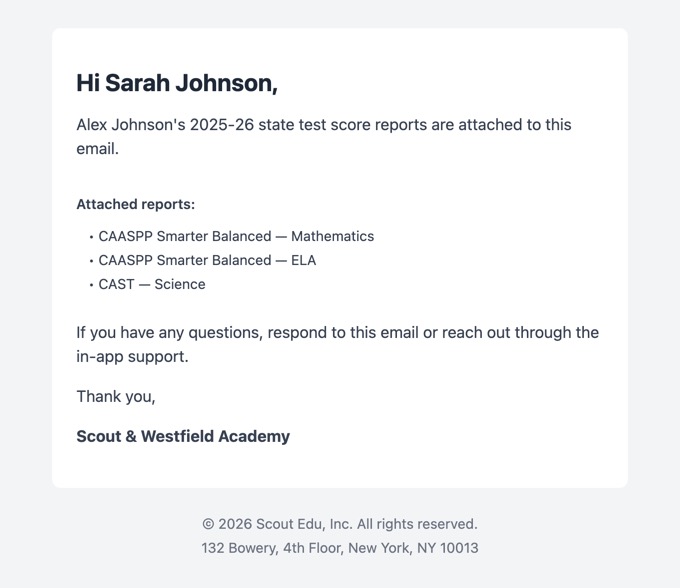
State test reports
Who gets it: the student's primary parent.
When: when staff sends state test reports from the State Test Distribution report. The score reports are attached.
Subject: [Student name] — [School year] State Test Reports
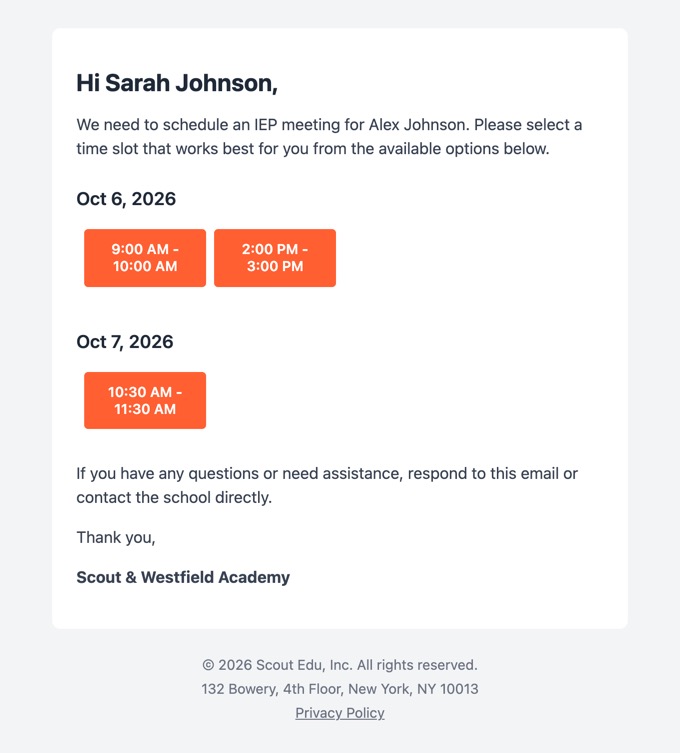
IEP meeting scheduling
Who gets it: the student's primary parent.
When: when staff sends meeting times from the IEP Scheduling card on the student's Special Education tab.
Subject: IEP Scheduling
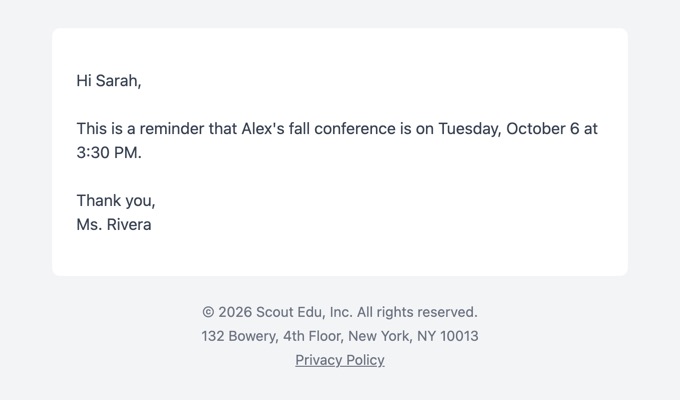
Messages your staff write
When staff send a message from a parent's Communication history tab, an enrollment application or the engagement gap panel, the email contains only the subject and message they wrote. It shows in communication history as "Manual message". Here is an example:
Emails to staff
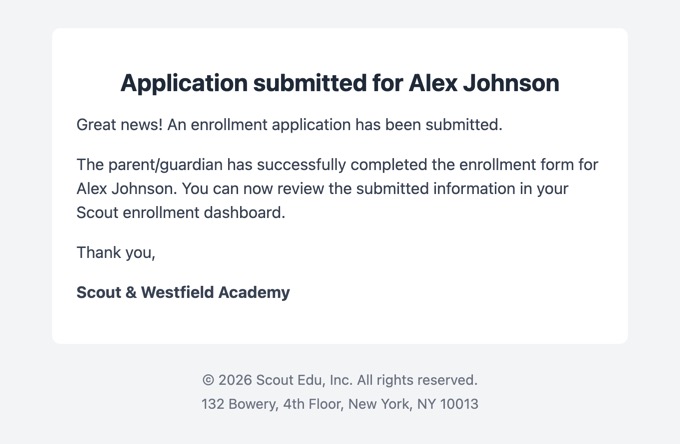
Enrollment application submitted
Who gets it: the staff member who sent the enrollment invitation.
When: when the parent submits the enrollment form for the first time.
Subject: Application completed - [Student name]
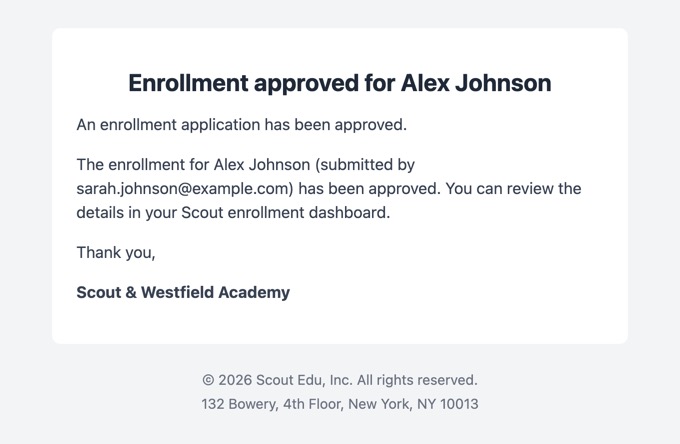
Enrollment approved (staff)
Who gets it: the staff member who sent the invitation and any other staff assigned to it.
When: when the enrollment is approved, if other staff are assigned to the invitation.
Subject: Enrollment approved - [Student name]
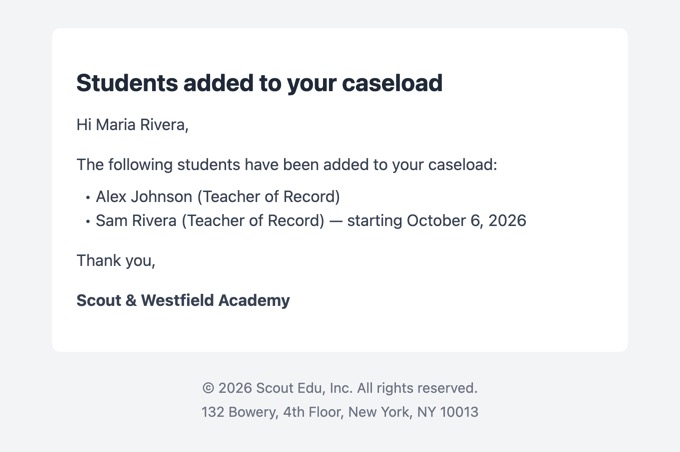
Students added to or removed from your caseload
Who gets it: the staff member whose caseload changed.
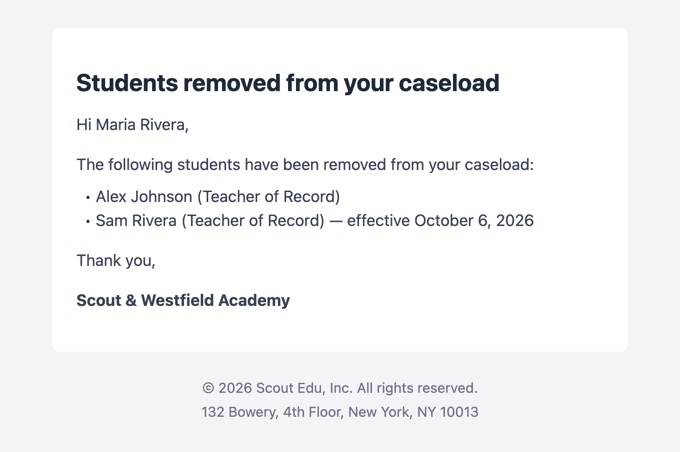
When: right after students are added to or removed from their caseload, one at a time or in bulk. Removals at the end of the school year don't send an email.
Subject: A student was added to your caseload (or "[number] students were added to your caseload"; "removed from" for removals)
The removal email looks like this:
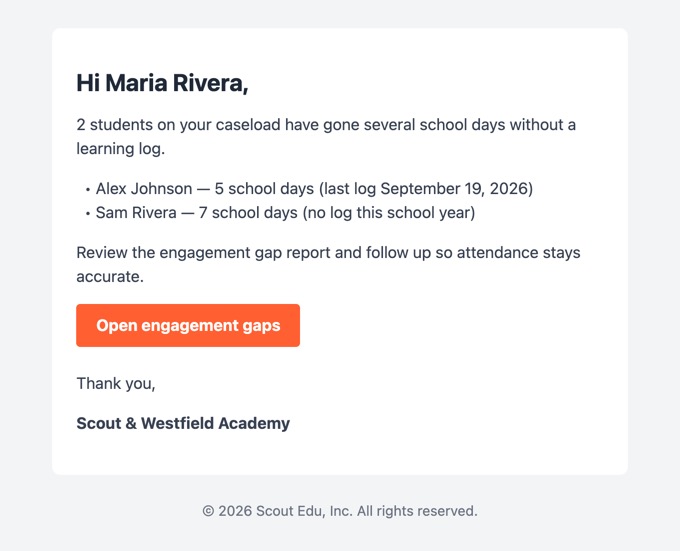
Missing learning logs (teacher and supervisor)
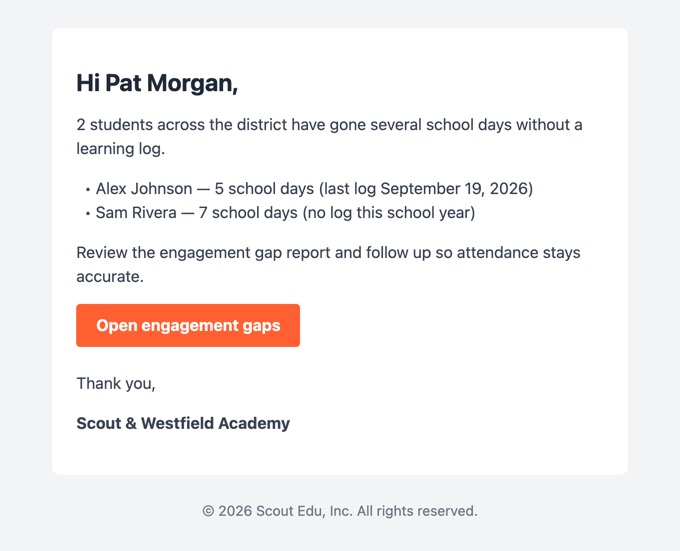
Who gets it: teachers of record get a list of their own students. One supervisor your district chooses gets a list for the whole district.
When: every morning at 9 AM, alongside the parent reminder above.
Subject: [number] students on your caseload have an empty learning log (supervisor: "[number] students across the district have an empty learning log")
The supervisor email covers the whole district:
Contact Scout support to turn these on or to choose the supervisor.
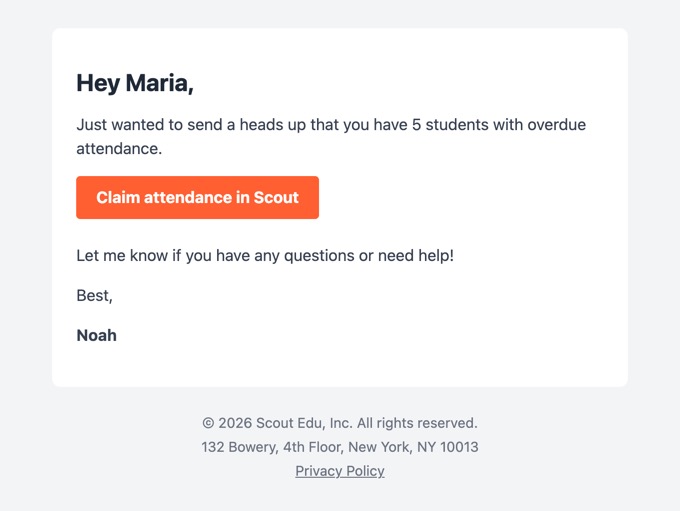
Overdue attendance
Who gets it: teachers of record who have students with finished learning periods whose attendance hasn't been claimed.
When: Friday afternoons.
Subject: Action needed: Mark attendance in Scout
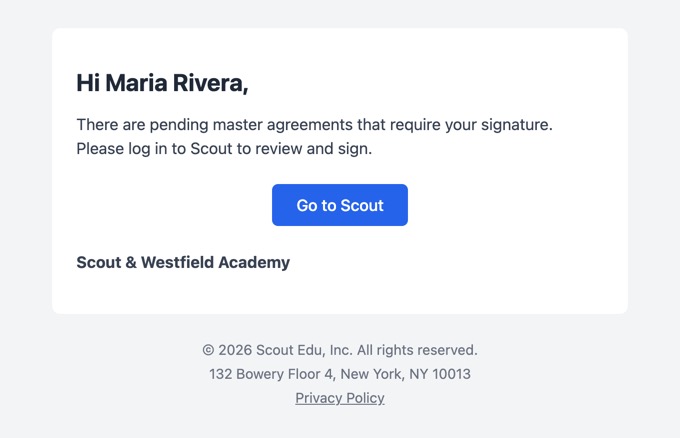
Master agreements waiting for your signature
Who gets it: teachers who need to sign master agreements, if Email teachers is turned on under Settings > Master agreements > Notifications.
When: each morning while agreements are waiting for them.
Subject: Master Agreement(s) Requiring Your Signature
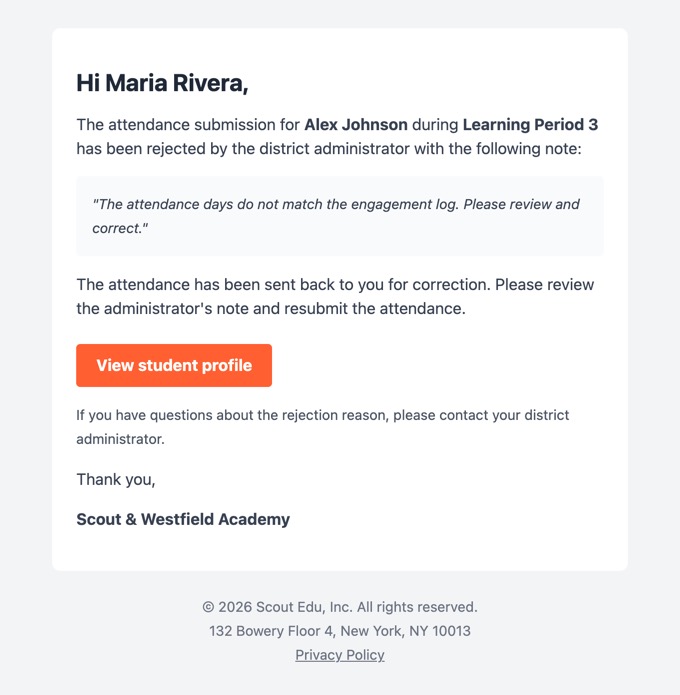
Attendance rejected
Who gets it: the teacher who submitted the attendance.
When: when an administrator rejects submitted attendance on the Approvals page.
Subject: [District name] - Attendance rejected for [Student name]
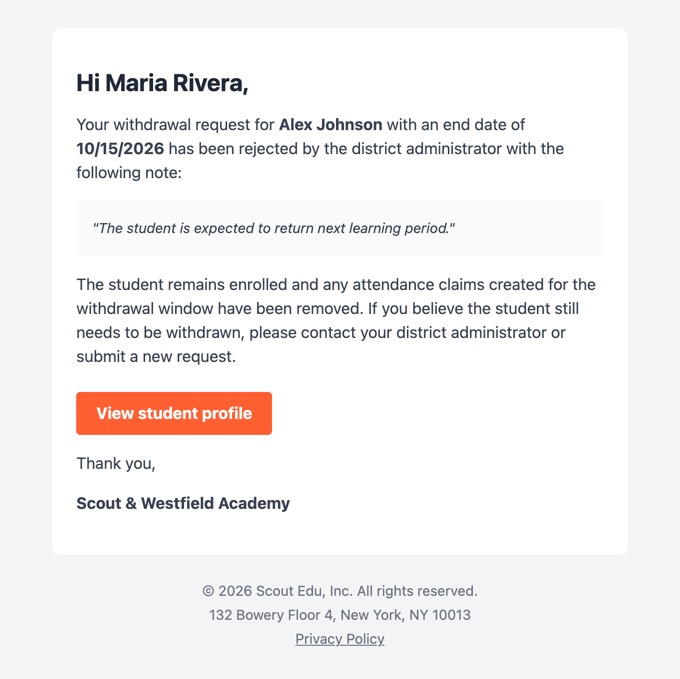
Withdrawal request rejected
Who gets it: the staff member who asked for the withdrawal.
When: when an administrator rejects a withdrawal request on the Approvals page.
Subject: [District name] - Withdrawal request rejected for [Student name]
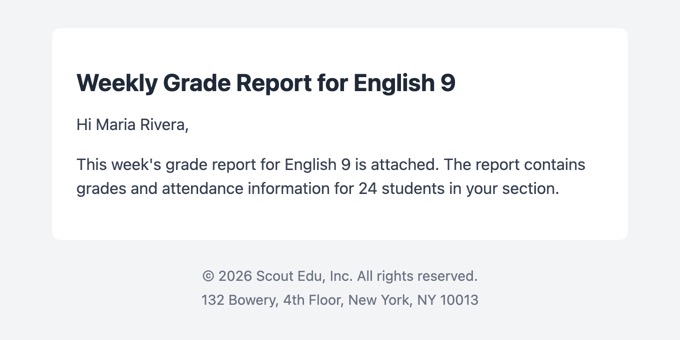
Weekly grades (teachers)
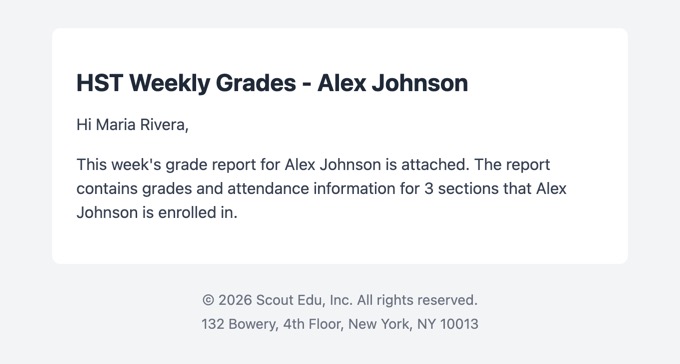
Who gets it: the section's primary teacher gets one email for the whole section. Teachers of record get one email per student covering all of that student's sections.
When: at the same time as the parent weekly grades email. The grade report is attached as a PDF.
Subject: [Section name] ([Section ID]) Weekly Grades - [number] Students (teacher of record: "HST Weekly Grades - [Student name] ([number] Sections)")
Section teacher version:
Teacher of record version:
Common questions
A parent says they never got an email. How do I check?
Open the parent's profile and look at the Communication history tab. If the email isn't listed, check that the parent's email address is correct and that they are the student's primary parent. Most family emails only go to the primary parent.
Can a parent unsubscribe?
No. These emails don't have an unsubscribe link, because most of them are about required steps like enrollment, signatures and attendance. If a family is getting an email they shouldn't, contact Scout support.
Where do replies go?
To your district's reply-to address, if one is set up. Contact Scout support to set one up or change it.
Can I change what an email says?
You can write your own message for weekly grade emails (see Weekly grades above). The wording of the other emails is the same for every district.
Can I turn an email off?
District admins can control master agreement emails under Settings > Master agreements > Notifications, and teachers control weekly grade emails per section. For the missing learning log reminders and the learning log email, contact Scout support.