Creating and editing course plan templates
Last updated: April 28, 2026
Build district-wide course plan templates that can be applied to multiple students.
Overview
Course plan templates (sometimes called "admin course plans") are reusable course sequences administrators create at the district level. A template defines which courses students should take in each year and term across a grade range. Once created, a template can be applied to one or many students at a time.
Common examples:
4-year college prep track (grades 9–12)
Career and technical education (CTE) pathway
Honors or AP track
This guide covers:
Navigating to course plans
Creating a new template
Editing an existing template
Adding courses to year/term sections
Deleting a template
Navigating to course plans
Click Settings in the sidebar
Open the Graduation tab
Select Course plans
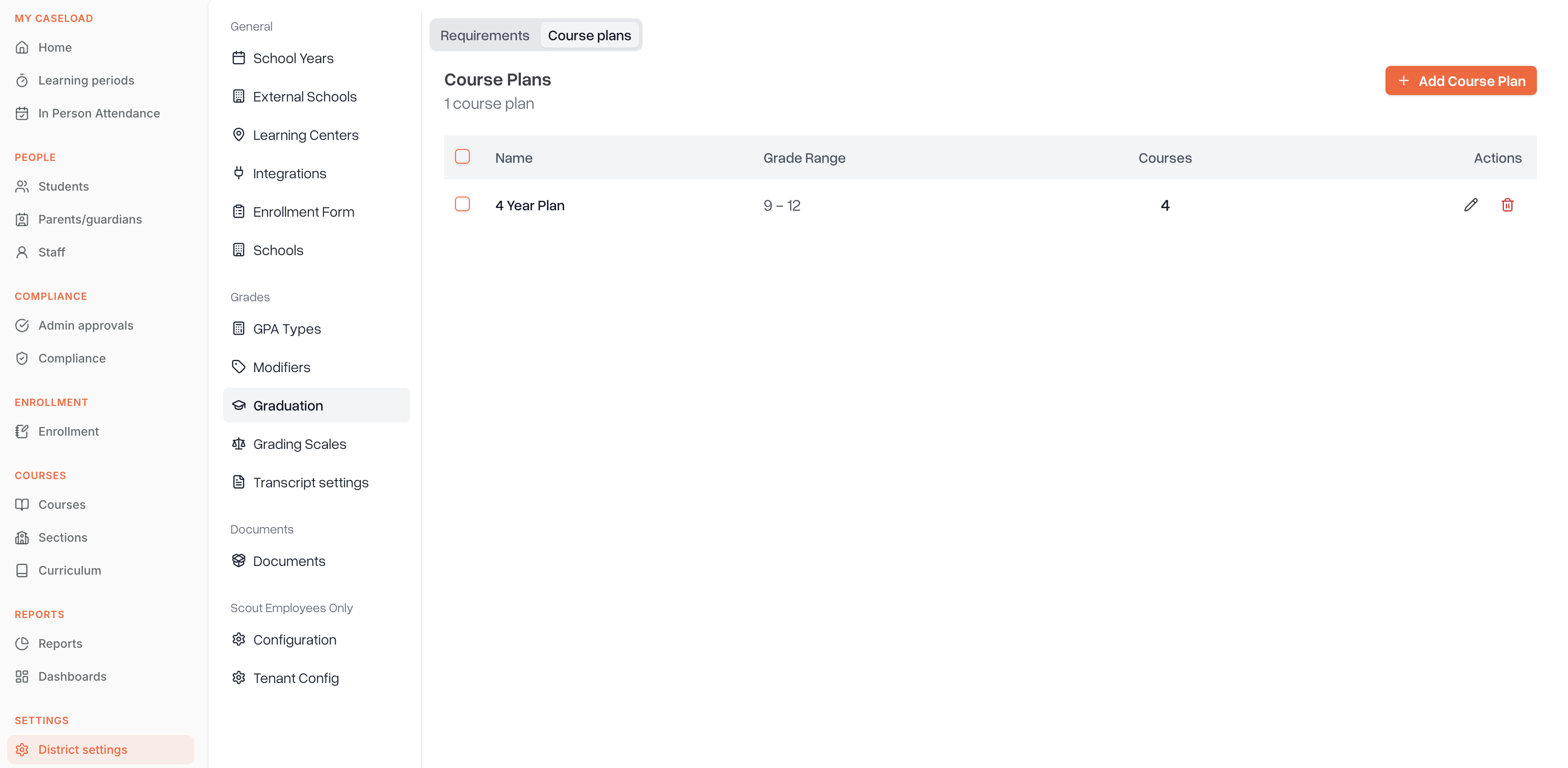
You'll see a list of all existing course plan templates with their name, grade range, and course count.
Creating a new template
Click Add course plan in the top right
The list view swaps to the inline plan editor
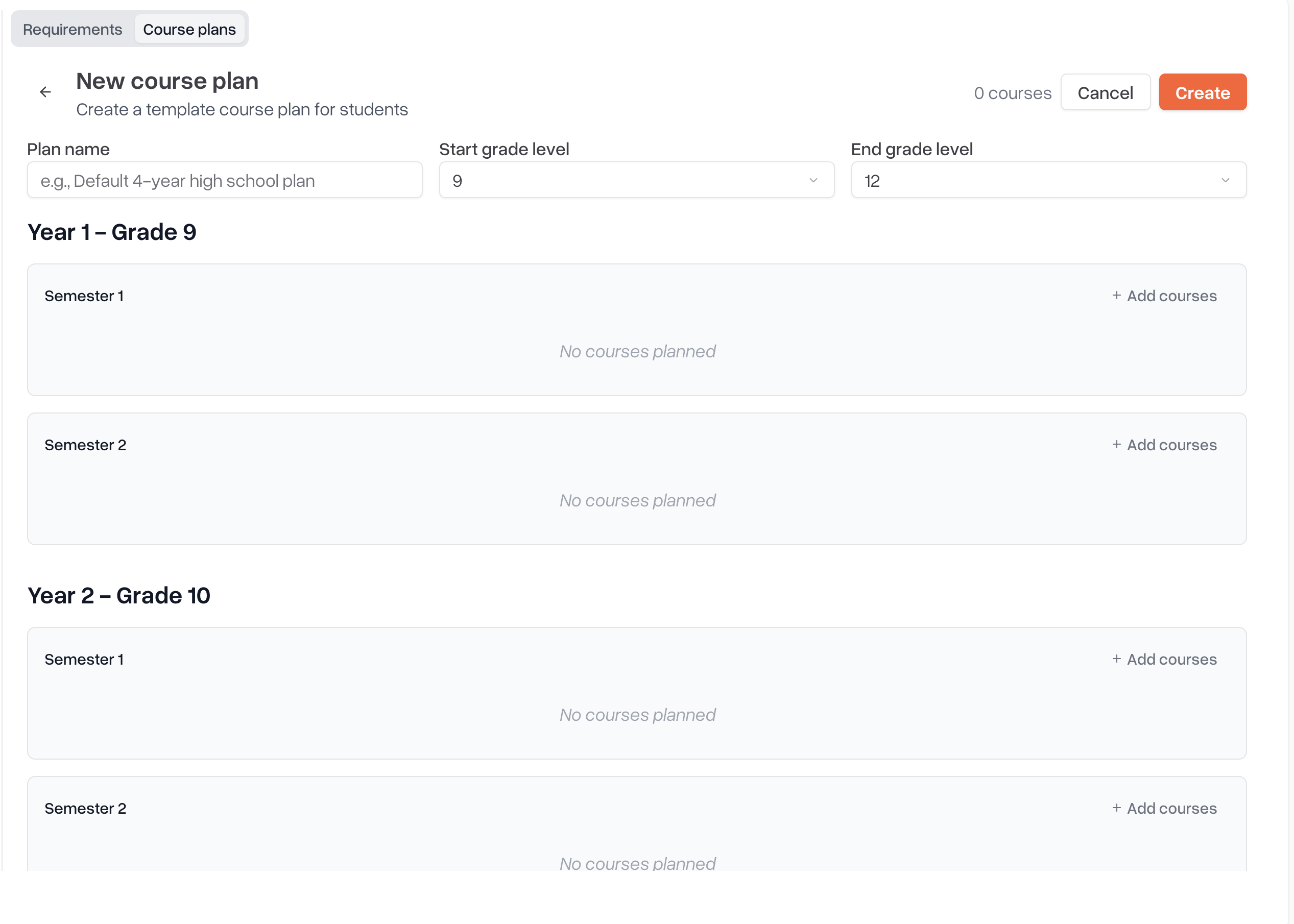
Plan details
Fill in:
Plan name — e.g., "Default 4-year high school plan"
Start grade level — the first grade the plan covers (e.g., 9)
End grade level — the last grade the plan covers (e.g., 12)
Scout automatically generates one section per year/term combination based on the grade range and your school's term setup (semesters, trimesters, or quarters).
Adding courses
Each year/term section has an Add courses button. Click it to open the course picker:
Search the course catalog by name, subject, category, or other filters
Click a course to add it, or select multiple and click Add N courses
Once added, courses appear in the section grouped by their transcript category (e.g., Math, English, Science). You can:
Drag and drop courses between year/term sections to reorganize
Hover and click X on a course card to remove it
Saving the template
Click Create at the top right to save the template. Click Cancel to discard changes and return to the list.
Editing an existing template
From the course plans list, click the pencil icon next to a plan
Make your changes (add courses, remove courses, rename, change grade range)
Click Update at the top right
Important: When you update a template, Scout automatically syncs the changes to student plans that have this template applied — but only for students who haven't yet reached the plan's start grade. Students already in the grade range are "locked in" and won't be auto-updated.
Deleting a template
Click the trash icon next to a plan in the list. Confirm the deletion when prompted.
Tips
Course catalog filters in the picker let you narrow down by subject, grade level, transcript category, and more — useful when your district has hundreds of courses
Categories appear automatically based on each course's transcript category, so plans stay organized without manual grouping
For details on assigning a single template to a student, see the student course planner article
Permissions
Course plan templates can be created and edited by:
District admins
School admins