Career Technical Education (CTE) courses and CALPADS reporting
Last updated: October 7, 2026
Mark courses as Career Technical Education (CTE), record which teachers are High Quality CTE for each section, and report CTE pathway completers to CALPADS.
Overview
In CALPADS, a course is a CTE course when its state course code is between 7000 and 8999. The state assigns each CTE code to an industry sector and a pathway, and gives it a level: introductory, concentrator, or capstone.
This article covers:
Marking a course as CTE (on an existing course or when creating one)
Setting the High Quality CTE indicator for a section's teacher
How CTE data shows up in your CALPADS files, including the Student CTE (SCTE) file
Only district administrators and school administrators can make these changes and run CALPADS reports.
Marking an existing course as CTE
Click Courses in the left sidebar and open the course.
Click Edit Course.
Go to the Subject & Codes tab. The Career Technical Education card is below Course Codes.
Click CTE course code and start typing. You can search by code (e.g. 7214), course name (e.g. Animation), or pathway name (e.g. Visual). The list only shows CTE codes.
Choose the code. Scout shows the Industry sector, Pathway (and sub-pathway, if there is one) and Level in pathway for that code.
If it applies, set Postsecondary articulated to Yes (the course is articulated with a college or other postsecondary program) and enter the AP/IB cross-reference.
Click Save Changes.
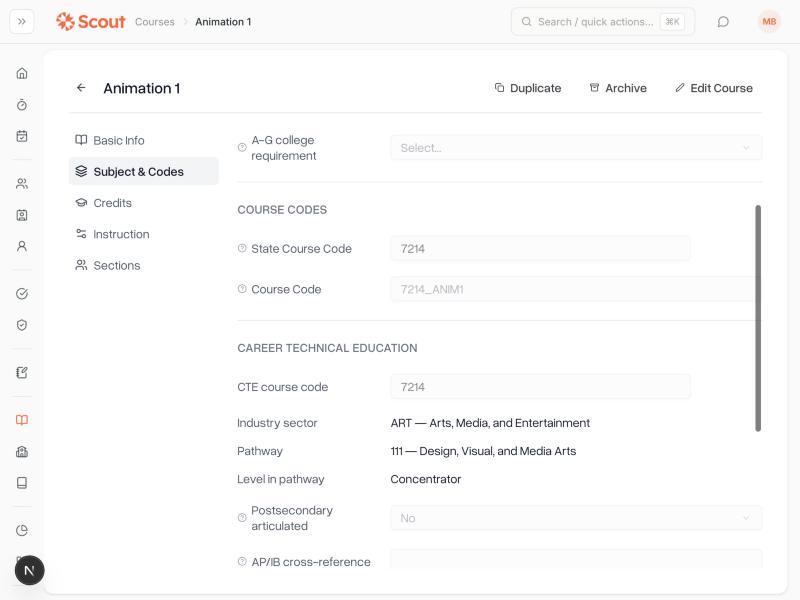
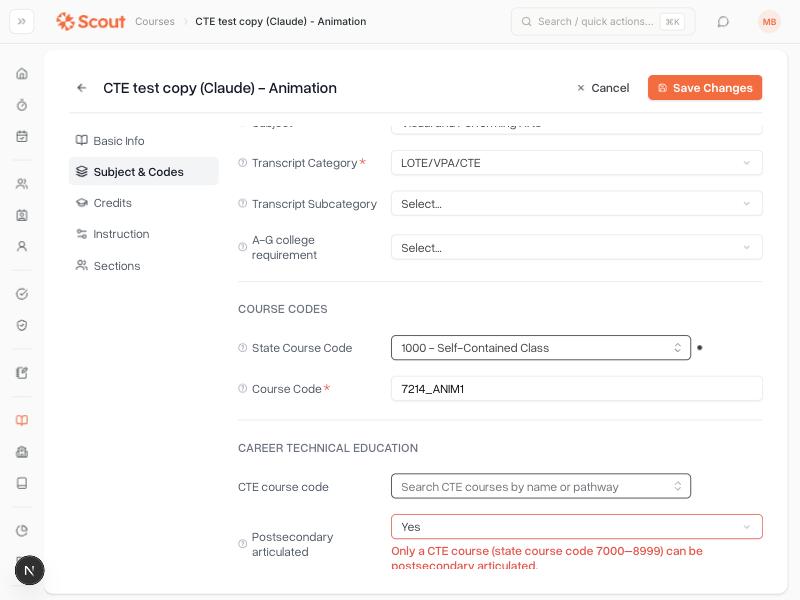
The CTE course code and the State Course Code under Course Codes are the same field.
Rules Scout checks
Postsecondary articulated and AP/IB cross-reference only apply to CTE courses. If either is set and you change the course to a non-CTE code, you'll see this message: "Only a CTE course (state course code 7000–8999) can be postsecondary articulated." For an AP/IB cross-reference, the message ends with "…can have an AP/IB cross-reference." You can't save until you clear the field or choose a CTE code again. CALPADS rejects these combinations.
If a course has a code in the 7000–8999 range that the state no longer uses, the card shows a warning that the code isn't in the state's current list of CTE course codes and CALPADS may reject it. Choose a current code from the list.
Creating a new CTE course
On the Courses page, click Create Course.
Fill in the course details as usual.
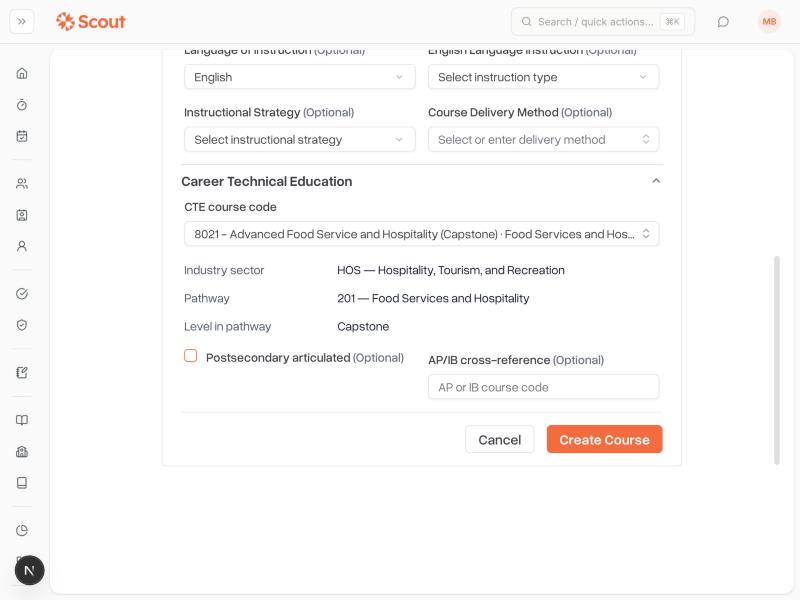
At the bottom of the form, expand Career Technical Education.
Choose the CTE course code. Scout shows its industry sector, pathway and level.
If it applies, check Postsecondary articulated and enter the AP/IB cross-reference.
Click Create Course.
The CTE course code and the State Course Code higher up the form are the same field.
Postsecondary articulated and AP/IB cross-reference only apply to CTE courses. If either is set and the State Course Code isn't a CTE code, you'll see this message: "Only a CTE course (state course code 7000–8999) can be postsecondary articulated." For an AP/IB cross-reference, the message ends with "…can have an AP/IB cross-reference." The course can't be created until you clear the field or choose a CTE code.
Setting the High Quality CTE indicator
CALPADS asks, for every section of a CTE course, whether the section is High Quality CTE. In practice, this means the section's teacher holds a CTE credential for it. Scout records this per teacher, on the section's teacher list.
Open the section. You can get there from a course's Sections tab, or open the section's own page and go to the Roster tab.
Find the Section Teachers list. For sections of CTE courses, it has a High Quality CTE column.
Check the box for each teacher who holds a CTE credential for this section.
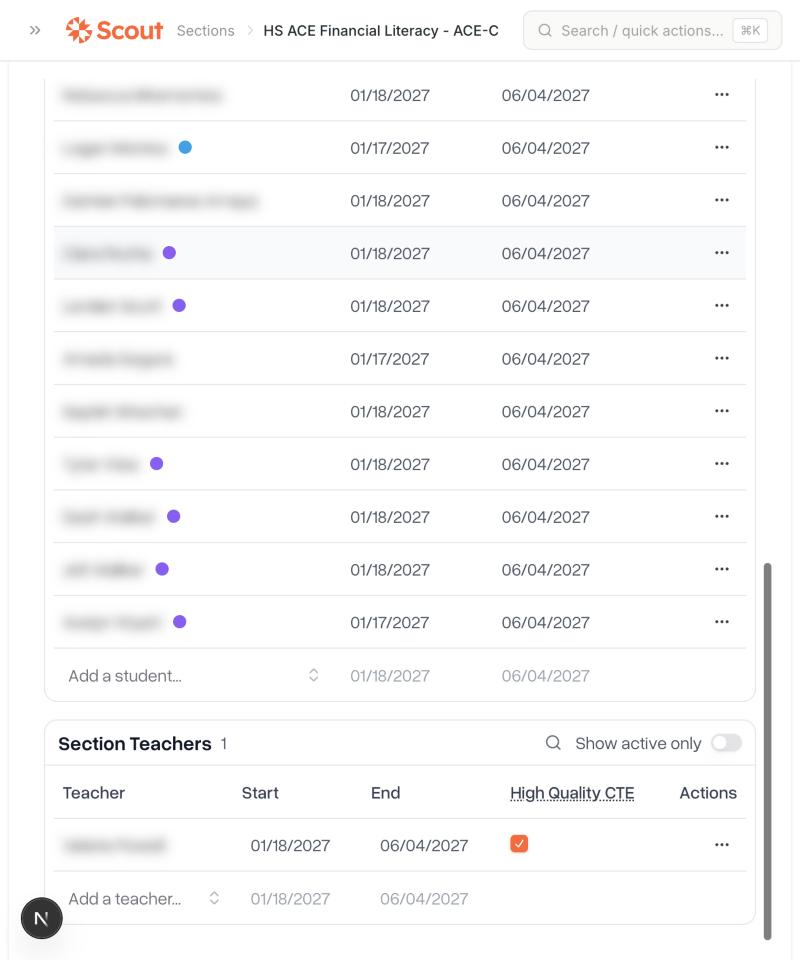
The column only appears for sections of CTE courses (state course code 7000–8999).
A checked box is reported to CALPADS as Y. An unchecked box, including one that has never been set, is reported as N.
CTE in your CALPADS reports
To run CALPADS files, go to Reports → Administrative → California Government Reporting and click CALPADS Report. Choose the School, School Year, Period and Report Type. Some files can take up to a minute to generate.
Course Section files (CRSE and CRSC)
The Course Section files report each CTE section's High Quality CTE Course Indicator: Y if the box is checked for the section's primary teacher, and N otherwise. They also include the course's Postsecondary articulated and AP/IB cross-reference values.
CRSE (Course Section Enrollment) is in the Fall 2 period.
CRSC (Course Section Completion) is in the EOY 2 (End of Year 2) period.
Student CTE file (SCTE)
The SCTE file, in the EOY 2 period, lists the students who completed a CTE pathway this school year: one row per student, per pathway.
Scout includes a student when they completed a capstone course at the school this school year with a grade of C- or better, which is California's rule for a pathway completer. Each row reports the capstone course's pathway and uses the current school year as the completion year.
Scout builds the SCTE file from the same course completions as your Student Course Section Completion (SCSC) file. That way, every student in SCTE has the matching course completion record CALPADS checks for.
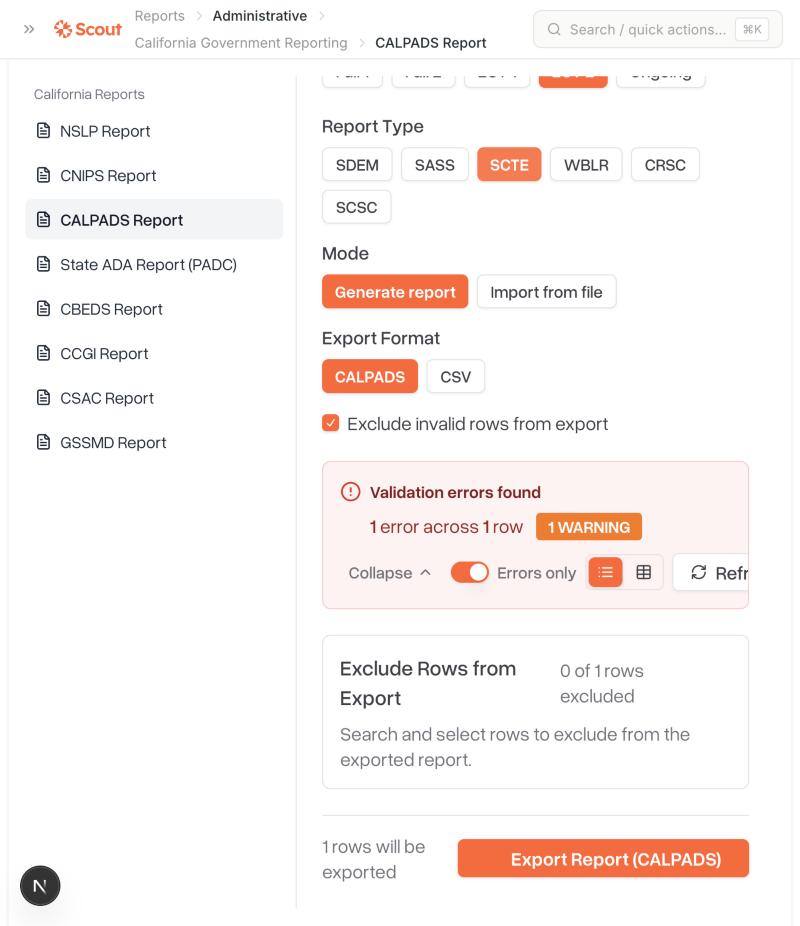
Warnings and errors in the SCTE file
Warnings are hidden while Errors only is turned on. Rows with only warnings are still exported.
Message | What it means | What to do |
|---|---|---|
Scout has no other course in this pathway on record for this student (warning) | A completer needs the pathway's whole course sequence, but Scout only has the capstone. The earlier courses may have been taken before your school used Scout, or at another school. | Check the student's transcript. If they haven't completed the sequence, remove them from the export (see below). |
The capstone course was graded "P" (warning) | The state asks for a C- or better and doesn't say whether a pass counts. | Decide whether the student should be reported as a completer, and remove them from the export if not. |
SCTE0698E2: the capstone's course completion (SCSC) record failed validation (error) | CALPADS only accepts a pathway completer when the capstone course completion is also accepted. The message lists the SCSC problem. | Fix the issue in the SCSC file (for example, missing course or section data), then regenerate SCTE. |
Rows with errors are left out of the export automatically while Exclude invalid rows from export is checked. To leave out a specific student yourself, use Exclude Rows from Export and select their row.
Tips
Courses that sync from your student information system: if your course codes come from your student information system, update the code there too. Otherwise the next sync may change it back.
A student you expected is missing from SCTE? Check that their capstone grade is C- or better, that the grade is entered for a term that has ended, and that the course has a capstone code. Also check whether the student's row in the SCSC file has an error.