Summer School Enrollment
Last updated: September 30, 2026
Run summer school in Scout using the same terms, courses, and enrollment tools you use during the regular school year — there's no separate summer school setup. This guide walks through creating a summer term, adding the courses and sections that run during it, and enrolling students.
Overview
Summer school is just another term in Scout. Once the term exists, you add sections to it the same way you would for fall or spring, optionally restrict those sections to the specific schools or learning centers where summer school runs, and enroll students using the standard enrollment tools. Because eligibility checks are always based on a section's term dates rather than today's date, you can set everything up and enroll students well before the term begins.
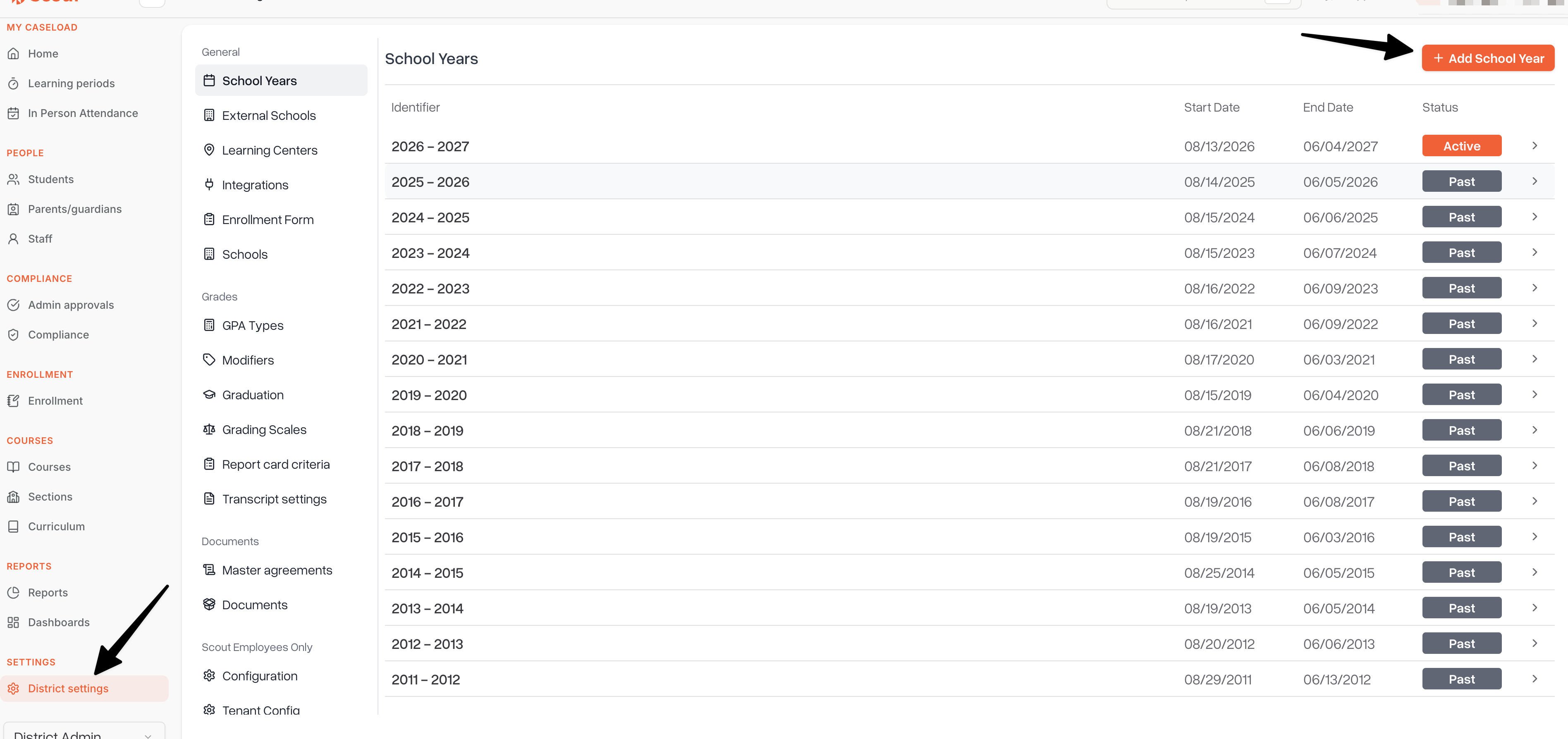
Step 1: Create the summer term
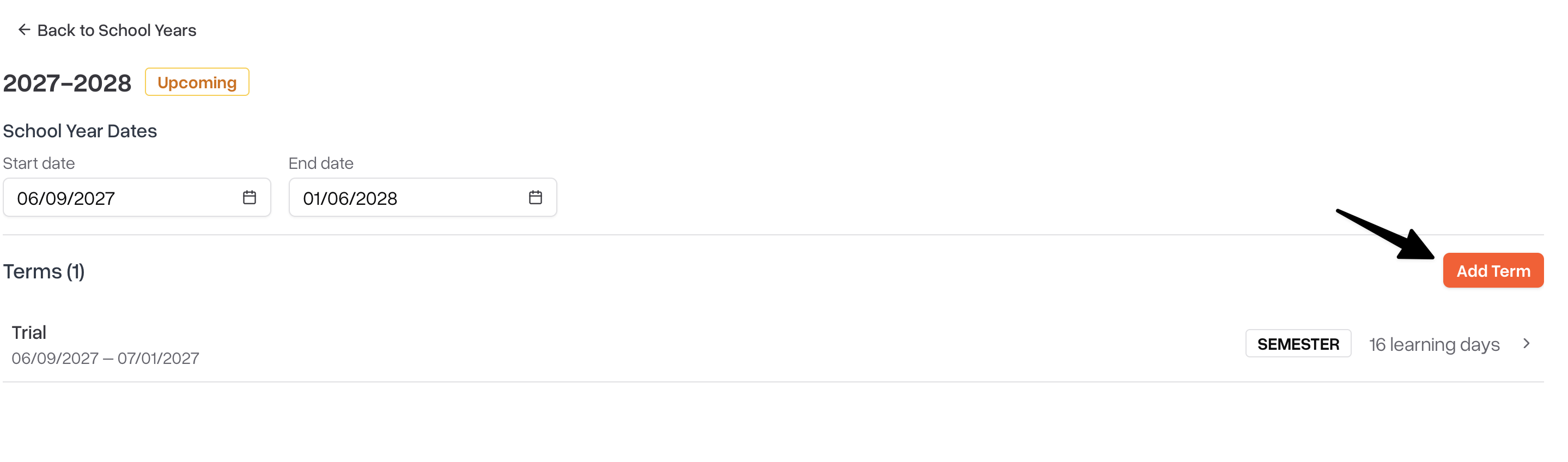
Terms are created in District Settings. Only administrators can add a new term. Give it a clear name (for example, "Summer 2026") and set its start and end dates to match your summer school calendar — these dates drive section eligibility and enrollment date ranges later on.
A term must exist before you can add sections to it or select it when enrolling students. If you don't see your summer term as an option anywhere in the enrollment flow, check with an administrator to confirm it has been created.
Step 2: Add courses and sections for the summer term
You have two options:
Create new sections. Open the course, go to its Sections tab, and click Add section (Or Add Terms) . Select your summer term so the section's dates line up with the summer calendar, then set an optional Max students cap and assign a teacher.
Copy existing sections forward. If a course already runs a similar section during the regular year, select it from the course's Sections tab (or the district-wide All sections table) and use Copy to future terms to create a copy in the summer term. Copied sections carry over the course, name, teacher, school restrictions, and learning centers, but start with no students enrolled — you enroll students into the new copy separately.
Step 3: Restrict sections to specific schools or learning centers (optional)
If summer school only runs at one or two of a course's schools, link the section to just those schools so students at other schools don't see it as an enrollment option. By default, with no restriction, a section is available at every school where its course is offered.
Open the section and use the Schools picker to check the schools where the summer session actually runs. Leaving it blank keeps the section available everywhere the course is offered.
You can further narrow a section to specific learning centers at those schools using the picker directly below the Schools row.
Step 4: Enroll students
Once your summer sections are in place, enroll students using either of the standard tools:
Enroll from plan — if the student already has summer courses on their course plan, open their profile, go to the Courses tab, select the summer term in the term dropdown, and click Enroll from plan. Scout matches each planned course to an eligible section and creates all the enrollments at once.
Enroll in course — for a one-off enrollment into a single summer section, whether or not the course is on the student's plan.
In both cases, Scout only shows sections the student is actually eligible for — offered at one of the student's enrolled schools and, where a section is restricted to a learning center, at a learning center the student belongs to. If no eligible section exists for a planned course, Scout offers to create an independent study section just for that student instead of blocking the enrollment.
Summer enrollment works the same way even if you're setting it up before summer starts. Eligibility is checked against the summer term's own start and end dates, not the current date, so the right sections show up in the picker well ahead of time.
Who can do this
Only administrators can create terms and add or restrict sections.
District administrators, school administrators, counselors, and registrars can enroll any eligible student into summer sections. Teachers can enroll students who are in their caseload.
Tips
Set term dates carefully. A section's effective date range comes from the terms you assign it to, so the summer term's start and end dates should match your actual summer school calendar.
Reuse existing sections instead of rebuilding them. Copying a regular-year section into the summer term keeps its teacher, school, and learning-center settings consistent, and starts it empty and ready for new enrollments.
Cap enrollment with Max students. Set a cap on a summer section if you need to limit class size — Scout blocks new enrollments once a section is full.
Enroll early. Since eligibility is checked against the term's dates, there's no need to wait until summer begins to enroll students — you can do it as soon as sections are set up.