Tracking immunization compliance
Last updated: November 3, 2026
The Compliance page shows how many of your students meet California's school immunization requirements. It lists every student so you can see who is missing doses, review the records families upload, and remind families who still need to send something.
Who can use this page
Role | What they see | What they can do |
|---|---|---|
District admins | Every student. A district admin with a Responsible Admin caseload sees only that caseload. | Parse uploads, review uploads, email families |
School admins | Students who have been enrolled at their school | Parse uploads, review uploads, email families |
Read-only admins | Every student | View only |
Opening the immunization list
Click Compliance in the sidebar.
Pick the school year from the dropdown at the top of the page.
In the Immunizations row, click View.
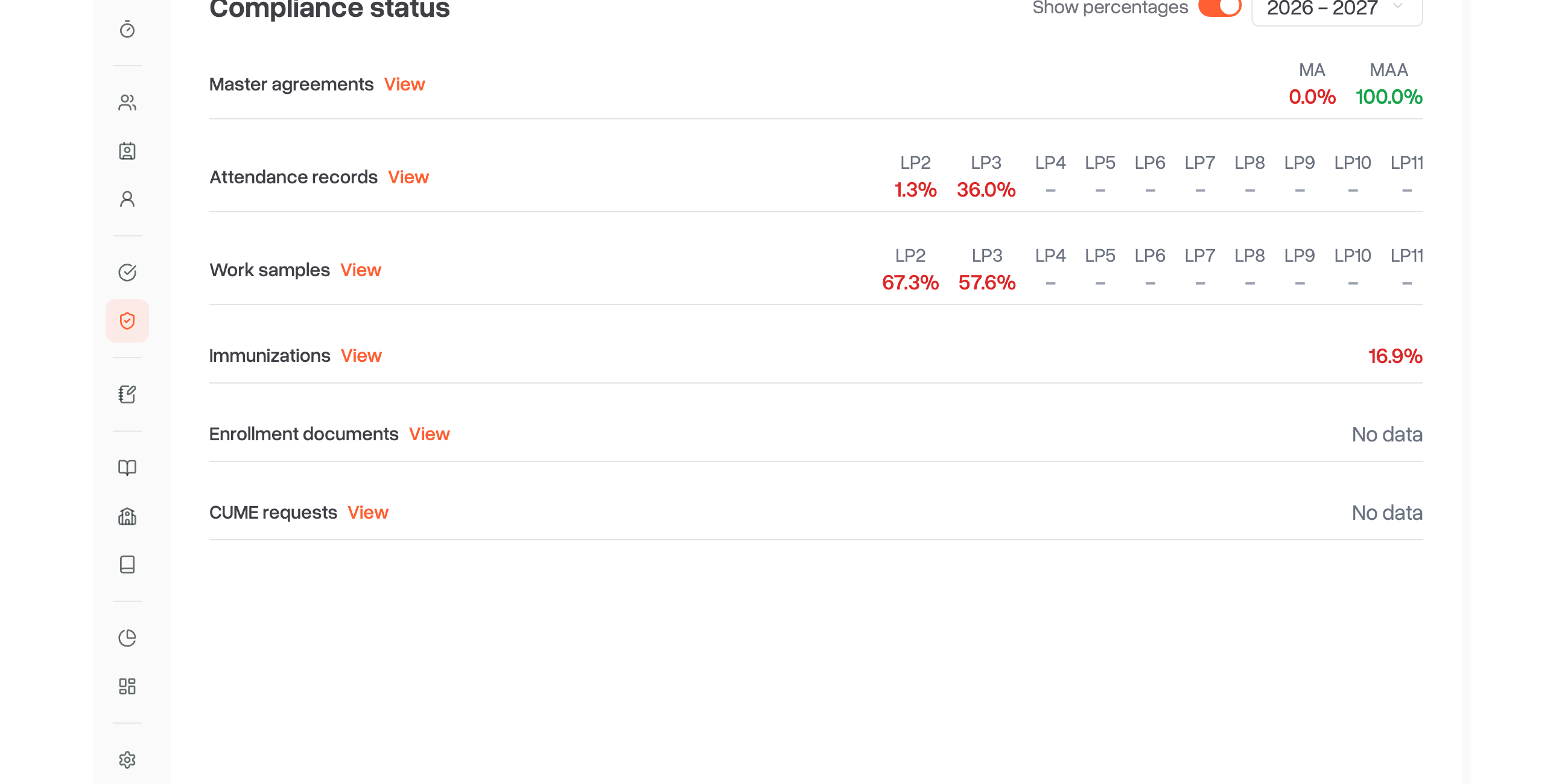
The Immunizations row shows the share of students who are compliant. Turn off Show percentages to see counts instead.
The students counted in the Immunizations row include:
Every student with an enrollment in the selected school year, including students who have since left.
Students with an exemption, conditional enrollment or independent study. They count as compliant.
Infant/Toddler, Preschool and Pre-K students aren't counted. Scout checks the doses on file today, even when you pick a past school year.
If the row says N need review, Scout can't check those students because they're missing a date of birth or a grade level Scout recognizes, meaning they're left out of the count. Add the missing date of birth or grade on each student's profile to resolve this.
Reading the list
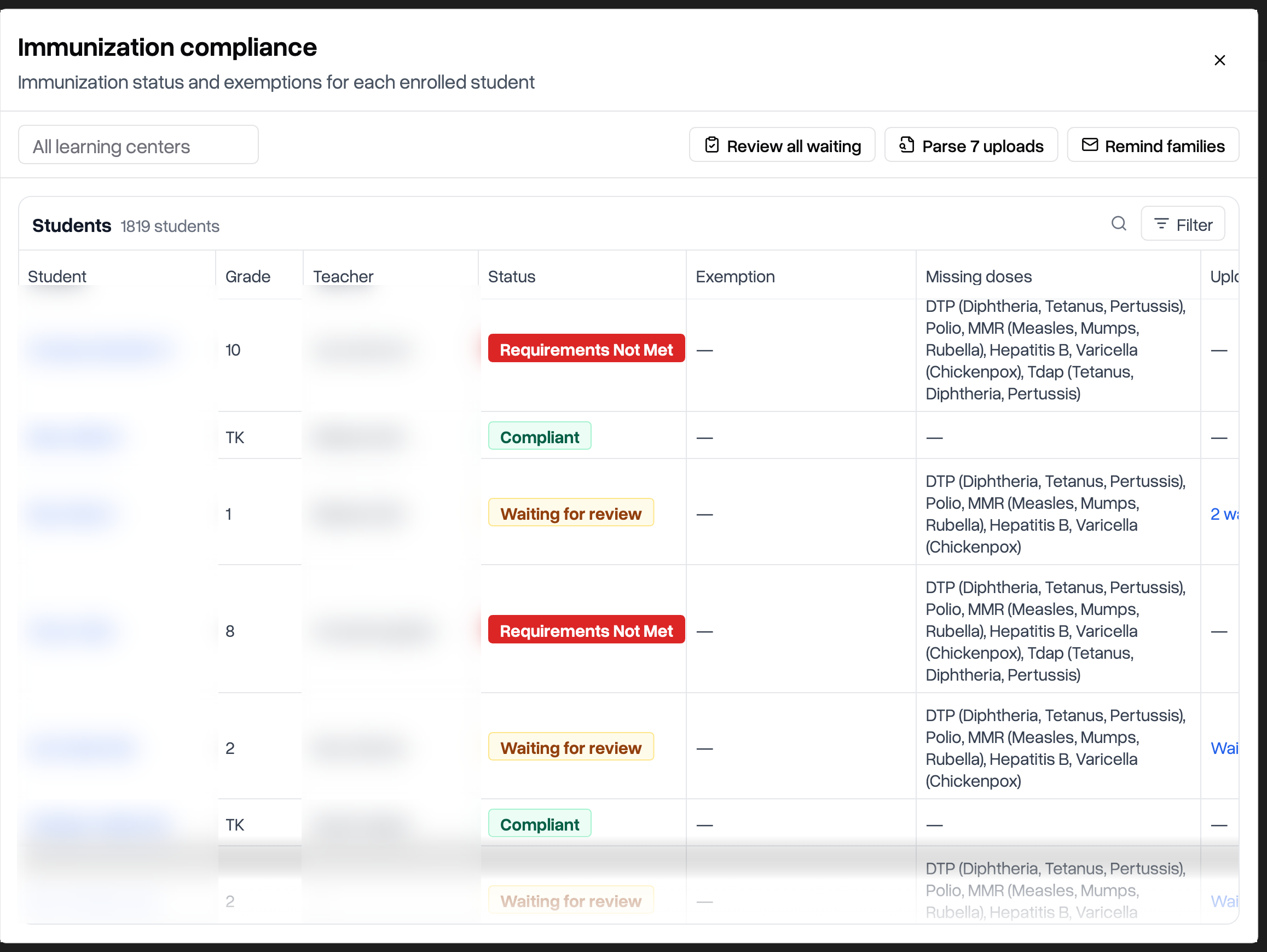
Column | What it shows |
|---|---|
Student | Links to the student's profile |
Grade | The student's grade in the selected school year |
Teacher | The student's teacher of record |
Status | See the table below |
Exemption | Which exemption applies, for students marked Exempt |
Missing doses | The vaccines the student still needs |
Uploads | How many uploaded records are waiting for review. Click the link to review them. |
The Uploads column is at the right edge of the list. If you can't see it, scroll the list to the right.
Status | Color | What it means | What to do |
|---|---|---|---|
Requirements Not Met | Red | The student is missing required doses. | Add the doses, or remind the family to upload records. |
Waiting for review | Amber | The student is missing doses, but someone has uploaded records that nobody has reviewed yet. The student counts as not compliant until the uploads are reviewed. | Review the uploads. |
Missing date of birth | Gray | Scout can't check the student without a date of birth. | Add the date of birth on the student's profile. |
Missing or unsupported grade level | Gray | Scout can't check the student without a grade it recognizes. | Fix the grade on the student's enrollment. |
Conditional | Blue | Staff marked the student as conditionally enrolled (COND). | Follow up when the next doses are due. |
Exempt | Purple | Staff set an exemption (IEP, IND, HOME, MED-P or MED-T), or the student's school has no classroom-based instruction. The Exemption column says which. | None |
Compliant | Green | The student has every required dose. | None |
Finding students
Search: click the search icon above the table and type part of a student's or teacher's name.
Filter by status: click Filter, then Filter by status, and pick one or more statuses.
School and learning center: use the dropdowns at the top left. They only appear when your district has more than one school or has learning centers.
Sort: click a column header.
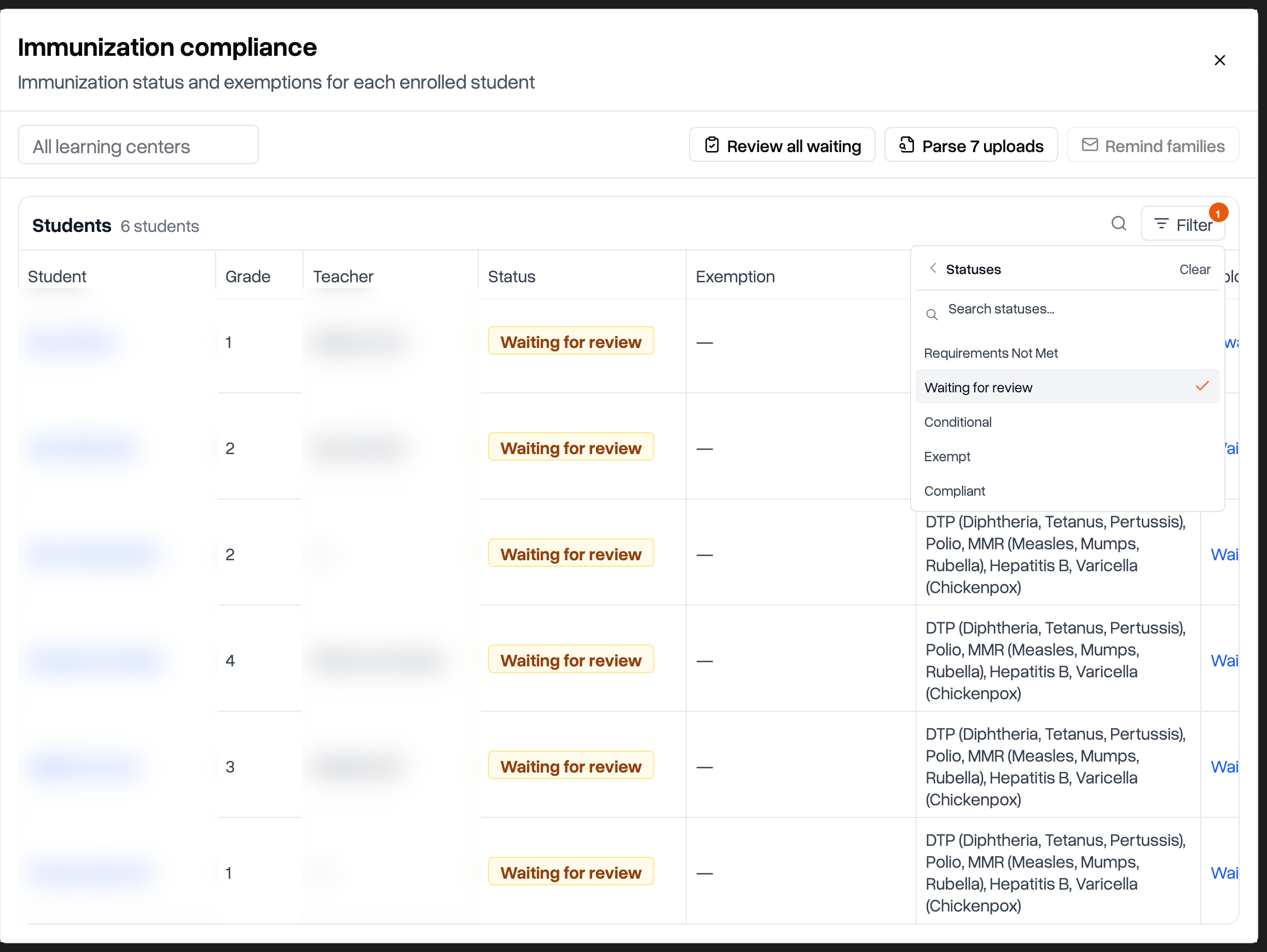
Parsing uploads with AI for many students at once
Scout can read uploaded immunization records with AI and list the doses it finds, so you only have to check them. The Parse N uploads button parses every upload Scout hasn't read yet for the students in the list.
To parse only some students' uploads, narrow the list with the status, school and learning center filters. The search box doesn't change which uploads are parsed.
Click Parse N uploads.
Click Start parsing.
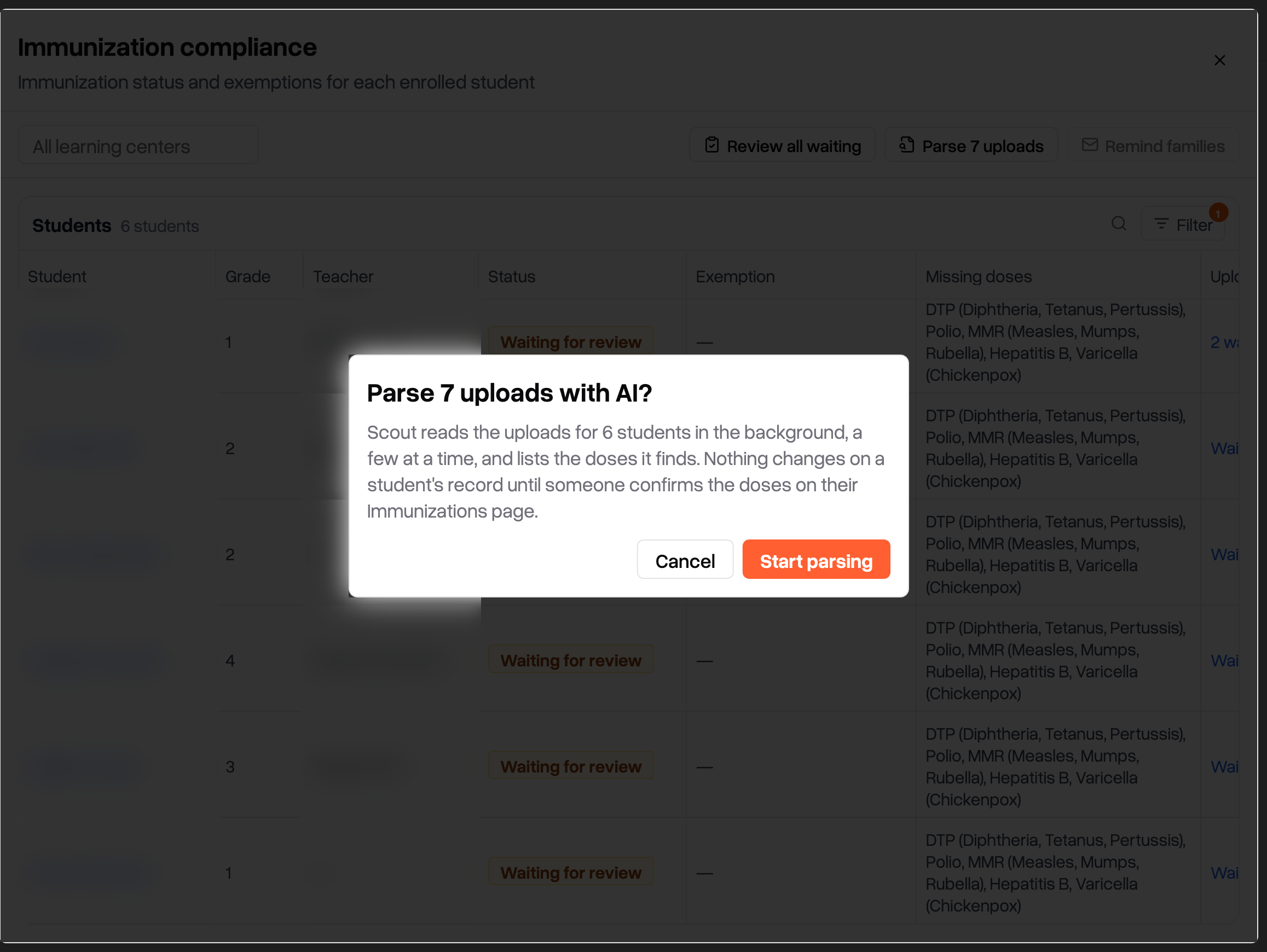
Nothing changes on a student's record until someone reviews and saves the doses Scout found.
Scout parses a few uploads at a time, so a large batch can take a while. You can leave the page.
Anything Scout hasn't parsed within 2 hours is parsed overnight.
Uploads Scout couldn't read are skipped. Open the student's uploads and click Try again, or enter the doses by hand.
Reviewing uploads
For one student: click the waiting for review link in the student's Uploads column. Their uploads open in a pop-up over the list.
For everyone in the list:
To review only some students, narrow the list with the search, status, school and learning center filters.
Click Review all waiting. Scout opens a pop-up with every student in the list who has uploads waiting.
Review each student's uploads. When you finish one student, the next one opens.
When you see All uploads are reviewed, click Close.
The list updates as you go, and keeps your search, filters and sort when the pop-up closes. For the review steps, see Reviewing immunization uploads.
Reminding families to upload records
Remind families emails the primary parents or guardians of students marked Requirements Not Met. The email lists the documents they still need to upload. It covers the students that match your status, school and learning center filters. The search box doesn't change who gets an email.
Click Remind families.
Check the list of students in the pop-up.
Click Send reminders.
Students marked Waiting for review don't get a reminder, because their family has already uploaded something.
Scout skips a student and tells you why in these cases:
Message | Cause |
|---|---|
Nothing for the family to upload. | The family has nothing left to send. |
No parent/guardian has a Scout account. | No parent or guardian can sign in to upload. |
You don't have access to this student. | The student isn't in your school or caseload. |