Bulk assigning course plan templates to students
Last updated: April 28, 2026
Apply one or more course plan templates to many students at once.
Overview
Once you've built course plan templates, you can assign them to students in bulk instead of opening each student's profile one by one. This is the fastest way to set up cohorts of students on the same academic track.
This guide covers:
Selecting one or more templates to assign
Picking students from the directory
Reviewing the results
What happens to students without an existing plan
Looking to create a template? See the article on creating and editing course plan templates first.
Navigating to course plans
Click Settings in the sidebar
Open the Graduation tab
Select Course plans
Selecting templates
In the course plans list, check the box next to one or more plans you want to assign
Use the checkbox in the table header to select all plans at once
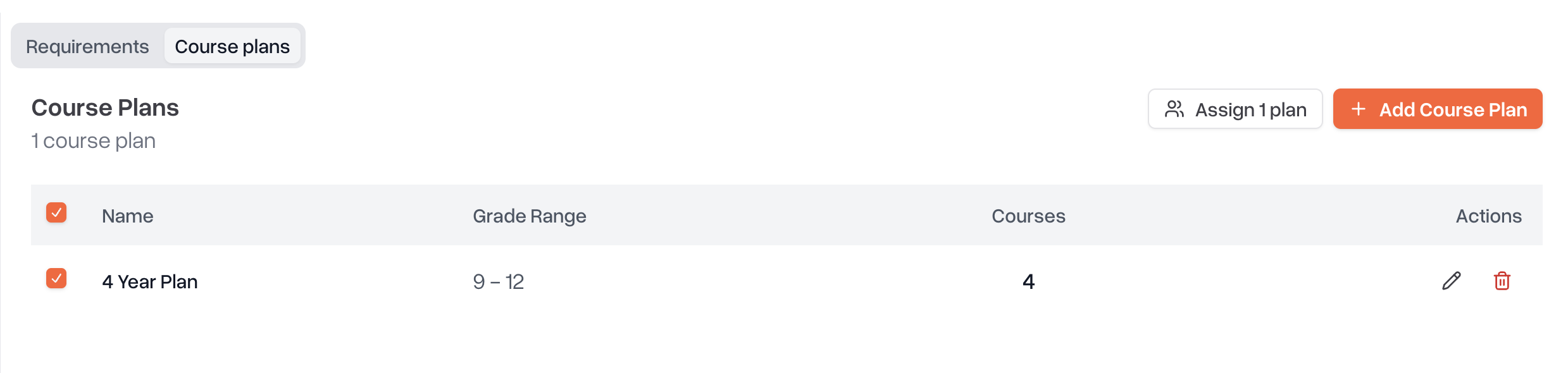
Once you select at least one plan, an Assign N plans button appears next to the Add Course Plan button.
Assigning to students
Click Assign N plans
A dialog opens showing the selected plans and a full student directory
Picking students
The student picker is the same as the main student directory — you have full search and filtering:
Search by name, ID, email, or phone
Filter by grade level, school, and other criteria
Check the box next to each student you want to include
Use the header checkbox to select all visible students
Confirming the assignment
Once at least one student is selected, the Assign to N students button appears in the bulk action bar at the bottom of the dialog. Click it to apply.
Scout will:
Apply each selected template to each selected student
Show a summary of how many assignments were applied
Surface any errors per student (e.g., if a student couldn't be processed)
What happens to students without a course plan
If a selected student doesn't already have a course plan, Scout automatically creates one based on the student's earliest school enrollment — no manual setup needed. Then it applies the template(s) to the new plan.
This means you can assign templates to brand-new students or students who've never used the planner before, without any extra steps.
How smart assignment works
For each student, Scout intelligently maps template courses to the student's specific timeline:
Already completed courses are skipped — Scout checks the student's transcript and only adds courses they haven't taken
Past terms are skipped — courses scheduled for terms before the current one are not added
Grade-level mapping — if a student is in 10th grade and the template starts at 9th, year-1 courses are placed in the student's already-passed year (and skipped if past), while year-2 courses land in the current year
This means the same template behaves correctly for students at different points in their academic journey.
Tips
Multiple templates at once — selecting multiple plans applies all of them. Useful for stacking a base track plus an electives track.
Re-running is safe — if a student already has a template applied, Scout won't duplicate the courses
For one-off assignments to a single student, use the Apply plan dropdown on the student's course planner instead
Permissions
Bulk assignment is available to:
District admins
School admins
Counselors