Giving a teacher access to a student who isn't on their caseload
Last updated: November 12, 2026
Teachers see the students on their own caseload and in the classes they teach. When a teacher needs to look at another student, a district admin or school admin can add that teacher to the student as an Additional Roster Teacher. The student keeps their teacher of record.
Who can do this
District admins and school admins. Teachers see the Staff associations section on a student's profile but can't add to it.
Add a teacher to one student
Open the student's profile and go to the Profile tab.
Find the Staff associations section and click the + button (Add assignment).
In the Add caseload assignment window, open Select association type and choose Additional Roster Teacher.
Open Select an option... and choose the teacher. You can type part of their name to search.
Click Add assignment.
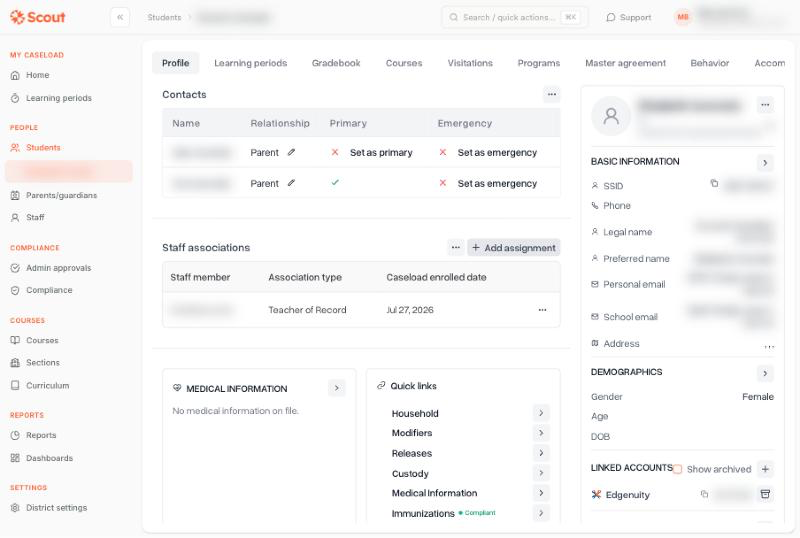
The + button at the top of Staff associations opens the Add caseload assignment window.
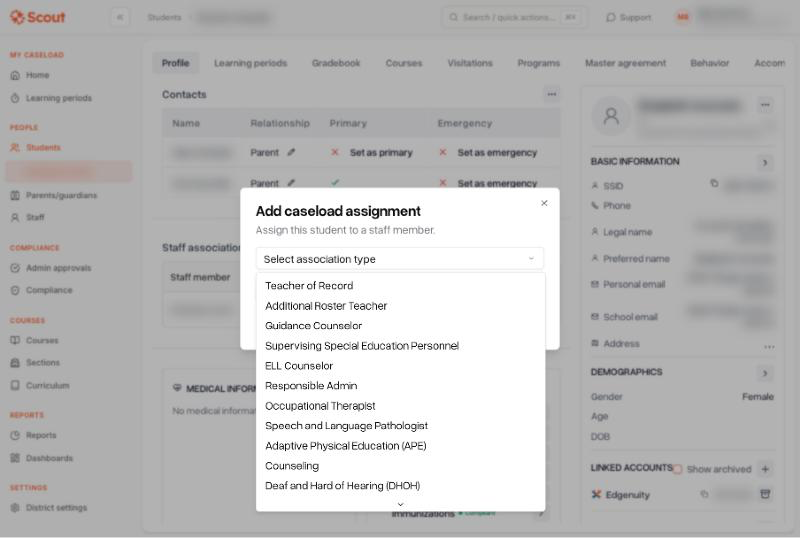
Choose Additional Roster Teacher, not Teacher of Record.
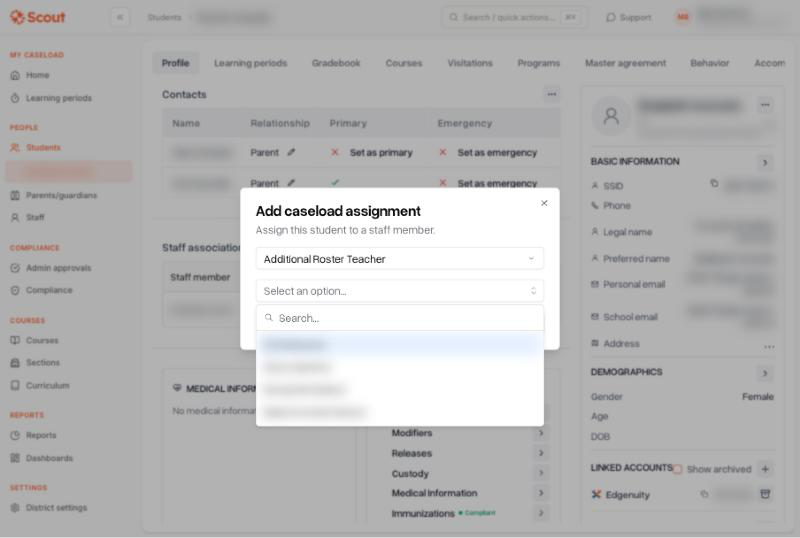
Type part of the teacher's name to narrow the list.
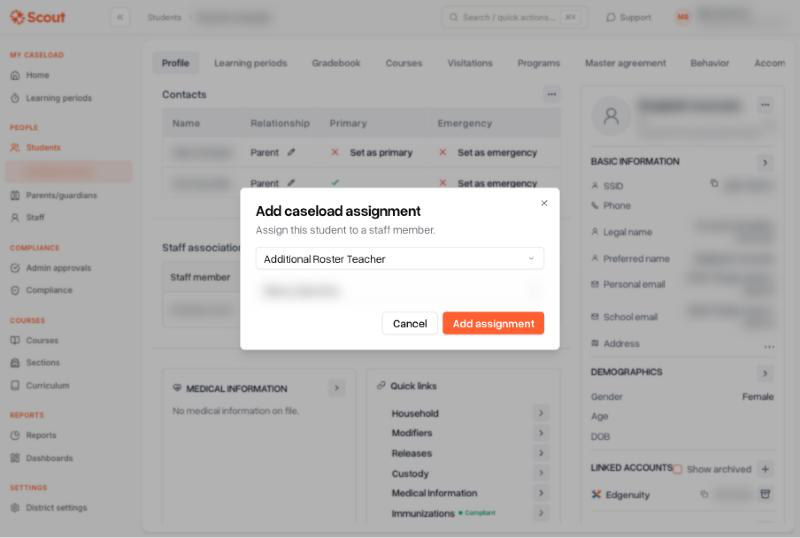
Click Add assignment to save.
Only staff who are assigned to one of the student's current schools appear in the list. If the teacher is missing, add the school to the teacher's staff profile first.
Scout sends the teacher an email saying a student was added to their caseload.
Add students from the teacher's profile
Open Staff, open the teacher's profile and go to the Caseloads tab.
Click Add student association.
Under Caseload type, choose Additional Roster Teacher.
Open Select a student... and choose the student.
Click Add Student.
Repeat for each student. The window adds one student at a time.
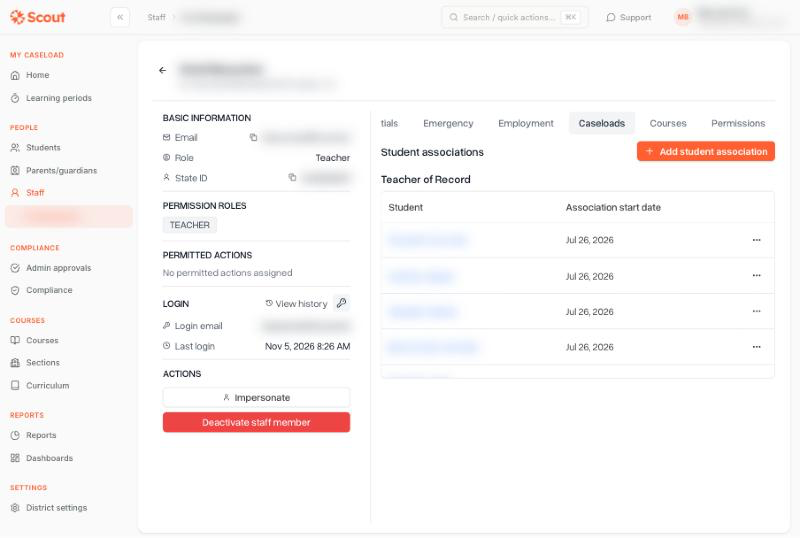
The Caseloads tab lists the teacher's students by association type.
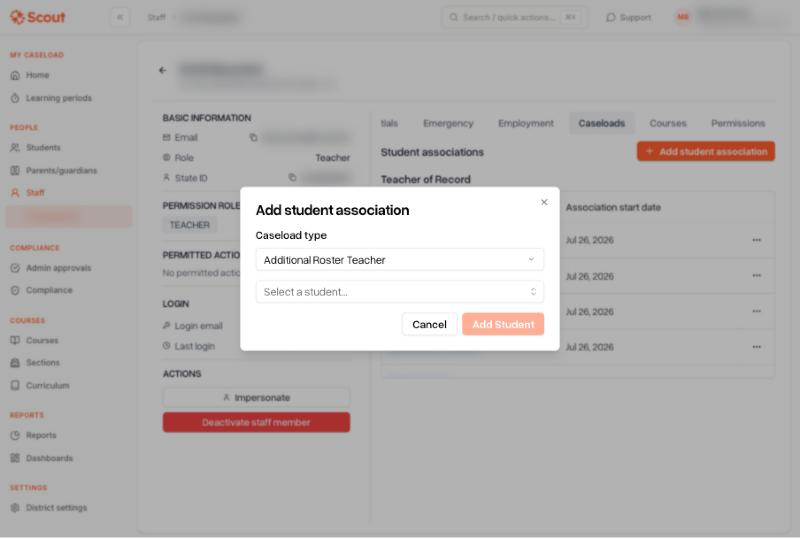
Choose the caseload type first, then the student.
Scout sends the teacher an email saying a student was added to their caseload.
What the teacher can do with the student
An additional roster teacher can open the student's full profile: contacts, courses and grades, engagement, learning periods and work samples. They can also log engagement, approve work samples and claim attendance for that student. If only the teacher of record should claim attendance, tell the added teacher not to.
These stay with the teacher of record:
The student's work sample requests appear on the teacher of record's list only.
Attendance reports list the student under the teacher of record.
The Caseload Teacher column on the Students page shows the teacher of record.
Where the teacher finds the student
On the Students page, the teacher gets a second tab, Additional Roster Teacher, next to Teacher of Record. The student is also under All Students.
Removing the access
Open the student's profile and go to the Profile tab.
In Staff associations, click the ... menu on the teacher's row.
Click Set end date to today.
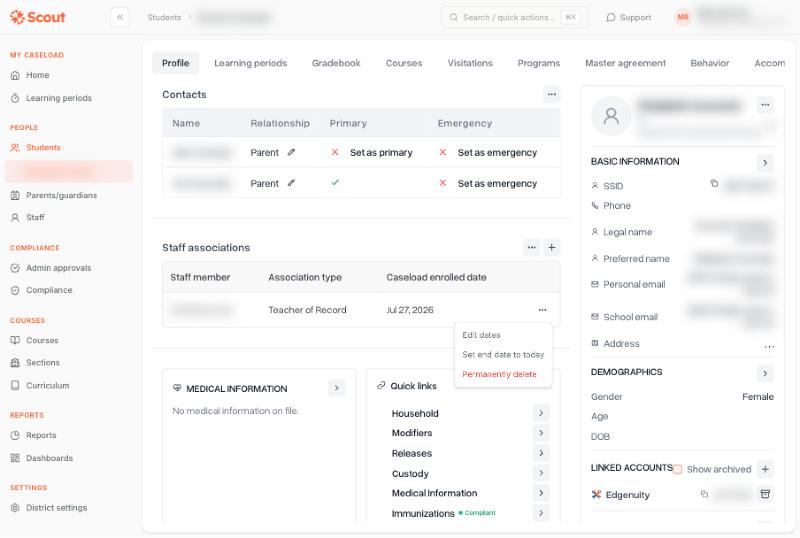
Set end date to today ends the association. Permanently delete removes it.
The student leaves the teacher's Additional Roster Teacher tab. The teacher can still open the student from All Students, because that tab lists every student the teacher has ever been assigned. To remove the teacher's access completely, click Permanently delete instead.
If your roster comes from Clever or another student information system
The roster sync only manages teacher of record assignments. It leaves additional roster teachers as you set them.