Staff Account Creation, Login, and Reactivation
Last updated: August 21, 2026
Administrators create staff accounts, staff members sign in with their school Google account, and administrators can deactivate or reactivate a staff account whenever someone leaves or returns.
Overview
Only District Admins and School Admins can create, deactivate, or reactivate staff accounts. There are three things to know:
Creating an account gives a new staff member a role and sign-in access.
Signing in uses the staff member's school Google account — there's no separate Scout password to set up.
Deactivating and reactivating lets you turn access off when someone leaves and back on if they return.
Creating a staff account
Go to the Staff page.
Click Add staff member.
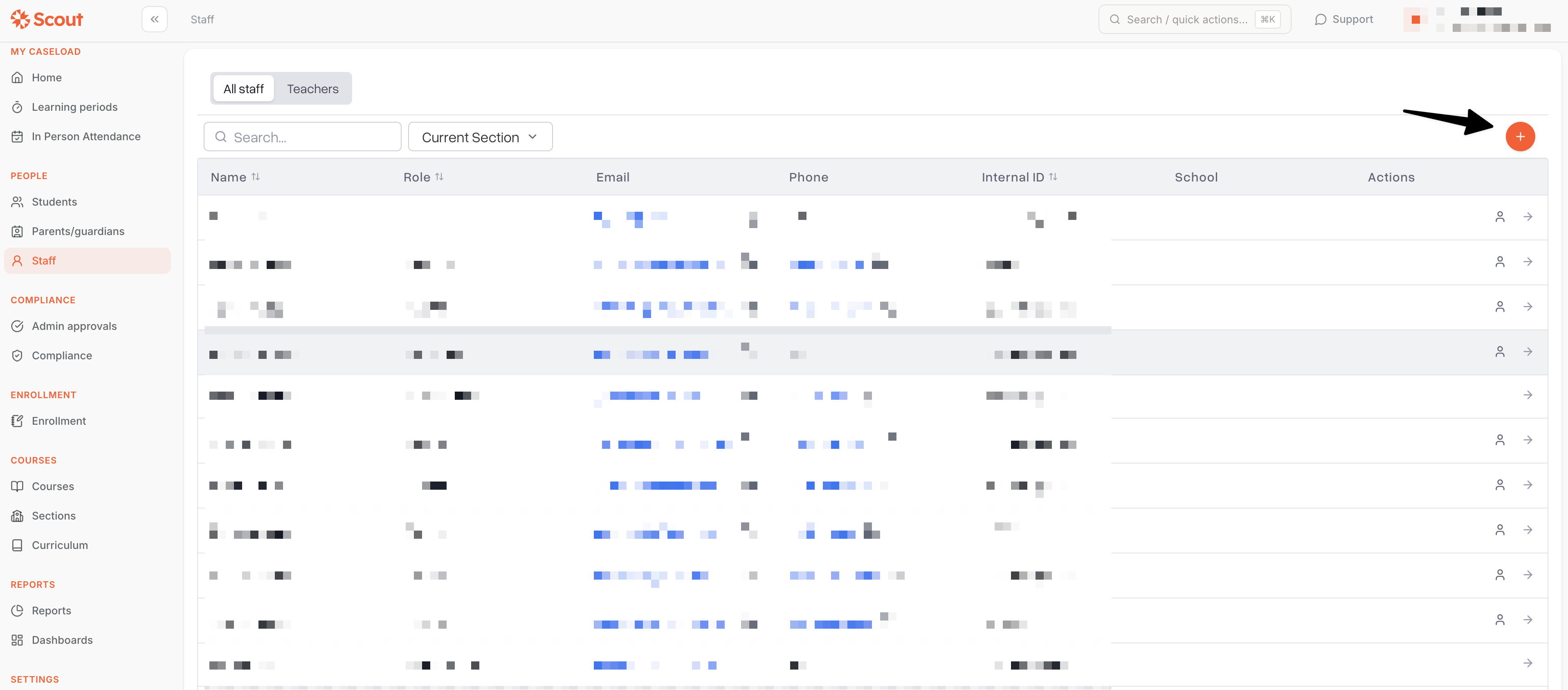
Fill out the four steps of the form:
Basic information — legal name, email, phone, employee ID, and state ID
Demographics — home address, birthdate, and other demographic details
Education — education and credential history
Roles — start date, employment type, primary role, and school assignments
Submit the form to create the account.
The email address you enter is what the staff member uses to sign in, so make sure it's their correct school email. Scout won't let you create an account with an email address that's already in use.
On the Roles step, you'll choose one of the following as the staff member's primary role:
District Admin
School Admin
Teacher
Counselor
Registrar
Once the account is created, the staff member can sign in right away — there's no invitation email to wait for and no password to set.
Signing in as staff
Go to your school's Scout site.
Choose Staff as the account type.
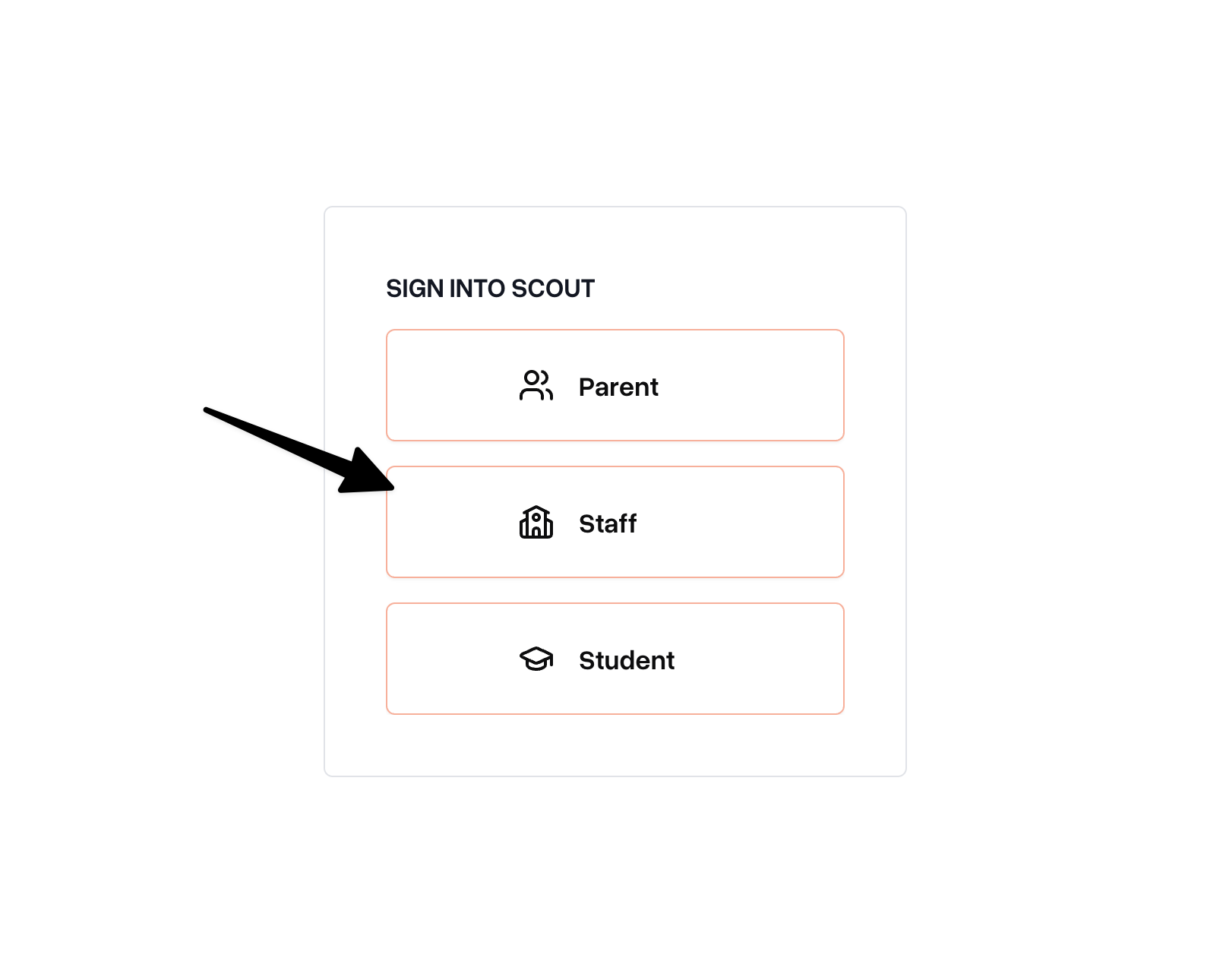
Sign in with your school Google account using the same email address that's on file in Scout.
Staff accounts sign in with Google — there's no separate Scout password to create or remember.
Deactivating a staff account
When a staff member leaves, deactivate their account to remove their login access.
Go to the staff member's profile page.
Click Deactivate staff member.
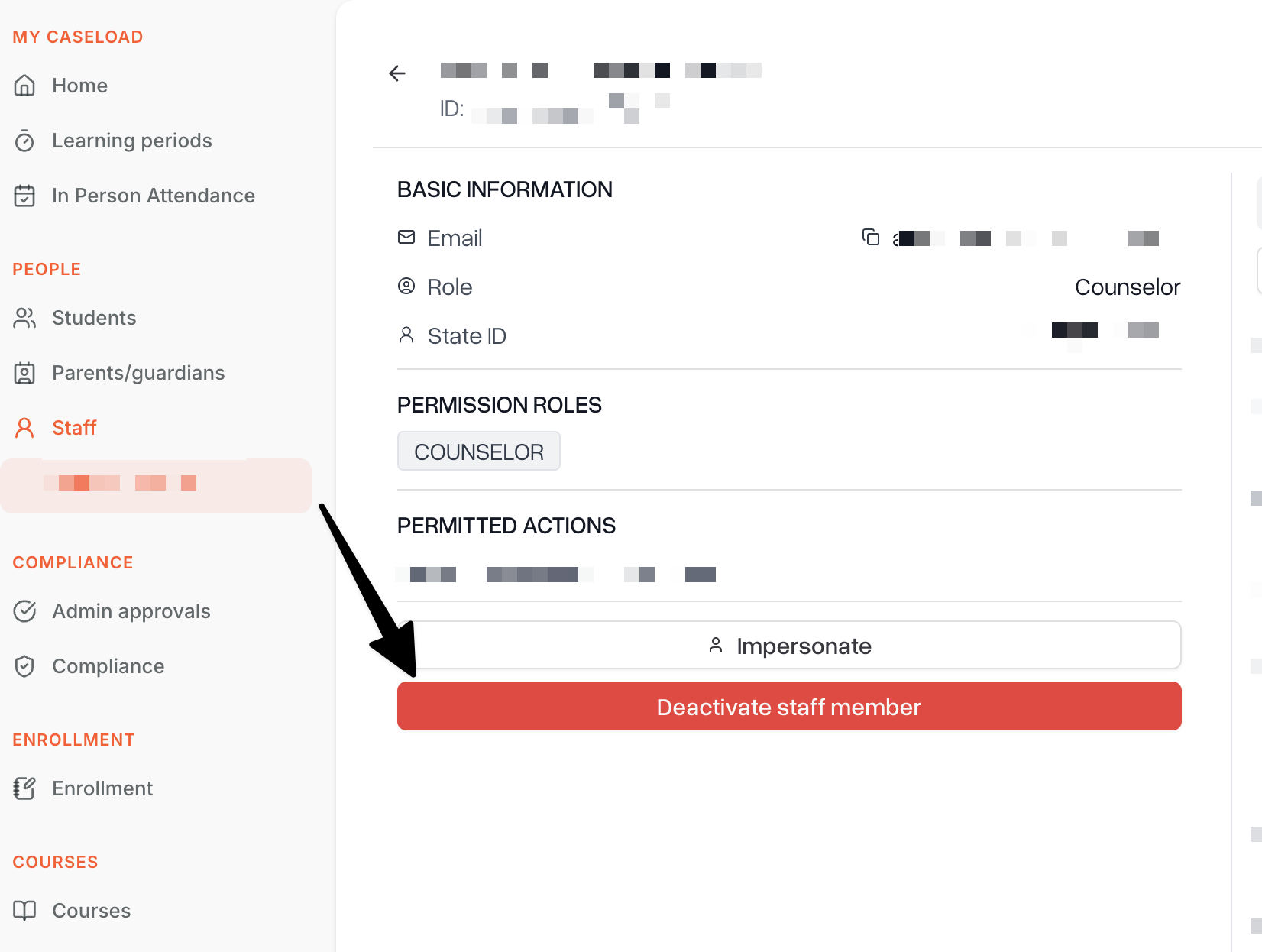
Confirm the deactivation.
Deactivating a staff member:
Ends their active school, caseload, and teaching assignments
Removes their login access and signs them out of any active sessions
Revokes their permissions
The staff member's profile and historical records stay in Scout, so admins can still look them up later — only their access is removed.
Reactivating a staff account
If a deactivated staff member returns, you can restore their login access.
Go to the staff member's profile page. Deactivated staff show a note that their account is currently deactivated.
Click Reactivate staff member.
Choose a role for them from the dropdown.
Click Reactivate.
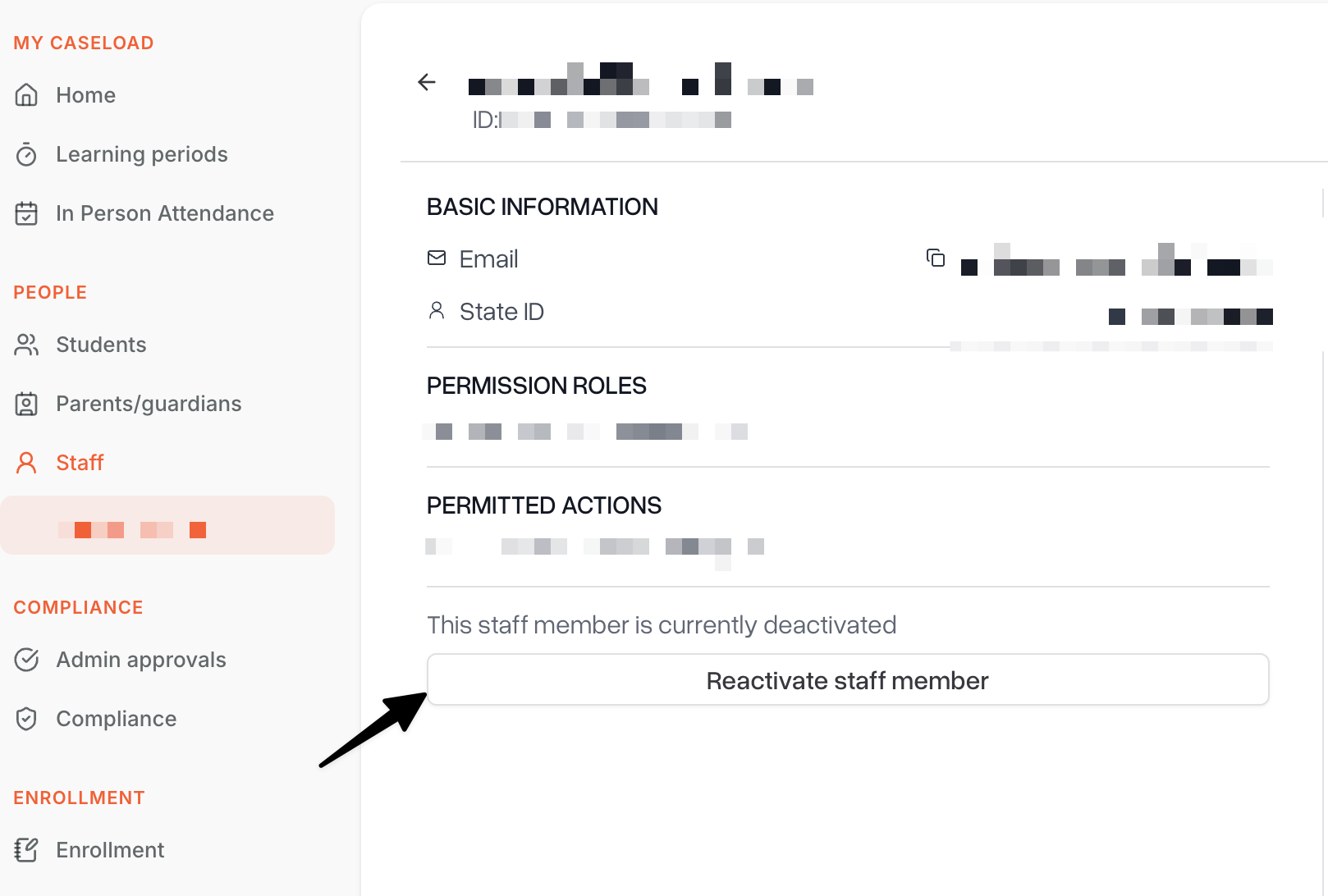
Reactivating restores sign-in access and the role you select, but school, caseload, and teaching assignments are not restored automatically — re-assign those separately once the account is active again.
FAQ
Question | Answer |
Do I need to send the staff member a password? | No. Staff sign in with their school Google account, so there's no Scout password to set or share. |
A staff member can't sign in — what should I check? | Confirm they're choosing Staff as the account type and signing in with the exact Google account whose email matches what's on file in their Scout profile. If their account has been deactivated, they'll need to be reactivated before they can sign in again. |
"A user with this email address already exists" error when creating an account | That email is already tied to an account in Scout. Search the Staff page for the existing profile — it may just need to be reactivated instead of creating a new one. |
Will reactivating restore a staff member's old classes and caseload? | No. Reactivating only restores sign-in access and the role you assign. Re-add their school, caseload, and teaching assignments separately. |
Who can create, deactivate, or reactivate staff accounts? | Only District Admins and School Admins have access to these actions. |