Getting a list of parent and guardian emails for your students
Last updated: November 12, 2026
You can download a spreadsheet of your students with each family's email addresses, then copy the addresses into an email. You can limit the list to one or more grade levels first.
Who can do this
Teachers, counselors, registrars and admins. Teachers get their own students. School admins get their school, and district admins get every school.
Download the list
Open Students.
If you're a teacher, choose the tab for the students you want. Teacher of Record is your current caseload.
Click Filter, choose Filter by grade, and tick the grade levels you want.
Close the menu. The grades you picked show above the table, for example Grade: 7, 8.
Click Export CSV.
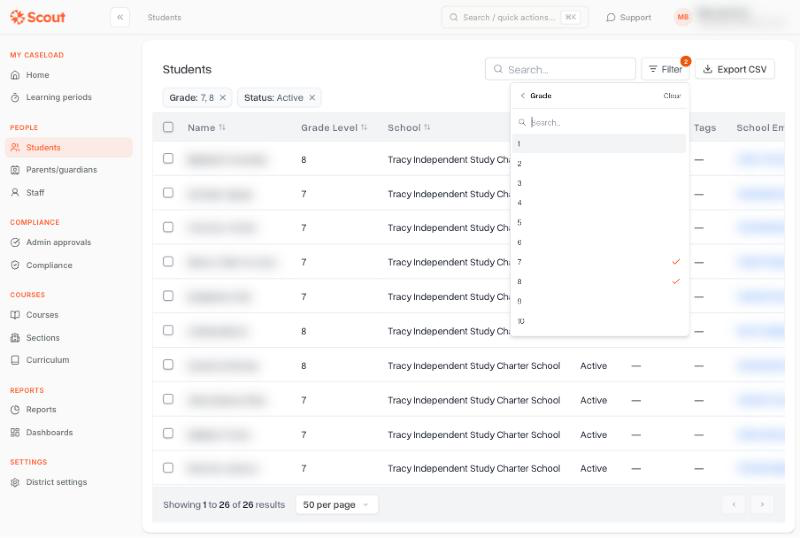
Pick one or more grade levels under Filter by grade.
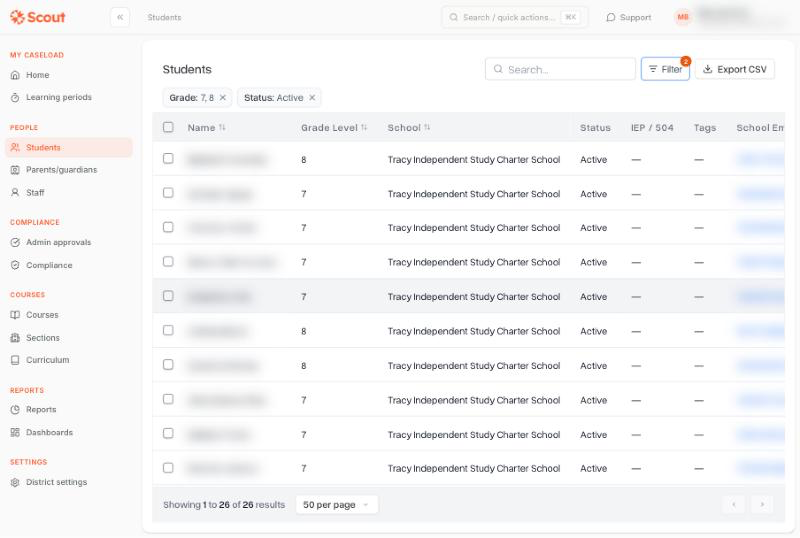
With the filter applied, Export CSV downloads every student in the list.
The file is named students- followed by today's date. It contains every student that matches the tab, filters and search, not only the students on the page you're looking at.
The list starts filtered to active students (Status: Active). To include students who have left, remove that filter before you export.
What's in the file
Each row is one student. The family columns are:
Column | What it holds |
|---|---|
Primary Parent/Guardian | Name of the contact marked as primary |
Primary Parent/Guardian Email | That contact's email |
Primary Parent/Guardian Phone | That contact's phone number |
Additional Parent/Guardian 1, 2, ... | Names of the student's other parents and guardians |
Additional Parent/Guardian 1 Email, 2 Email, ... | Their emails |
The file also has the student's name, grade level, school, status, IEP or 504, school email, personal email, phone, tags, caseload teacher, ID and SSID.
Example:
Name | Grade Level | Primary Parent/Guardian | Primary Parent/Guardian Email | Additional Parent/Guardian 1 | Additional Parent/Guardian 1 Email |
|---|---|---|---|---|---|
Student 1 | 9 | Parent 1 | Parent 2 | ||
Student 2 | 9 | Parent 3 | |||
Student 3 | 9 |
Copy the emails into a message
Open the file in Excel or Google Sheets.
Select the Primary Parent/Guardian Email column and copy it. Do the same for the Additional Parent/Guardian Email columns if you want every guardian.
Paste the addresses into the Bcc line of your email, so families don't see each other's addresses.
If a student's family columns are blank
The student has no contact marked as primary, or no contacts at all. Their profile shows a Missing primary contact notice. A school admin can add a contact on the student's Profile tab, or mark an existing contact as primary. Admins can see every student without a primary contact in Reports > Data anomalies.