Online Classes and Canvas Integration
Last updated: August 20, 2026
Scout connects to Canvas so that work students complete in their online classes shows up automatically in their Scout records. This article gives an overview of how online classes work with Canvas in Scout and links out to detailed steps for each part of the setup.
How the Canvas integration works
There are two separate connections you can set up between Scout and Canvas, and most schools use both together:
Linking a student's Canvas account. This connects an individual student's Canvas profile to their Scout profile, so Scout knows which Canvas account belongs to which student.
Adding Canvas as a source on a section. This connects a specific Canvas course to a Scout section, so assignments and student work from that course sync into Scout automatically.
Linking a student's Canvas account
From the bottom right of a student's profile, click Add linked account, choose Canvas as the provider, and paste the URL of the student's profile page from Canvas. Once the account connects, it appears on the student's profile.
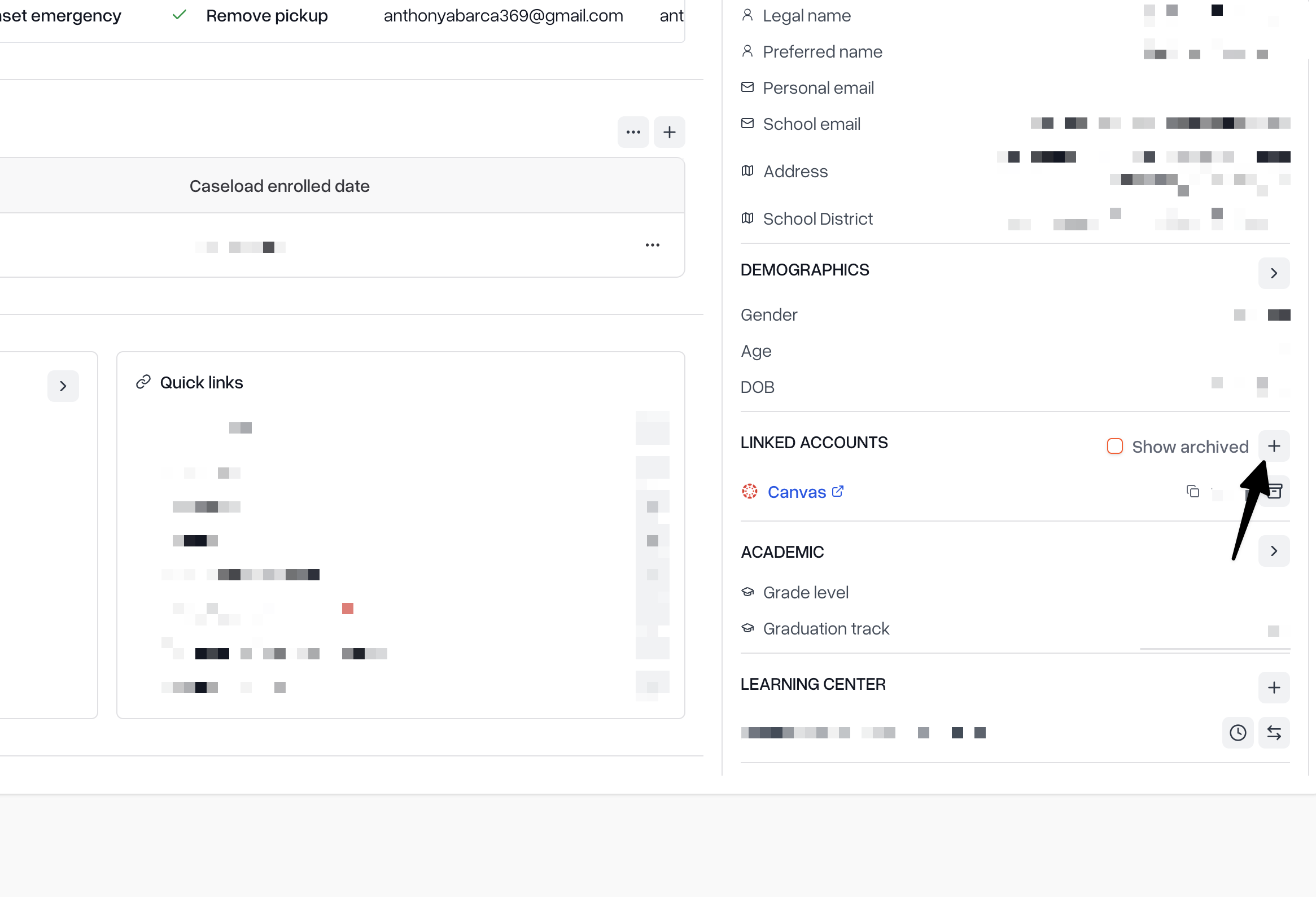
For the full walkthrough, including how to find a student's profile URL in Canvas, see How to link a student's Canvas account in Scout.
Adding Canvas as a source on a section
Staff members can connect a section to a Canvas course so that assignments sync in on a schedule. Open the section (from Courses or from a student's profile), click Add source, choose Canvas as the platform, and paste the course URL from Canvas. If one Canvas course serves multiple Scout sections, you can filter the sync to a specific assignment group so each section only receives its own assignments.
Only staff members — district administrators, school administrators, teachers, counselors, and registrars — can add or remove sources. Parents and students can view sources but can't change them.
For the full walkthrough, see Adding a third-party integration to a section via sources.
Using Canvas submissions as work samples
When a student's Canvas account is linked and their section is connected to a Canvas course, staff can pull a student's Canvas submission directly into Scout as a work sample. On the work sample row for a course, click Select from submitted assignments to browse the student's submitted Canvas assignments for that learning period and choose one to use.
Scout can bring in file uploads, text entries, and quiz submissions from Canvas. If a work sample doesn't meet requirements, staff can reject it and pull a different submission the same way.
For the full walkthrough, see How to Reject a Work Sample and Pull a New One from Canvas.
Tips
Link the student's account first. Work sample pulls from Canvas depend on the student's Canvas account being linked in Scout.
Use the exact URL from Canvas. Both linking an account and adding a source require pasting a URL copied directly from your browser while viewing the relevant page in Canvas.
Syncing is automatic. Once Canvas is added as a source, Scout keeps assignments up to date on a schedule — you don't need to trigger a sync manually.
Only submitted or graded Canvas assignments can be pulled as work samples. If nothing appears in the assignment selector, check whether the student has submitted work in Canvas for that learning period.