Reviewing immunization uploads
Last updated: November 3, 2026
When a family or staff member uploads an immunization record, Scout can read it with AI and list the doses it finds. Staff then check those doses against the document and save them to the student's record. Nothing is added to a student's record until someone reviews and saves it.
Who can review uploads
Role | What they can do |
|---|---|
District admins, school admins, teachers, counselors, registrars | Parse, review and cancel uploads |
Read-only admins | View uploads |
Where uploads come from
Who uploads | Where | Does Scout parse it automatically? |
|---|---|---|
Families | The enrollment or re-enrollment form | Yes, when the family submits the form |
Families | Missing documents on their home page | No. Scout parses it overnight, or staff can parse it sooner. |
Staff | Add/Update Doses with Documents on the student's Immunizations page | Yes, when you choose Yes, parse document |
Upload statuses
Uploads waiting for review are listed under Uploaded immunization records, above the tabs on the student's Immunizations page.
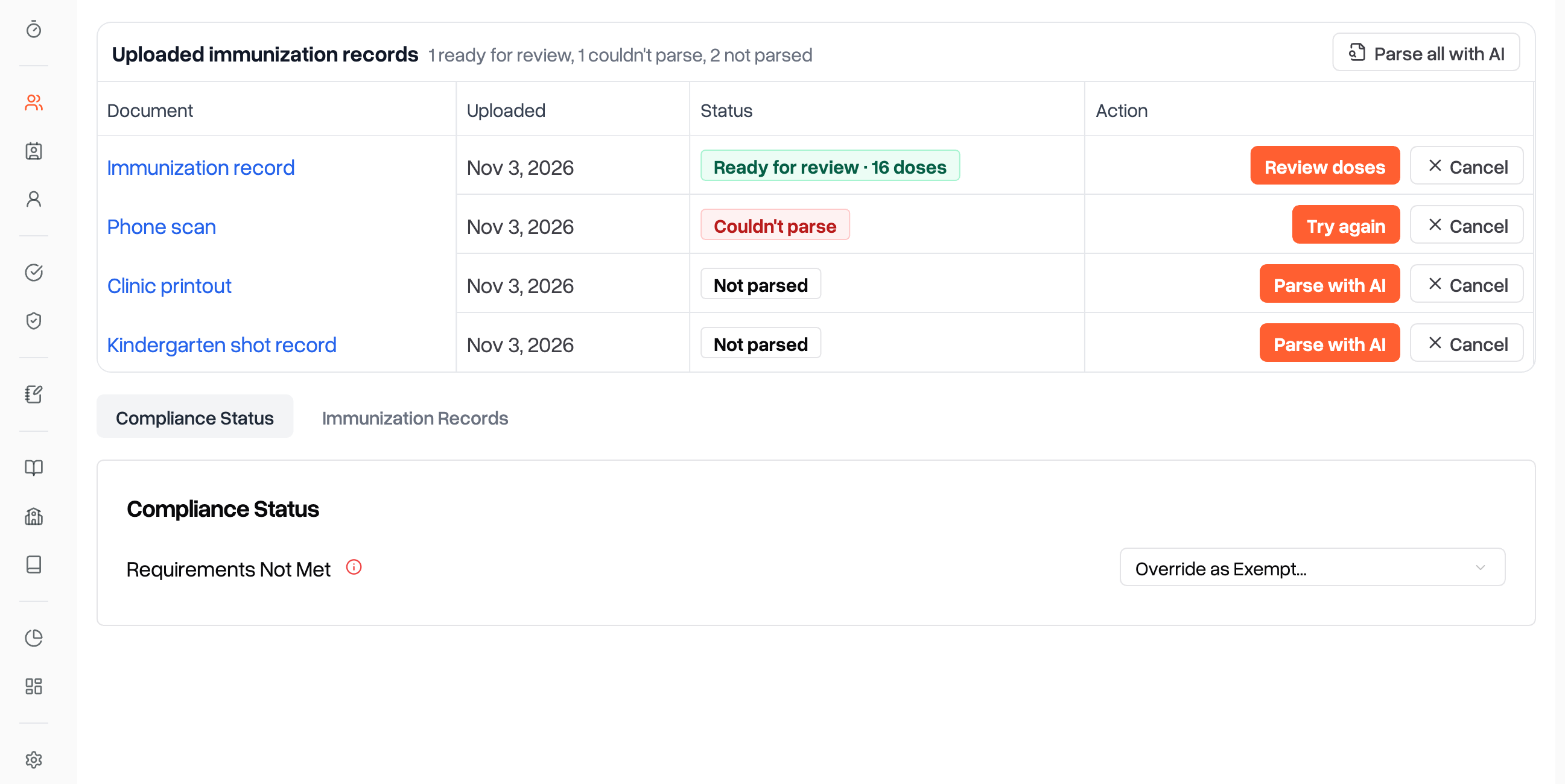
Status | What it means | What to do |
|---|---|---|
Ready for review · N doses | Scout read the document and found N doses. | Click Review doses. |
Parsing | Scout is reading the document. | Wait, the row will update by itself. |
Not parsed | Scout hasn't read the document yet. | Click Parse with AI, or wait for Scout to parse it overnight. |
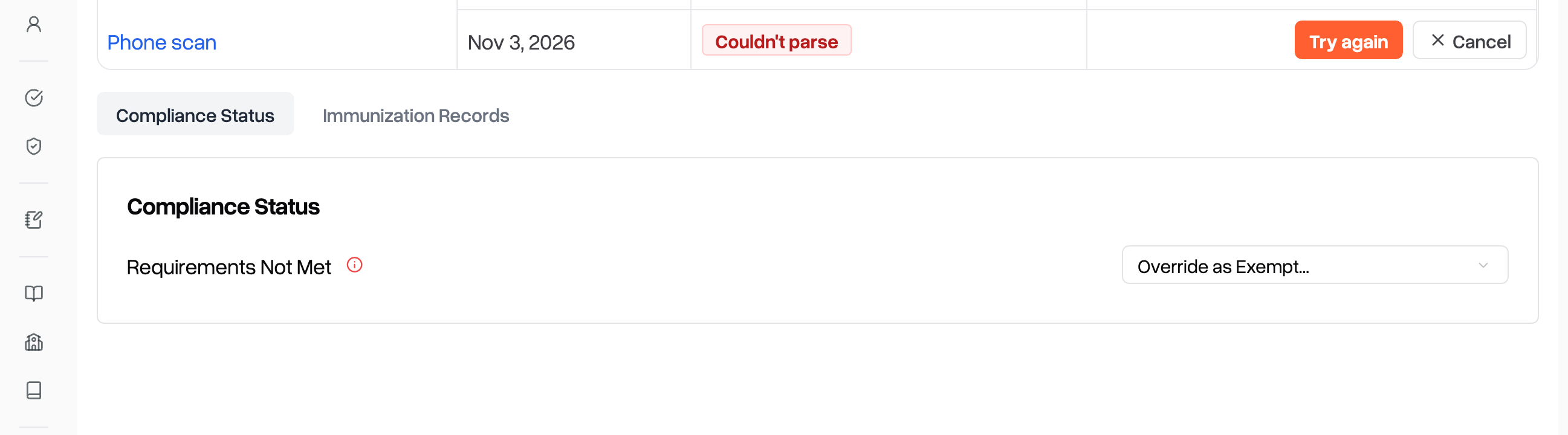
Couldn't parse | Scout couldn't read the document. | Click Try again, or enter the doses by hand. |
A student who is missing doses and has any upload in the list shows as Waiting for review on the Compliance page. That includes uploads that are Not parsed or Couldn't parse.
Parsing uploads
There are four ways Scout parses uploads:
One upload: click Parse with AI on its row.
All of a student's uploads: click Parse all with AI above the table. It appears when two or more uploads are Not parsed.
Many students: on the Compliance page, open the Immunizations list and click Parse N uploads.
Every night: Scout parses uploads that are Not parsed for students who are currently enrolled.
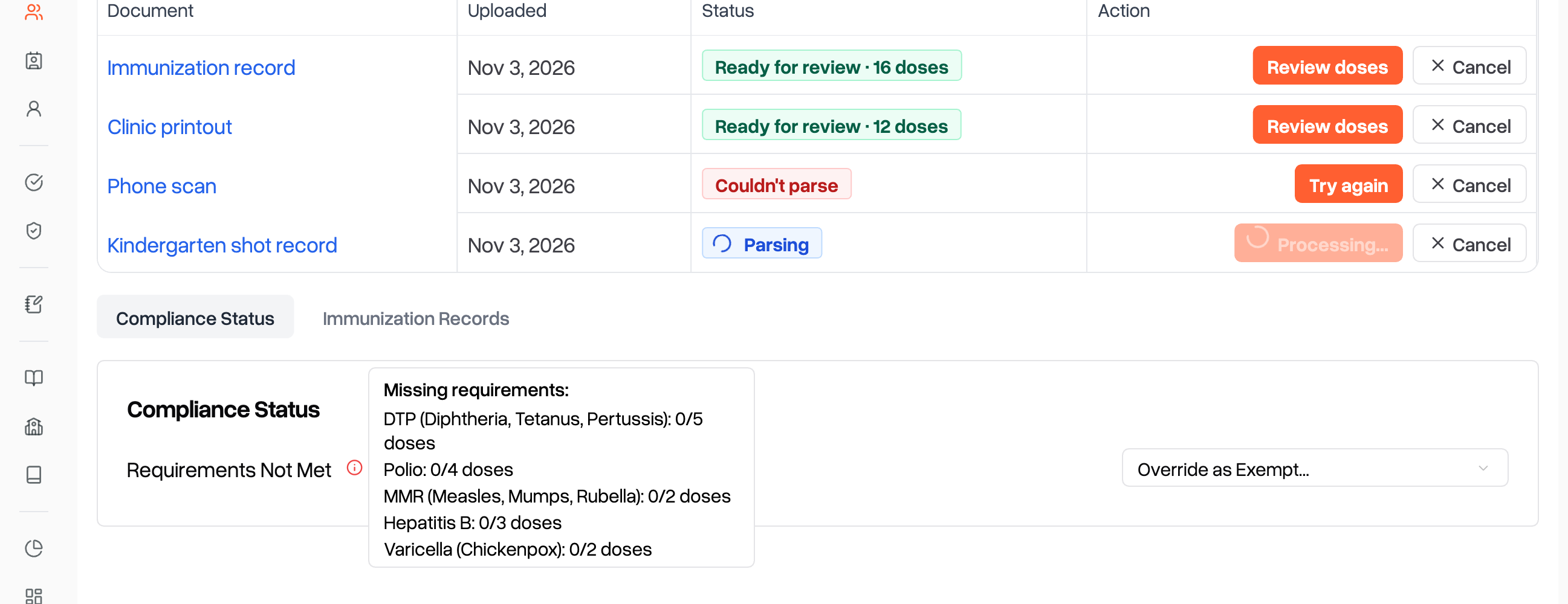
Scout parses a few uploads at a time. Parsing keeps going if you leave the page.
Anything Scout hasn't parsed within 2 hours is parsed overnight.
Scout doesn't retry an upload it couldn't read. It stays Couldn't parse until someone clicks Try again, enters the doses by hand, or cancels it.
You won't get a notification when parsing finishes. The results show up on the student's Immunizations page.
Reviewing an upload
On the upload's row, click Review doses.
Check that the name next to Student name extracted is this student. Scout doesn't check this for you.
Compare each dose under Add New Doses with the document on the left. Correct the vaccine, dose number or date where they don't match. Use the zoom buttons or Open to read the document more easily.
Delete any row that isn't a real dose. Click Add Dose for any dose Scout missed.
If a dose is already on the student's record, delete its row. Then open Attach to Existing Doses and check the dose that's already on file. Scout links the document to it.
Click Add N doses.
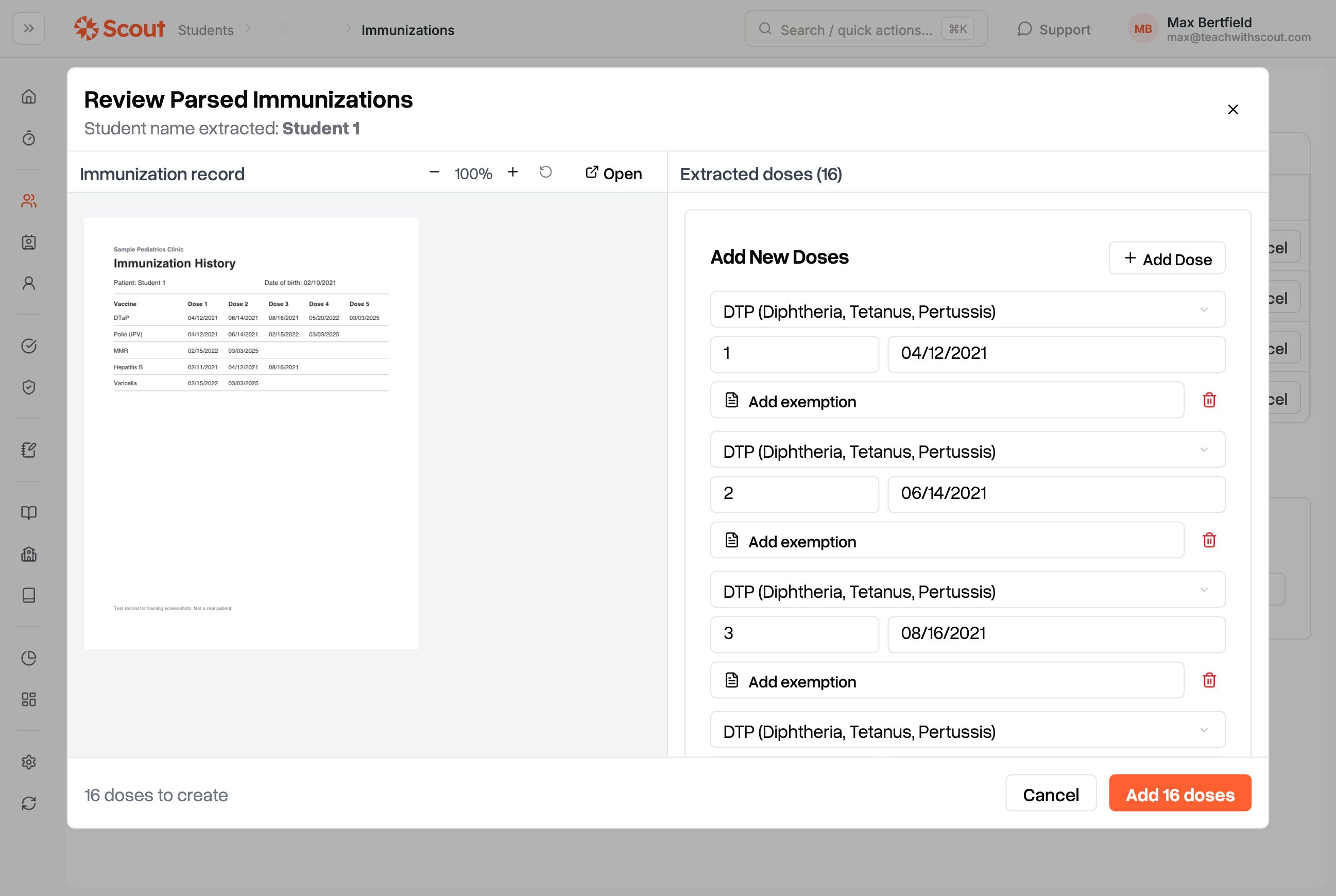
The upload leaves the list, and the student's status updates.
When a document shows only a month and year, Scout uses the 1st of the month. When it shows only a year, Scout uses January 1. Check these dates against the document.
Cancel closes the review without saving. The upload stays in the list.
If Add N doses is grayed out, a dose has a problem. Look for a red message under its fields:
Message | Cause | Fix |
|---|---|---|
Vaccine dose N already exists | That dose number is already on file. | Delete the row and check the dose under Attach to Existing Doses, or correct the dose number. |
Date must be between ... and ... | The date is before the student's date of birth or the previous dose of that vaccine, or after the next dose or today. | Correct the date or the dose number. |
Date must be before ... | The date is after the next dose of that vaccine or after today. | Correct the date or the dose number. |
Removing an upload without saving doses
Click Cancel on the upload's row. Use this when the file isn't an immunization record, is a duplicate, or you've already entered its doses another way.
The upload leaves the list right away, with no confirmation. You can't bring it back to the list.
The file stays in the student's documents.
Reviewing uploads from the Compliance page
You can review uploads without leaving the Compliance page.
For one student:
Click Compliance in the sidebar, and click View in the Immunizations row.
Click the waiting for review link in the student's Uploads column. If you can't see the column, scroll the list to the right.
The first upload opens for review. Review each upload as described in Reviewing an upload. To see the student's full record, click Open Immunizations page. It opens in a new tab.
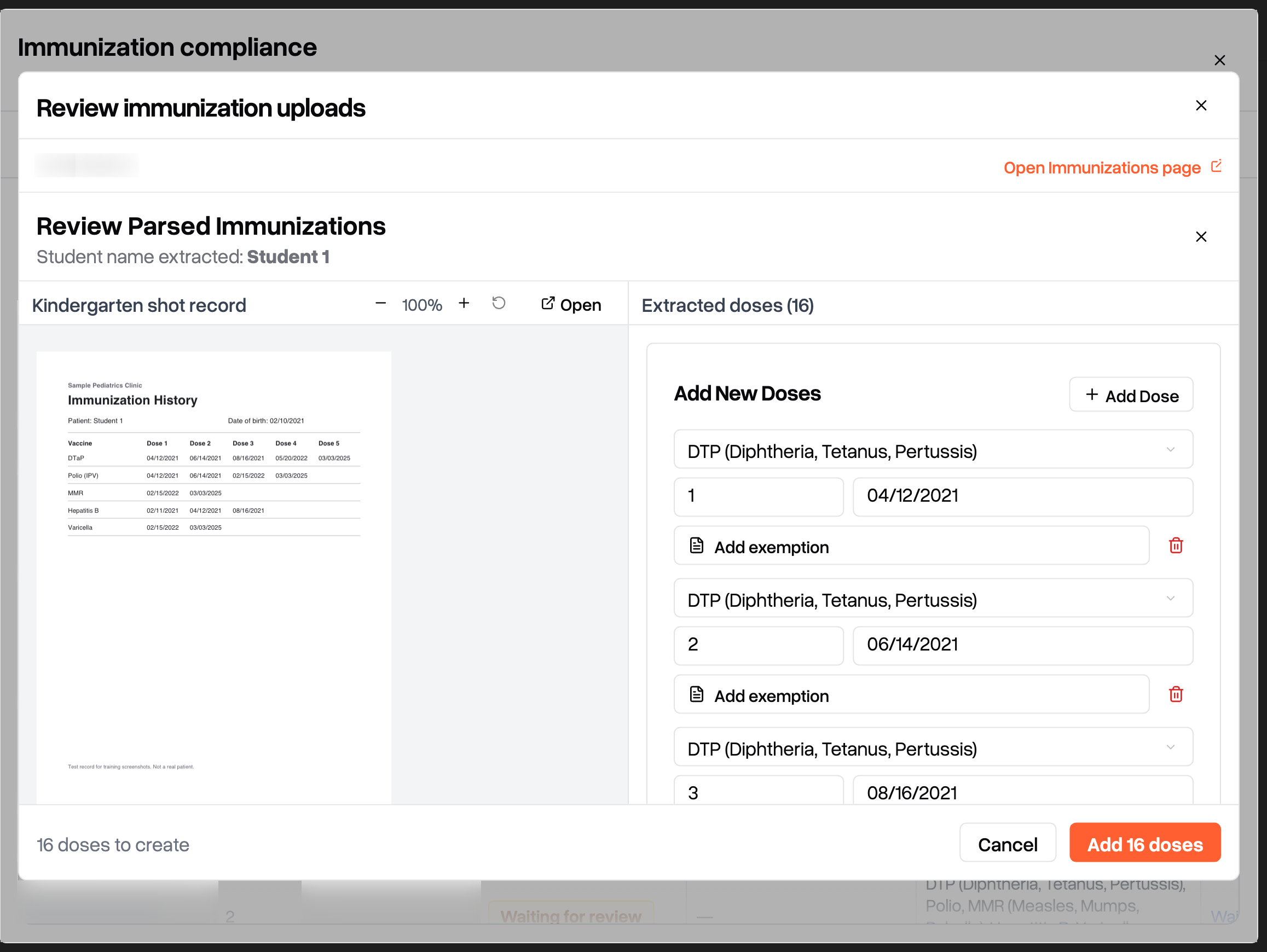
The pop-up closes once nothing is left waiting for that student.
For every student with uploads waiting:
Review all waiting takes you through each student in the list who has uploads waiting, one student after another, without closing the pop-up.
Click Compliance in the sidebar, and click View in the Immunizations row.
To review only some students, narrow the list with the search, status, school and learning center filters.
Click Review all waiting. Every student in the list with uploads waiting appears on the left of the pop-up.
Review the first student's uploads. When nothing is left waiting for them, the next student opens.
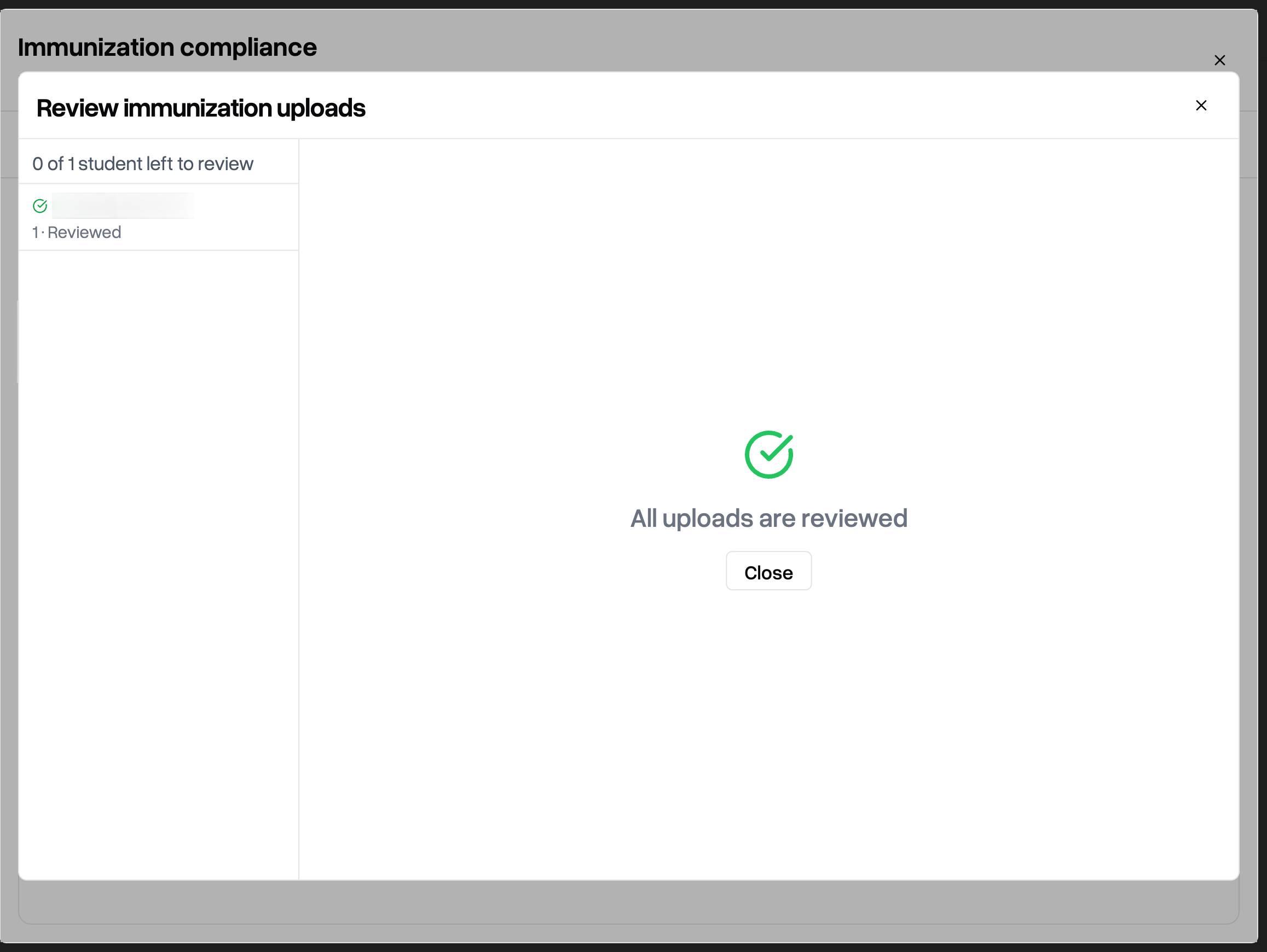
When you see All uploads are reviewed, click Close.
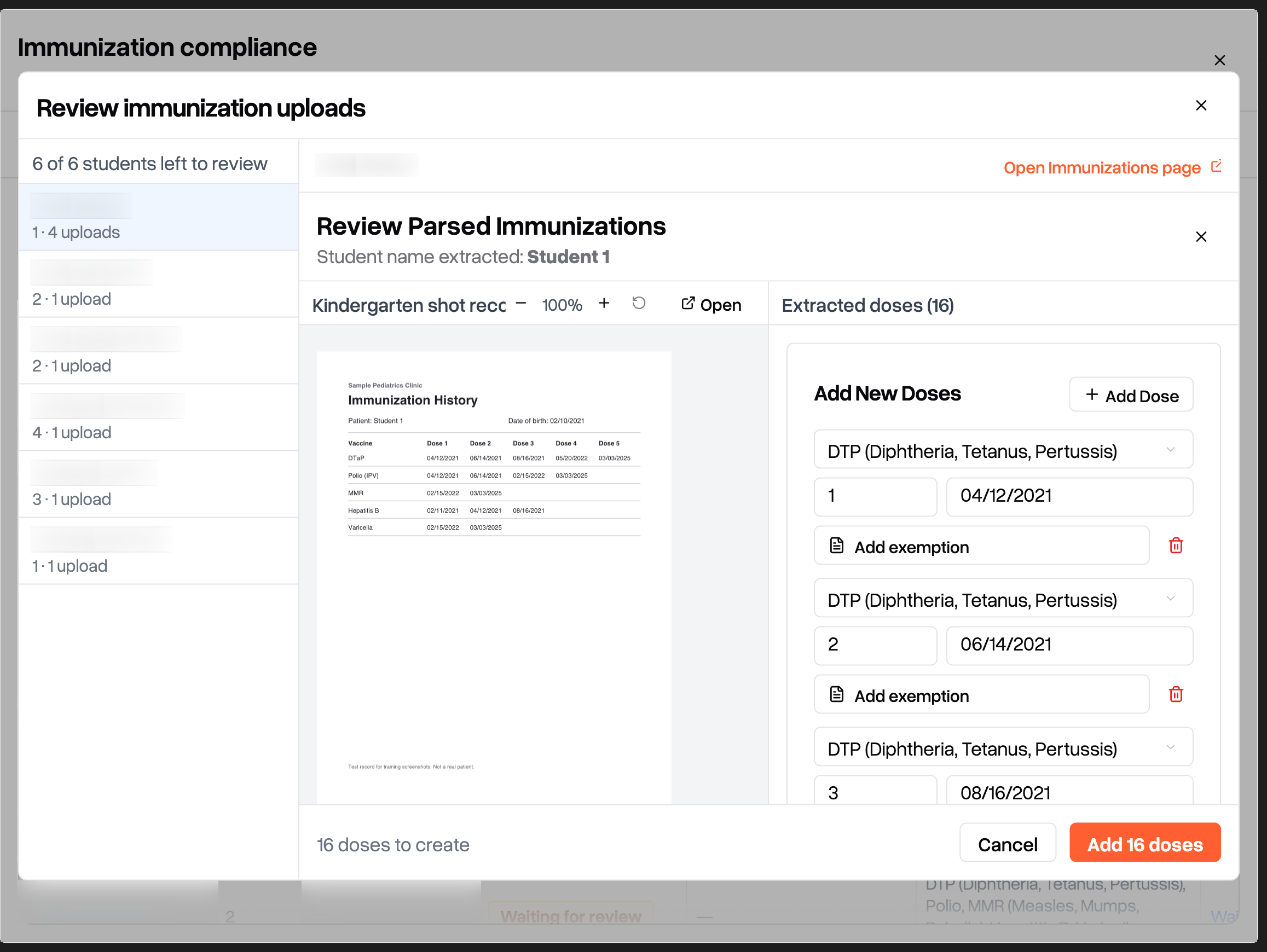
The list on the left shows how many students are left, and how many uploads each one has. Click any student to jump to them.
Students are listed by last name.
The Compliance page list updates as you go, and keeps your search, filters and sort when the pop-up closes.
If you close the pop-up partway through, anything you saved stays saved. Doses you were in the middle of reviewing aren't saved.