How to Assign Assignments
Last updated: September 22, 2026
In Scout, an assignment is a piece of work you give students in a course section. Each assignment has a due date, and you can also give it a grade scale and link it to academic standards. You can assign work in three ways: to a whole section, to one student, or to many students across several courses at once.
Which option should I use?
Whole section: use the Section page when every student in the class should get the same assignment.
One student: use Add assignment on the Learning Period page when only one student needs the work.
Many students, many courses: use Bulk assign on the Learning Period page to give the same work to a chosen group of students and courses in one step.
Assign to an entire section
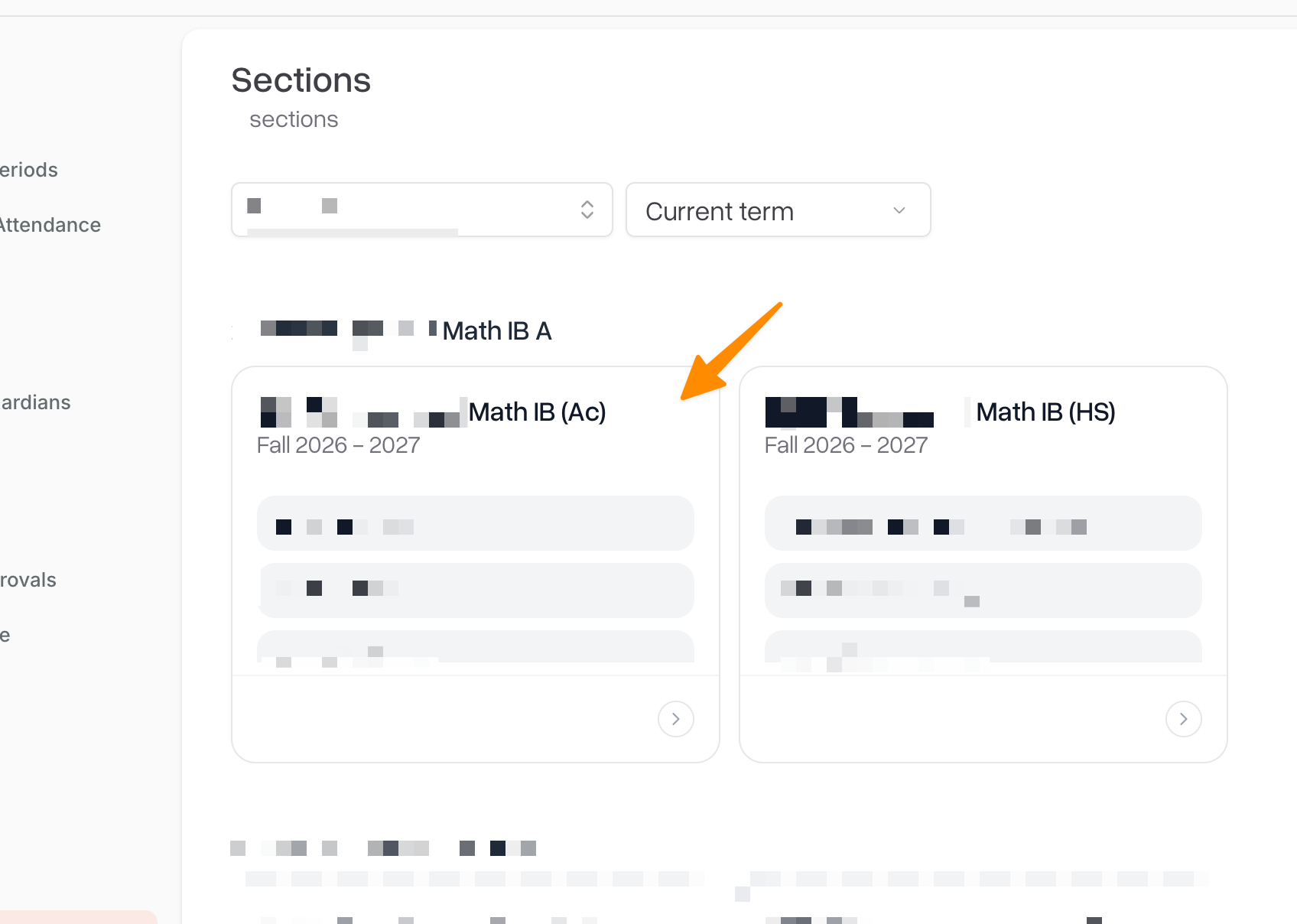
Open the section. Go to Courses (or Sections) in the left sidebar and click the section.
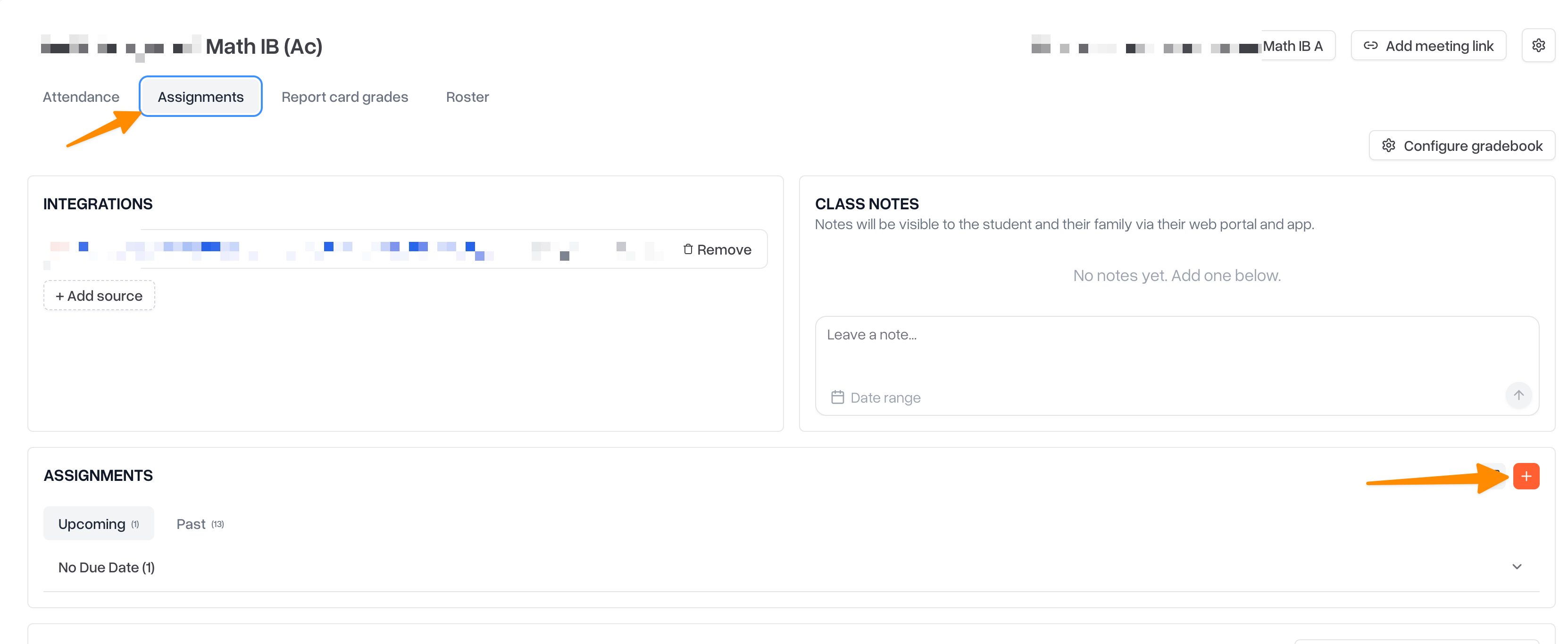
Find the Assignments card and click the + Add button in its top-right corner.
The New assignment window opens. Fill in the fields (see Assignment fields below).
Click Create assignment.
The assignment is given to every student currently enrolled in the section. It appears on the Upcoming tab of the Assignments card, grouped by the month it is due. After the due date passes, it moves to the Past tab.
Note: students who join the section later do not get existing assignments automatically. Give them the work individually (see below).
Assign to one student
In the left sidebar, click Learning Periods. This opens your caseload for the current learning period.
Find the student and the course you want to add work to.
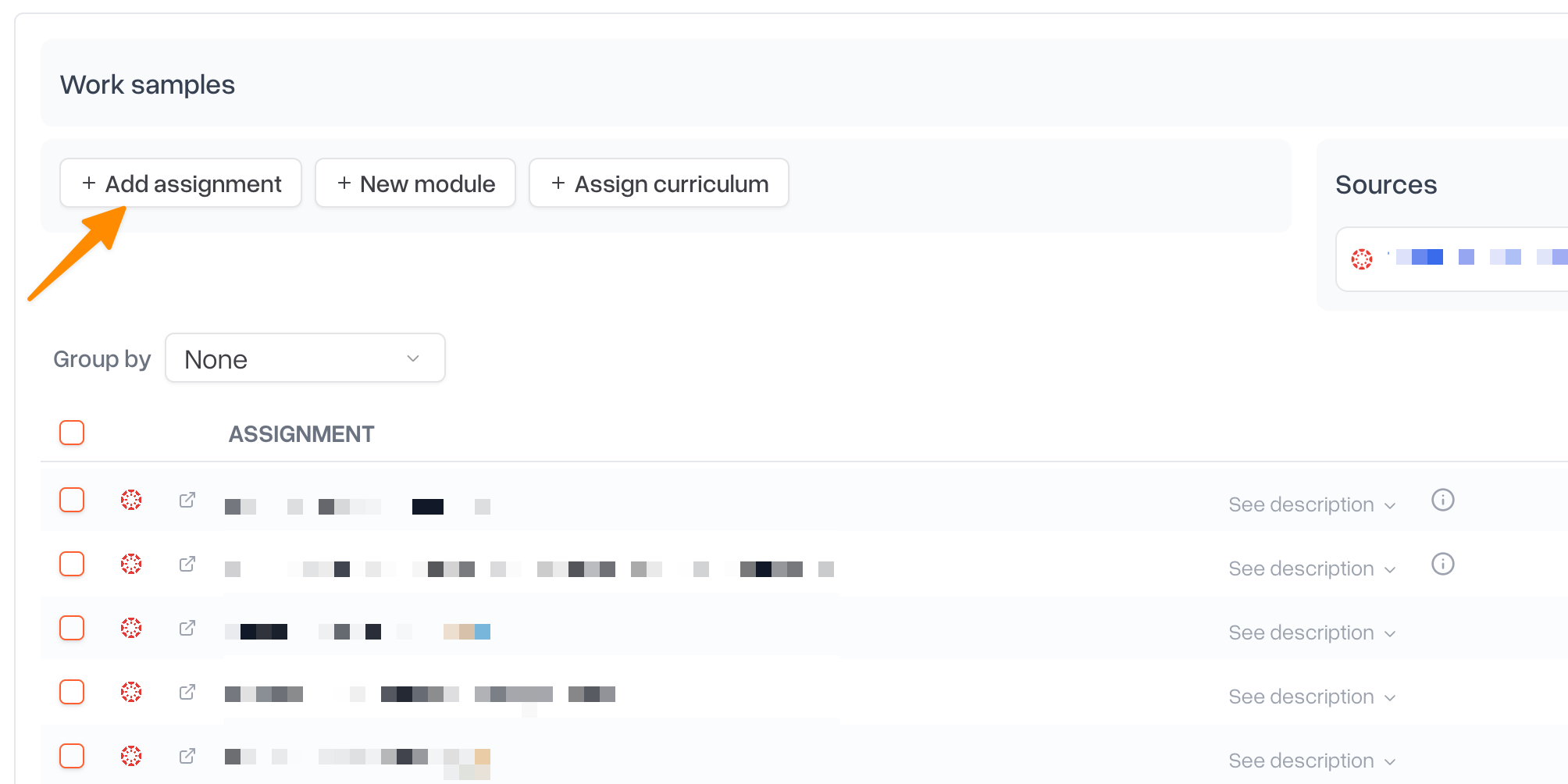
Click + Add assignment. (scroll down in the learning periods section to the Work Samples tab, make sure you are in the correct LP)
Fill in the New assignment form and click Create assignment.
The assignment belongs to the learning period you are viewing. If you add it from the term-wide ("Overall") view, Scout uses the due date to decide which learning period it belongs to.
Bulk assign to many students across courses
In the left sidebar, click Learning Periods.
In the top-right corner, click Bulk assign. The page switches to a compact selection view.
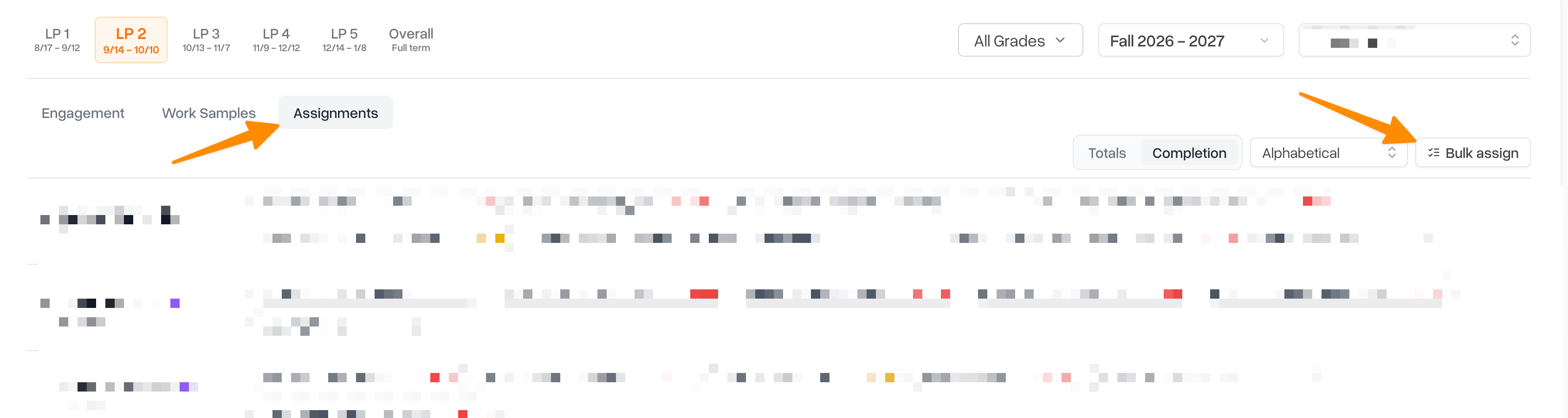
Select which courses to assign for which students:
Check individual courses under a student.
Use the checkbox next to a student's name to select all of that student's courses.
Use the Assign to all students taking... dropdown to select one course for every student enrolled in it.
Click the button that summarizes your selection, for example Assign to 3 courses across 12 students.
In the window that opens, pick the New assignment tab, fill in the form, and click Create [number] assignments.
To leave bulk mode without assigning anything, click Cancel.
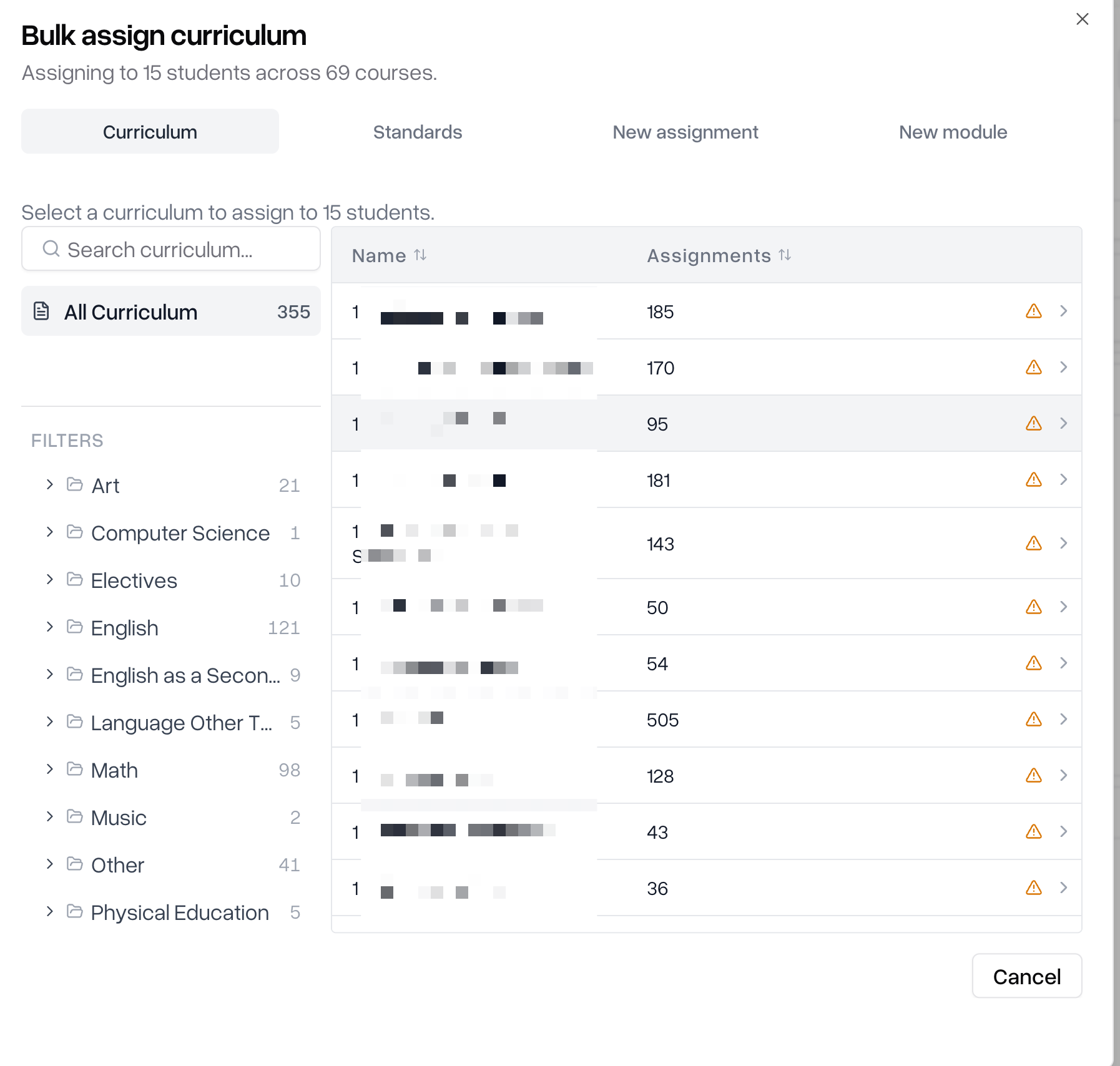
The bulk window has three other tabs:
Curriculum: assign existing curriculum to the selected students.
Standards: turn selected standards into gradeable assignments, due at the end of the learning period.
New module: create a group of related assignments (a module) for the selected students.
Assignment fields
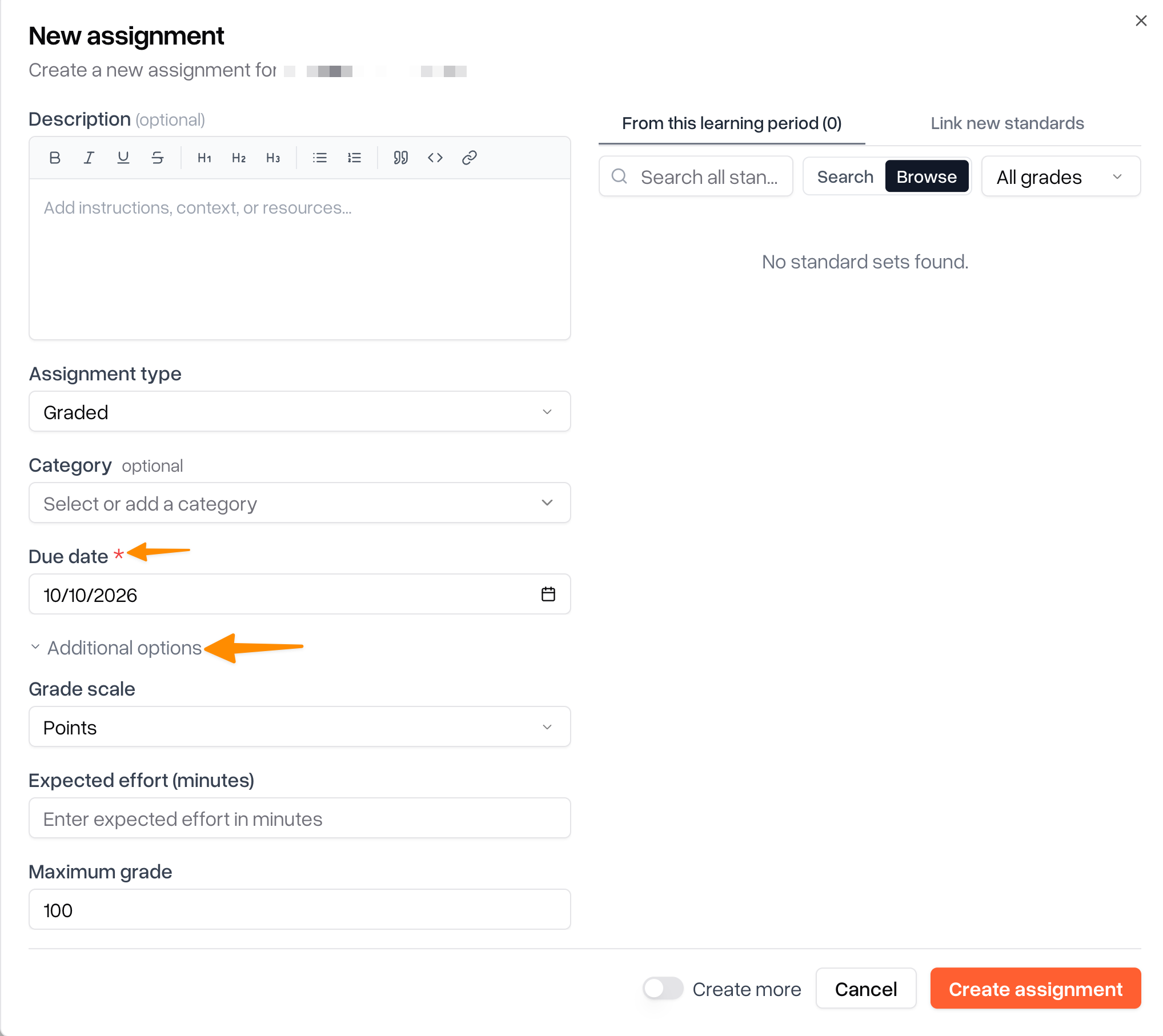
You see the same form whichever way you assign work. Fields marked with a red asterisk (*) are required.
Assignment name *: the title students and families see.
Description (optional): instructions, context, or links to resources. You can format this text.
Assignment type:
Graded: a regular assignment with a due date and a grade.
Objective: a learning goal that needs no submission, grade, or time tracking. When you choose Objective, the due date and grading fields are hidden.
Category (optional): choose a gradebook category or type a new one. If your section's gradebook uses weighted categories, an uncategorized assignment won't count toward the weighted average. Scout reminds you of this on the form.
Due date *: when a learning period is in view, this defaults to the period's end date. You can only choose a date inside that learning period.
Additional options (click to expand):
Grade scale: Points, Percentage, Letter Grade, or Non-numerical.
Expected effort (minutes): how long you expect the work to take.
Maximum grade: shown only for the Points scale. It is required when you use Points.
Standards (right side of the form): search for and select the academic standards this assignment covers. Only standards for your state appear.
Creating several assignments in a row
Before you click Create assignment, turn on the Create more toggle. The form stays open and clears after each save, so you can enter the next assignment right away.
Editing or removing an assignment
On the Section page's Assignments card, or in a student's assignment list, use the edit (pencil) icon on an assignment row. The Edit assignment window has the same fields; click Save when you're done. Use the delete (trash) icon to remove an assignment.
Common questions
Why can't I pick the due date I want?
If you're assigning from a learning period, the due date must fall inside that learning period. Switch to the correct learning period and try again.
A new student doesn't have the assignments the rest of the class has.
Assigning from the Section page only covers students who were enrolled when you created the assignment. Use Add assignment or Bulk assign to give the new student the work.
My assignment isn't affecting the student's grade.
If your gradebook uses weighted categories, check that the assignment has a Category. Uncategorized work is not counted in a weighted average.
What is "Assign curriculum"?
It assigns a prepared set of assignments (a curriculum) at once, instead of creating them one by one. You'll find it next to + Add on the Section page and as a tab in Bulk assign.