Enrolling a student in sections from their course plan
Last updated: May 6, 2026
Bulk-enroll a student into sections for the courses they have planned for a specific term — without looking up each course one by one.
Overview
Once a student has a course plan with courses mapped to a term, you can enroll them into matching sections in one step from the student's profile. Scout finds available sections for each planned course, pre-selects the obvious matches, and creates all the enrollments at once when you submit.
This guide covers:
Where to find Enroll from plan
Selecting a term and reviewing planned courses
Picking sections and handling courses with no available sections
Reading the results summary
What to do if the button is disabled
This article assumes the student already has a course plan with courses in the term you want to enroll for. To set up a plan, see Using the student course planner.
Opening Enroll from plan
Open a student's profile
Click the Courses tab
Make sure the Enrollments sub-view is active (this is the default)
In the term dropdown, select a specific term — for example, “Fall 2025–2026”. Don't leave it on “All terms”
Click Enroll from plan, next to the Enroll in course button
[Screenshot: The student profile Courses tab with the term dropdown set to a specific term and the Enroll from plan button visible in the toolbar]
Reviewing the dialog
The dialog title shows the student's name and the selected term, e.g., “Enroll Jane Smith into Fall 2025–2026 from plan.”
Start and end dates
At the top, Scout pre-fills the enrollment Start date and End date with the term's start and end dates. You can adjust either within the term's range — for example, if the student is joining mid-term.
Planned courses list
Below the dates, every course planned for that term is listed with a checkbox, the course name, and a section dropdown.
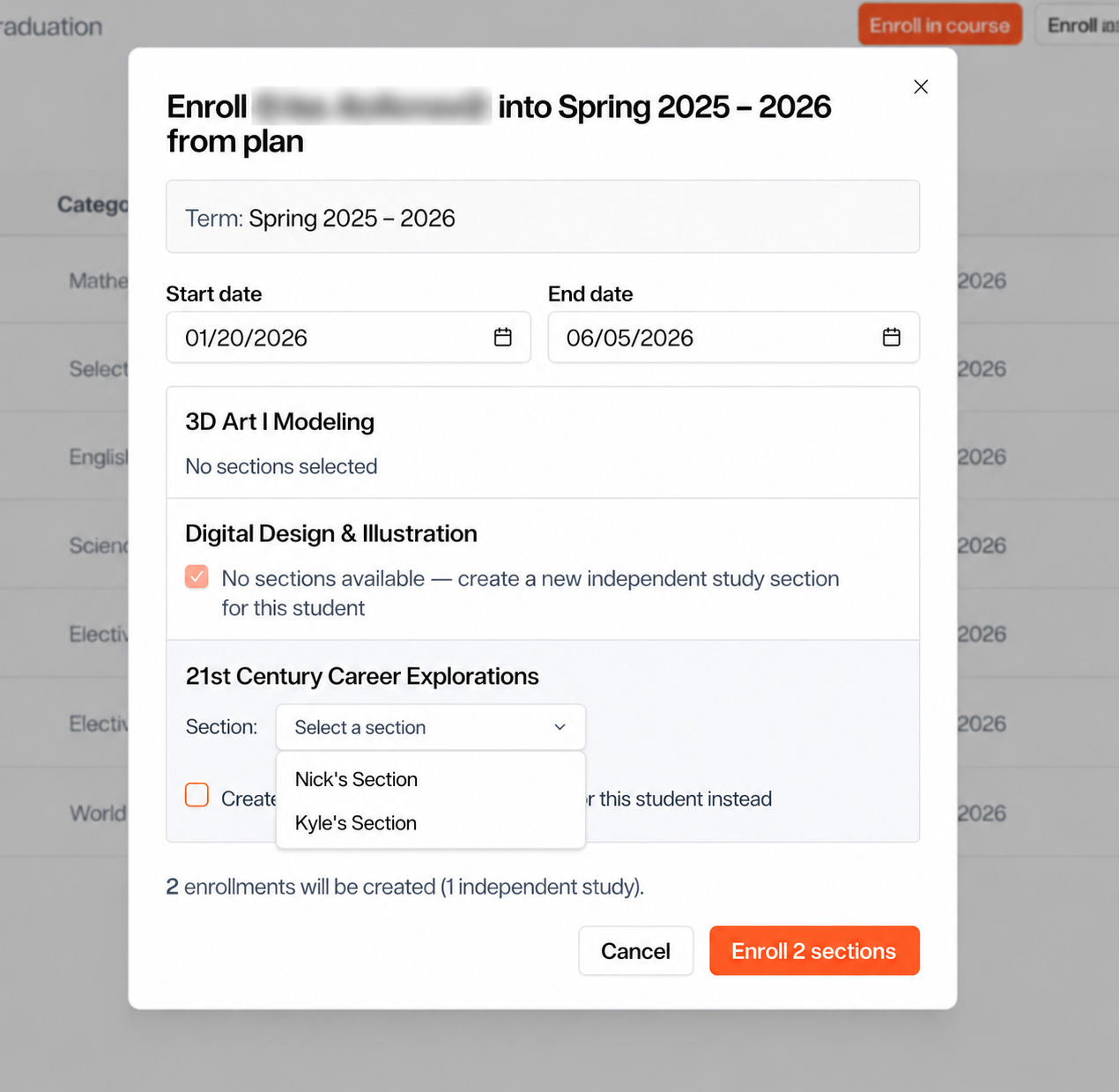
For each course Scout will:
Auto-select the only section if exactly one section exists for the course in this term
Show a section dropdown if multiple sections exist — pick one labeled Section name · Teacher name
Auto-check “Create a new independent study section” if no sections exist for the course in this term. You can leave this checked to create a standalone section just for this student, or uncheck it to skip the course
Uncheck the row automatically if the student is already enrolled in a section for that course. A “Already enrolled in Section name” badge explains why; Scout won't create a duplicate enrollment
Eligibility warnings
If you pick a section the student isn't eligible for, Scout shows a red note explaining why. Common reasons:
School mismatch — the section is offered at a school the student isn't enrolled in
Learning center mismatch — the section is restricted to a learning center the student isn't part of
At capacity — the section is full
Pick a different section, or check Create a new independent study section for that course instead.
Submitting the enrollment
Above the buttons, Scout shows a summary like “3 enrollments will be created (1 independent study).”
Click Enroll N sections. The button shows a spinner and changes to Enrolling… while Scout creates all the enrollments at once.
Results summary
When enrollment finishes, the dialog shows a per-course outcome:
✓ Enrolled in Section name — the student was placed in that section
✓ Created independent study section — a new standalone section was created for this student
— Already enrolled in Section name — no action taken; the student was already in a section
— Skipped — you unchecked the row before submitting
✗ Failed: reason — the enrollment couldn't be created (e.g., section filled up between when the dialog loaded and when you submitted)
Click Done to close. The Enrollments table refreshes automatically so the new enrollments appear right away.
When Enroll from plan is greyed out
If the button is disabled, hover over it for the exact reason. The most common ones:
“Select a single term to enroll from plan” — the term dropdown is on “All terms.” Pick a specific term
“Loading graduation plan…” — the plan hasn't finished loading. Wait a moment
“Student has no graduation plan” — create or apply a plan first via the Graduation sub-view
“No planned courses for this term” — the student's plan has no courses scheduled in the selected term. Add courses to the plan in the Graduation view, or pick a different term
“You can only enroll students who are in your caseload” — you're a teacher and this student isn't in your caseload. Ask an admin or counselor to enroll them instead
Tips
Use Enroll from plan at the start of each term — it's the fastest way to move a student's planned schedule into active sections
Independent study fallback — for courses with no available section, the auto-checked “Create independent study section” option means you don't have to set anything up in advance to enroll the student in their planned course
Re-running is safe — if you open the dialog after some enrollments are already done, the already-enrolled rows are unchecked automatically. Submitting again won't duplicate them
For one-off enrollments to a single course (in or out of the plan), use Enroll in course instead
Permissions
Enroll from plan is available to:
District admins
School admins
Counselors
Registrars
Teachers — but only for students in their caseload