Restricting a section to specific schools
Last updated: April 20, 2026
Limit where a section is available by linking it to a subset of its course’s schools, instead of inheriting the course’s full school list.
Overview
By default, a section is available at every school where its parent course is offered. If a specific section of a course only runs at one or two of those schools, a District Administrator can narrow the section down by linking it to just the schools that apply. Students at other schools will no longer see the section as an option when being enrolled, even if their school is on the course.
A section with no school restrictions behaves exactly as before — it stays available at every school where the course is offered. The restriction is additive: you’re layering a per-section filter on top of the course’s school list.
Who can restrict a section’s schools
Only District Administrators can add or remove schools on a section.
How to restrict a section’s schools
Step 1: Open the section
Go to Courses in the sidebar.
Open the course profile for the course that owns the section.
Scroll to the Sections card and click the section you want to restrict.
Step 2: Find the Schools row
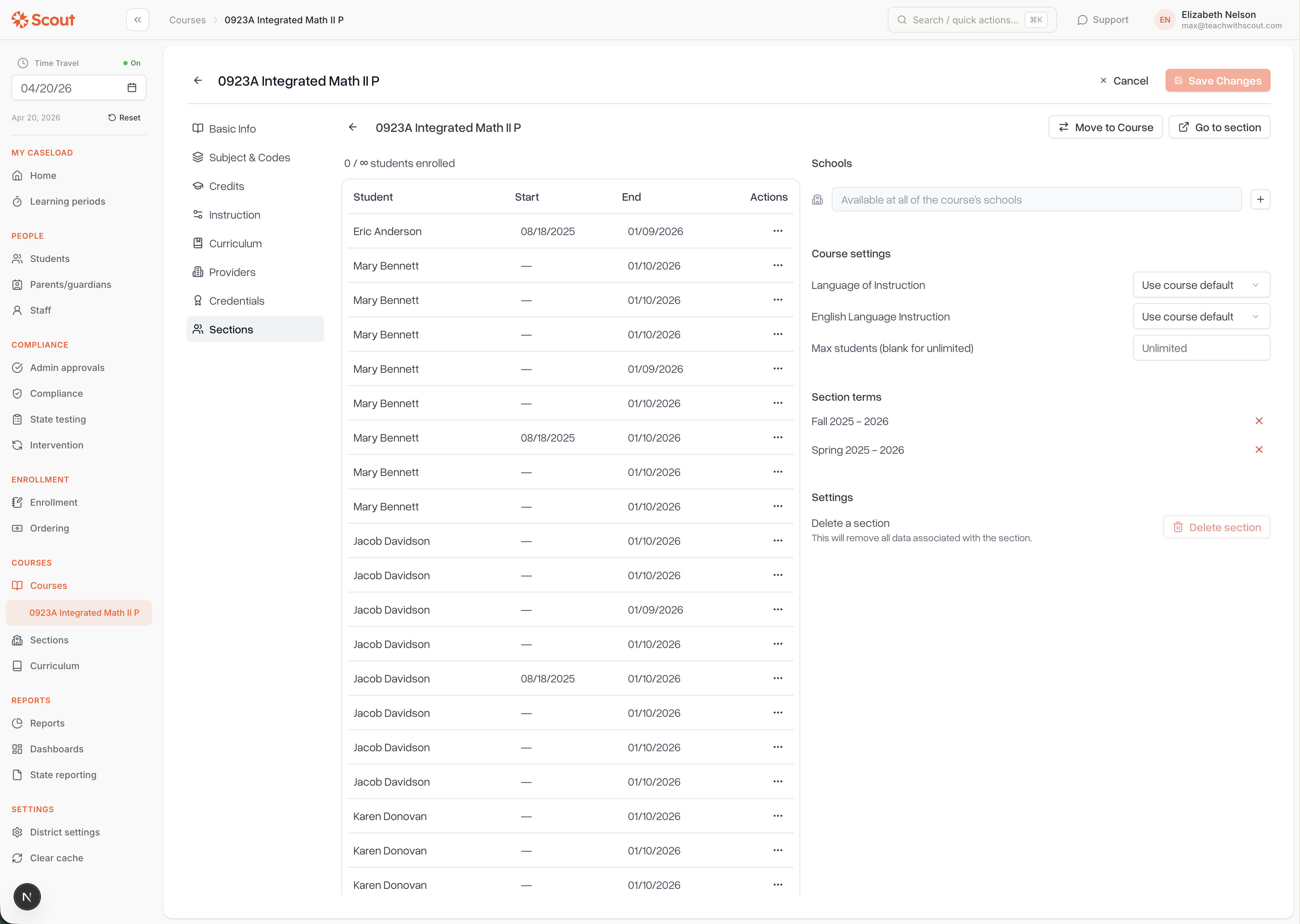
Inside the section’s detail view, locate the Schools row.
If the section has no restrictions, you’ll see the message “Available at all of the course’s schools”. The section is currently available everywhere the course is offered.
If the section is already restricted, each linked school appears as a tag.
Step 3: Add a school
Click the + button at the right of the Schools row.
A search box opens listing every school the parent course is offered at that hasn’t been linked yet. Start typing to filter.
Select a school. It is linked immediately — there is no Save button.
Repeat the step for each school you want to add.
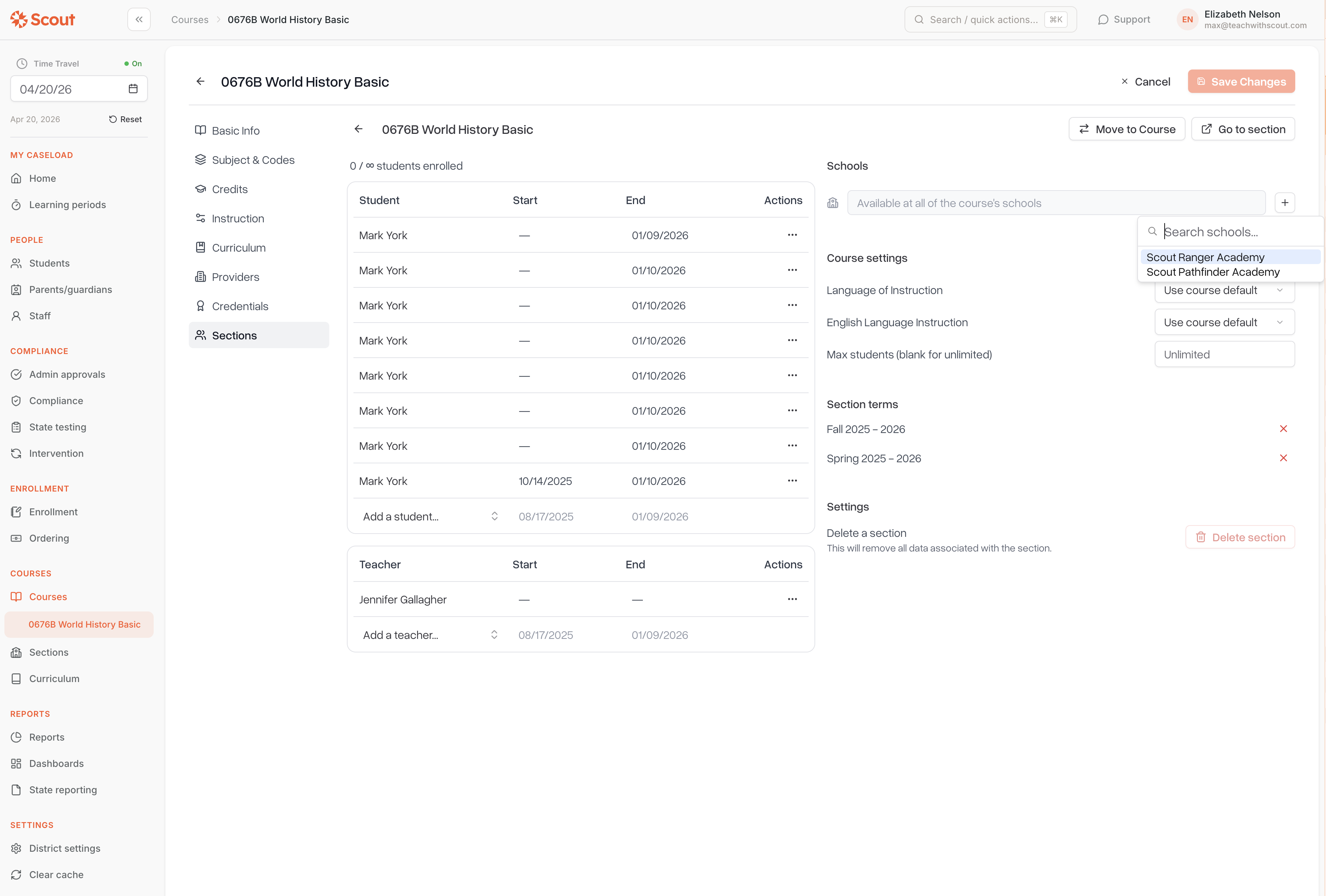
Once a section has at least one linked school, it becomes available only at those schools. Adding the first school is what flips the section from “available everywhere the course runs” to “restricted”.
Step 4: Remove a school
Click the small × next to a school’s tag to unlink it from the section. The change saves immediately.
If you remove the last school, the section reverts to its default behavior — it becomes available at every school where the course is offered.
Rules and behavior
Behavior | What to expect |
Section has no linked schools | Available at every school where the parent course is offered |
Section has one or more linked schools | Available only at those schools, even if the course is offered at more |
Removing the last linked school | Section reverts to inheriting the course’s full school list — it is not hidden |
Picker options | Only schools the parent course is offered at; schools already linked are hidden |
Same school twice | Not allowed — each school can be linked to a section at most once |
Rostering | Students whose school isn’t on the section’s school list will not see the section when being enrolled |
Tips
To link a school that isn’t in the picker, add it to the course first. The picker only shows schools that the parent course is offered at. Update the course’s schools, then come back to the section.
Empty list is not the same as “no schools”. A section with zero linked schools is available at every school on the course. To make a section unavailable at a school, link it to the specific schools where it should run.
Changes are immediate. There is no Save button — each add or remove saves as soon as you click it. Double-check before removing a school that still has active enrollments.
One school at a time. Additions and removals are done individually. There is no bulk editor today.