Re-Enrollment: How to Re-Enroll Returning Students
Last updated: May 12, 2026
Step 1: Open the Re-Enrollment Drawer
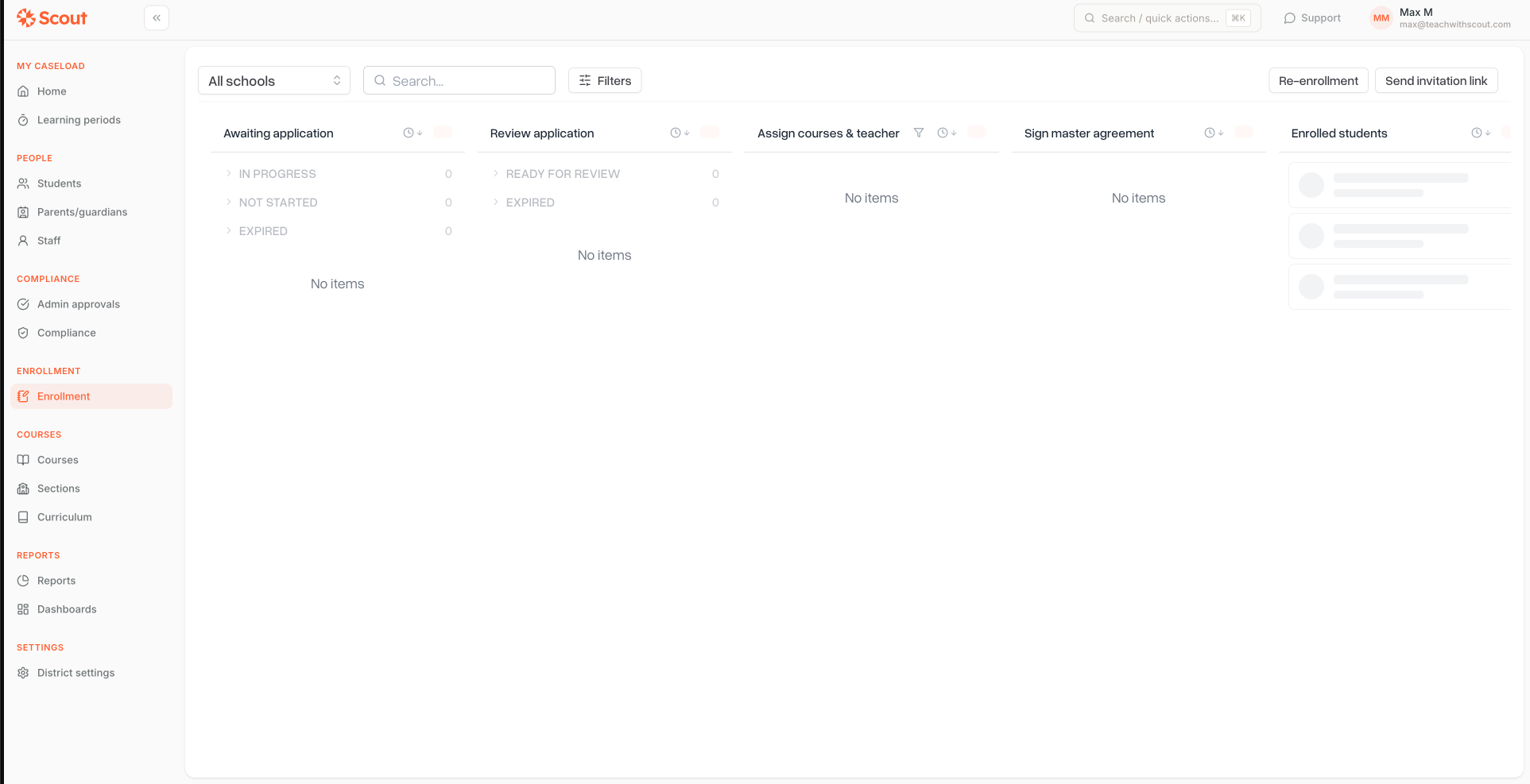
Navigate to the Enrollment section from the main navigation.
Look for the "Re-enrollment invitations" button, typically in the top-right area of the page.
Click it to open the Re-Enrollment panel on the right side of the screen.
Step 2: Review Eligible Students
These students can receive a re-enrollment invitation. A student is eligible if:
They were enrolled in the prior school year (grade 12 graduates are excluded)
Their prior enrollment is either still active or ended with a year-end exit
Their primary parent or guardian has a valid email address on file
They do not already have an invitation or enrollment for the selected school year
Step 3: Send Invitations
Select the students you want to invite.
Click the Send Invitations button at the bottom of the drawer.
You'll see a confirmation that invitations are being sent in the background.
You do not need to wait or keep the drawer open — the system processes and sends all emails automatically.
Step 4: What Happens After You Send
For each selected student, the system will:
Create a pre-filled enrollment form using their existing data.
Email the primary parent or guardian with a personalized invitation link
Add the invitation to your Enrollment board so you can track its status
Step 5: The Parent or Guardian Experience
When a parent receives the invitation email:
They click the link to open their enrollment form.
The form is pre-filled with the information currently on file.
They review each section and make any necessary updates (new address, updated phone number, etc.).
They sign any required documents and submit the form.
Step 6: Review and Approve the Re-Enrollment
Once a parent submits their re-enrollment form, it will automatically appear in the Ready for Review column on your Enrollment board.
To review and approve:
Open the Enrollment board and locate the submission in the Ready for Review column.
Click on the enrollment to open it.
Review the student's submitted information across all sections.
If everything looks correct, approve the enrollment to officially re-enroll the student for the new school year.
If changes are needed, you can send the form back to the parent for corrections before approving.
Once approved, the student is fully re-enrolled and their record is updated for the new school year. Scout will automatically send the parent a confirmation email letting them know the enrollment has been approved — no need to follow up with them separately.
Note:
Rejecting an Enrollment
If the submitted information is incomplete or incorrect, you can reject the enrollment and send it back to the parent for corrections:
At the final step of the enrollment form, click the Reject button.
A dialog will appear asking you to enter a reason for the rejection. This is required.
Enter your reason (for example: "Missing immunization records" or "Address appears incorrect").
Confirm the rejection.
The parent will receive an email notification containing your rejection reason. They can then make the necessary corrections and resubmit the form. Once resubmitted, the enrollment will return to Ready for Review for you to approve.
Merging with an Existing Student Record
For re-enrollments, the system automatically links the submitted enrollment to the student's existing record — so you don't need to create a duplicate student profile.
If you are manually creating an enrollment on behalf of a student (rather than through the re-enrollment invitation flow), the system will help you avoid duplicates:
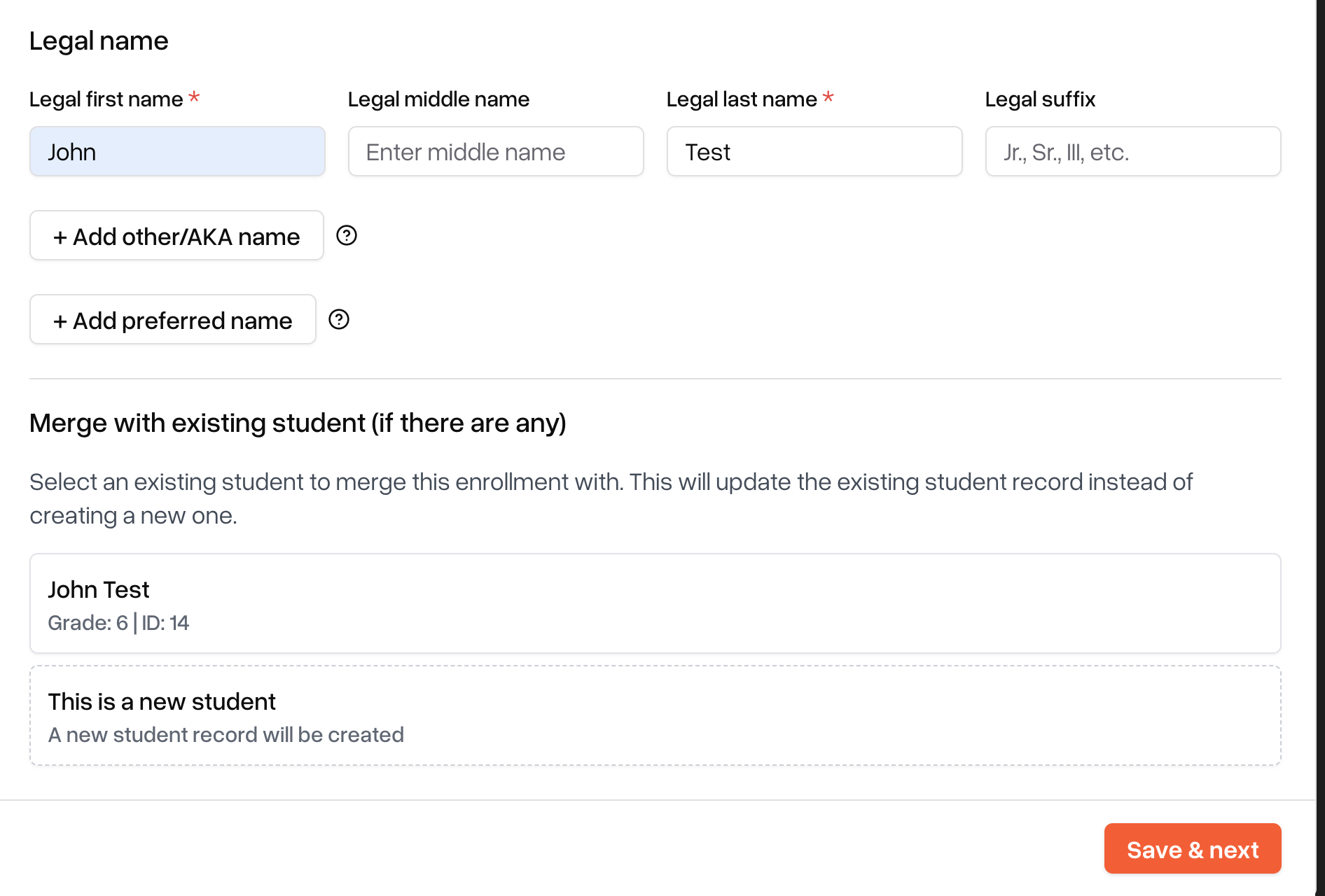
In the Basic Information step, as you enter the student's first and last name, the system automatically searches for existing students with matching names.
If matches are found, a list of existing students will appear — each showing their name, grade level, and student ID.
You must either select the matching student to link the enrollment to their existing record, or select "This is a new student" to create a new profile.
If no matches are found, a new student record will be created automatically on approval.
Switching to a new school/learning center while reviewing the form
If you need to assign a student to a different school or learning center while reviewing their re-enrollment, you can update this directly from the Basic Information section of the form.
When you change the school and click 'Save & next':
The enrollment record is updated to reflect the new school
All documents previously generated for the old school are removed
New enrollment documents are automatically generated for the new school
The parent receives an email notifying them of the change and asking them to review and re-sign the updated documents
The parent must re-sign before you can approve the enrollment, so make any school changes before reaching out to the parent to avoid unnecessary back and forth.