How to Create and Manage Learning Periods
Last updated: September 30, 2026
How to create and manage learning periods
Learning periods are the blocks of time inside a term that Scout uses to organize attendance, assignments and parent sign-off. This article shows how to create learning periods, change their dates, let attendance be claimed early, and set the term's learning days.
Who can do this: only District Administrators. If you don't see District settings in the left sidebar, ask your district administrator to make the change.
How school years, terms and learning periods fit together
School year: the full year, for example 2026-27.
Term: a part of the school year, for example Fall Semester. Each term has its own start and end dates.
Learning period: a block of time inside a term, for example a 4-week period. Learning periods can't overlap and must fall inside their term's dates.
Learning days: the days in a term that count as school days.
If your district's terms come from your student information system, Scout may create terms and learning periods for you when it syncs. Check the term before adding learning periods by hand.
Open a term
In the left sidebar, click District settings. (all the way at the bottom)
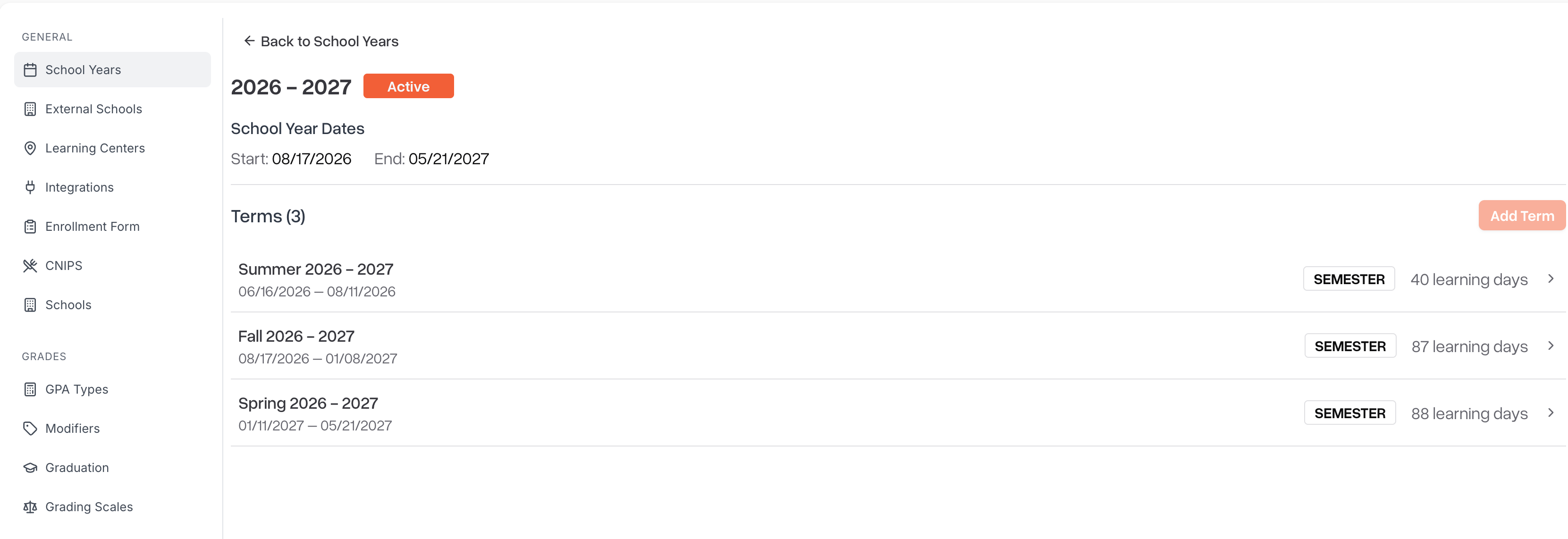
Under General, click School Years.
Click the school year.
Under Terms, click the term. Each term shows its dates and how many learning days it has.
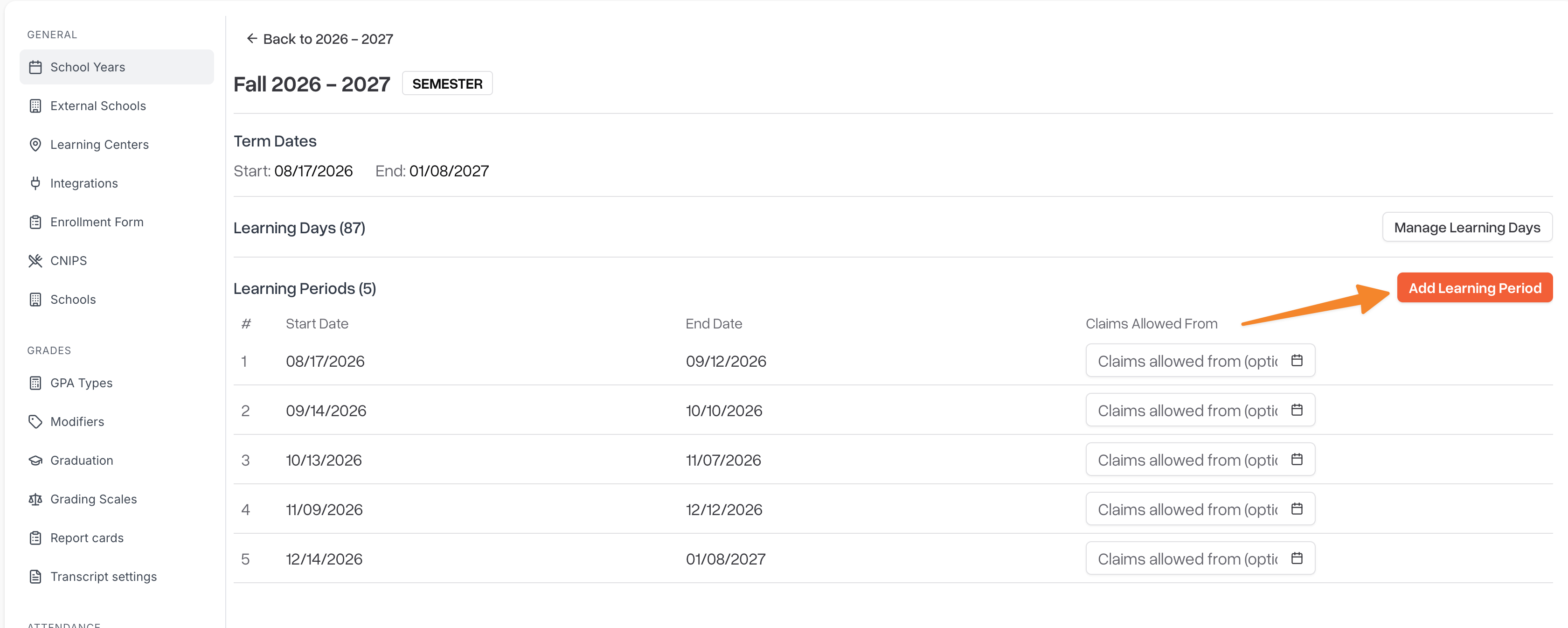
The term page has three sections: Term Dates, Learning Days and Learning Periods.
Create a learning period
Open the term (see above).
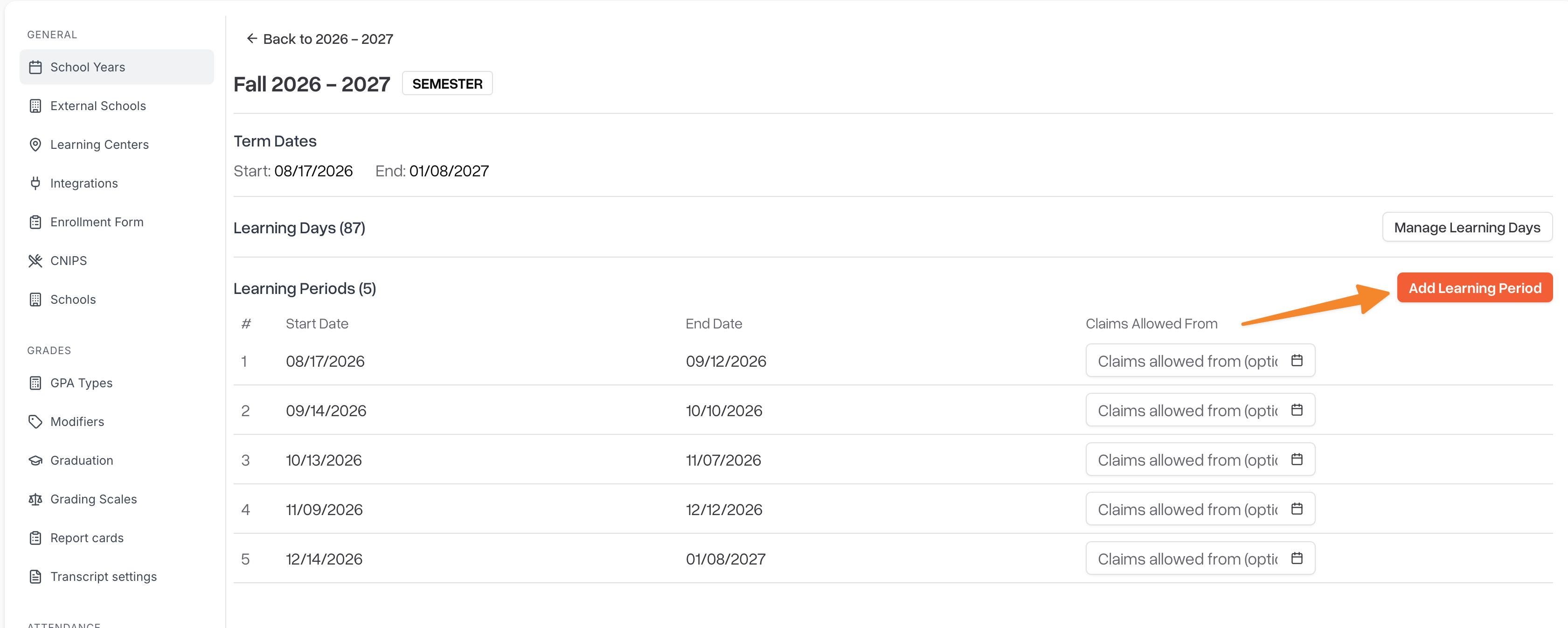
In the Learning Periods section, click Add Learning Period.
Choose a Start Date and an End Date. You can only pick dates inside the term. Days that already belong to another learning period are grayed out.
Click Create.
Scout numbers learning periods in date order (the # column). If you add a learning period that starts before the others, Scout renumbers them automatically.
Tips for setting up a term
Leave no gaps between learning periods, so every day of the term belongs to one.
A learning period's start and end dates are both included. A period from September 1 to September 26 includes both of those days, so the next period should start on September 27 or later.
Change a learning period's dates
You can change learning period dates only while the school year is Upcoming. The school year's status is shown next to its name.
Status | What it means | Can you change learning period dates? |
|---|---|---|
Upcoming | The year hasn't started and no students are enrolled in it yet. | Yes |
Enrolling | The year hasn't started, but students are already enrolled in it. | No |
Active | The year is in progress. | No |
Past | The year has ended. | No |
To change the dates:
Open the term.
In the Learning Periods list, change the Start Date or End Date on the learning period's row.
Click the Save button that appears at the end of the row.
When the school year isn't Upcoming, the dates are shown as plain text and can't be edited. If you need to change learning period dates after that point, contact Scout support.
Let attendance be claimed before a learning period ends
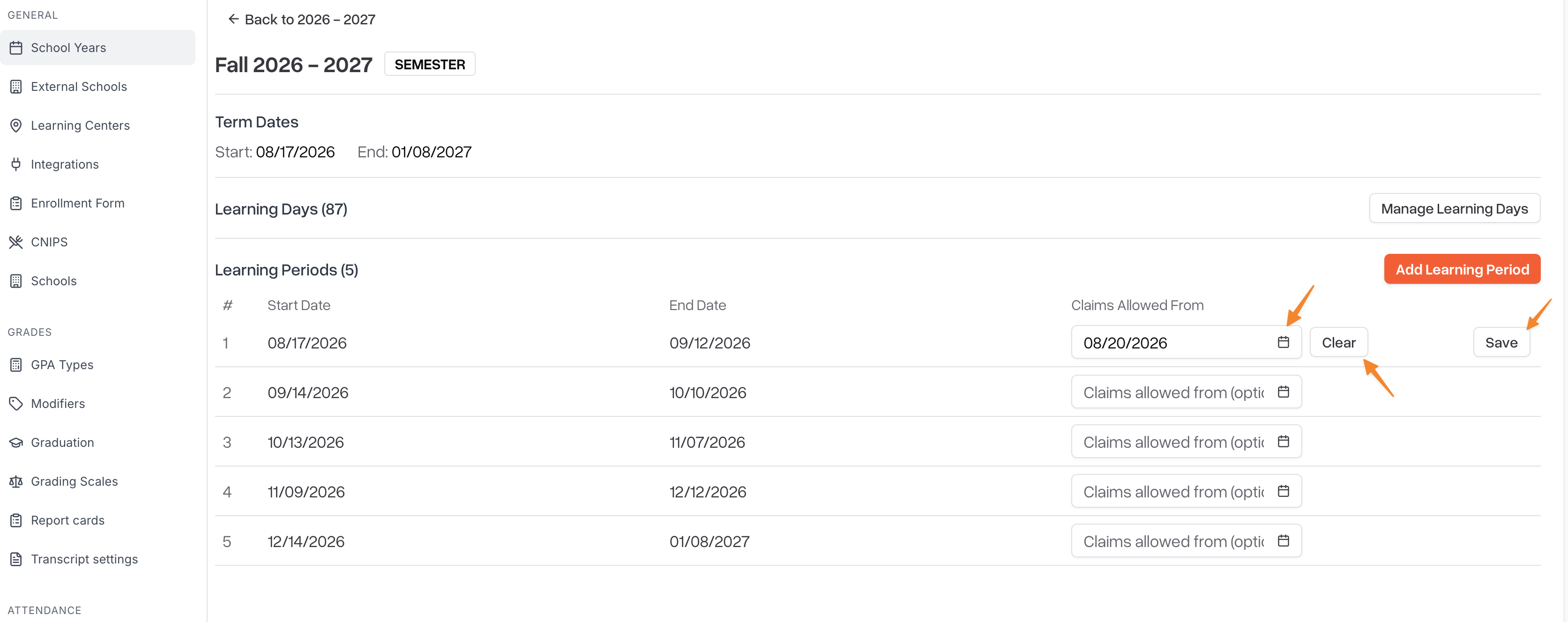
Normally, attendance for a learning period is claimed and signed off after the period ends. The Claims Allowed From date lets that start earlier. From that date on:
teachers can log engagement and create attendance claims for the learning period, and
parents can sign off on it,
even though the learning period hasn't ended yet.
You can set this at any time, even while the school year is active.
Open the term.
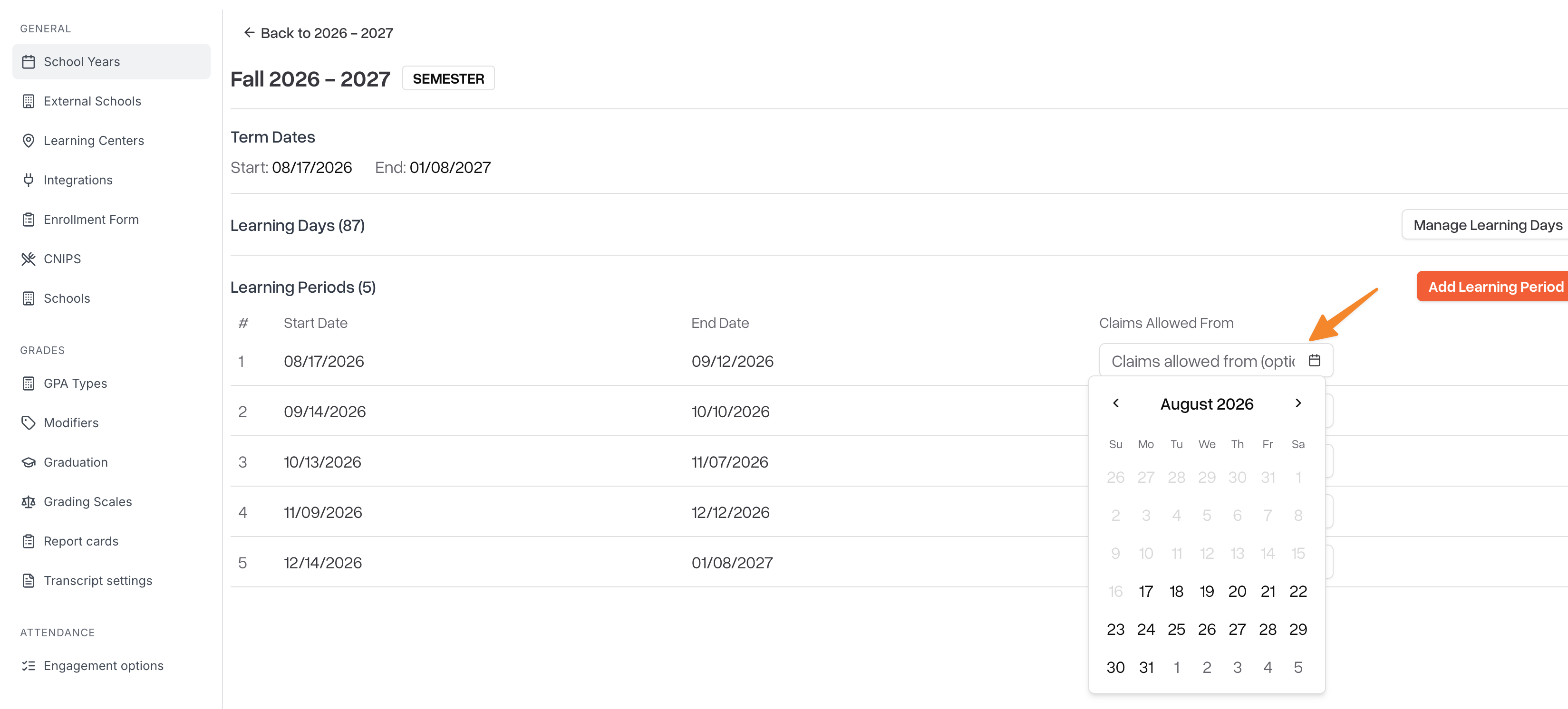
On the learning period's row, choose a date in the Claims Allowed From column. It must fall within that learning period.
Click Save at the end of the row.
To turn it off, click Clear next to the date, then click Save.
Set the term's learning days
Open the term.
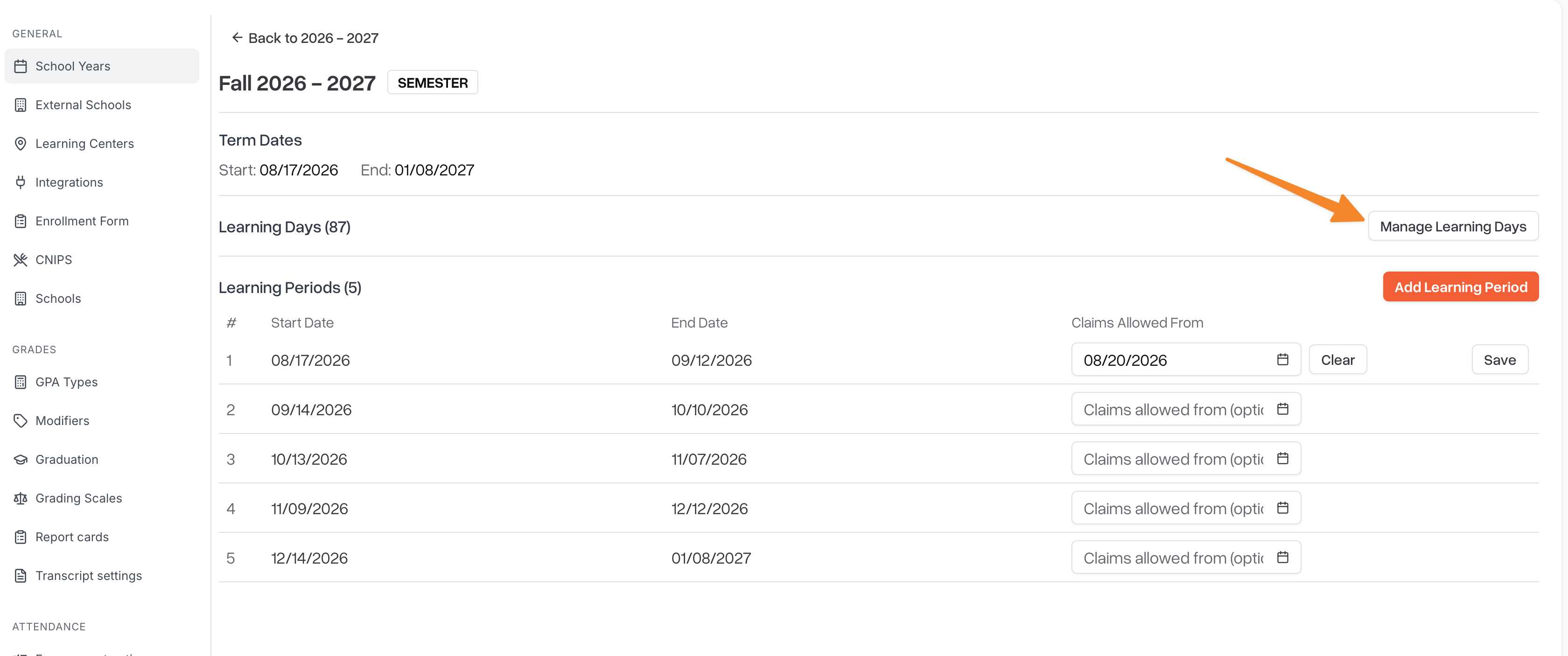
In the Learning Days section, click Manage Learning Days. A calendar of the whole term opens.
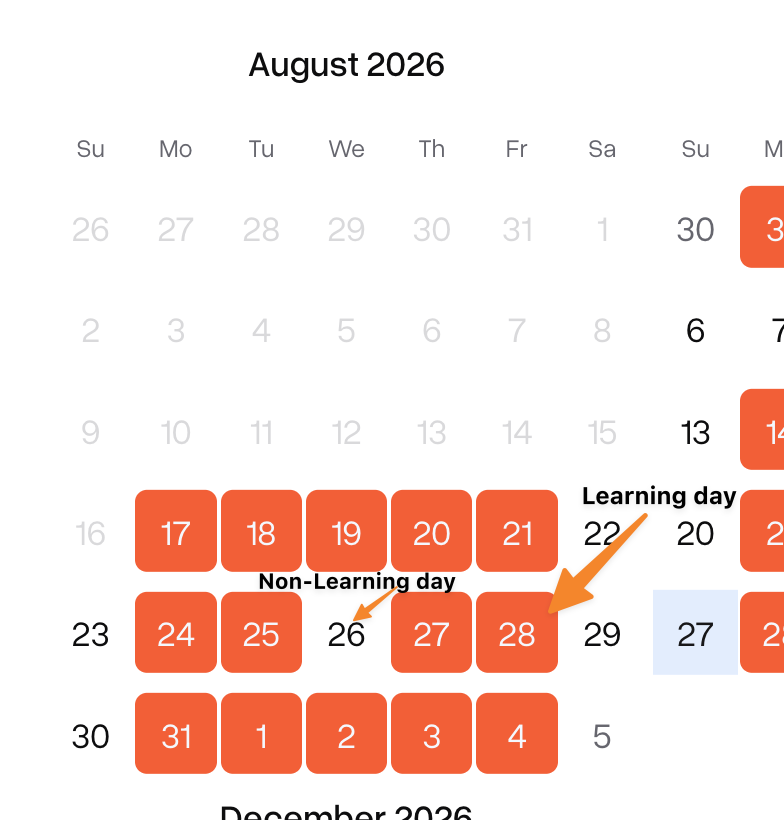
Click a day to switch it between a learning day (highlighted) and a non-learning day. Days outside the term can't be selected.
Click Save Changes.
The number next to Learning Days shows how many learning days the term has.
Add a term
A term has to exist before you can add learning periods to it. You can add terms while the school year is Upcoming or Enrolling.
Open the school year.
Click Add Term.
Enter a Name, for example Fall Semester, and choose a Start Date and End Date. Terms can't overlap and must fall inside the school year.
Click Create.
Common questions
Why can't I pick certain dates?
Dates outside the term, and dates that already belong to another learning period, are grayed out. Move or shorten the other learning period first.
I see "Overlaps with learning period #2".
The dates you chose share at least one day with learning period #2. Because start and end dates are both included, a new period can't start on the same day another one ends.
I can't edit the dates. They're just plain text.
The school year has already started or has students enrolled in it. You can still change Claims Allowed From. For date changes, contact Scout support.
How do I delete a learning period?
There isn't a way to delete one yourself. Contact Scout support.
Where do teachers see learning periods?
Teachers click Learning Periods in the left sidebar. That opens their caseload for the current learning period, where they manage assignments and attendance.