Logging In & Accessing Your Student's Account
Last updated: September 1, 2026
This article explains how to log in to your Scout parent account and how to view/ monitor your student's information once you're signed in.
Overview
Your parent account and your student's account are separate in Scout. You sign in with your own email address and password, and from your parent dashboard you can view your student's grades, attendance, schedule, and other information. You don't need your student's login to see this — everything you're authorized to view is available from your own account.
If you haven't created your parent account yet, see Signing up for your Scout parent account. If you're looking for your child's own login (separate from yours), see Getting Your Child's Login Information and Troubleshooting.
Logging in to your parent account
Go to your school's Scout site.
Enter the email address and password associated with your parent account.
If prompted, enter the verification code sent to your email address.
Click Sign In.
If you've forgotten your password, click Forgot your password? on the login page and follow the prompts to reset it using your email address.
Accessing your student's account
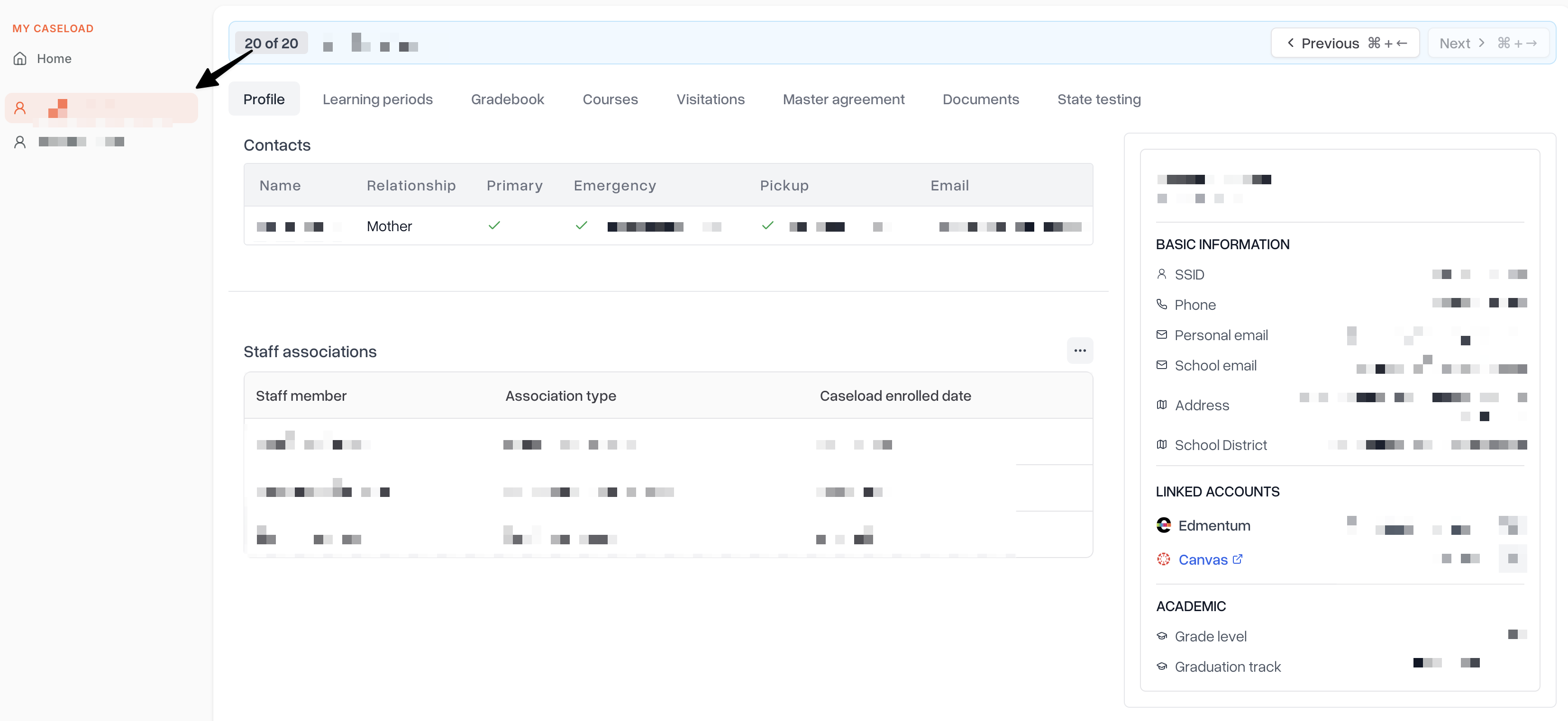
Once you're signed in, your dashboard shows the students linked to your parent account.
From your parent dashboard, select your student's name.
If you have more than one student linked to your account, use the student selector to switch between them.
From your student's profile, you can view their grades, attendance, schedule, and other information the school has made available to you.
If a student you expect to see isn't listed on your dashboard, contact your school's front office to confirm the student is linked to your parent account.
Finding your student's profile on the mobile app
After signing in to the Scout mobile app with your parent account:
From the home screen, tap the student selector, usually shown near the top of the screen.
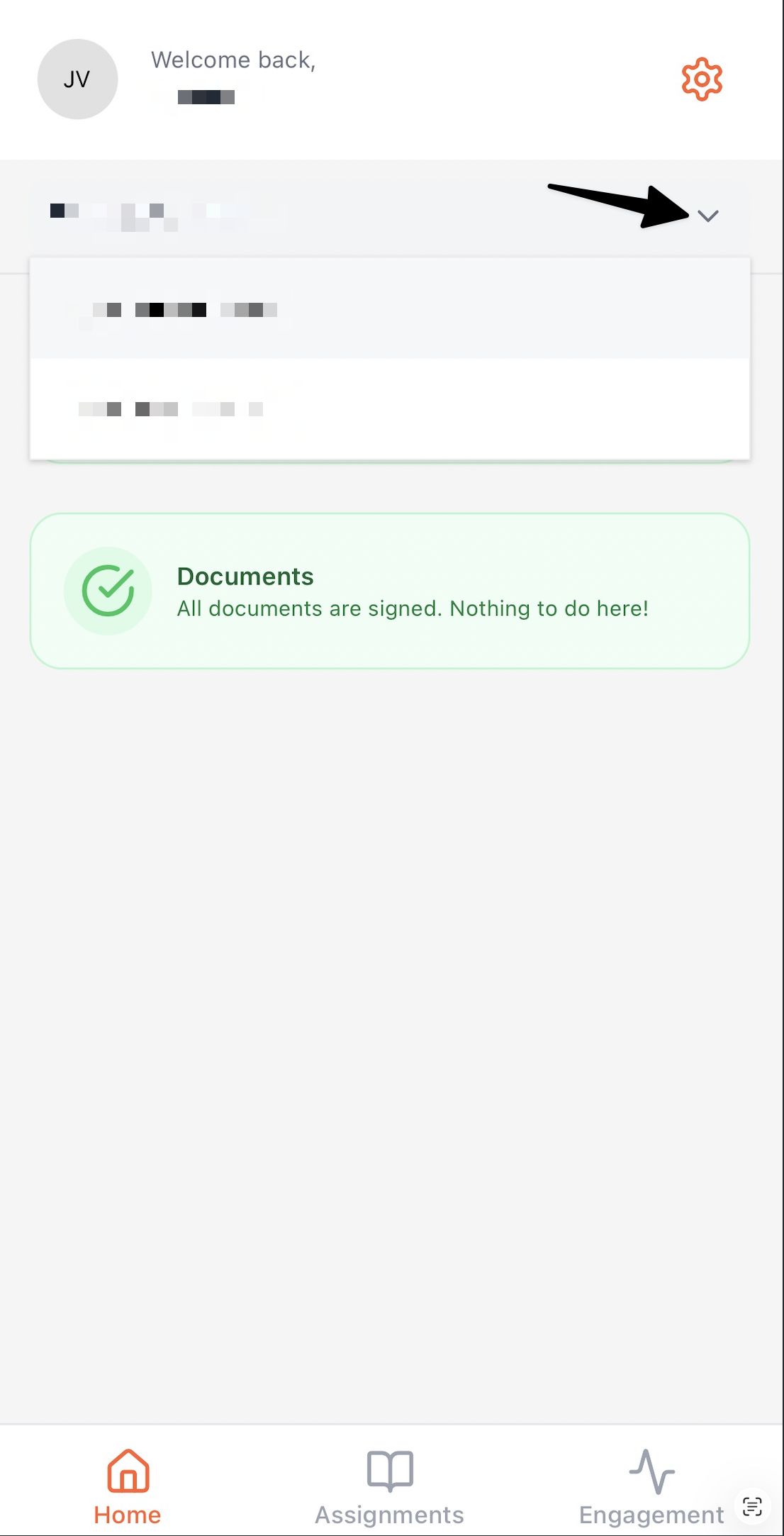
If you have more than one student linked to your account, tap the student you want to view.
Tap your student's name or profile to open their assignment grades, attendance, and schedule.
If you don't see a student listed in the app, confirm the student is linked to your parent account with your school's front office.
Troubleshooting
Issue | What to do |
I can't sign in to my parent account | Double-check your email address and password, and use Forgot your password? if needed. Contact your school if the issue continues. |
My student isn't showing on my dashboard | Contact your school's front office to confirm the student is linked to your parent account. |
I only see some of my student's information | The information available to you is set by your school. Contact the school if you believe something is missing. |
Tips
Keep your parent account credentials secure — treat them like any other password.
Sign out when using a shared or public computer.
If your email address changes, update it with your school so you continue to receive account notifications.
Need help?
If you're still having trouble after trying the steps above, contact your school's administrative team.