Managing a Parent’s Login (Admins)
Last updated: October 22, 2026
District administrators can now fix most parent login problems themselves from a contact's record in Scout. With Manage login you can give a parent a login, change the email they sign in with, or move a login to the right parent.
Who can use this
Only District Admins can manage logins. Other staff can still see a contact's login email, but they won't see the Manage or Add login buttons.
Contact email vs. login email
A parent's record in Scout has two separate emails:
Email: where Scout sends messages, such as notifications, reminders and report cards.
Login email: the email the parent types on the Scout sign-in page.
These are often the same, but they don't have to be. Editing a contact's Email does not change their login. To change how a parent signs in, use Manage login as described below.
Where to find Manage login
You can open it from two places.
From a student's profile
Click Students in the sidebar and open the student's profile.
See the Contacts tab.
Find the parent in the list and look at the Login email column.
Click Manage if the parent already has a login, or Add login if they don't.
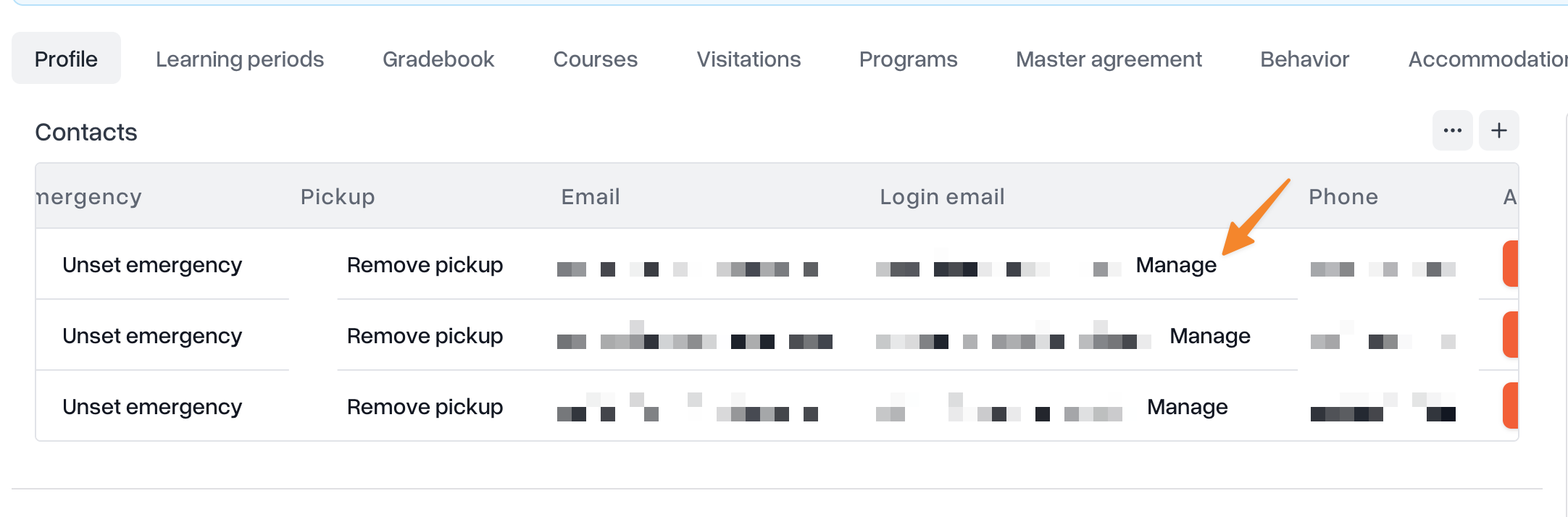
From the contact's profile
On the student's Contacts tab, click the parent's name to open their profile.
In the left panel, find the LOGIN section. It shows the parent's current Login email, or None if they don't have one.
Click Manage (the key icon) next to LOGIN.
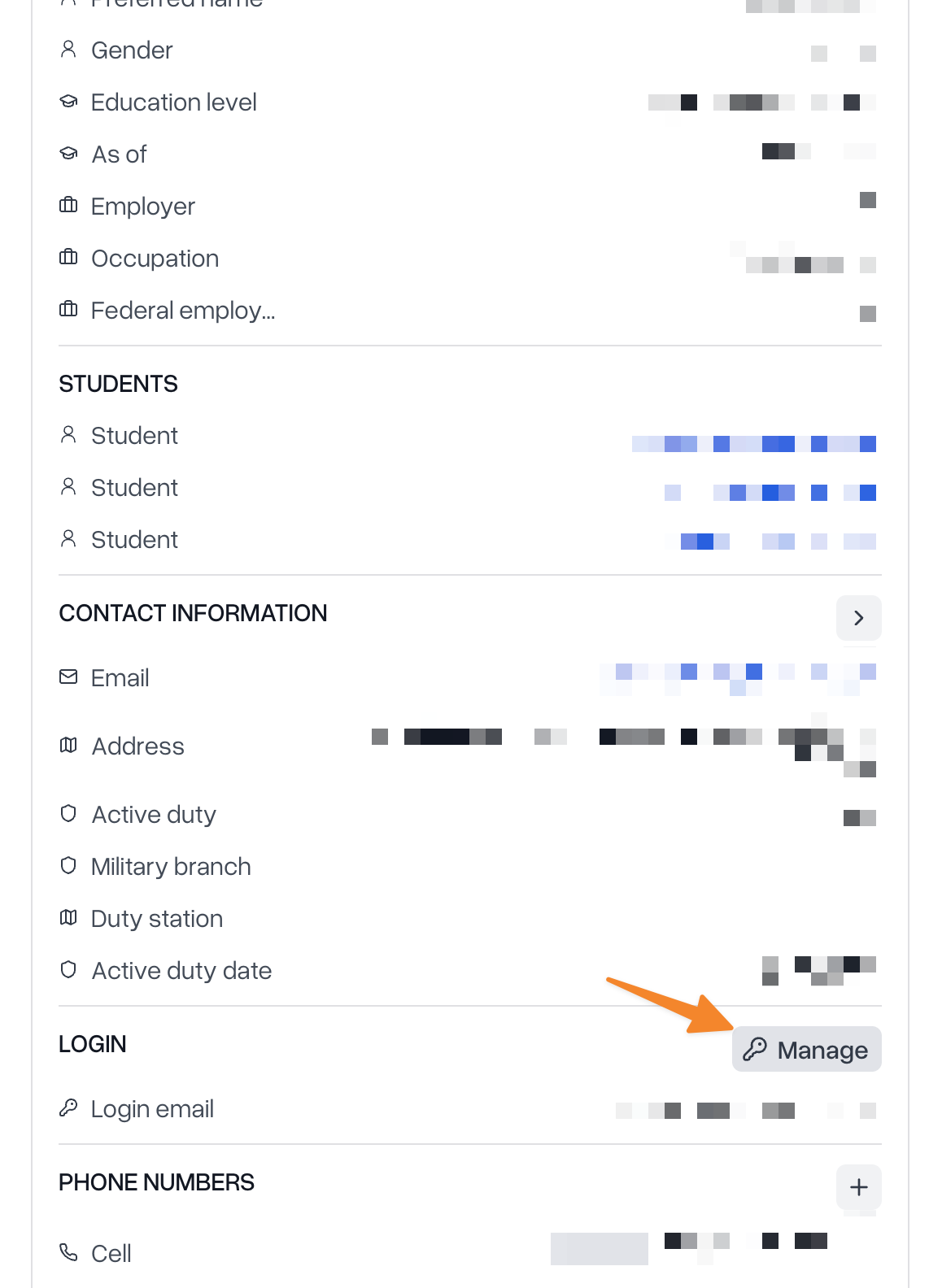
How to change a parent's login
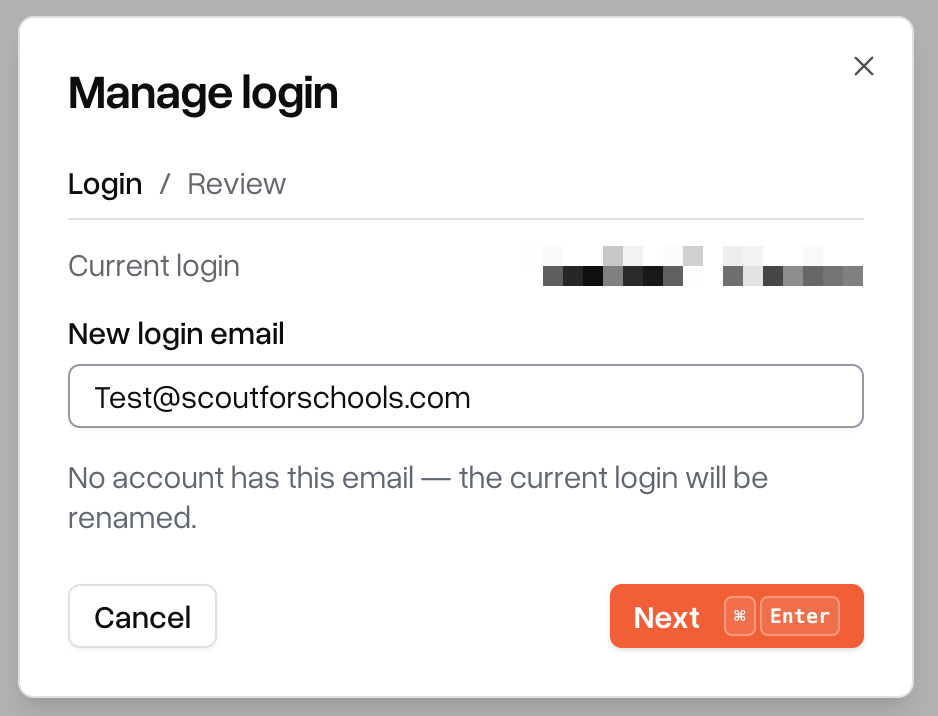
The Manage login window has two steps: Login and Review. Nothing is saved until you confirm on the Review step.
If the parent already has a login, it's shown at the top as Current login.
Type the email the parent should sign in with in the Login email (or New login email) box.
Scout checks whether anyone in your district already uses that email. Wait a moment for the check to finish. What it finds decides what will happen (see the next section).
Click Next to go to the Review step.
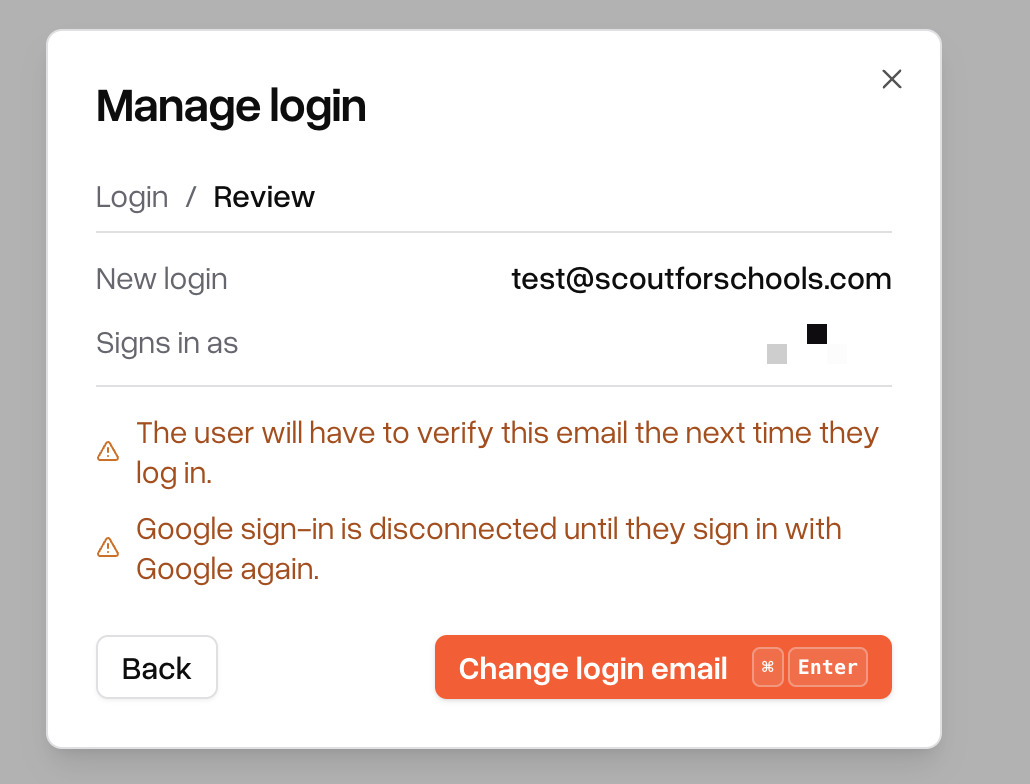
Read the review carefully. It shows:
New login: the email the parent will sign in with.
Signs in as: the contact the login will open.
Grants role: shown when Scout will give the account Parent access it doesn't have yet.
Any warnings about who gains or loses access.
Click the confirm button. It is labelled Create login, Connect login or Change login email, depending on what will happen.
A confirmation message appears and the contact's login email updates right away.
What happens in each case
You don't pick the action yourself: Scout chooses it based on the email you type.
Create login: the parent has no login and the email is new
Scout creates a new account for that email and connects it to this parent. If they don't already have it, the account gets the Parent role. No one else is affected.
What to tell the parent: Scout doesn't email them when you do this. Ask them to go to your school's Scout sign-in page and set up their account with that email, as described in First-time login.
Change login email: the parent has a login and the new email isn't used
Scout renames the parent's existing login to the new email. Everything else stays the same: their access, their students and their password.
Two things change for the parent:
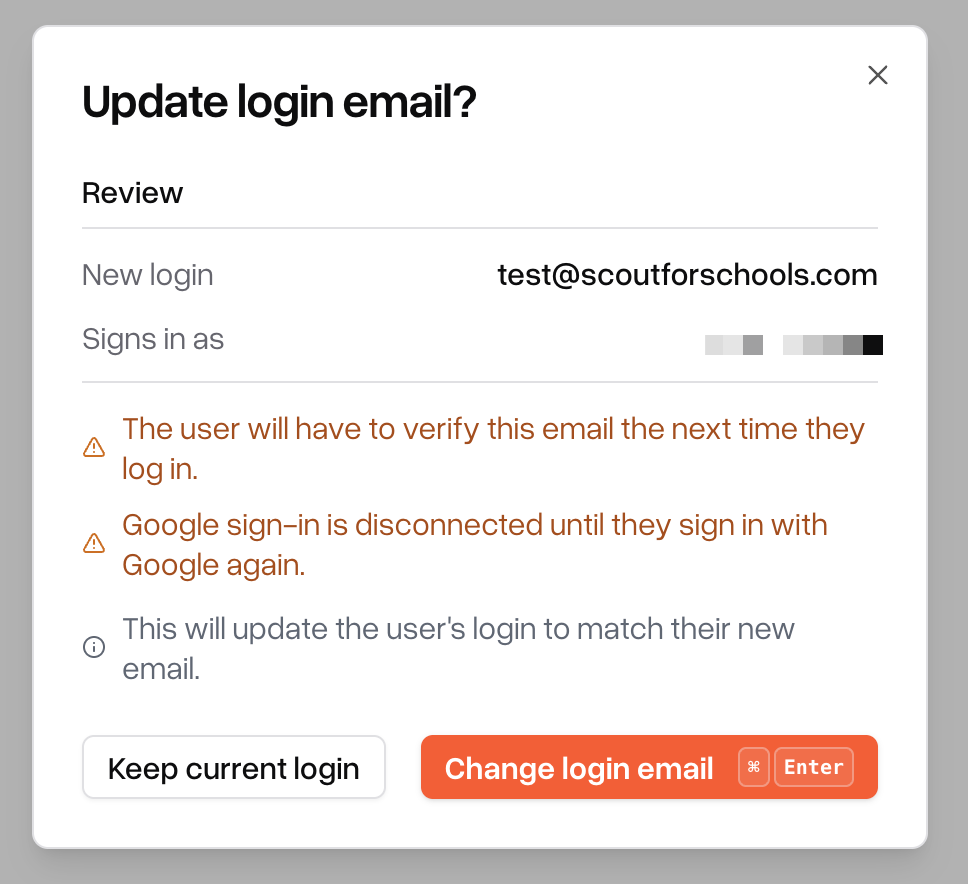
The next time they sign in, Scout sends a code to confirm the new email.
If they used Sign in with Google, that connection is removed. They can sign in with Google again using the new email, and Scout reconnects it automatically.
The parent's old email no longer works for signing in.
Connect login: the email already belongs to an account
If someone already uses that email, Scout shows that person's name and role. If the account is already connected to someone in Scout, it also shows who, for example "Already connected to contact Maria Lopez."
When you connect, Scout moves the existing account onto this parent. The Review step warns you about what that means:
"[Other contact] may no longer log in with [email]": the login was on a different contact record and moves to this one. This is the fix when a login ended up on the wrong parent, for example when two parents share an email.
"[This contact] may no longer log in with [old email]": this parent's current login is disconnected from them. That account isn't deleted, but it no longer opens this parent's record.
"This account is also connected to staff member [name] and will be able to act as both": the account also belongs to someone with a different kind of record, such as a staff member who is also a parent. They keep both kinds of access.
The parent keeps the password they already use for that account.
When you edit a parent's email
If you change a parent's Email on their contact profile (CONTACT INFORMATION → Edit → Save changes) and they have a login with a different email, Scout asks Update login email?
Click the confirm button to make the new email their login too. You get the same Review details and warnings as above.
Click Keep current login to leave their sign-in email as it is. Only their contact email changes.
Managing a Parent’s Login (Admins)Common login problems and how to fix them
Problem | What to do |
The parent signs in with a different email than the one Scout has. | Open Manage and enter the email they actually use. Scout will change or connect the login. |
The parent's Login email is blank. | Click Add login, enter their email, then ask them to set up their account through First-time login. |
Two parents share one email, and signing in opens the wrong parent. | Open Manage on the parent who should own the login and enter the shared email. Choose Connect login to move it to them. |
You updated a parent's email, but they still have to sign in with the old one. | Editing the Email doesn't change the login. Open Manage and enter the new email. |
The parent can no longer use Sign in with Google after their login email was changed. | This is expected. Ask them to choose Sign in with Google with the new email. Scout reconnects it automatically. |
Common questions
Does changing a parent's login reset their password?
No. Changing the login email keeps their password. Connecting an existing account keeps that account's password. A brand-new login has no password until the parent sets one up.
Does Scout email the parent when I change their login?
No. Let the parent know which email to sign in with. If you changed the email, Scout will ask them to confirm it with a code the next time they sign in.
Will the parent lose access to their students or their information?
No. The login only controls how they sign in. Their students, documents and contact details stay on their contact record.
I don't see the Manage or Add login button.
Only District Admins can manage logins. Ask a District Admin at your school to make the change.
It says "This is already the current login."
The email you typed is already this parent's login, so there is nothing to change. If they still can't sign in, ask them to use Forgot Password? on the sign-in page.