Mobile app setup
Last updated: January 6, 2026
Installing and configuring the Scout mobile app for iOS and Android.
Overview
The Scout mobile app provides convenient access to key features on your phone or tablet. Parents and students can:
Sign documents electronically
Upload work samples by taking photos
Log daily engagement activities
View student progress and grades
Receive push notifications for reminders
This guide covers downloading, installing, and configuring the mobile app.
Step 1: Downloading the app
iOS (iPhone/iPad)
Open the App Store on your device
Tap the search icon and search for "Scout SIS"
Find the Scout app in the results
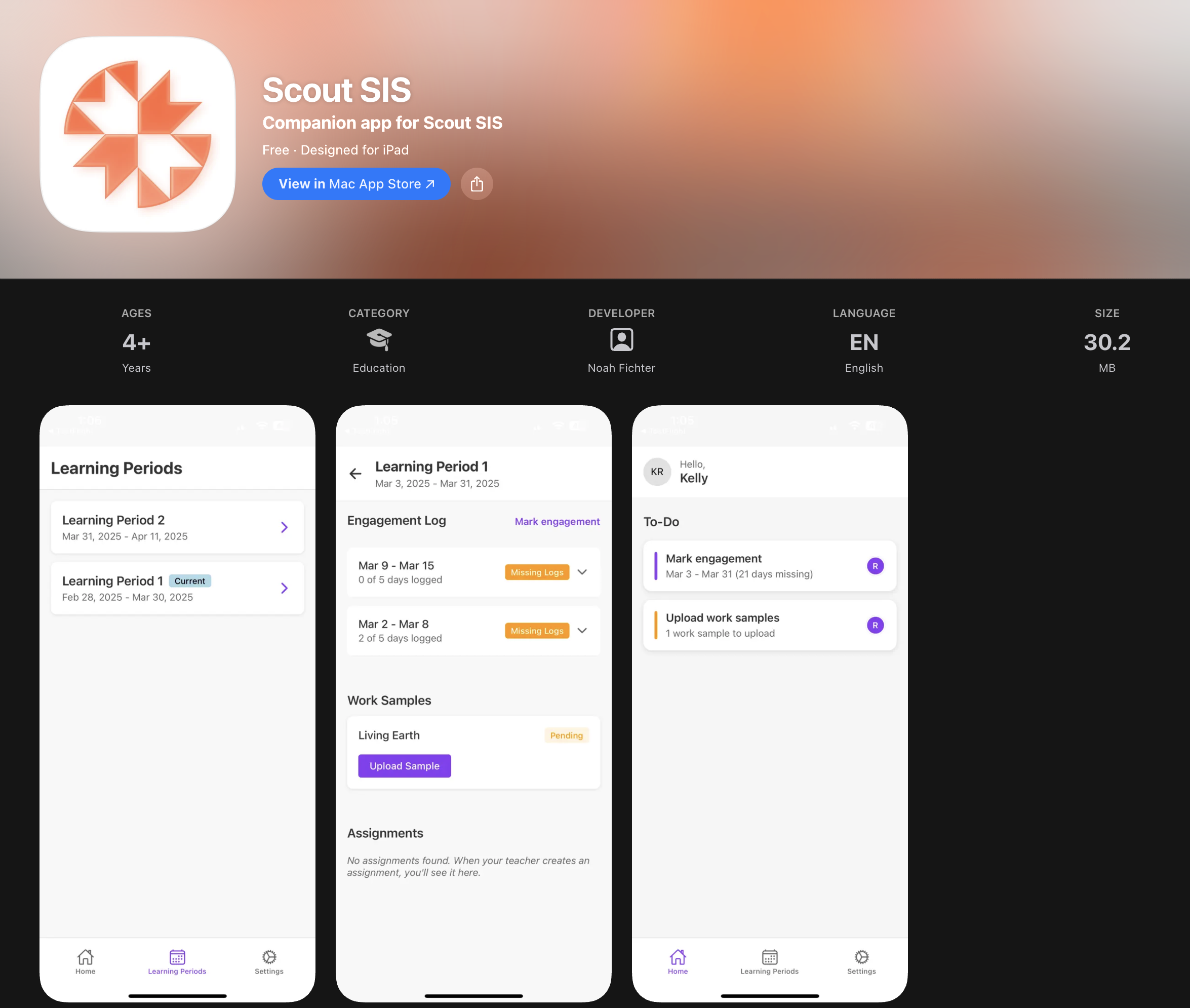
Tap Get to download
Authenticate with Face ID, Touch ID, or your Apple ID password
Wait for the download to complete
Android
Open the Google Play Store on your device
Tap the search bar and search for "Scout SIS"
Find the Scout app in the results
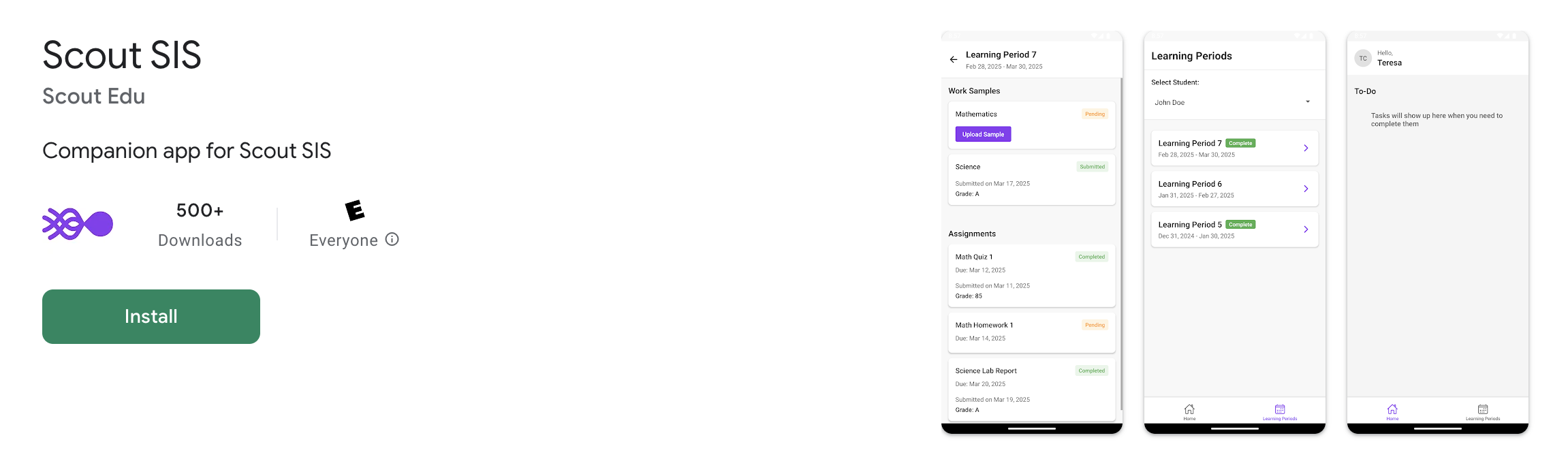
Tap Install to download
Wait for the download to complete
Note: The app requires iOS 14+ or Android 8+. Older devices may not be compatible.
Step 2: Finding your school
When you first open the app, you'll need to connect to your school or district.
Open the Scout app
Type your school or district name in the search field
Select your organization from the results
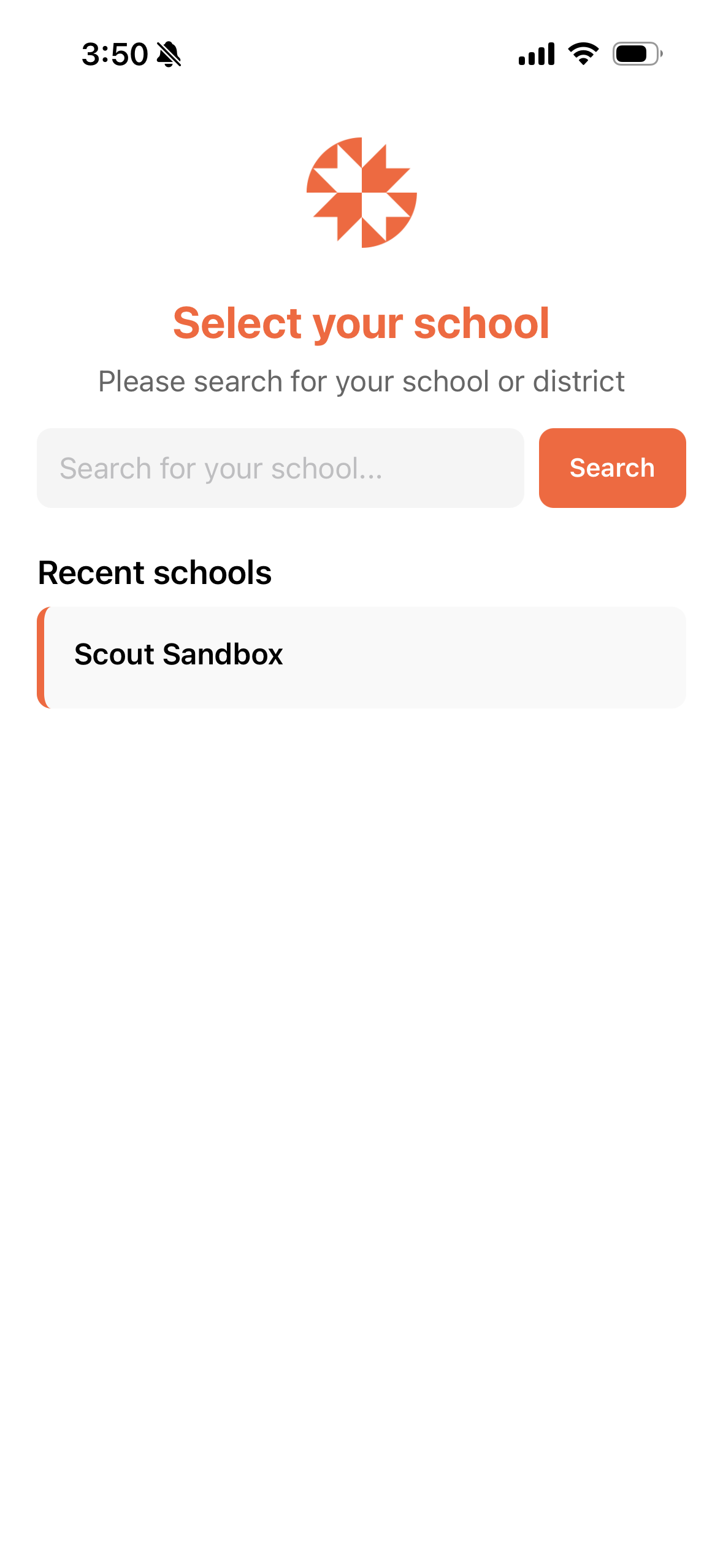
Tap your organization to continue
Important: If you can't find your organization, verify the name with your school. Some organizations may use abbreviated names.
Step 3: Logging in
After selecting your organization, you'll see the login screen.
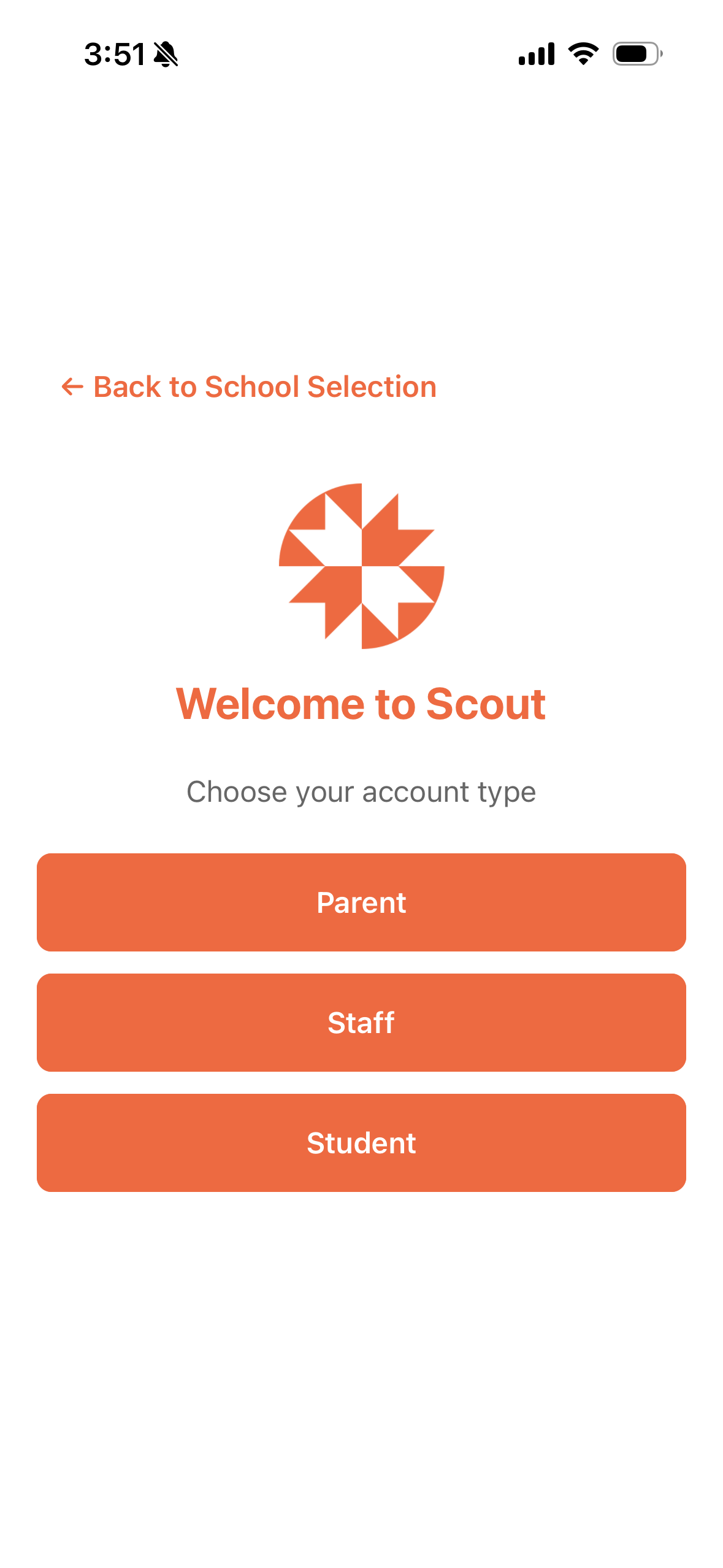
Choose your account type
Enter your email address
Enter your password
Tap Sign in
Multi-Factor Authentication
If MFA is enabled for your account:
Go to your email to find the code sent by Scout
Find the code for Scout
Enter the 6-digit code
Tap Verify
First-time login
If this is your first time logging in anywhere:
You'll be prompted to create a password
Follow the password requirements
Set up MFA if required
Complete your profile if prompted
Step 4: Enabling push notifications
Push notifications keep you informed about important updates.
When prompted:
Tap Allow to enable notifications
Or tap Don't Allow if you prefer not to receive them
What Notifications Will I Receive?
Notification TypeDescription | |
Signature requests | Documents need your signature |
Work sample reminders | Upcoming work sample deadlines |
Engagement reminders | Daily engagement logging reminders |
Announcements | Messages from your school |
Enabling notifications later
If you declined notifications initially:
iOS:
Open device Settings
Scroll to Scout
Tap Notifications
Enable "Allow Notifications"
Android:
Open device Settings
Tap Apps > Scout
Tap Notifications
Enable notifications
Step 5: Navigating the app
The mobile app has a simplified navigation focused on the most common tasks.
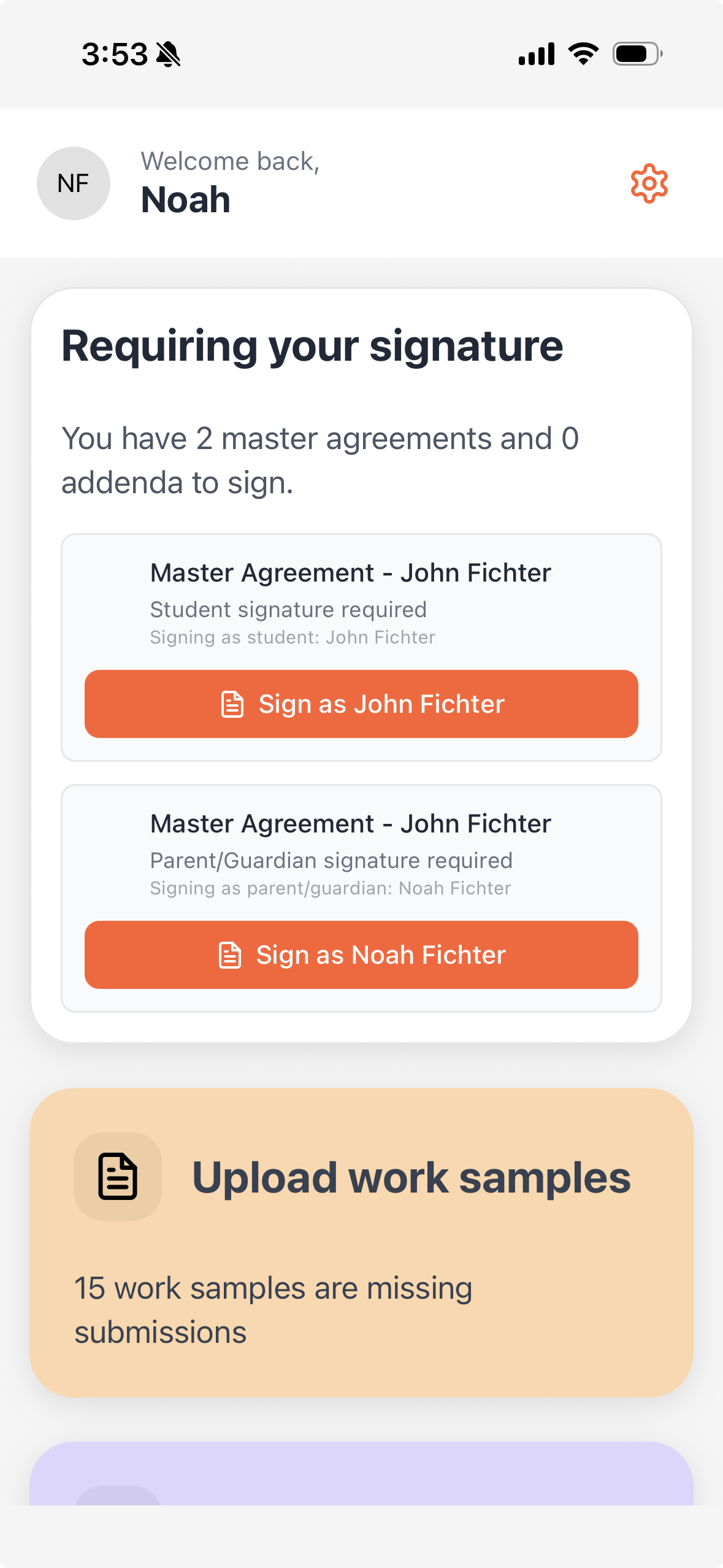
Home Screen
The home screen shows:
Your linked students (if parent)
Pending to-do items
Recent notifications
Quick action buttons
Using Key Features
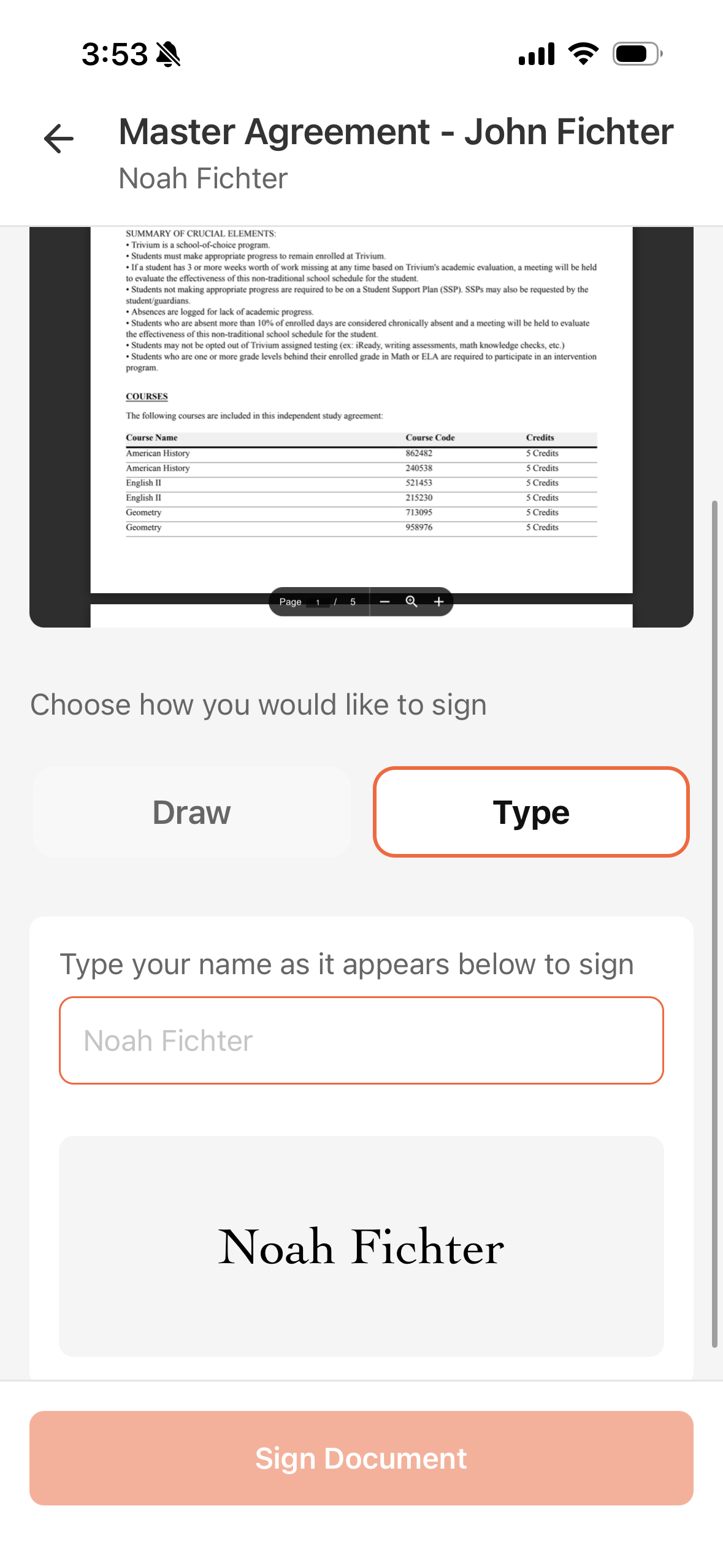
Signing documents
Tap on a document card on the home page
Review the document
Tap Sign when ready
Draw your signature or use typed signature
Confirm to submit
Uploading work samples
Tap the "Upload work samples" card
Tap on a work sample slot
Choose Take Photo or Upload File
If taking a photo, capture the work sample
Add any required notes
Tap Submit
Logging Engagement
Tap the engagement card
Select the engagement type
Add notes about the activity
Tap Submit
Managing multiple students
If you have multiple students linked to your account:
The home screen shows a card for each student
Tap a student card to view their details
Switch between students using the back button or student selector
App Settings
Access app settings by tapping the gear icon in the top right corner.
Available settings:
Setting | Description |
Notification preferences | Control which notifications you receive |
Sign out | Log out of the app |
About | App version and support information |
Updating the App
Keep the app updated for the best experience:
iOS:
Open App Store
Tap your profile icon
Scroll to see pending updates
Tap Update next to Scout
Android:
Open Play Store
Tap your profile icon
Tap "Manage apps & device"
Find Scout and tap Update
Note: Enable automatic updates to always have the latest version.
Tips for Best Experience
Enable notifications: Stay informed about deadlines and requests
Keep app updated: Updates include bug fixes and new features
Use good lighting for photos: Work sample photos should be clear and legible
Stay logged in: The app remembers your session for convenience
Troubleshooting
Issue | Solution |
Can't find organization | Verify the name with your school. Try partial names or abbreviations |
Login fails | Verify credentials work on the web version first |
Notifications not working | Check device settings to ensure notifications are enabled |
App crashes | Force close and reopen. Update to latest version. Reinstall if needed |
Photos won't upload | Check internet connection. Ensure app has camera and photo permissions |
MFA code rejected | Verify your phone's time is set automatically (codes are time-sensitive) |