Submitting and Checking Enrollment Documents
Last updated: August 20, 2026
A quick guide to uploading the documents your child's enrollment form asks for, and what happens after you submit them.
Overview
While completing your child's enrollment form, you'll be asked to upload supporting documents in a few sections. This guide covers:
Which documents you may need to upload
How to attach one or more files to an upload field
How to check that your submission went through
What to do if the school asks for corrections
Documents you may need
Depending on your child's situation, the enrollment form may ask you to upload:
Proof of residency — a utility bill, lease or rental agreement, mortgage or property tax statement, or government-issued mail
Custody documentation — if custody arrangements affect who can pick up or make decisions for your child
Immunization records — required if your child's immunizations aren't already up to date for their grade (for example, the Tdap booster required entering 7th grade)
Having these ready before you start the form will make it faster to complete.
Uploading documents
Open your enrollment invitation and go to the section that requests a document (residency, custody, or immunization records).
Click the upload field and select the file from your device
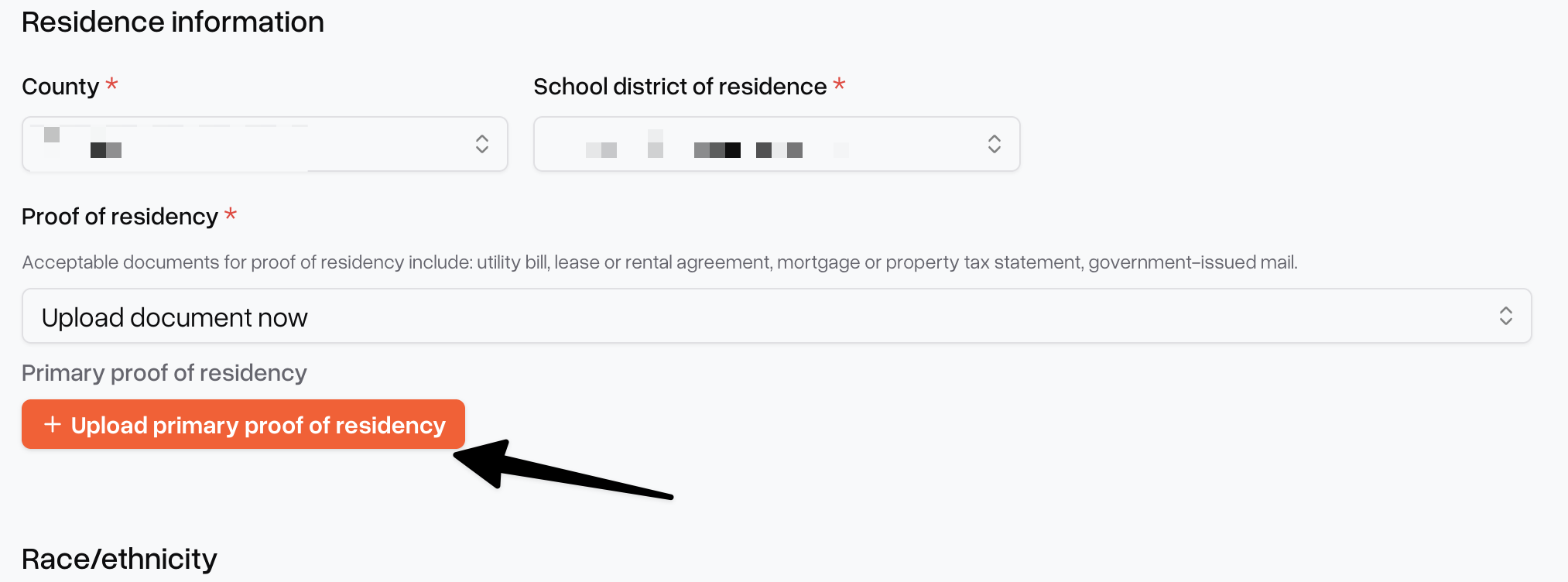
To attach more than one file to the same field, click Add another file after your first upload.
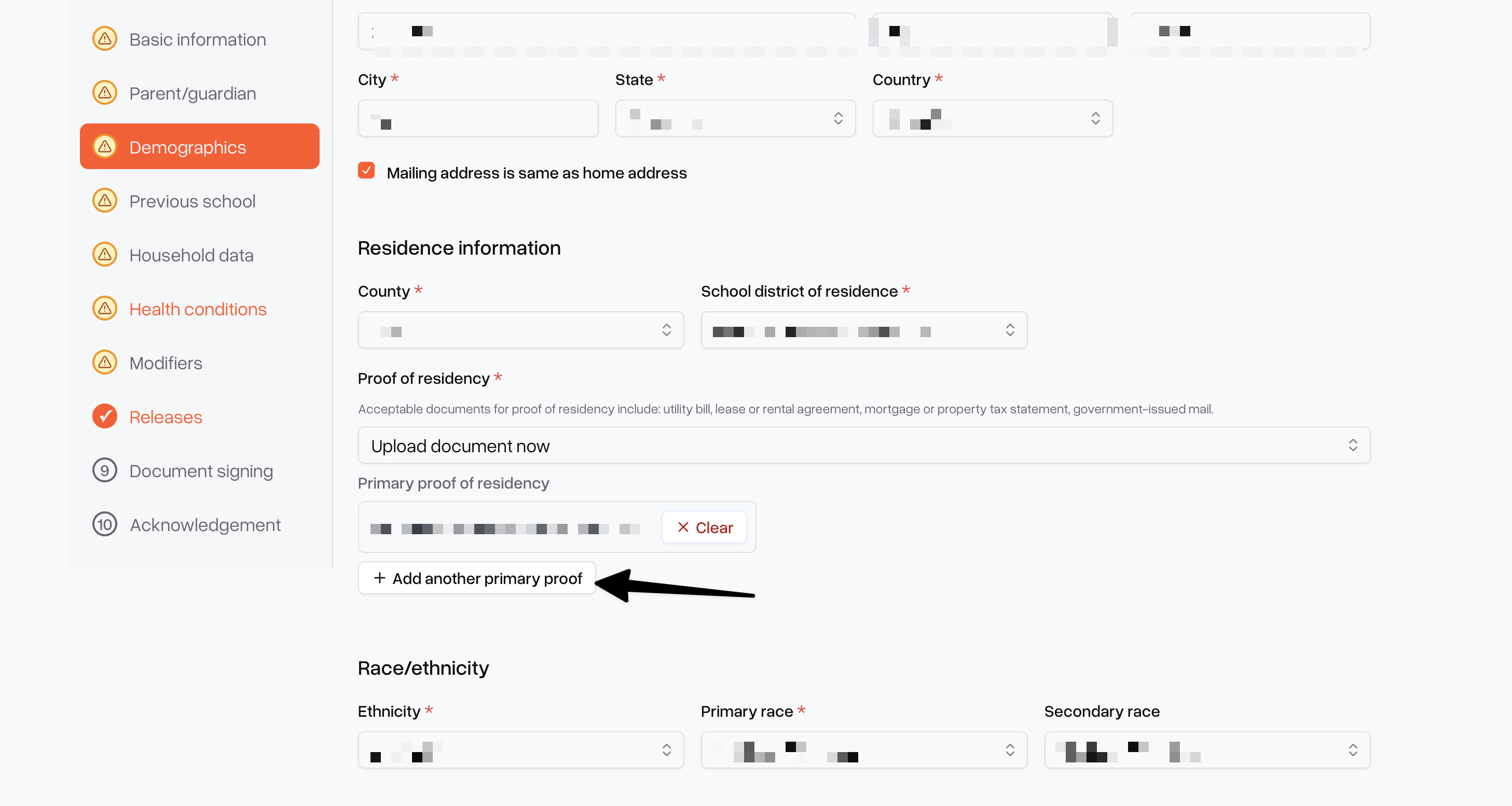
Each file you upload is listed separately in that section. You can view or remove any file before you submit the form.
Tip: If you don't have proof of residency or immunization records ready yet, you can save your progress and come back to upload them later — the form saves as you go.
Checking your submission
Documents are submitted together with the rest of your child's enrollment form — there's no separate submit step for uploads.
Complete every section of the form, including signing all required documents.
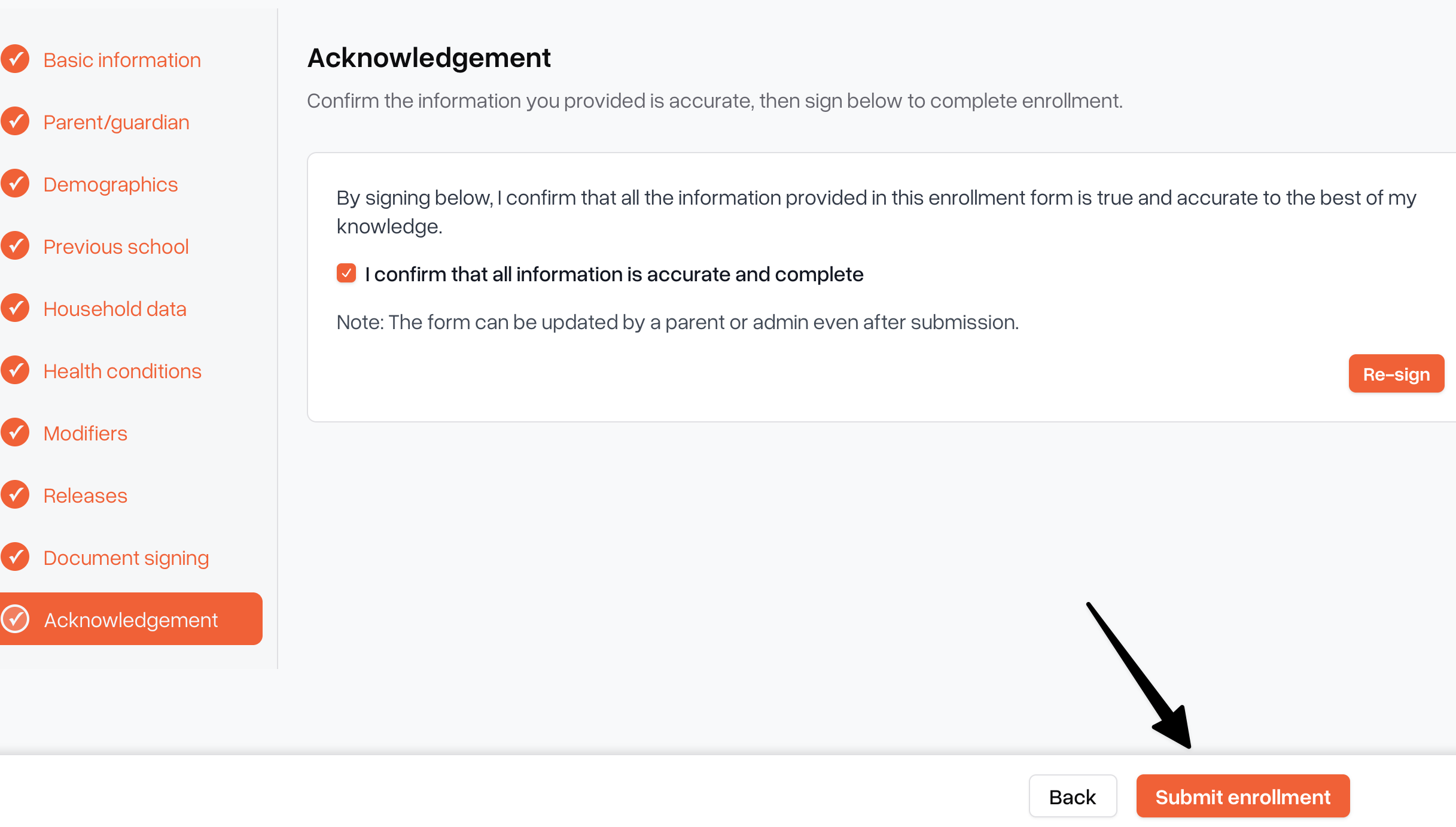
Check the confirmation box and click the final Submit button.
You'll see a confirmation message letting you know your application, along with any documents you uploaded, has been received.
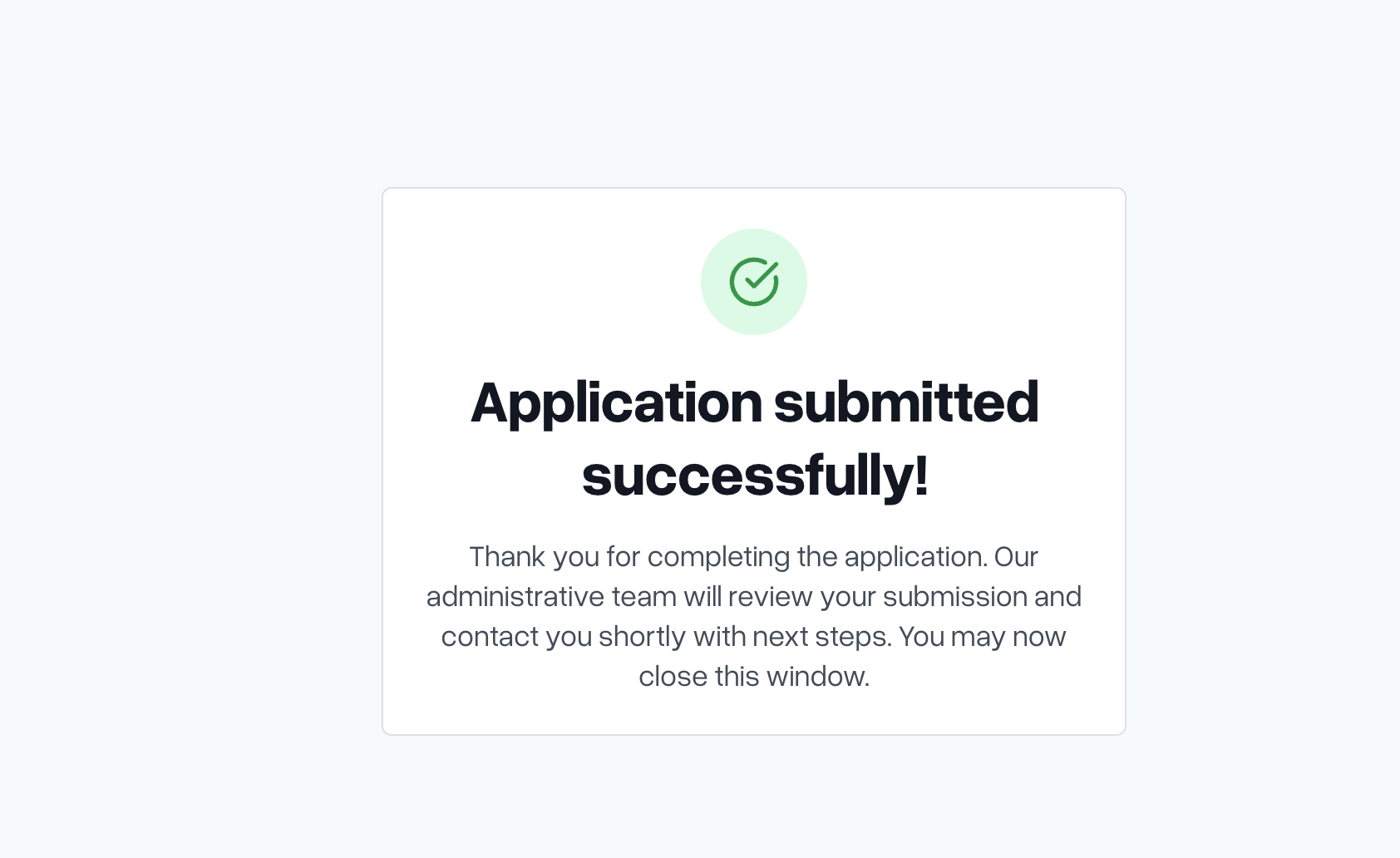
The school's administrative team reviews your submission, including the documents you attached, and reaches out with any next steps.
If corrections are needed
If the school finds an issue with a document you uploaded — for example, it's unclear, incomplete, or the wrong type — you'll receive an email explaining what needs to be updated.
Open the link in that email to reopen your child's enrollment form.
Go back to the section with the flagged document.
Remove the file if needed and upload a replacement, using Add another file if you're attaching more than one.
Resubmit the form.
Note: If your enrollment invitation link has expired before you can make a correction, contact the school to request a new one.
Tips
Any upload field accepts more than one file — use Add another file to attach additional documents.
If you're enrolling more than one child, upload documents separately on each child's tab of the form.
Have proof of residency and immunization records ready ahead of time to avoid delays in your submission being reviewed.