Claiming Attendance for Many Students at Once
Last updated: November 4, 2026
When a learning period ends, you can claim attendance for every student on your caseload in one window instead of opening each student's profile. You review everyone's engagement on one calendar, fill in the days to claim, and sign once for the whole group.
Who can do this
Teachers can claim attendance for students on their own caseload.
School admins can claim for teachers at their school. Pick the teacher in the Caseload Teacher menu at the top of the Home page.
District admins can claim for any teacher of record. Pick the teacher in the Caseload Teacher menu at the top of the Home page.
If your district requires attendance approval, only district admins can approve or reject the claims.
Which students appear
A student appears under Students need attendance certified when all of these are true:
The learning period has ended, or it has reached its Claims Allowed From date. See How to Create and Manage Learning Periods.
The learning period is in the current school year.
Attendance for that learning period hasn't been claimed yet.
If your school requires a parent to sign the learning log first, the parent has signed.
Claiming attendance
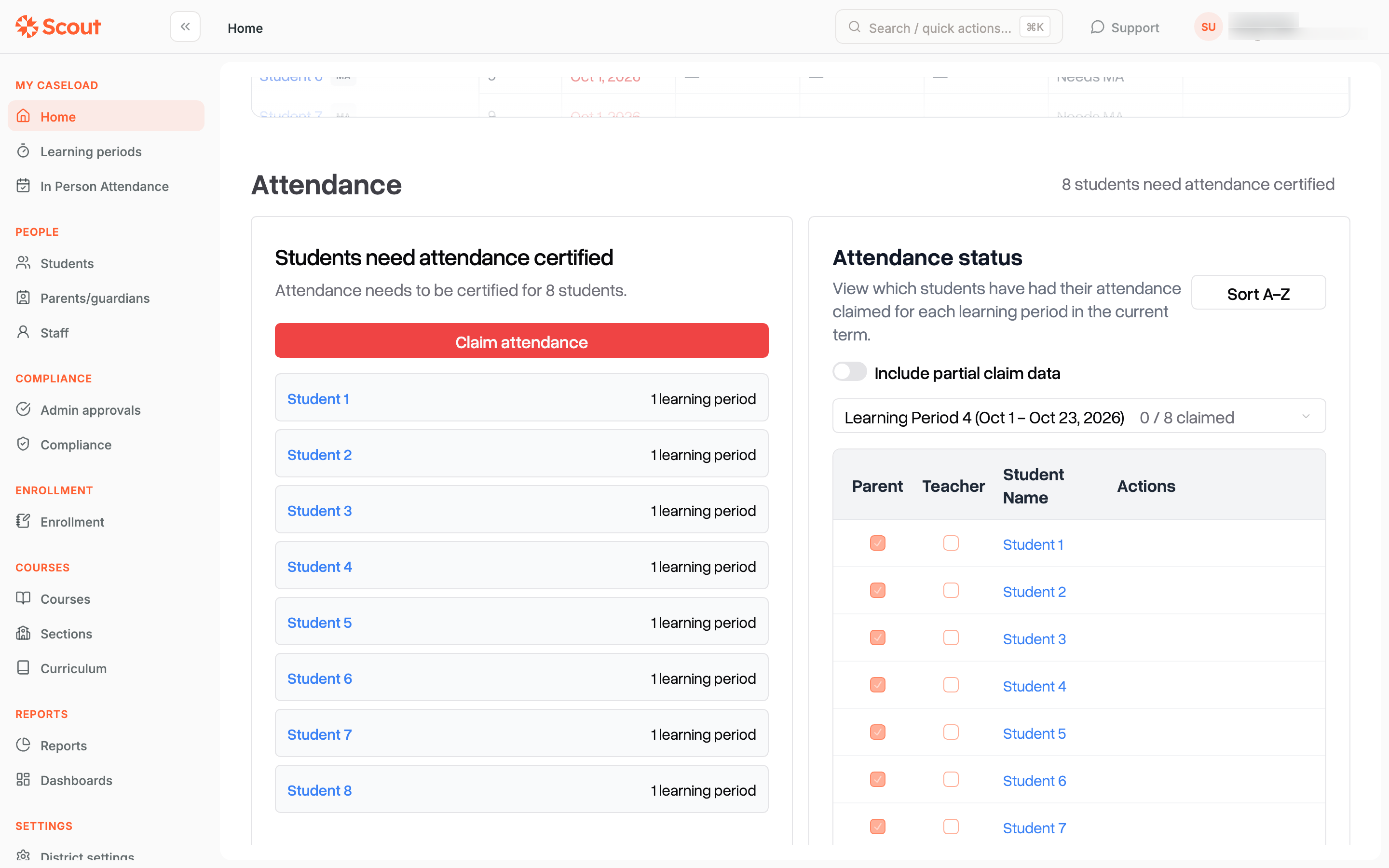
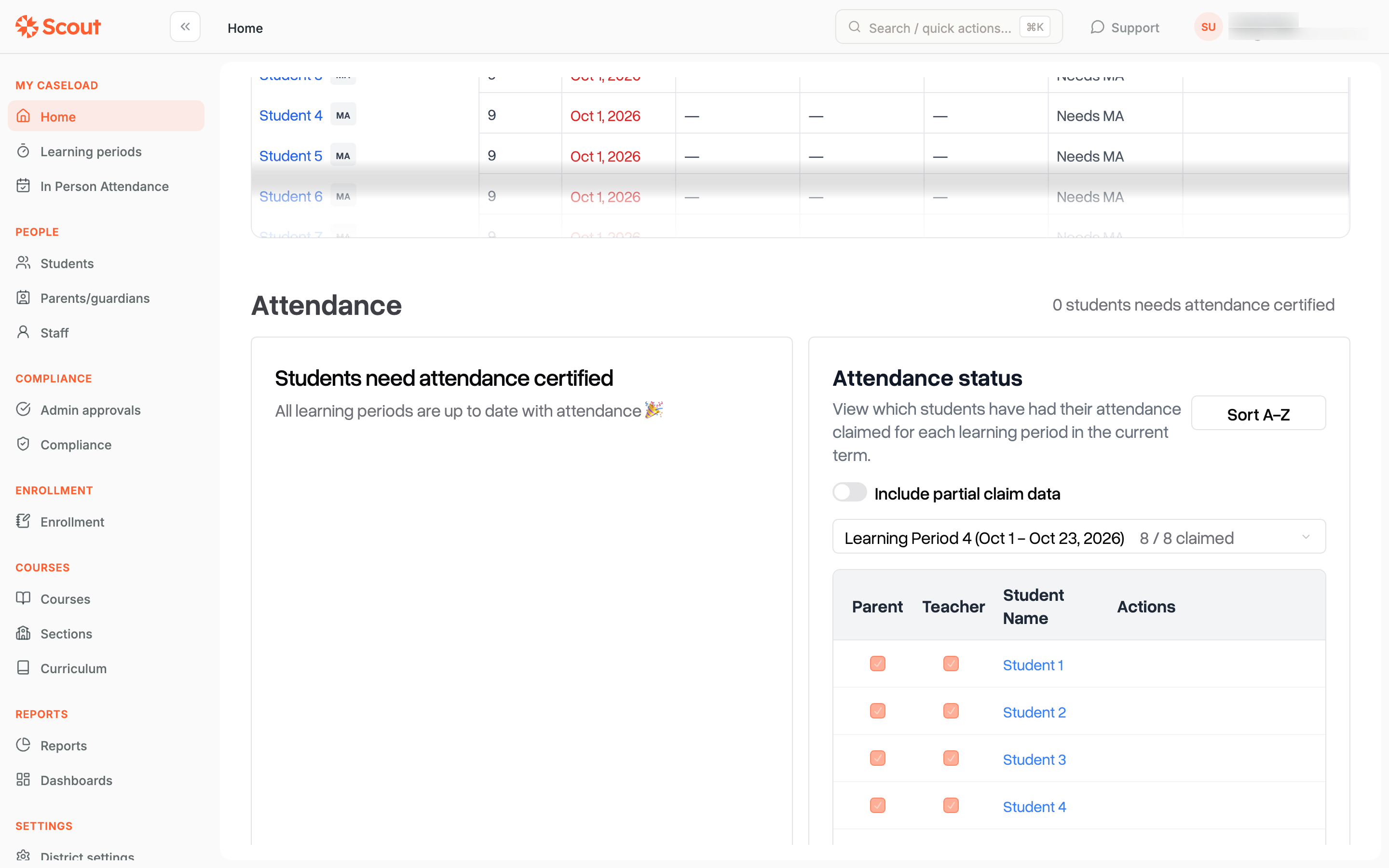
On the Home page, go to the Attendance section. Under Students need attendance certified, click Claim attendance.
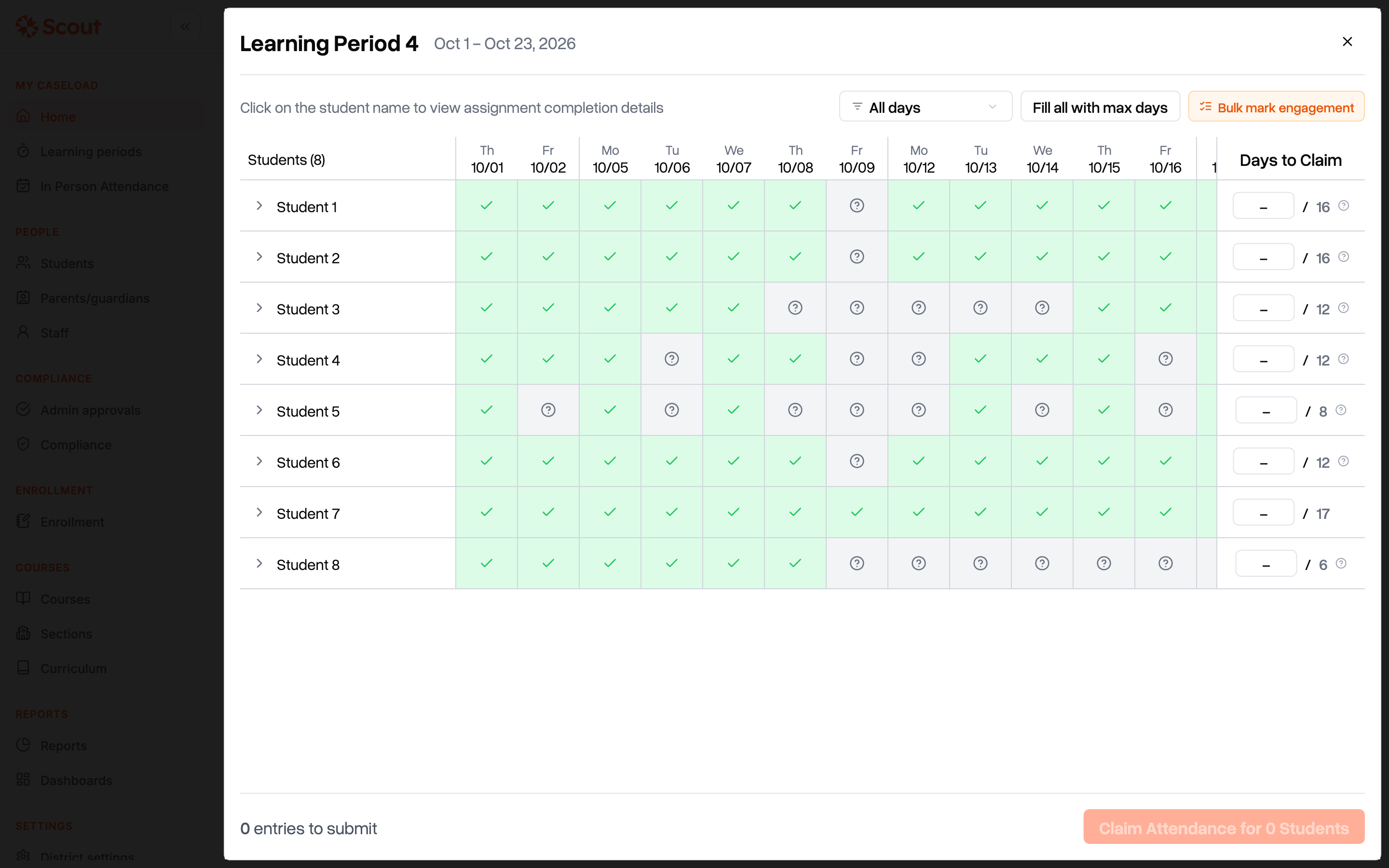
Review each student's engagement. Each row is a student and each column is a learning day. A green check means the student has approved engagement that day. A question mark means there's no engagement record for that day. The number after the slash in Days to Claim is the most days you can claim for that student.
To see a student's assignment completion and their parent's sign-off, click the arrow to the left of the student's name. Clicking the name itself opens the student's profile in a new tab.
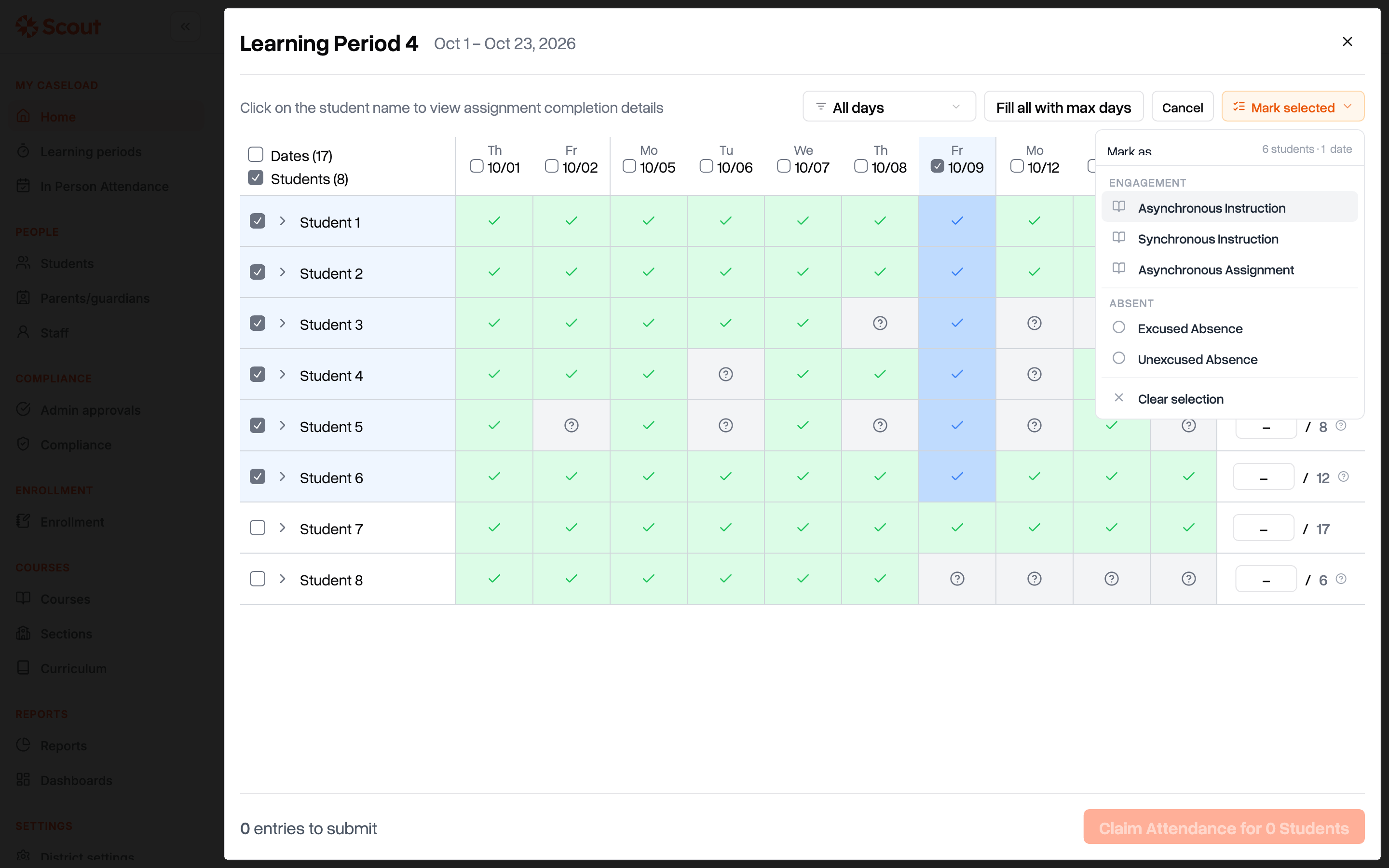
If students engaged on days that aren't logged yet (for example, a group lesson you didn't record), click Bulk mark engagement. If nothing is missing, skip to step 6.
Check the dates at the top of the columns and the students on the left. The selected days turn blue. Click Mark selected, then choose the type of engagement. To record absences instead, choose Excused Absence or Unexcused Absence.
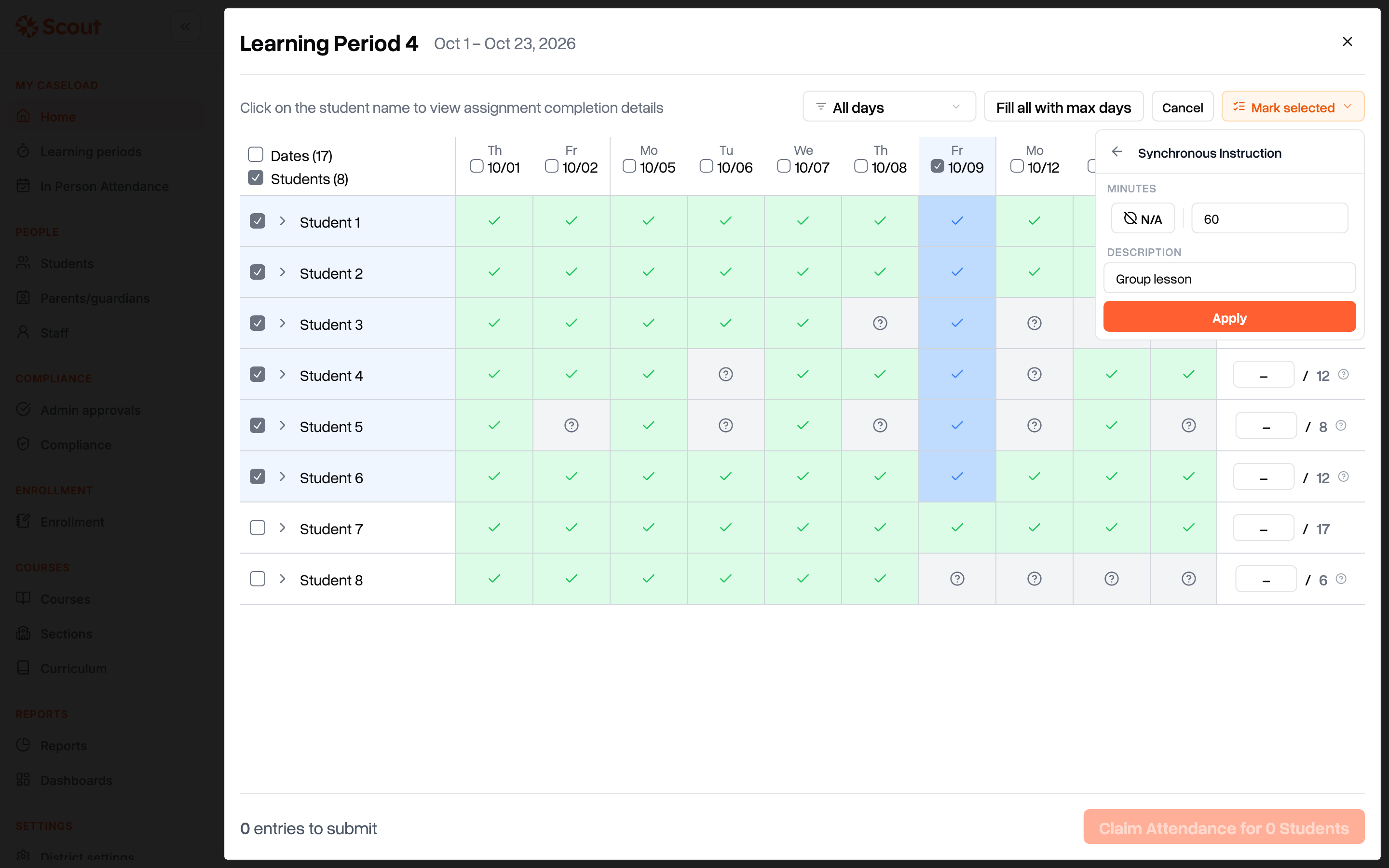
Enter the minutes, or leave N/A selected. Add a description, then click Apply.
The marked days turn green, and each student's maximum goes up by the days you added. Bulk mark saves the engagement as soon as you click Apply, even if you close the window without claiming attendance.
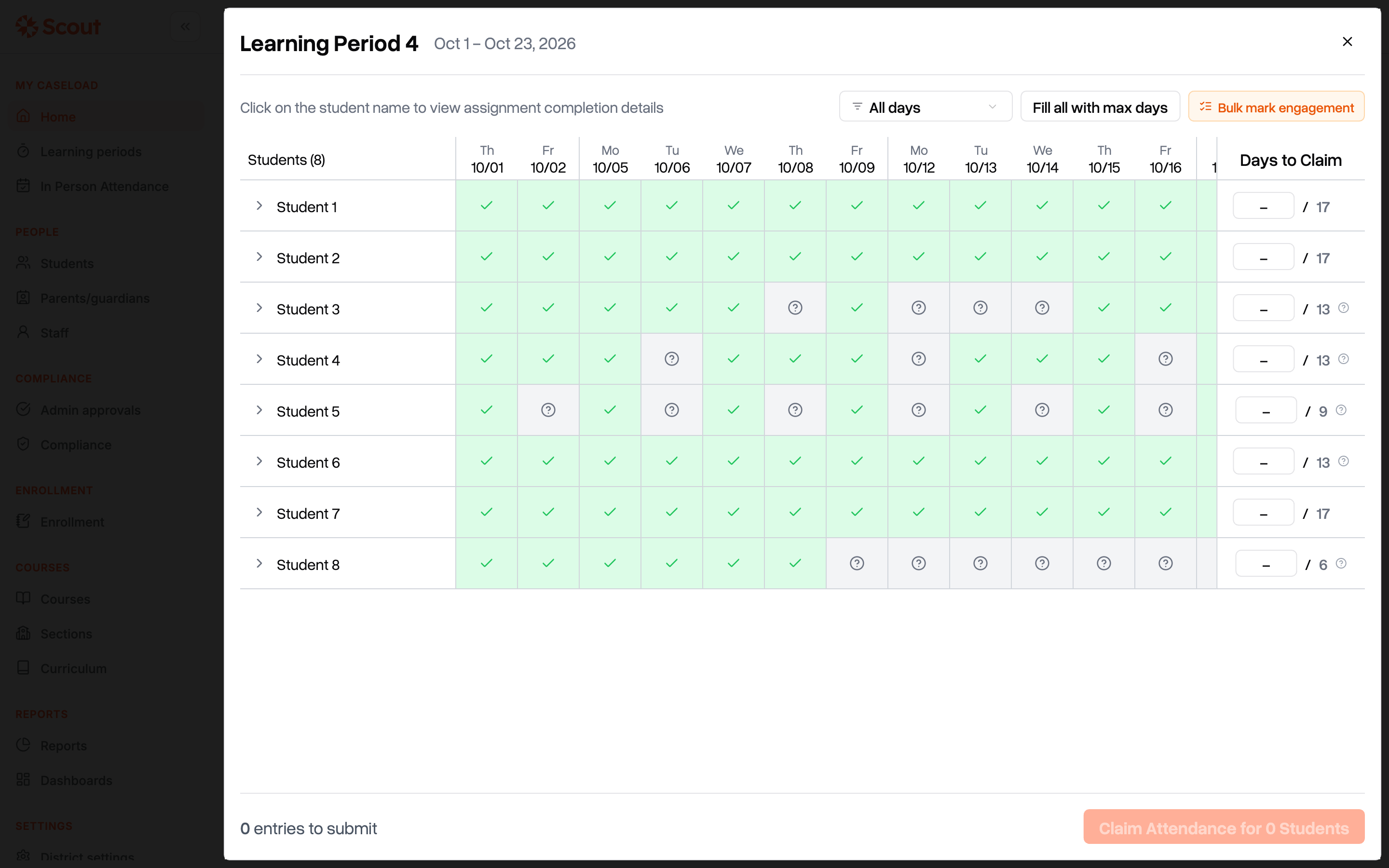
Click Fill all with max days. Every student's Days to Claim is set to their maximum.
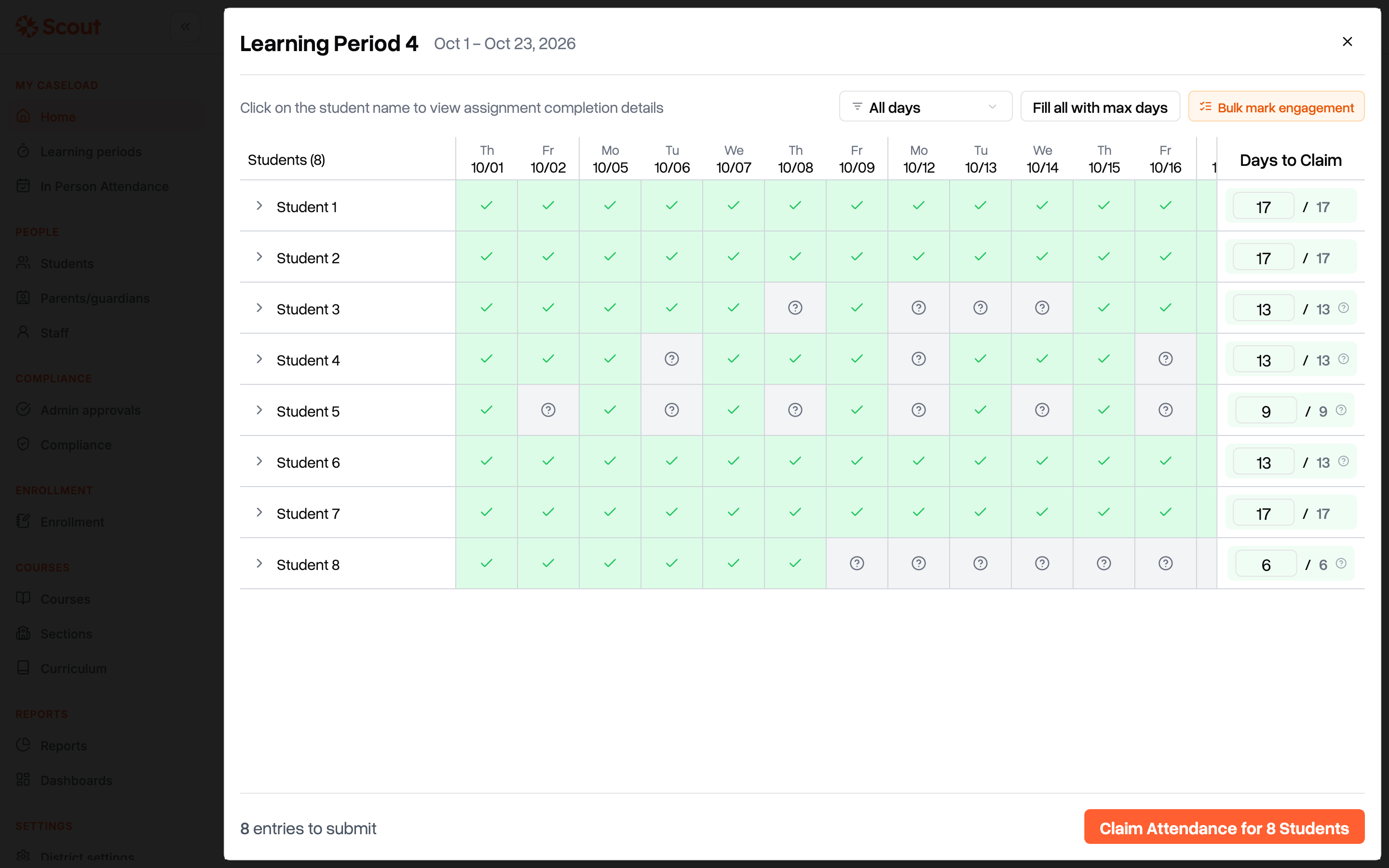
For any student who should be claimed for fewer days, click their box and type the number. In this example, Student 5 engaged on 9 days but is claimed for 7.
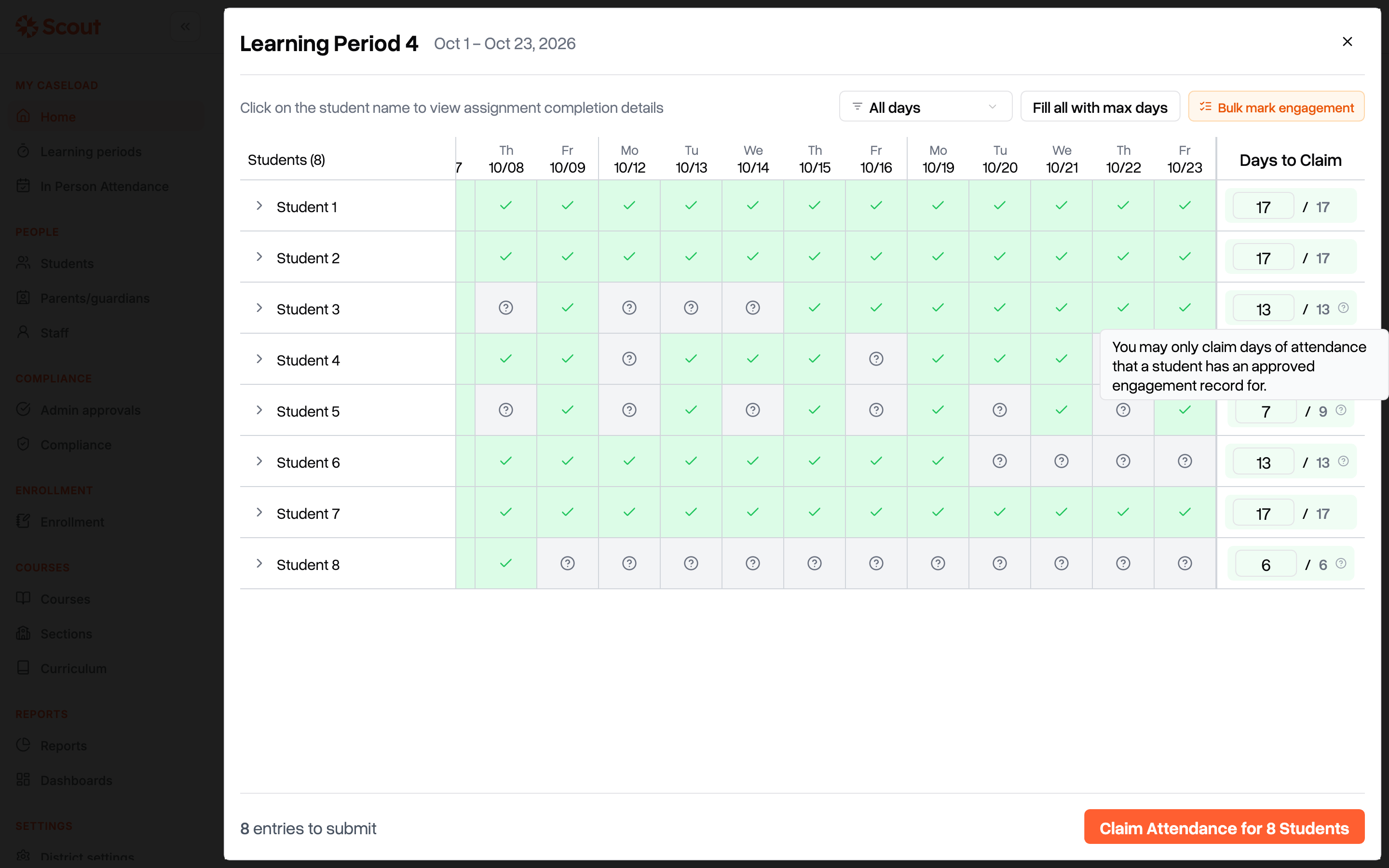
Click Claim Attendance for 8 Students (the number matches the students you're claiming).
Check the list of students and days. Sign by typing your name or drawing your signature, then click Confirm signature.
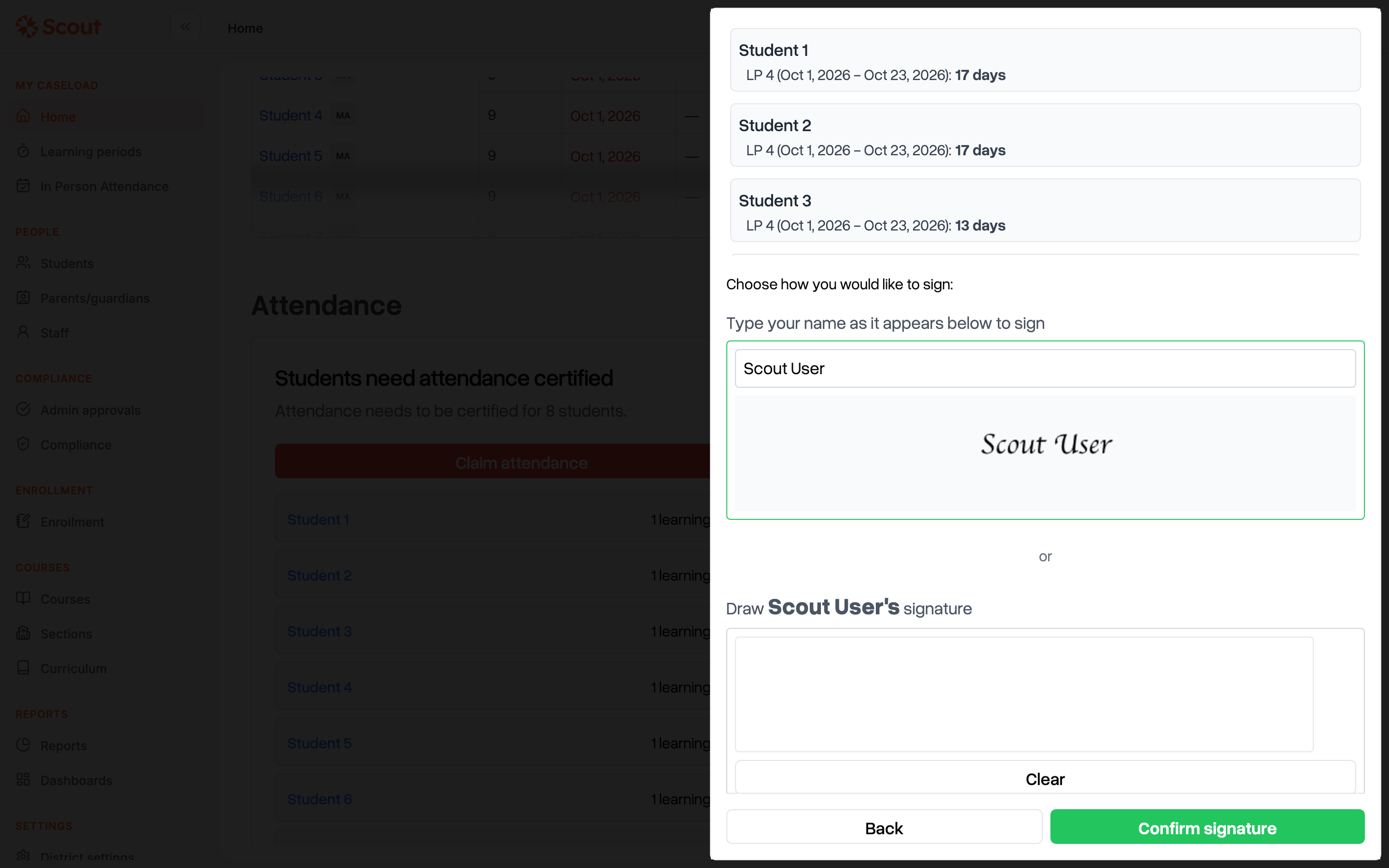
You'll see "Attendance certified successfully!" The students leave the Students need attendance certified list, and the Attendance status card shows them as claimed.
If your district requires attendance approval
When your district turns on attendance approval, each claim goes to Admin approvals as a pending attendance approval. A district admin approves or rejects it.
In the left sidebar, click Admin approvals, then click the Attendance tab. To see one teacher's claims, pick the teacher in the teacher menu.
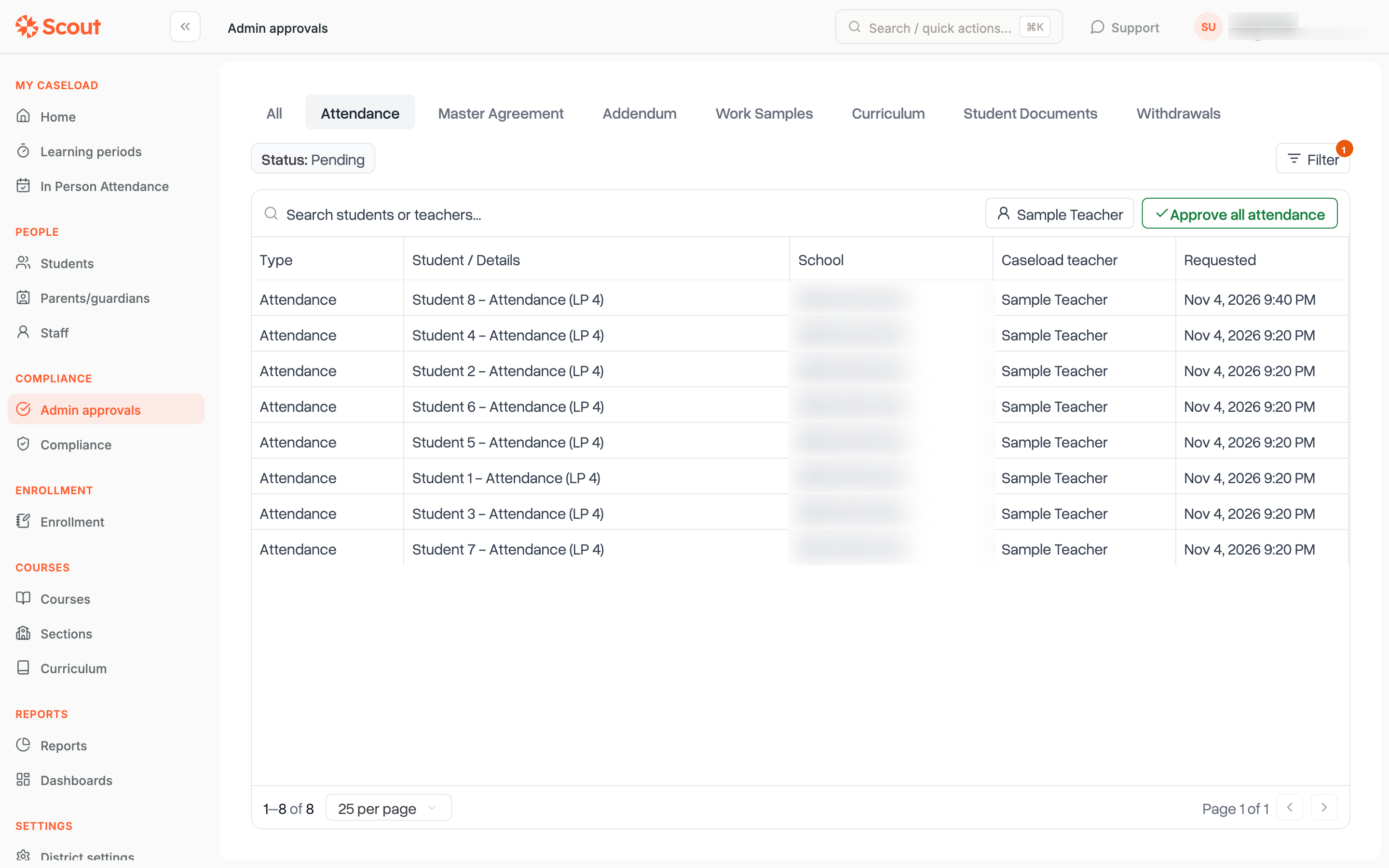
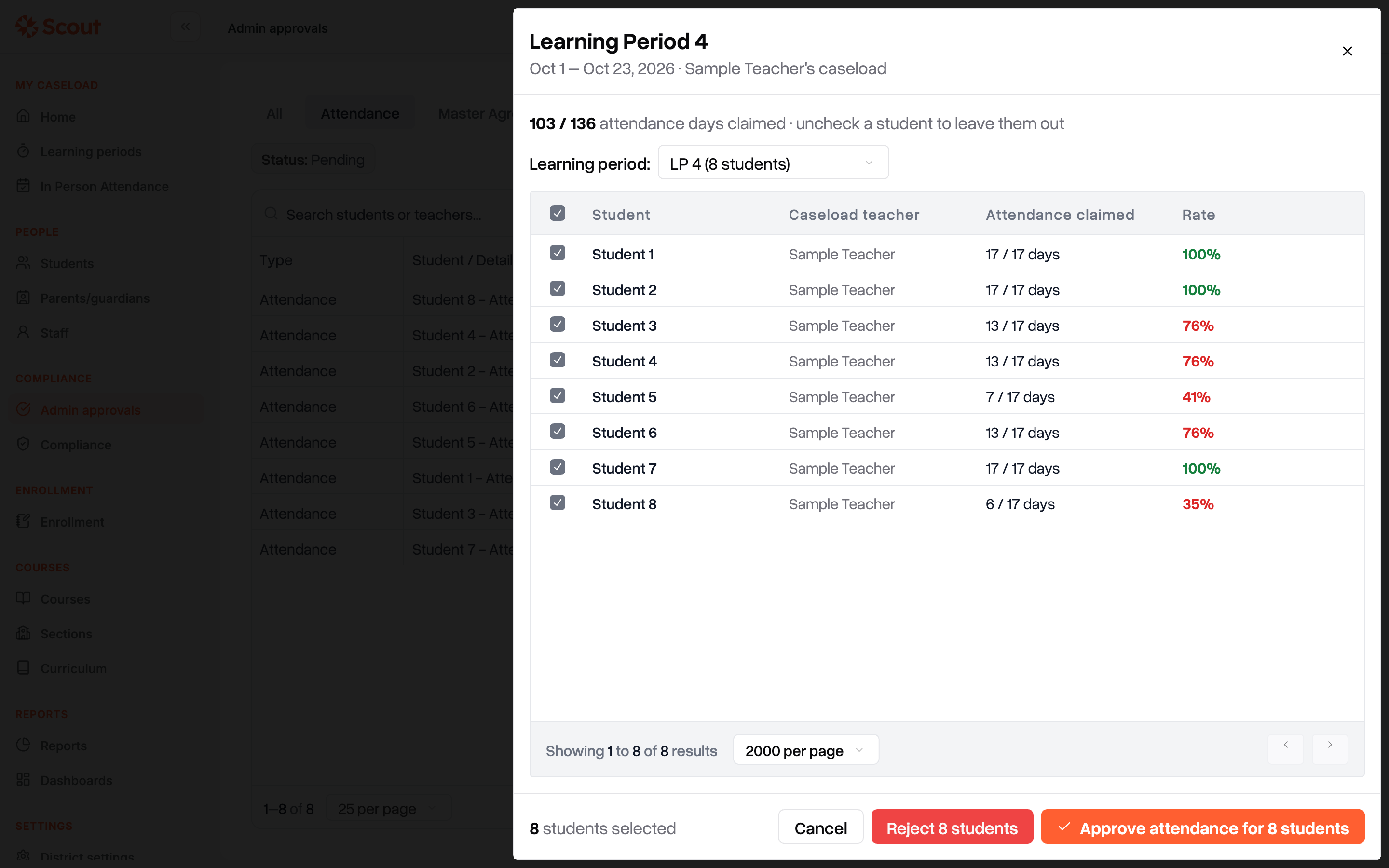
Click Approve all attendance. Choose the learning period and uncheck any student you want to leave out. To approve, click Approve attendance for 8 students (the number matches the students checked). To send claims back, click Reject, choose whether to send them back to the teacher or the parent, and enter a reason.
When a claim is rejected, Scout emails the teacher of record, and the student appears under Students need attendance certified again. In the claim window, a red warning icon appears next to that student. Hover over it to see the reason.
Tips
You can't claim more days than a student engaged. The number after the slash counts the days with approved engagement. If you type a bigger number, Scout changes it back to the maximum when you leave the box. Some districts let teachers claim every learning day no matter the engagement. In that case, the number after the slash is the number of learning days.
Pending engagement doesn't count until it's approved. If a parent or student reported engagement that hasn't been approved yet, an Approve all pending button appears at the top of the window. Approve those days first so they count toward the maximum.
Bulk mark first, then fill. Fill all with max days uses each student's maximum at the moment you click it. If you bulk mark more days afterward, the numbers you already entered don't change. To update one student, click their maximum (the number after the slash). Clicking Fill all with max days again replaces every number, including ones you lowered, so make your adjustments last.
Your progress is saved in this browser. If you close the window before signing, your numbers are kept. When you reopen it, you'll see "Your previous progress has been restored." Click Discard to start over. Progress isn't shared with other computers or browsers.
More than one learning period. If students are missing attendance for more than one learning period, the window shows one at a time. Move between them with Next LP and Previous LP, or with the learning period menu at the top. Your numbers are kept as you move between periods, and you sign once at the end. To sign without visiting every period, click Skip LPs and Claim Attendance.
Parent-reported days. To see only the days parents reported, change the All days filter to Parent reported. The fill button then reads Fill all with parent-reported days and fills each student with the reported days they can be claimed for.
Common questions
Can I change a claim after I sign it?
No. A district admin can undo it from the student's profile: on the Learning Periods tab, they click Uncertify Attendance. That deletes the claimed days and the signature, and the student appears in your list again so you can claim the learning period again.
Why isn't a student in the list?
Check that the learning period has ended (or reached its Claims Allowed From date), that it's in the current school year, and that the student was on your caseload at the end of the learning period. If your school requires a parent signature first, the student appears only after the parent signs. Students at a school that takes in-person attendance are claimed on the In Person Attendance page instead. See Attendance Tracking and Claims.
Why can't I click Claim Attendance?
The button stays grayed out until at least one student has days entered. If your district requires an absence record for each unclaimed day, it also stays grayed out while a student you're claiming has learning days with neither engagement nor an absence. Hover over the button to see this message: "Each day must be filled with absence or engagement before claiming attendance." Use Bulk mark engagement and choose an absence type to fill those days.
What's the percentage next to a student's name?
It's the student's assignment completion across all courses for the learning period. It's green above 80%, yellow from 60% to 80%, and red below 60%. Students with no assignments don't show a percentage.
What's the number in parentheses next to a student's maximum?
Some districts have Scout suggest how many days to claim, based on assignment completion, credits or work samples. The suggestion appears in gray next to the maximum. Click it to use it for that student, or click Fill all with calculated days to use it for everyone.
What's the Total in a student's details?
If your district shows work product, a student's details include minutes of live (synchronous) instruction, independent (asynchronous) work, and work product, plus a Total. Your district's Attendance Total Formula setting decides which of these add up to the Total. By default, it counts live instruction and work product.
Do pre-sign warnings show up here?
No. If your district uses pre-sign warnings, they appear only when you claim attendance from a student's Learning Periods tab.
Where can I claim attendance for one student at a time?
On the student's profile, on the Learning Periods tab. See Attendance Tracking and Claims for the steps.