Merging courses
Last updated: April 15, 2026
Combine duplicate or related course records into a single course, consolidating all sections, enrollments, and related data.
Overview
The course merge tool lets district and school administrators combine 2–6 courses into one. All sections and student enrollments from every source course move to the target course, and the source courses are permanently deleted. This is useful when the same course was created more than once, or when you want to consolidate courses across schools into a single record.
This action cannot be undone. Once courses are merged, the source courses are deleted. Review the preview carefully before confirming.
Who can merge courses
Only District Administrators and School Administrators can merge courses.
How to merge courses
Step 1: Select courses
Go to Courses in the sidebar.
Use the checkboxes to select 2–6 courses you want to merge.
A toolbar appears at the bottom of the screen. Click Merge [X] courses.
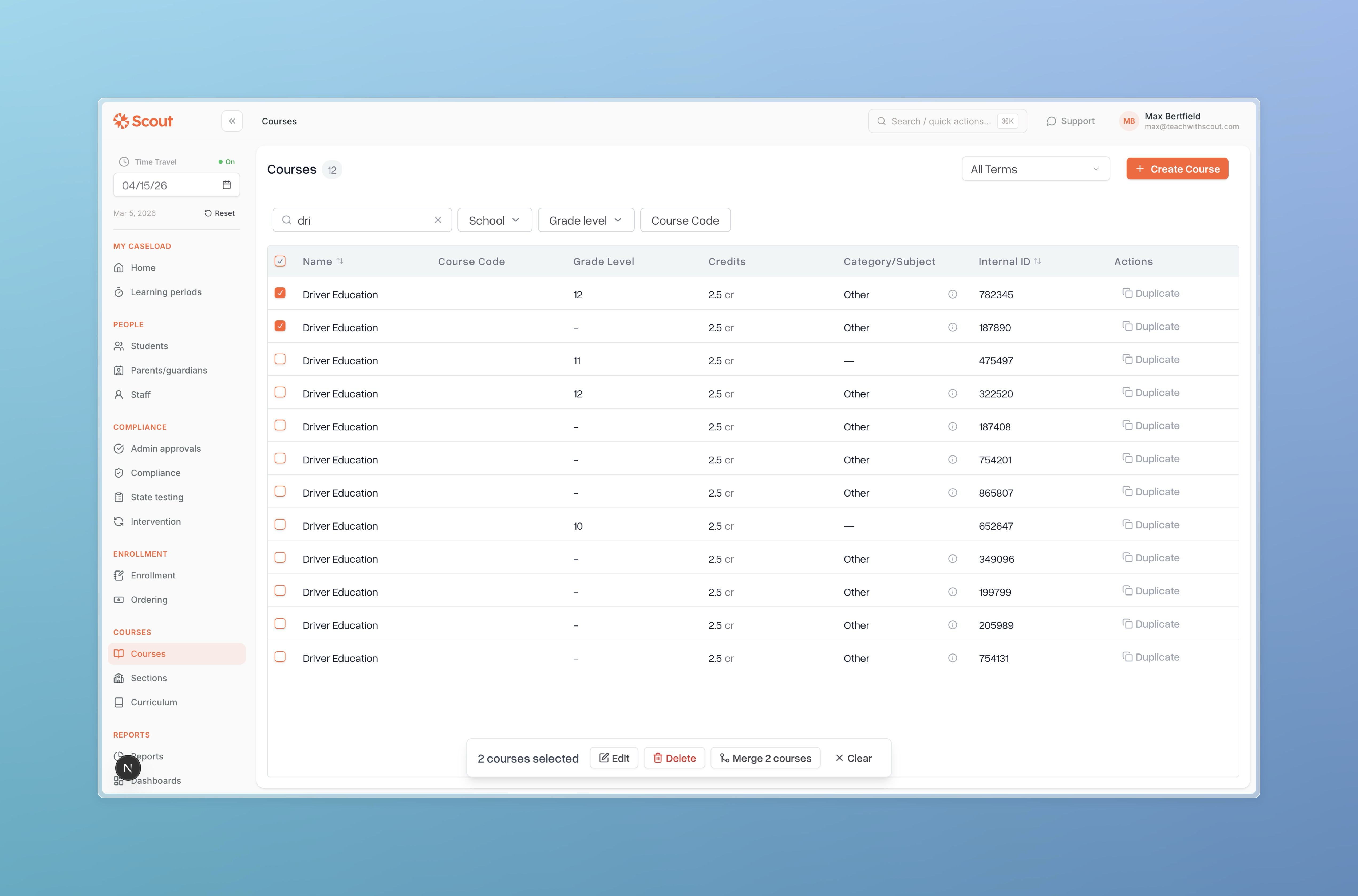
The first course you select becomes the target — it is the course that survives the merge and receives all data. The remaining selected courses are the sources and will be deleted.
Step 2: Review and resolve field differences
A preview dialog opens showing a summary of what will be merged:
Total sections that will be combined
Total enrollments that will be combined
Schools from all courses (the merged course will belong to all of them)
Fields that differ between the courses
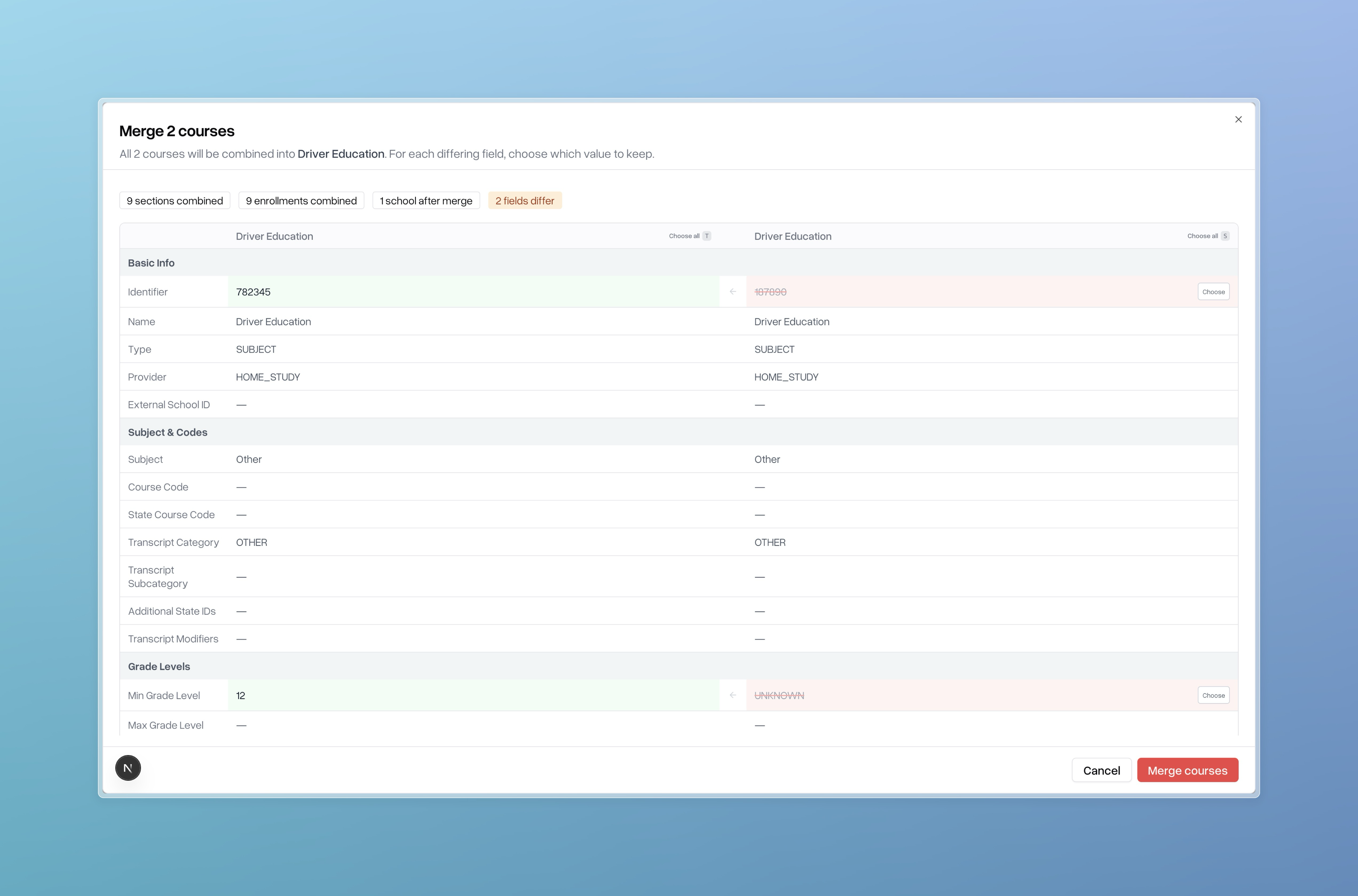
For any field where the courses have different values, you must choose which value to keep. Fields that are already the same across all courses are shown as read-only — no action needed.
When merging two courses, you can use keyboard shortcuts to resolve all fields at once:
Press T to keep all values from the target course
Press S to keep all values from the source course
Step 3: Review sections
The preview also lists all sections grouped by course, along with their enrollment counts. Expand this section to verify the sections that will be moved.
[Screenshot: The sections preview area showing sections grouped by course with enrollment counts]
Step 4: Resolve section identifier conflicts (if any)
If two or more courses share a section with the same identifier, Scout will flag this as a conflict. You must provide a new unique identifier for each conflicting section before you can proceed.
[Screenshot: The section identifier conflicts warning box with input fields for new identifiers]
Step 5: Confirm and merge
Once all fields are resolved and any section conflicts are addressed, click Merge courses.
A confirmation dialog appears summarizing what will happen. Review it carefully.
Click Merge courses to confirm. The merge runs in the background and you will see a confirmation message when it completes.
What gets merged
When courses are merged, the following data is moved from the source courses to the target course:
Data | What happens |
Sections | All sections from source courses move to the target course |
Student enrollments | All enrollments stay on their sections — nothing is lost |
Grades and assignments | Remain on their sections and enrollments — unchanged |
Schools | The target course inherits all schools from all source courses |
Master agreements | Associations are repointed to the target course |
Work sample requests | Repointed to the target course |
Course plan assignments | Repointed to the target course (duplicates removed) |
Curriculum integrations (e.g. Canvas) | Repointed to the target course; target's settings take priority if there is a conflict |
CTE (Career Technical Education) data | If the target course has no CTE data, it automatically inherits from the first source course that does |
What is deleted
After the merge is complete, all source courses are permanently deleted. Their sections and enrollments are not deleted — they are moved to the target course.
Tips
Check section identifiers before merging. If source courses have sections with the same identifier as the target, you will need to rename them. It helps to review section names ahead of time.
The first course you select is the target. If it matters which course name, identifier, or settings survive the merge, make sure to select that course first.
You can merge up to 6 courses at once. If you need to merge more, do it in batches.
Grades and assignments are never lost. All student work remains intact on its sections — the merge only moves sections from one course record to another.