Report Cards - User Guide
Last updated: May 21, 2026
A complete guide to how report cards work in Scout — where grades are actually entered, how they flow into the report card, how to grade non-class criteria, and how to finalize and share with families.
Overview
A report card in Scout is the term-end snapshot of a student's progress across all of their courses, plus non-class criteria like behavior or attendance. Report cards are built up over the term as teachers enter grades, then finalized by a school or district administrator before being shared with families.
This guide walks through the full workflow:
District setup of non-class criteria (one-time)
Teachers enter and mark report card grades ready in their sections
Admins or counselors review the report card on the student's profile
Grade any non-class criteria and add overall comments
Finalize the report card
Email it to families or download as a PDF
Quick answer: where do I set grades that show up on a report card? Teachers enter the term grade on the Report card grades tab of their section (Sections → open a section → Report card grades). The gradebook is for ongoing assignment grades during the term — it is not where the report card grade is set.
Gradebook vs. report card grades
This is the most common point of confusion. Scout has two separate places where grades live, and they serve different purposes:
Page | What it's for | Where to find it |
Gradebook | Day-to-day assignment grades. Used to calculate a running course average during the term. | Student profile → Gradebook tab (per section) |
Report card grades | The single letter grade a student earns in the section for the term. This is the grade that appears on the report card. | Sections → open a section → Report card grades tab |
The gradebook helps teachers decide what grade to put on the report card, but Scout does not automatically copy the gradebook average onto the report card. Teachers must enter the final term grade on the Report card grades tab and mark it ready.
Step 1: District setup — non-class criteria (one-time)
Non-class criteria are evaluation categories that appear on report cards alongside course grades but are not tied to a specific course. Common examples are Behavior, Attendance, Work Habits, or Social-Emotional Skills.
Only District Administrators can configure these.
How to configure non-class criteria
Go to District Settings from the sidebar.
Open the Report Card Criteria tab.
Click Add criterion and provide:
Name (e.g. "Behavior")
Grading scale (optional) — choose a scale like "Excellent / Good / Fair / Poor". If you don't pick a scale, the criterion will accept free-text values.
Sort order — controls the order criteria appear on the report card.
Save. The criterion is now available on all report cards going forward.
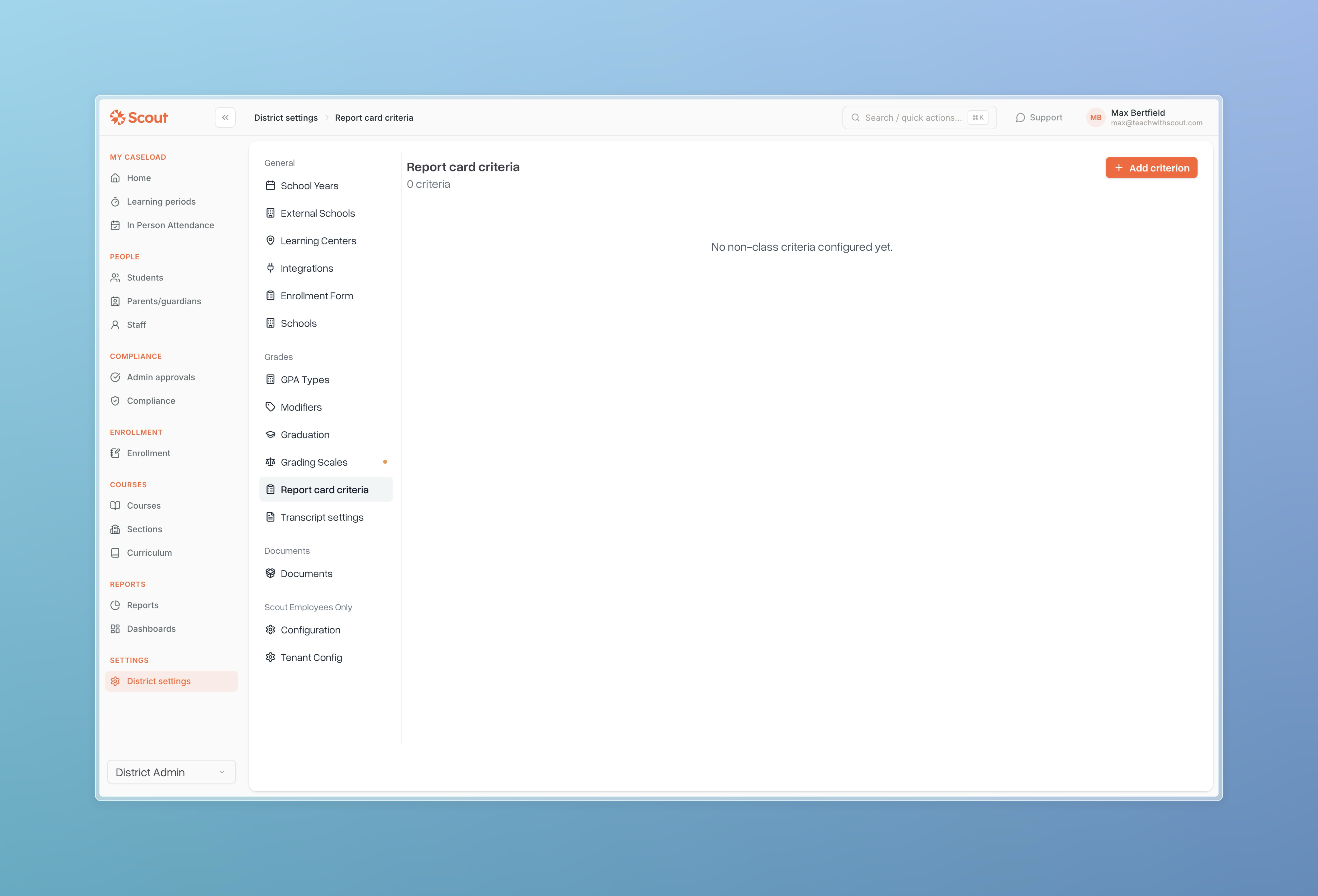
Criteria can be deactivated (soft-deleted) so they stop appearing on new report cards without affecting historical ones. You only need to do this setup once per district — not every term.
Step 2: Teachers enter and mark grades ready
As the grading period closes, each section's teacher enters the term grade for every enrolled student and marks it ready for the report card.
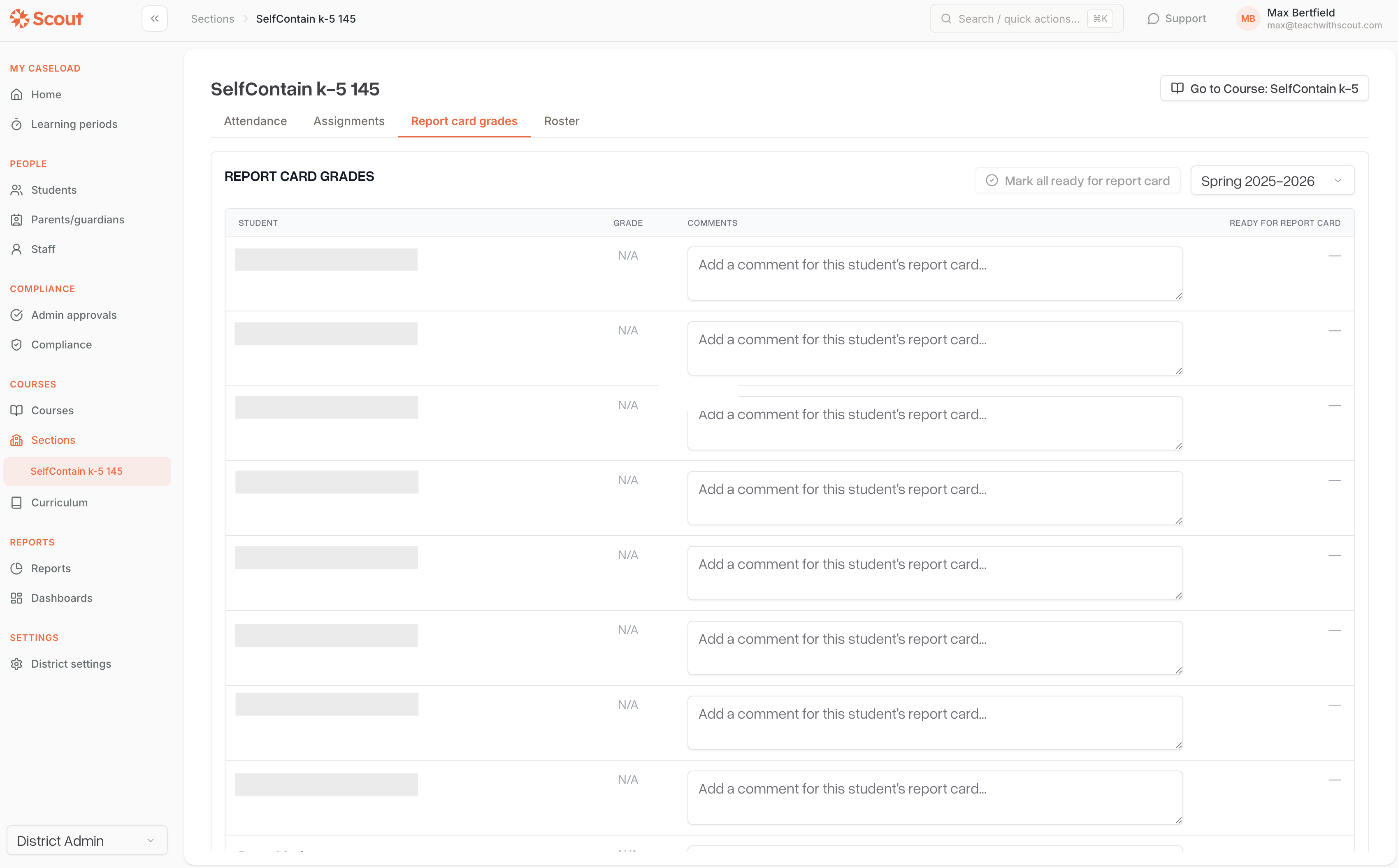
How to enter section grades
Go to Sections in the sidebar and open the section.
Click the Report card grades tab.
In the top-right corner, select the term you're grading.
For each student, choose a grade from the dropdown (A+, A, B, P, NP, IP, etc.) and optionally add a subject-specific comment.
Click Save changes in the floating bar at the bottom.
How to mark grades ready for the report card
Saving a grade is not the same as sending it to the report card. The grade only flows to the student's report card once you mark it ready.
To mark one student ready, click Mark as ready in that student's row. The button activates after the grade is saved and there are no unsaved changes.
To mark all students ready at once, click Mark all ready for report card in the top-right.
Once ready, the button is replaced with a Marked ready [date] indicator.
What happens when you mark a grade ready:
The grade is copied to that student's report card for the term.
Credits are automatically awarded for passing grades and zeroed out for failing grades.
If the student doesn't have a report card yet, Scout creates one on demand.
Notes:
Only staff assigned as a teacher on the section can enter and mark grades ready from this tab.
Elementary students (below grade 6) do not receive letter grades; their grade field shows N/A, but you can still add comments.
You cannot mark grades ready until every enrolled student in the section has a grade entered for that term.
Step 3: Review the report card on the student's profile
School and district administrators, plus counselors, manage the full report card from the student's profile.
Open the student's profile.
Go to the Courses tab.
Scroll to the Report Cards section and select the term.
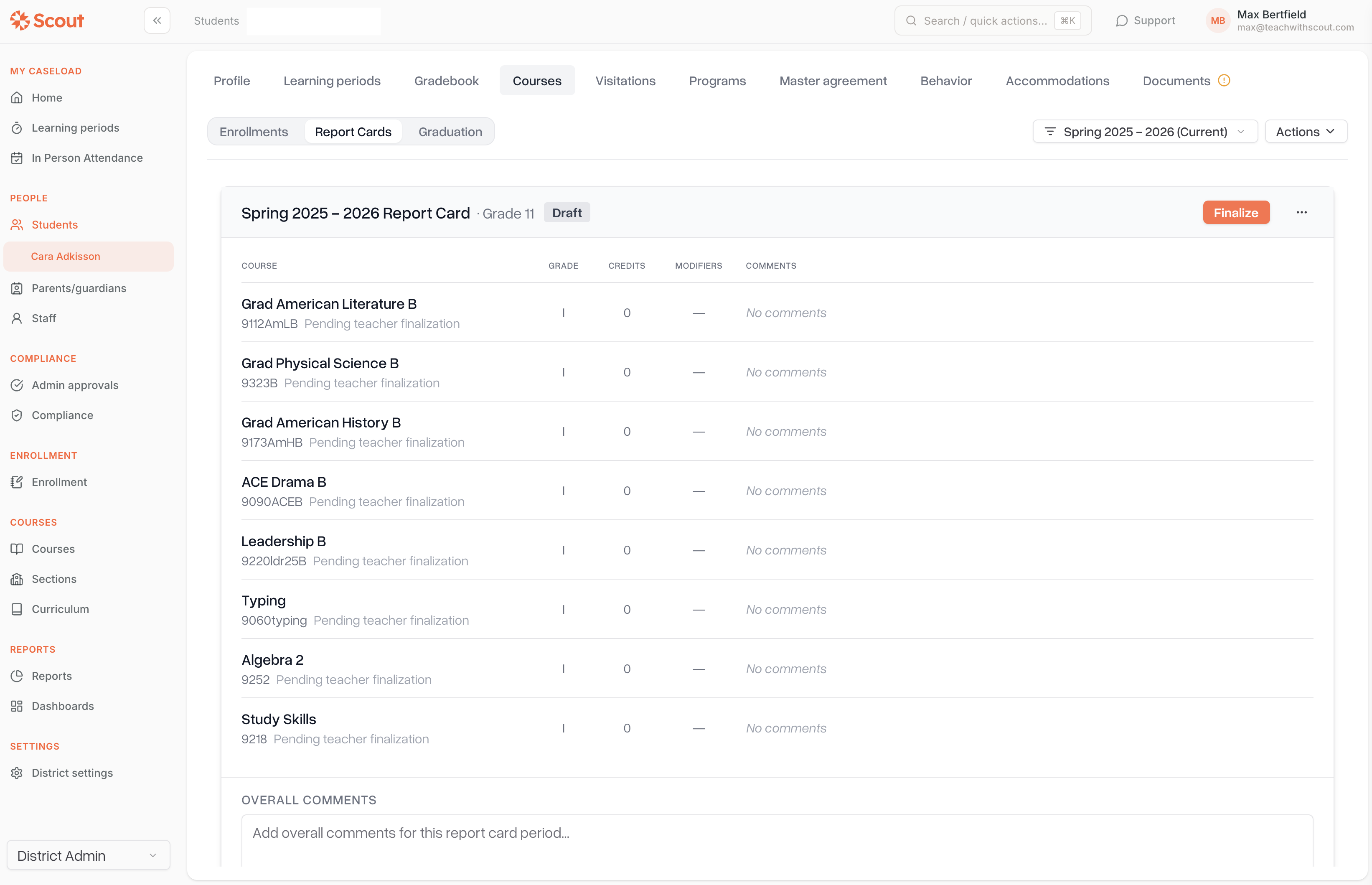
The report card automatically displays:
Course rows — every active enrollment for the term with grade, credits attempted, credits earned, modifiers (Honors, AP, etc.), and teacher comments.
Non-class criteria — every active district criterion, ready to be graded.
GPA — calculated by the GPA types your district has configured.
Overall comments — a free-text field for general feedback about the student.
If a course grade shows as "—"
An em-dash means the teacher hasn't yet marked that section's grade ready for the report card. Reach out to the teacher and ask them to mark it ready from their section's Report card grades tab.
Editing on the report card itself
As long as the report card is not finalized:
Grades, credits, and course comments flow in automatically from the teacher's section grades. Editing the teacher's saved grade in the section will be reflected here.
Admins and counselors can override individual grades or credits directly on the report card if needed.
Overall comments and non-class criteria are edited directly on the report card.
Syncing new enrollments
If a student transfers in or out of a course after the report card was first opened, click Sync courses to pull in the latest enrollment list.
Step 4: Grade non-class criteria and add overall comments
While reviewing the report card, scroll to the Non-class criteria section. Each criterion configured by the district admin shows up here, ready to be scored.
For each criterion, pick a value from the dropdown (if a grading scale is attached) or type a value.
Add overall comments in the Overall comments box at the bottom of the report card.
Click Save changes.
Step 5: Finalize the report card
Finalizing the report card takes a permanent snapshot of all grades, credits, comments, and non-class criteria at that moment in time. After finalizing, the report card is locked and ready to share.
How to finalize
Make sure every course row has a grade (no "—") and that you've graded the non-class criteria.
Review the full report card carefully.
Click Finalize.
Once finalized, grades on the report card are locked. Even if a teacher updates a section grade afterward, the change will not flow to the finalized report card until you unfinalize it.
Unfinalizing
If you need to make corrections after finalizing:
Open the finalized report card.
Click the dropdown menu and choose Unfinalize.
If grades or credits have changed since you finalized, Scout will show a dialog comparing the differences. Choose:
Keep as-is — unfinalize but leave the entries exactly as they were when finalized.
Update entries — pull in the latest grades from the sections.
Step 6: Share with families
Email to parents
Before emailing, two things must be true:
The report card must be finalized.
The student must have a primary parent contact with an email address on file.
Open the finalized report card.
Click Email to Parent.
Scout sends an email with a personalized greeting and the report card as a PDF attachment.
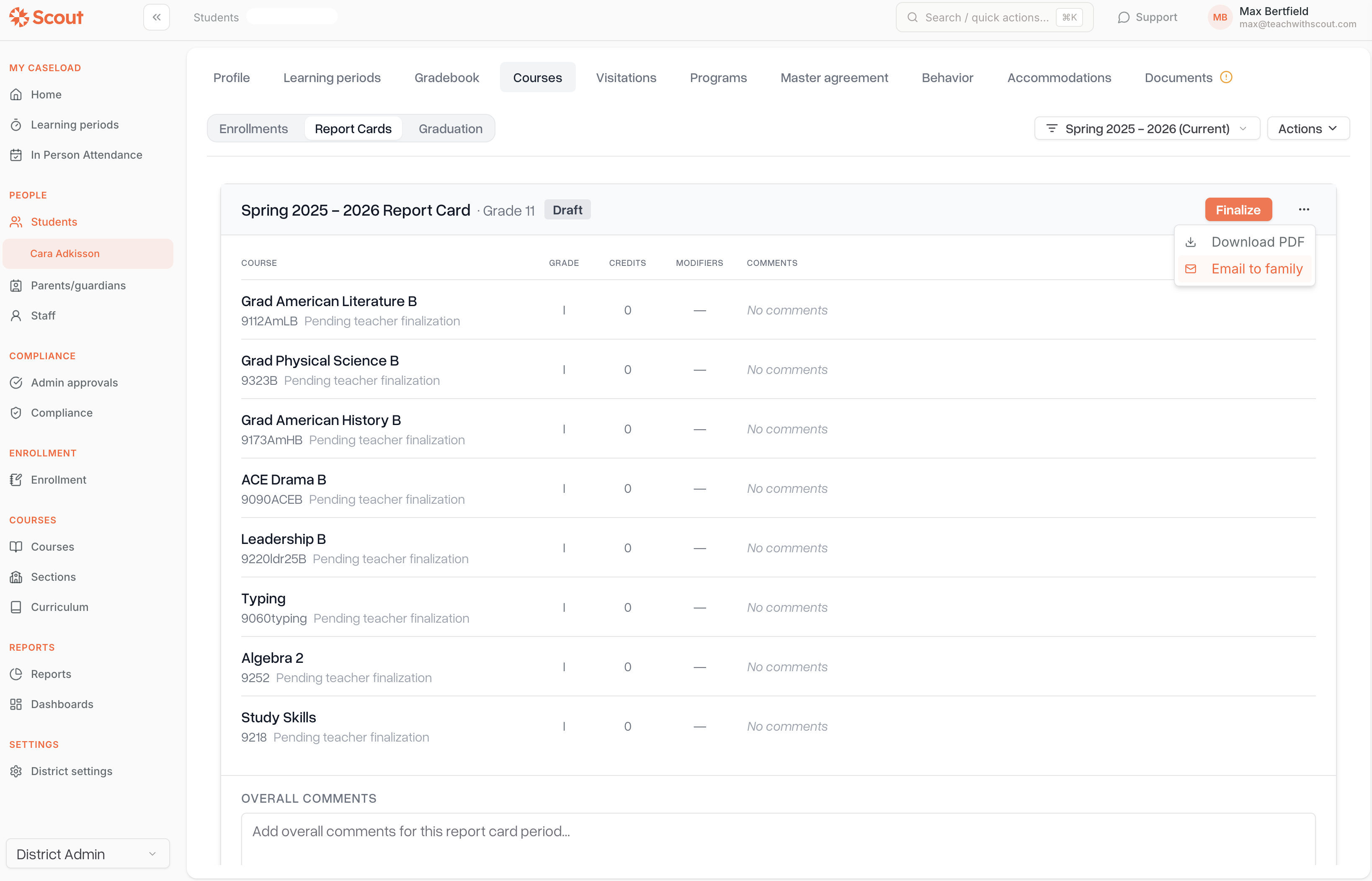
Download PDF
You can also download the report card PDF directly (no email required):
Open the report card.
Click Download PDF.
The PDF includes school name, student info, term name, course table, totals, GPA, non-class criteria, overall comments, and a signature area.
Bulk send from the home dashboard
Counselors managing a caseload can review and send multiple report cards at once from the Report Cards section of their home dashboard.
Who can do what
Action | District Admin | School Admin | Teacher | Counselor |
Configure non-class criteria | Yes | — | — | — |
Enter section grades and mark ready | Yes | Yes | Yes (own sections) | Yes |
Edit overall comments & non-class criteria | Yes | Yes | — | Yes |
Finalize / unfinalize report card | Yes | Yes | — | Yes |
Email report card to parents | Yes | Yes | — | Yes |
Override transcript grade | Yes | Yes | — | Yes |
Tips
Tell teachers exactly where to grade. Send out a reminder at the end of each grading period pointing teachers to Sections → their section → Report card grades tab. This is the most common spot people miss.
Configure non-class criteria once per district. You don't need to re-add them every term — they persist until deactivated.
Don't finalize until all teachers have marked grades ready. A finalized report card with "—" placeholders will go out to parents looking incomplete.
Use Sync courses if a student's schedule changed. If a course was added or dropped after you opened the report card, sync to refresh the entries.
Verify parent contact emails. Before sending, make sure each student has a primary parent contact with a valid email — otherwise the email button will be disabled.
Frequently asked questions
Q: Where do I actually set the grade that shows up on a student's report card?
A: On the section page — Sections → open the section → Report card grades tab. Save the grade, then click Mark as ready. That is what flows the grade to the report card. The gradebook is for assignment-level grades and is separate.
Q: I entered a grade in the section but it's still showing "—" on the report card.
A: You probably saved the grade but didn't mark it ready. Open the section's Report card grades tab and click Mark as ready next to the student, or Mark all ready at the top.
Q: A teacher updated a grade after I finalized the report card. Why didn't the change appear?
A: Finalizing locks the report card. Unfinalize it and choose Update entries to pull in the new grade, then re-finalize.
Q: What are non-class criteria?
A: District-defined evaluation categories like Behavior, Attendance, or Work Habits that appear on the report card but aren't tied to a course. District admins configure them in District Settings → Report Card Criteria.
Q: Why is the Mark as ready button grayed out in the section view?
A: The button only activates once the student has a saved grade and there are no unsaved changes. Click Save changes first, then mark ready.
Q: Do grade changes from a section automatically update an open report card?
A: Yes — only for unfinalized report cards. Once finalized, the report card is locked.
Q: Can I email a report card without finalizing it?
A: No. Finalizing is required before the email and PDF can be sent to families.
Q: What's the difference between marking a grade ready and finalizing the report card?
A: Marking a grade ready is done by the teacher on the section page for one course's grade. Finalizing is done by an admin or counselor on the student's profile and locks the entire report card — all courses, non-class criteria, and comments — into a final snapshot.