How to Connect Scout with Zoom
Last updated: February 6, 2026
Connecting Scout to Zoom allows your district to seamlessly integrate virtual meetings and attendance tracking.
Steps
Log into Scout
Sign in to your Scout account.
Navigate to Integrations
Go to District Settings.
Select Integrations
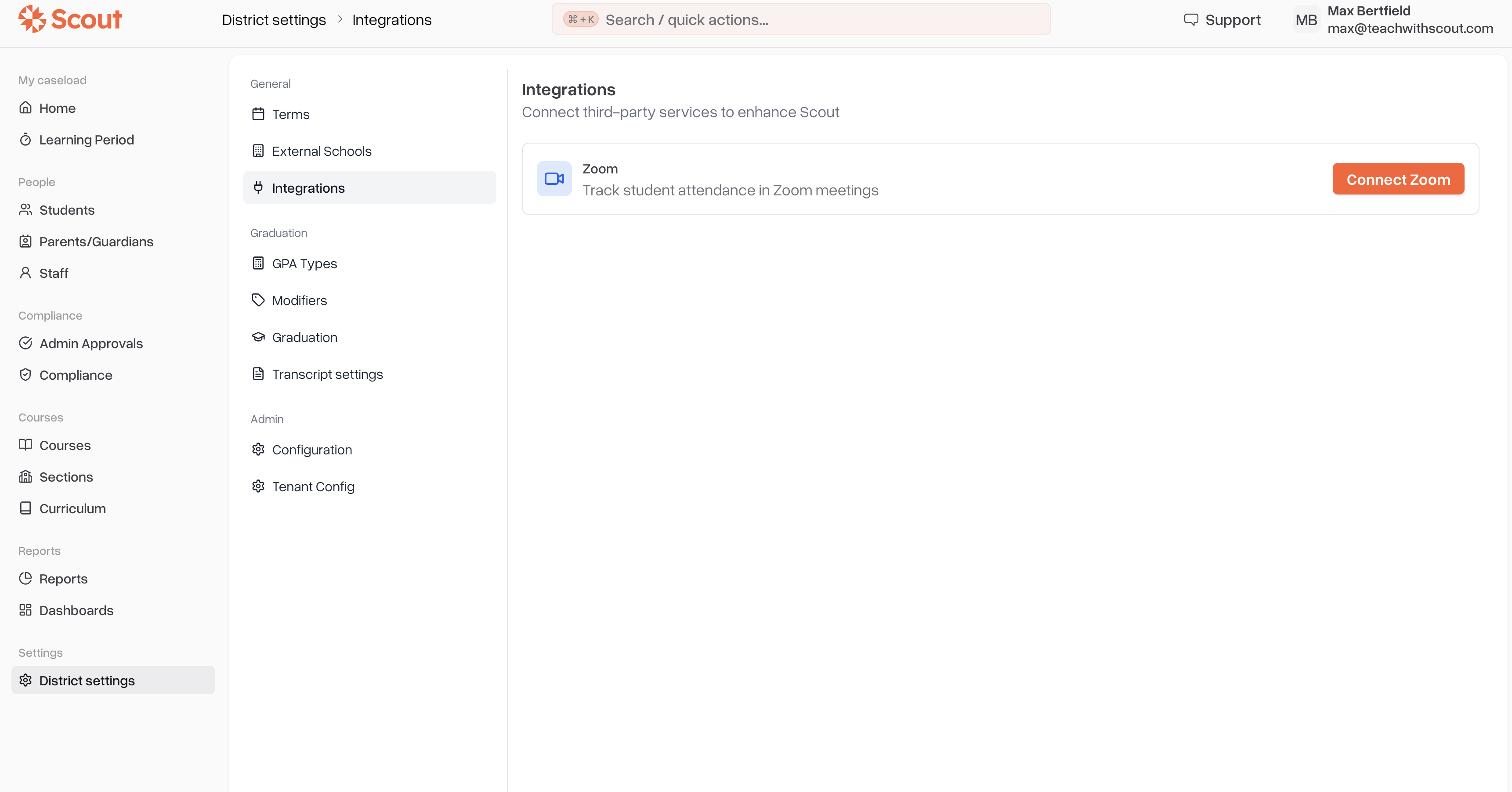
Connect to Zoom
Click Connect Zoom.
Authenticate in Zoom
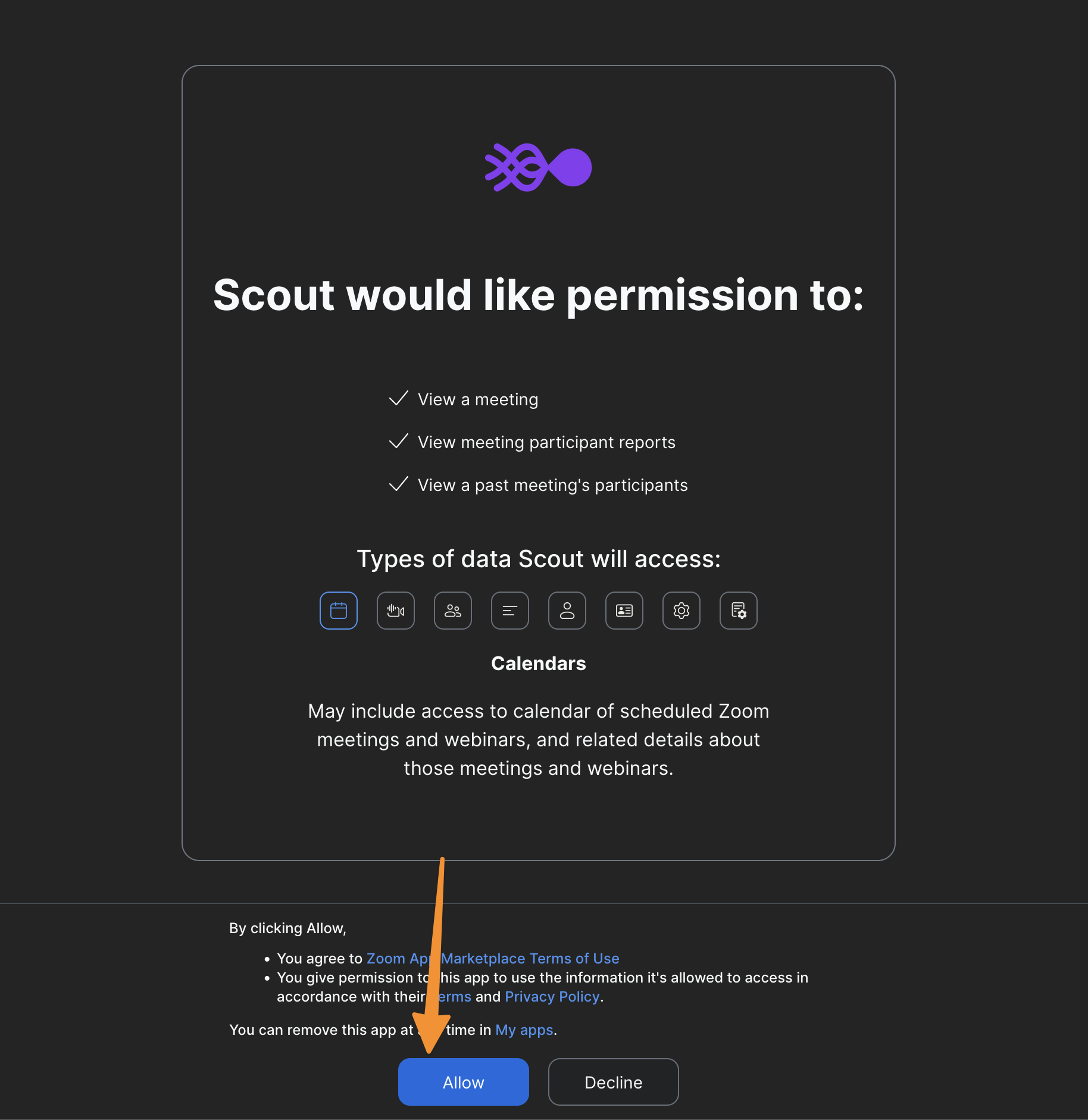
You’ll be redirected to Zoom.
Sign in (if prompted) and authorize the Scout app.
Return to Scout
After authentication, you’ll be redirected back to Scout.
Confirm Connection
The Zoom integration should now show as Connected.
Troubleshooting
Make sure you’re logged into the correct Zoom account (district or admin).
If the status doesn’t update immediately, refresh the page.
If you see an authorization error, try reconnecting or contact your district admin.