How to Add PE Activity Logs
Last updated: February 6, 2026
Students can log their Physical Education (PE) activity minutes directly from their profile. Follow the steps below to add or update PE logs.
Steps
Go to Your Profile
Log in and navigate to your student profile page.
Navigate to the Learning Period Tab
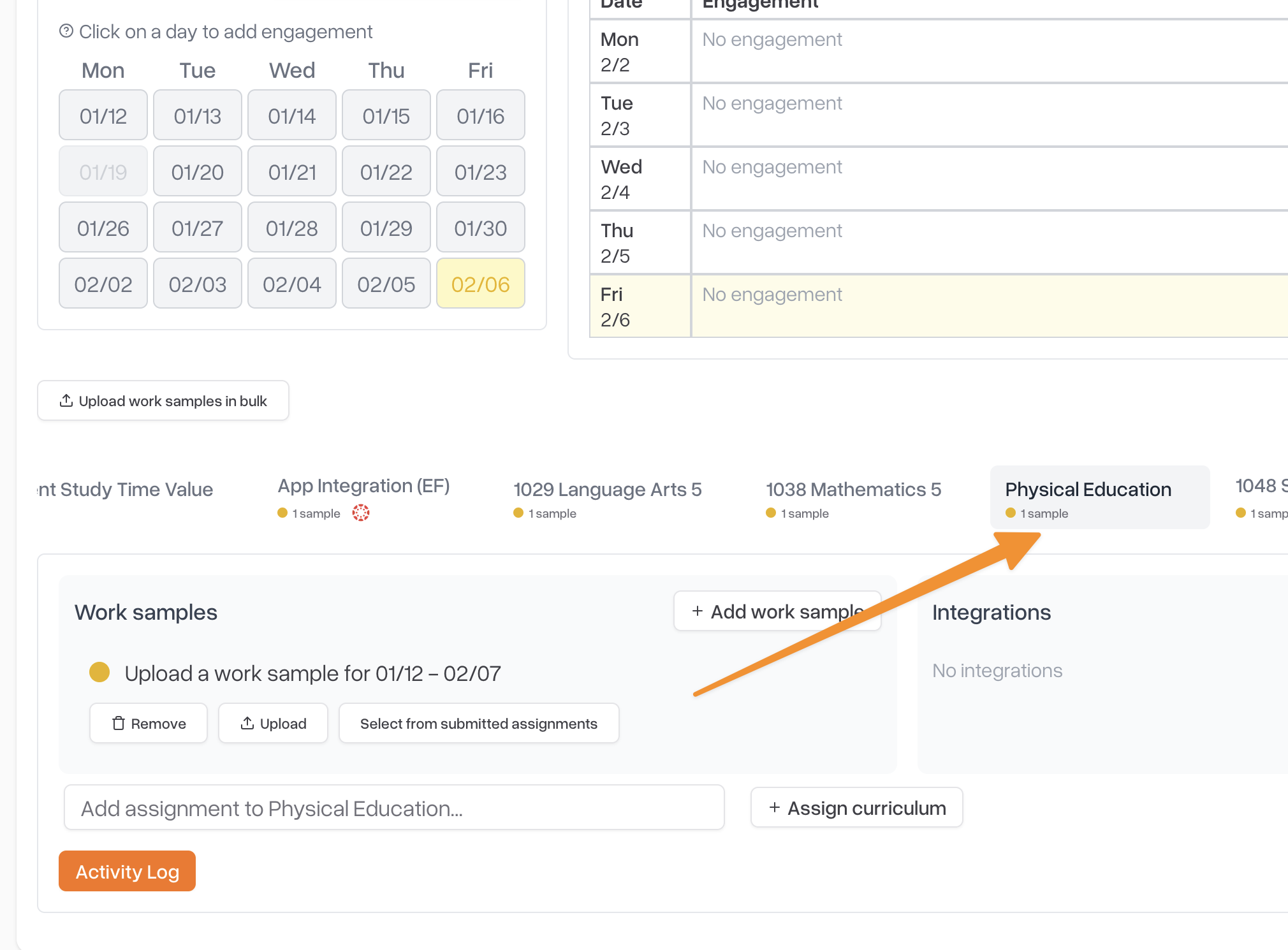
Select the PE Class
From your list of enrolled classes, click on your PE class.
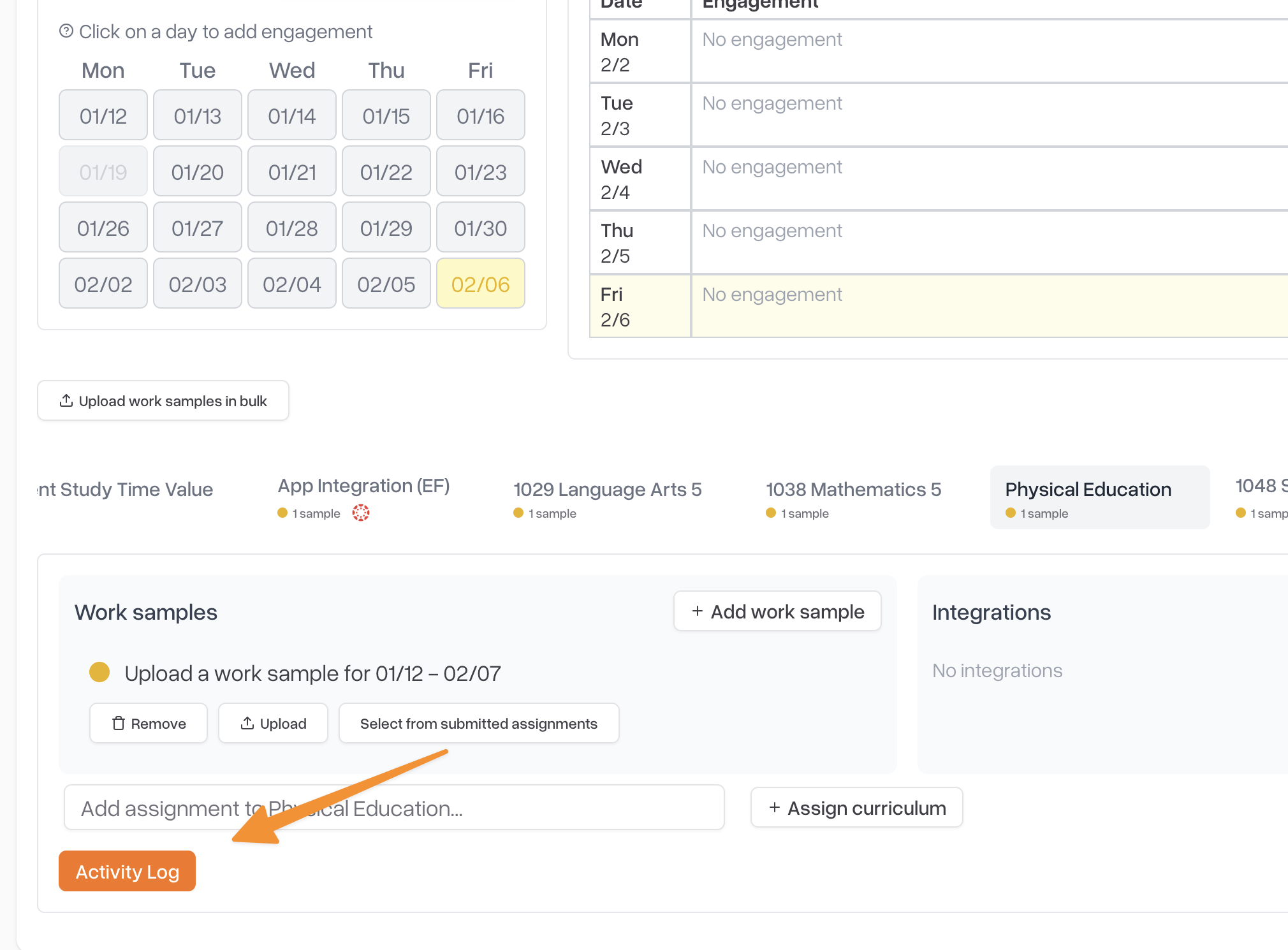
Open the Activity Log
Within the PE class, select Activity Log.
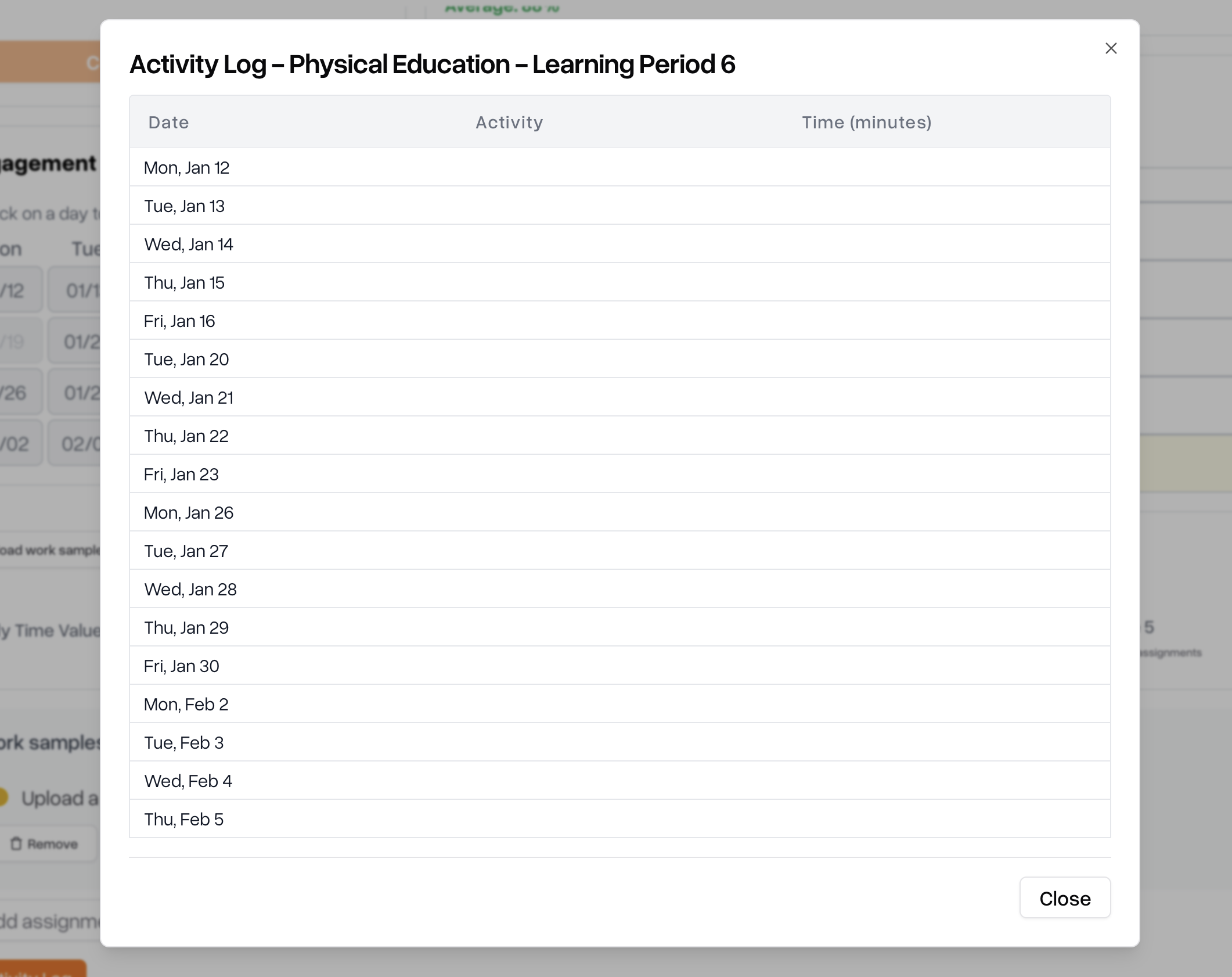
Enter Activity Minutes
Enter the number of minutes of physical activity completed for each day.
Make sure the entries reflect the actual days you were active.
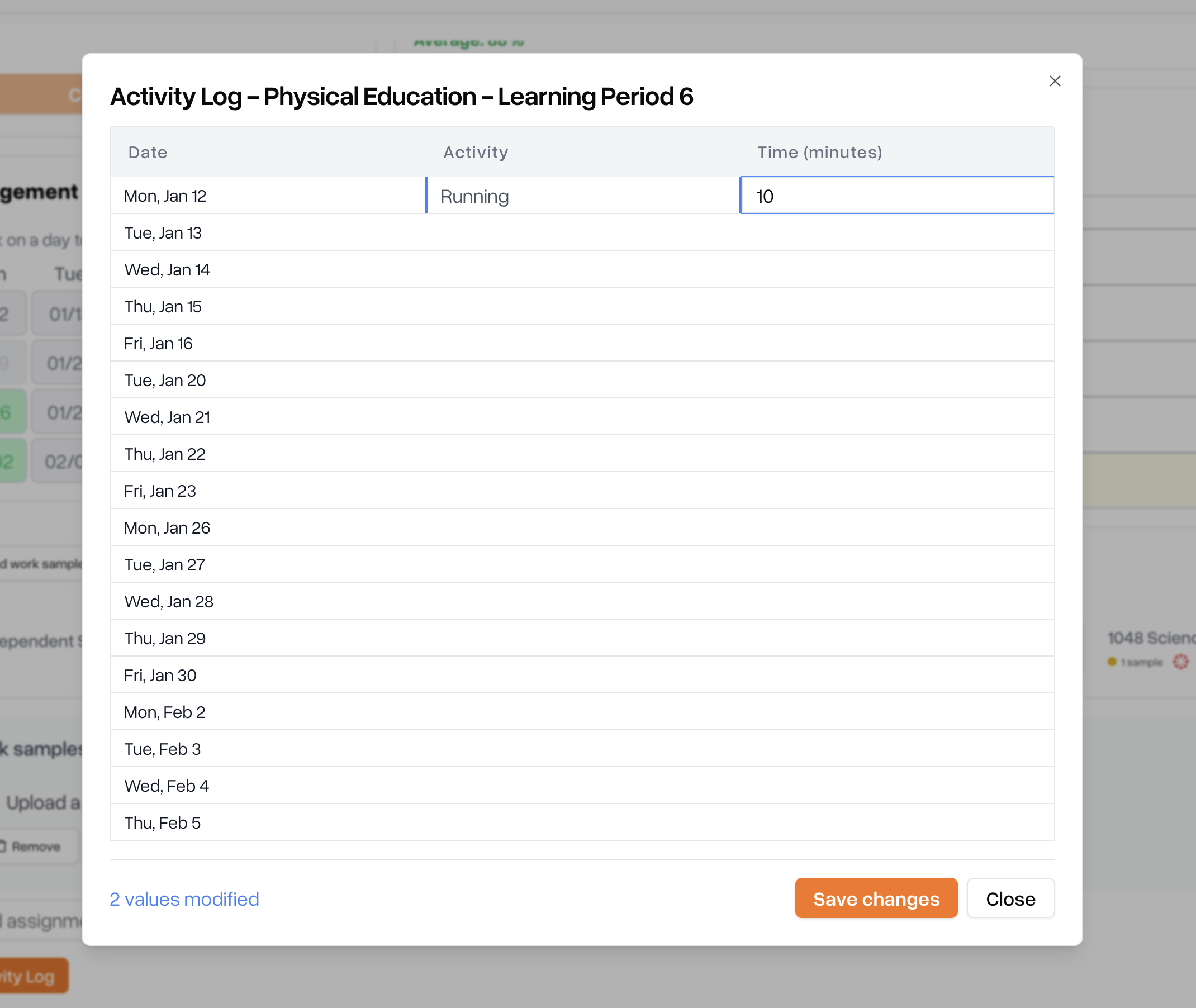
Save Your Log
Review your entries and save to submit your activity log.
Tips
Activity minutes can be entered for multiple days at once.
Be accurate—logs are used to verify PE participation and attendance.
If you make a mistake, you can return and edit your log anytime before attendance is certified