How to link a student's canvas account in Scout
Last updated: March 4, 2026
From the bottom right of a student's profile, click "Add linked account".

You will see the following popup. Select Canvas as the account provider.
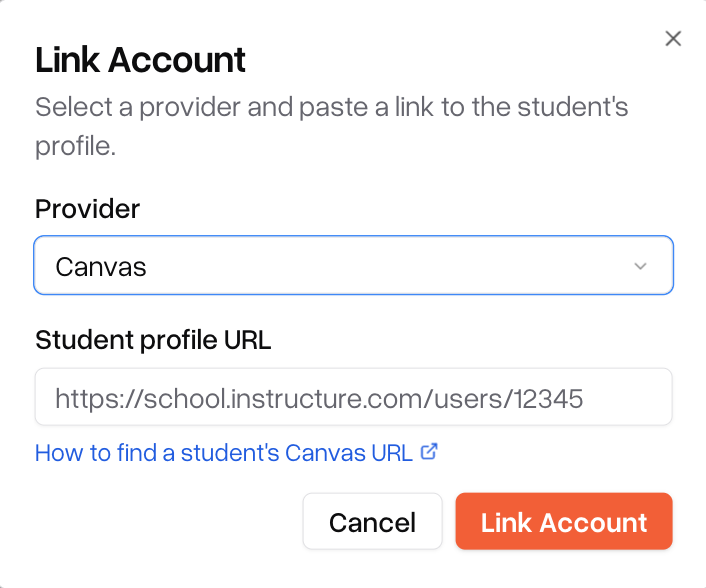
In the URL field, paste the URL of the student's profile in canvas. To find this URL, you can follow the steps below:
In Canvas, go to the Admin panel and select the school account the student is in.
Navigate to "People" in the sidebar.
Search for the student, then click on their name.
Copy the URL from the browser. It should look something like: https://<school>.instructure.com/accounts/1/users/<userId>
If you do not have admin access, you can still view the student's page if they are in one of your courses.
From the course they are in, go to People.
Search for the student and click on their name. A side panel will show up with their profile. Click on their name again.
Click "User Account Details" on the right side of the screen.
Copy the URL from the browser.
Finally, click Link Account in Scout. If the account connects successfully, you should see it on the bottom right of the student profile.